

EveryDayManuals virus or EveryDayManuals redirect virus – this is how some computer users and spyware researchers tend to call this browser add-on. In reality, it is a non-malicious application, which is entirely legitimate. However, we assume that some users do not find its features pleasant, so we have decided to analyze this program and see what it has been created for.
What is known about EveryDayManuals Toolbar?
EverydayManuals Toolbar can be described as a legitimate system tool, which might add a browser extension to Internet Explorer, Mozilla Firefox, Google Chrome, Safari, and possibly other web browsers. This extension changes default homepage and new tab page and adjusts settings to make MyWay search engine appear on these pages. It also provides shortcuts to pages providing various manuals. It is evident that Search.Myway.com engine displays quite a lot of sponsored search results, which appear firstly in the results page. The regular search results follow them, so the user has to scroll down the page each time to find relevant information. Therefore, if you do not want to receive many ads within your search results, you can just remove EveryDayManuals Toolbar from your computer and use another search engine instead. Beware, because third-party links can lead you to vague web pages, so we recommend you to avoid clicking on suspicious links and ads if you decide to open these sponsored search results.
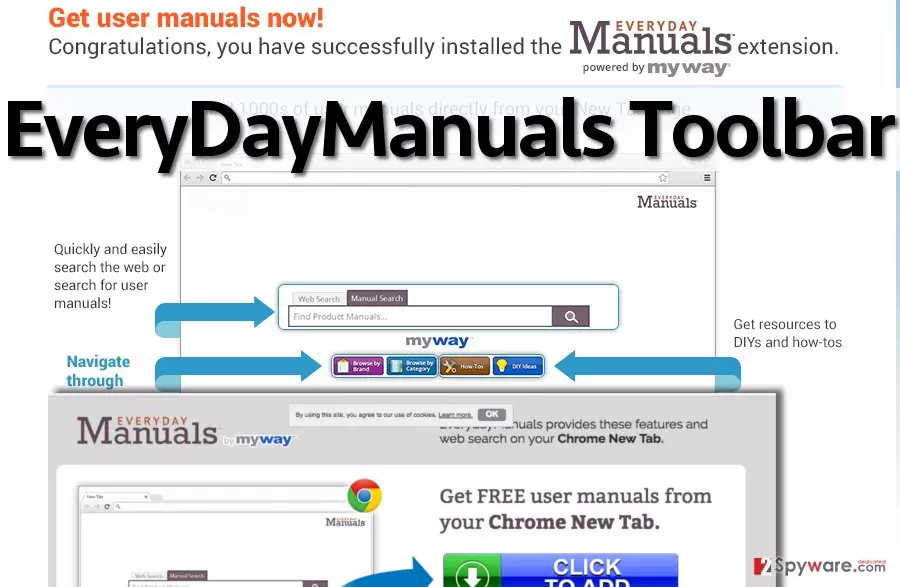
What is more, some computer users might not want to allow PC programs to track their non-personal information such as IP address, browser type, language, time-stamp, search queries, search results clicked, software installed on user’s PC and devices connected to user’s PC. As you can see, this program can collect quite a lot of information! Besides, this program integrates third-party links within its services, and also allows “third-parties, including […] authorized service providers, IAC affiliates, advertising companies, and ad networks, to display advertisements or place ad tags or beacons on or via MS Services. These companies may use tracking technologies, such as cookies, to collect information about users who view or interact with their advertisements.” If you do not want to allow this toolbar to collect such data about your browsing preferences and if you are not interested in sponsored content, then use EveryDayManuals removal instructions that we have provided below and delete this system tool from your system.
How can this program be installed?
Some people tend to complain that such potentially unwanted programs (PUPs) like EveryDayManuals hijack their computers without their knowledge. However, speaking about this particular program, we want to say that it cannot be installed without user’s authorization. However, sometimes users tend to rush when they install programs, and as a result, they miss the possibility to reject optional downloads added to them. Some free programs advertise third-party software and suggest installing optional components for free, but if the user does not want to get them, he/she needs to opt them out manually. That is why we always recommend choosing Advanced or Custom settings and then deselecting suspicious optional components, search tools, new tab pages and similar applications manually.
Recently, the developer of this program contacted us asking us to remove this post from 2-spyware.com website. We believe that we shouldn’t do that as long as programs that we offer for the removal of EveryDayManuals Toolbar can detect it and help users to remove it from the system. As it is mentioned under each of download buttons, we ARE affiliated with these anti-malware programs, and while some of them are free, others can remove a virus only after purchasing them. These mentions fully fulfill each of the requirements of FTC.
Nevertheless, we have recently decided to make a revision of this and other posts that are related to this developer. We claim that all of them are described properly.
EveryDayManuals removal
We have prepared clear and easy guidelines on how to remove EveryDayManuals. This program is not malicious, but it is your choice whether you want to keep it or not. Follow EveryDayManuals removal instructions provided below, if you have already decided that you do not want this program to run its activities on your system:
Uninstall from Windows
Uninstall from Windows 10/8:
- Type Control Panel into the Windows search box and open the result.
- Under Programs, select Uninstall a program.


Uninstall from Windows 7/XP:
- Click on Windows Start > Control Panel (Windows XP users should click on Add/Remove Programs).
- In Control Panel, select Programs > Uninstall a program.


Remove the unwanted program:
- In the Programs and Features window, look for any recently installed suspicious entries, select them, and click Uninstall.
- If User Account Control appears, click Yes to confirm, then complete the removal.


Delete from macOS
Remove the unwanted application:
- From the menu bar, select Go > Applications.
- In the Applications folder, look for any suspicious entries, then drag them to Trash (or right-click and pick Move to Trash).


Delete leftover files and folders:
- Select Go > Go to Folder.
- Enter /Library/Application Support and remove any suspicious folders related to the unwanted program.
- Repeat the same check in the /Library/LaunchAgents and /Library/LaunchDaemons folders, deleting any suspicious entries.

- Finally, empty the Trash to permanently remove the leftovers.

Reset Internet Explorer
Remove dangerous add-ons:
- Open Internet Explorer, click on the Gear icon (IE menu) on the top-right corner of the browser
- Pick Manage Add-ons.
- You will see a Manage Add-ons window. Here, look for suspicious plugins. Click on these entries and select Disable.


Change your homepage if it was altered:
- Open IE and click on the Gear icon.
- Select Internet Options.
- In the General tab, delete the Home page address and replace it by your preferred one (for example, Google.com).
- Click Apply and then select OK.


Delete temporary files:
- Press on the Gear icon and select Internet Options.
- Under Browsing history, click Delete...
- Select relevant fields and press Delete.


Reset Internet Explorer:
- Click on Gear icon > Internet options and select Advanced tab.
- Select Reset.
- In the new window, check Delete personal settings and select Reset.


Remove from Mozilla Firefox (FF)
Remove dangerous extensions:
- Open Mozilla Firefox browser and click on the Menu (three horizontal lines at the top-right of the window).
- Select Add-ons.
- In here, select the unwanted extension and click Remove.


Reset the homepage:
- Click three horizontal lines at the top right corner to open the menu.
- Choose Settings.
- Under Home, set your preferred homepage and new tab settings.
Clear cookies and site data:
- Click Menu and pick Settings.
- Go to Privacy & Security section.
- Scroll down to locate Cookies and Site Data.
- Click on Clear Data...
- Select Cookies and Site Data and Temporary cached files and pages, then click Clear.


Reset Mozilla Firefox
If clearing the browser as explained above did not help, reset Mozilla Firefox:
- Open Mozilla Firefox browser and click the Menu.
- Go to Help and then choose Troubleshooting Information.

- Under Give Firefox a tune up section, click on Refresh Firefox...
- Once the pop-up shows up, confirm the action by pressing on Refresh Firefox.



Remove from Google Chrome
Delete malicious extensions from Google Chrome:
- Open Google Chrome, click on the Menu (three vertical dots at the top-right corner) and select More tools > Extensions.
- In the newly opened window, you will see all the installed extensions. Uninstall all suspicious extensions related to the unwanted program by clicking Remove.


Clear cache and web data from Chrome:
- Click on Menu and pick Settings.
- Under Privacy and security, select Clear browsing data.
- Select Browsing history, Cookies and other site data, as well as Cached images and files.
- Click Clear data.


Change your homepage:
- Click menu and choose Settings.
- Look for a suspicious site in the On startup section.
- Click on Open a specific or set of pages and click on three dots to find the Remove option.
Reset Google Chrome:
If the previous methods did not help you, reset Google Chrome to eliminate all the unwanted components:
- Click on Menu and select Settings.
- In the Settings, scroll down and click Advanced.
- Scroll down and locate Reset and clean up section.
- Now click Restore settings to their original defaults.
- Confirm with Reset settings.


Delete from Safari
Remove dangerous extensions:
- Open Safari, click Safari in the menu at the top-left of the screen, and select Preferences.
- Go to the Extensions tab, look for any suspicious entries, and click Uninstall to remove them.


Clear history and website data:
- Click Safari in the menu and pick Clear History.
- Set Clear to all history and confirm with Clear History.


Reset Safari:
- Click Safari in the menu and select Preferences > Advanced.
- Enable Show Develop menu in menu bar.
- From the menu bar, click Develop and select Empty Caches.


Did this guide help?
4 comments
cambridge
I didnt like everydaymanuals at all, I dont think its worth your time.
Leo20
Thanks - I was trying to remove this for a long time.
Engel
I wish I have never installed this program! For some reason I think it is not trustworthy...
romi
Finally got rid of EveryDayManuals. It was so hard to remove it! I was looking for uninstaller here and there and could not find it. These instructions were easy to follow.