

“Windows Internet Security Damaged” alert is fake: Do not call the tech support scammers!
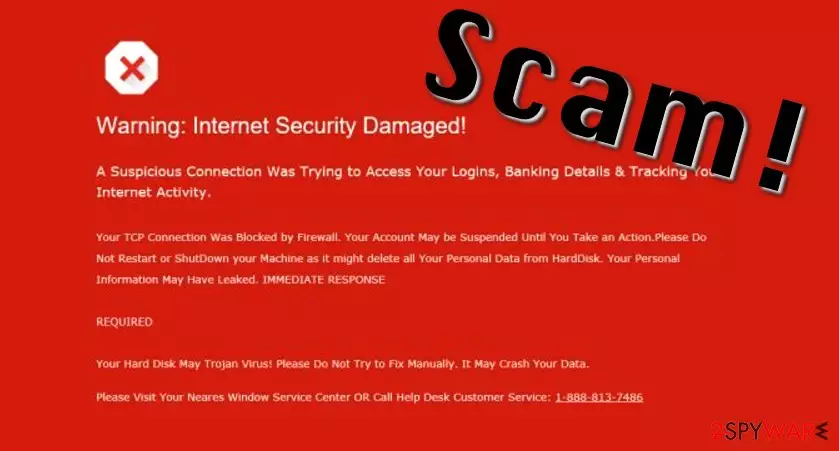
“Warning: Internet Security Damaged” virus is a deceptive software that sends fake security alerts via victim's browser. If you encountered one already, you should scan your computer and remove Tech Support malware[1] that sends you these misleading alerts. Understand us correctly – these messages state complete lies about your device system, and you should not believe what they say about “suspicious connection” that was trying to access your logins, banking details, and similar information.
These messages show up after “Warning: Internet Security Damaged” malware gets into the computer system, and it functions similarly like adware-type programs do. They urge the victim to call “help desk” for help. In addition, the following statement is provided in the message:
A Suspicious Connection Was Trying To Access Your Logins, Banking Details & Tracking Your Internet Activity
Your TCP Connection was Blocked by Firewall.
However, if you looked closely, you would notice some bizarre details. First of all, these suspicious pop-ups appear in browser windows[2]. An internet page cannot scan your computer system and detect threats, to say at least. Next, the message is written in a style that apparently indicates that it is meant to scare the computer user.
It suggests visiting nearest Windows service center or calling the help desk, and clearly, the vast of users have no choice but to choose the latter option. However, this intrusive pop-up is nothing more but a scam, and you should not fall for these claims.
Please, do not call the provided number, because these scammers have nothing to do with Microsoft support. You should remove Warning: Internet Security Damaged virus as soon as you notice these ads. For that, we recommend using FortectIntego or SpyHunterCombo Cleaner software.
Lesvirus.fr team[3] states that scammers working behind these programs seek to scare the victim and make him/her concerned about the computer status. They want these victims to call them so that they could tell lies about the computer system, gain user’s trust and convince him/her to purchase a rogue anti-malware product.
In some cases, scammers ask to provide credit card details or give them access to the computer system via a remote administration tool. If the person that claims to be a “technician” asks you for something like that, hang up and remove “Warning: Internet Security Damaged” malware from the system using a reputable malware removal software.
New scam method of 2017: “Suspicious Connection” alert pretends to be from Microsoft

In 2017, we have seen a rise in Microsoft tech support scams, and “Suspicious Connection” virus is yet one of them. This deceptive program will launch phishing pages for you and display “A Suspicious Connection Was Trying To Access Your Logins, Banking Details & Tracking Your Internet Activity” message for you on a daily basis, urging to call tech support for help. Clearly, fraudsters behind these fake ads just want to swindle money from you and trick you into buying useless programs or services from them.
Please, do not provide any personal information for them. Keep your credit card information, full name, and remote connection logins to yourself! Cybercriminals might attempt to make you buy something, and if you refuse to do so, they can “kindly” suggest fixing your computer remotely.
Bear in mind that giving access to fraudsters is NOT a good idea as they will undoubtedly plant malware on the system (ransomware, remote access trojan or similar). Although scammers tend to change their phone number every once in a while, the number noticed in “A Suspicious Connection” campaigns was +1-855-559-2111.
If you encountered a pop-up promoting this scam, remove Suspicious Connection virus immediately using a proper security software.
Facts about prevalence of depective malware
If you are interested to know how does “Warning: Internet Security Damaged” hijack computers, then you should read this paragraph carefully. This suspicious software spreads along with other untrustworthy third-party applications available to download on numerous file sharing sites.
To make sure you install programs without any rogue components added to them, we suggest choosing Advanced or Custom installation settings and then deselecting all suspicious components added to your download.
Otherwise, you might start encountering “Warning: Internet Security Damaged” ads right after installation of some free program. You can never know which program has some programs bundled alongside it and which one does not without checking its installation settings. That is the reason not to rely on default or standard installation settings, too.
Remove Warning: Internet Security Damaged scam alerts
If “Warning: Internet Security Damaged” virus already bothers you on a daily basis, do not waste your time anymore trying to close these ads manually. To get rid of them once and for all, you should uninstall this virus using a decent malware removal tool.
To remove “Warning: Internet Security Damaged” pop-ups, use FortectIntego or similar software. We do not recommend you to uninstall it manually since this hideous program might be able to hide its components deeply in the computer system.
However, we have still provided basic “Warning: Internet Security Damaged” removal instructions below just to give the idea where you should look for its components.
Uninstall from Windows
Uninstall from Windows 10/8:
- Type Control Panel into the Windows search box and open the result.
- Under Programs, select Uninstall a program.


Uninstall from Windows 7/XP:
- Click on Windows Start > Control Panel (Windows XP users should click on Add/Remove Programs).
- In Control Panel, select Programs > Uninstall a program.


Remove the unwanted program:
- In the Programs and Features window, look for any recently installed suspicious entries, select them, and click Uninstall.
- If User Account Control appears, click Yes to confirm, then complete the removal.


Delete from macOS
Remove the unwanted application:
- From the menu bar, select Go > Applications.
- In the Applications folder, look for any suspicious entries, then drag them to Trash (or right-click and pick Move to Trash).


Delete leftover files and folders:
- Select Go > Go to Folder.
- Enter /Library/Application Support and remove any suspicious folders related to the unwanted program.
- Repeat the same check in the /Library/LaunchAgents and /Library/LaunchDaemons folders, deleting any suspicious entries.

- Finally, empty the Trash to permanently remove the leftovers.

Reset Internet Explorer
Remove dangerous add-ons:
- Open Internet Explorer, click on the Gear icon (IE menu) on the top-right corner of the browser
- Pick Manage Add-ons.
- You will see a Manage Add-ons window. Here, look for suspicious plugins. Click on these entries and select Disable.


Change your homepage if it was altered:
- Open IE and click on the Gear icon.
- Select Internet Options.
- In the General tab, delete the Home page address and replace it by your preferred one (for example, Google.com).
- Click Apply and then select OK.


Delete temporary files:
- Press on the Gear icon and select Internet Options.
- Under Browsing history, click Delete...
- Select relevant fields and press Delete.


Reset Internet Explorer:
- Click on Gear icon > Internet options and select Advanced tab.
- Select Reset.
- In the new window, check Delete personal settings and select Reset.


Remove from Microsoft Edge
Delete unwanted extensions from MS Edge:
- Select Menu (three horizontal dots at the top-right of the browser window) and pick Extensions.
- From the list, pick the extension and click on the Gear icon.
- Click Remove.


Clear cookies and other browser data:
- Click on the Menu (three horizontal dots at the top-right of the browser window) and select Settings > Privacy, search, and services..
- Under Clear browsing data, pick Choose what to clear.
- Select Cookies and other site data and Cached images and files. (apart from passwords, although you might want to include Media licenses as well, if applicable) and click on Clear.


Restore new tab and homepage settings:
- Click the menu icon and choose Settings.
- Then find On startup section.
- Click Remove next to any suspicious startup page.
Reset MS Edge if the above steps did not work:
- Press on Ctrl + Shift + Esc to open Task Manager.
- Click on More details arrow at the bottom of the window.
- Select Details tab.
- Now scroll down and locate every entry with Microsoft Edge name in it. Right-click on each of them and select End Task to stop MS Edge from running.


Instructions for Chromium-based Edge
Delete extensions from MS Edge (Chromium):
- Open Edge and click select Settings > Extensions.
- Delete unwanted extensions by clicking Remove.


Clear cache and site data:
- Click on Menu and go to Settings.
- Select Privacy, search and services.
- Under Clear browsing data, pick Choose what to clear.
- Under Time range, pick All time.
- Select Clear now.


Reset Chromium-based MS Edge:
- Click on Menu and select Settings.
- On the left side, pick Reset settings.
- Select Restore settings to their default values.
- Confirm with Reset.
- This will disable extensions and reset startup pages but will not delete bookmarks, saved passwords, or browsing history.


Remove from Mozilla Firefox (FF)
Remove dangerous extensions:
- Open Mozilla Firefox browser and click on the Menu (three horizontal lines at the top-right of the window).
- Select Add-ons.
- In here, select the unwanted extension and click Remove.


Reset the homepage:
- Click three horizontal lines at the top right corner to open the menu.
- Choose Settings.
- Under Home, set your preferred homepage and new tab settings.
Clear cookies and site data:
- Click Menu and pick Settings.
- Go to Privacy & Security section.
- Scroll down to locate Cookies and Site Data.
- Click on Clear Data...
- Select Cookies and Site Data and Temporary cached files and pages, then click Clear.


Reset Mozilla Firefox
If clearing the browser as explained above did not help, reset Mozilla Firefox:
- Open Mozilla Firefox browser and click the Menu.
- Go to Help and then choose Troubleshooting Information.

- Under Give Firefox a tune up section, click on Refresh Firefox...
- Once the pop-up shows up, confirm the action by pressing on Refresh Firefox.



Remove from Google Chrome
Delete malicious extensions from Google Chrome:
- Open Google Chrome, click on the Menu (three vertical dots at the top-right corner) and select More tools > Extensions.
- In the newly opened window, you will see all the installed extensions. Uninstall all suspicious extensions related to the unwanted program by clicking Remove.


Clear cache and web data from Chrome:
- Click on Menu and pick Settings.
- Under Privacy and security, select Clear browsing data.
- Select Browsing history, Cookies and other site data, as well as Cached images and files.
- Click Clear data.


Change your homepage:
- Click menu and choose Settings.
- Look for a suspicious site in the On startup section.
- Click on Open a specific or set of pages and click on three dots to find the Remove option.
Reset Google Chrome:
If the previous methods did not help you, reset Google Chrome to eliminate all the unwanted components:
- Click on Menu and select Settings.
- In the Settings, scroll down and click Advanced.
- Scroll down and locate Reset and clean up section.
- Now click Restore settings to their original defaults.
- Confirm with Reset settings.


Delete from Safari
Remove dangerous extensions:
- Open Safari, click Safari in the menu at the top-left of the screen, and select Preferences.
- Go to the Extensions tab, look for any suspicious entries, and click Uninstall to remove them.


Clear history and website data:
- Click Safari in the menu and pick Clear History.
- Set Clear to all history and confirm with Clear History.


Reset Safari:
- Click Safari in the menu and select Preferences > Advanced.
- Enable Show Develop menu in menu bar.
- From the menu bar, click Develop and select Empty Caches.


Did this guide help?
4 comments
Rico
Just removed this damn malware from my computer.
Ronnald
How far these tech support scammers can go?!?!
Mali
Indian tech support scammers again, I guess??
Vlad
Dont believe what these fake pop-up messages say!!! never!!! they come from your browser, not from your antivirus! theres difference that you should notice!