

WinThruster is a questionable system tool that claims to help improve the performance
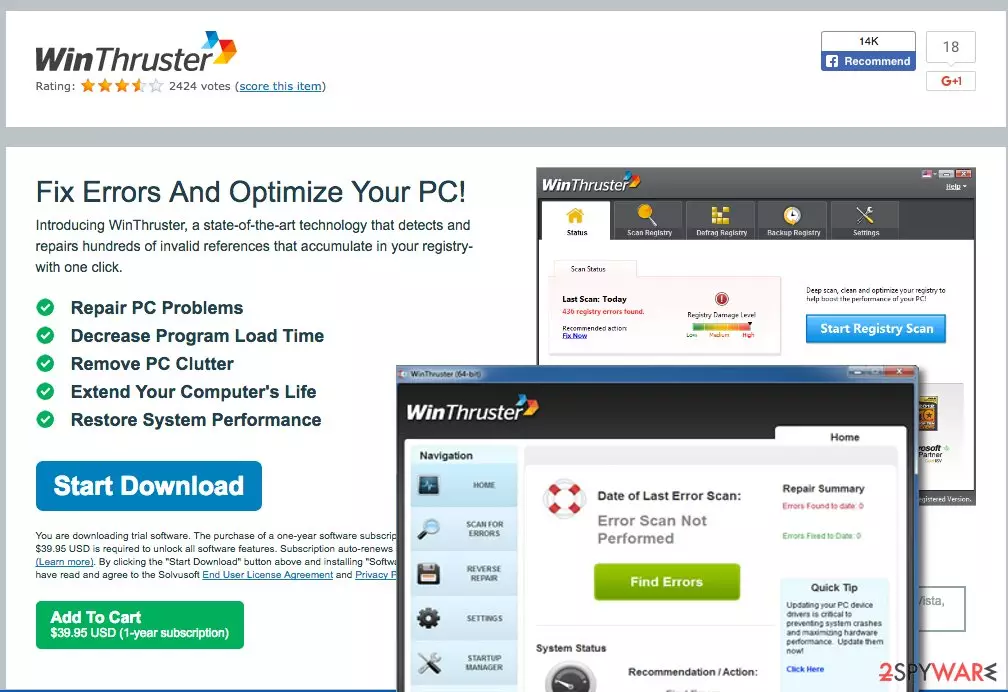
WinThruster is a computer optimization program that security experts describe as untrustworthy. Although it cannot be called a virus or a critically rogue[1] program, its functionality seems to be vague. The program is developed by Solvusoft Corporation, which is also responsible for such products as WinSweeper or DriverDoc.
In most cases, users do not install intentionally, as it is known to be spread via software bundle packages and third-party websites, hence it falls into the potentially unwanted program category. In other words, you might find the app on your computer seemingly out of nowhere – it will be performing scans automatically, however. Once finished, it would announce that there are several hundreds of registry[2] errors and other issues that need to be fixed.
Ultimately, the integrity of the scan results should not be trusted, as WinThruster might find registries that are harmless and show them as something negative. This is because the app is trying to make users buy its full version.
| Name | WinThruster |
|---|---|
| Type | Potentially unwanted program |
| Promoted as | PC optimization tool |
| Operating system | Windows OS |
| Main file | Setup_WinThruster_2020.exe |
| Process | Once installed, the app runs a background process related to its executable file |
| Main problems initiated | Aggressive system scanners, continuous reports about PC errors, ads offering a full program's version |
| Main risks | Money loss, identity theft |
| Removal | You can uninstall the application from the system using our manual guide below |
| System fix | If you have issues with lag, crashes, errors, or other problems on Windows, we recommend using FortectIntego |
If right now you are browsing the Internet looking for information about this optimizer, we assume that you have recently installed it on your computer, and now it urges you to buy its full version. Most likely you might come across some sites that regard to this optimizer as WinThruster virus, but you should know that the term “virus” should not be used when speaking about this system optimization software.
However, there are few positive words to say about this tool, either. Computer security experts consider this application as a member of the potentially unwanted programs (PUP) family and do not recommend installing it nor purchasing its full version. Let’s get into the details and find out if this tool can be trusted.
We have visited the official website of WinThruster and discovered that it promises to “Fix Errors And Optimize Your PC!” This simple slogan does not make this PC optimization tool stand out in the market of system optimization tools anyhow, so we kept digging further.

It appears that it is compatible with Windows 10, 8, 7, Vista, XP and even 2000. According to the official page, WinThruster is a tool that helps to repair PC problems, remove clutter from it, launch computer programs faster, extend the computer’s life, and improve the overall performance of the machine.
It sounds that WinThruster is a really helpful tool, which can freshen up your computer and boost its performance. Sadly, we have to cast you down by saying that this tool can disappoint you. First of all, pay attention to the fact that these premium features can be used only after purchasing the full version of the app which costs 39.95 USD.
Besides, if you decide to buy it, you automatically agree to renew the subscription annually. Sadly, the information about the annual subscription renewal is written in fine print and might be missed by inattentive computer users. Besides, be aware that the functionality of this program might disappoint you even after purchasing the full version of it.
What is more, users who refuse to buy the full version of the software are likely to be introduced to intrusive ads that persistently urge to obtain the software license by initiating phony system scans and showing scary reports about the system status.
It might be that this program shows some false positive scan results in order to convince the user to take action and fix the computer by buying the full version of this optimizer. At first, it might not seem like a big problem as these ads can be closed with a single click.
However, eventually, these ads can start testing user’s patience and finally make him or her lose it. Therefore, it is not surprising why users who install this tool shortly start looking for WinThruster removal guidelines in case they do not want to buy this program.

If you do not want to buy it, too, remove WinThruster using instructions provided at the end of this post or take advantage of a trustworthy anti-malware tool and delete it using programs like SpyHunterCombo Cleaner or MalwarebytesMalwarebytes. If you require a reliable tool to fix PC issues, we recommend using FortectIntego.
TIP: Be careful and do not try to search for a free product key or a program crack[3] online. This way, you risk installing a malicious file, not to mention fines for using/distributing pirated software.
Distribution methods used to spread questionable programs
In some cases, users find Win Thruster on their systems without downloading it. It can be placed on your system without your notice thanks to vague software distribution techniques such as software bundling. Let us go into detail and explain to you how such PUPs hijack computer systems.
Typically, such potentially unwanted programs are not very popular, so it is evident why users do not install them by their choice. Therefore, authors of such software need to find ways to promote these programs and force users to install them. That is why they love bundling their products with other software. This way, users can install them unknowingly.
The strategy is rather simple – other programs provide offers to install this tool or similar programs during the installation, and if users fail to reject them, these programs get installed without even notifying the victim.
To prevent this from happening, users should select either Advanced or Custom installation option and deselect all added components by hand.
We have noticed that users tend to think falsely and rely on pre-selected installation modes (Default or Standard), which hide automatically written user’s agreements to add all suggested programs to the system.

Uninstall WinThruster in minutes
If you do not like this PC optimization tool, you should remove WinThruster and related files from the system. It can be easily done with the help of the anti-spyware tool, but you can delete it manually, too.
If you're wondering why cybersecurity experts always advise installing automatic spyware removal tools, just check out the latest information about todays' virus activity on the VirusActivity site[4].
Although this program does not deserve “WinThruster virus” label, we are afraid that you will not be satisfied with its functionality, either. Below, you can find detailed steps for fixing your computer manually. Keep in mind that threat removal instructions must be followed in exact order to prevent additional system problems.
Uninstall from Windows
Uninstall from Windows 10/8:
- Type Control Panel into the Windows search box and open the result.
- Under Programs, select Uninstall a program.


Uninstall from Windows 7/XP:
- Click on Windows Start > Control Panel (Windows XP users should click on Add/Remove Programs).
- In Control Panel, select Programs > Uninstall a program.


Remove the unwanted program:
- In the Programs and Features window, look for any recently installed suspicious entries, select them, and click Uninstall.
- If User Account Control appears, click Yes to confirm, then complete the removal.


Delete from macOS
Remove the unwanted application:
- From the menu bar, select Go > Applications.
- In the Applications folder, look for any suspicious entries, then drag them to Trash (or right-click and pick Move to Trash).


Delete leftover files and folders:
- Select Go > Go to Folder.
- Enter /Library/Application Support and remove any suspicious folders related to the unwanted program.
- Repeat the same check in the /Library/LaunchAgents and /Library/LaunchDaemons folders, deleting any suspicious entries.

- Finally, empty the Trash to permanently remove the leftovers.

Remove from Microsoft Edge
Delete unwanted extensions from MS Edge:
- Select Menu (three horizontal dots at the top-right of the browser window) and pick Extensions.
- From the list, pick the extension and click on the Gear icon.
- Click Remove.


Clear cookies and other browser data:
- Click on the Menu (three horizontal dots at the top-right of the browser window) and select Settings > Privacy, search, and services..
- Under Clear browsing data, pick Choose what to clear.
- Select Cookies and other site data and Cached images and files. (apart from passwords, although you might want to include Media licenses as well, if applicable) and click on Clear.


Restore new tab and homepage settings:
- Click the menu icon and choose Settings.
- Then find On startup section.
- Click Remove next to any suspicious startup page.
Reset MS Edge if the above steps did not work:
- Press on Ctrl + Shift + Esc to open Task Manager.
- Click on More details arrow at the bottom of the window.
- Select Details tab.
- Now scroll down and locate every entry with Microsoft Edge name in it. Right-click on each of them and select End Task to stop MS Edge from running.


Instructions for Chromium-based Edge
Delete extensions from MS Edge (Chromium):
- Open Edge and click select Settings > Extensions.
- Delete unwanted extensions by clicking Remove.


Clear cache and site data:
- Click on Menu and go to Settings.
- Select Privacy, search and services.
- Under Clear browsing data, pick Choose what to clear.
- Under Time range, pick All time.
- Select Clear now.


Reset Chromium-based MS Edge:
- Click on Menu and select Settings.
- On the left side, pick Reset settings.
- Select Restore settings to their default values.
- Confirm with Reset.
- This will disable extensions and reset startup pages but will not delete bookmarks, saved passwords, or browsing history.


Remove from Mozilla Firefox (FF)
Remove dangerous extensions:
- Open Mozilla Firefox browser and click on the Menu (three horizontal lines at the top-right of the window).
- Select Add-ons.
- In here, select the unwanted extension and click Remove.


Reset the homepage:
- Click three horizontal lines at the top right corner to open the menu.
- Choose Settings.
- Under Home, set your preferred homepage and new tab settings.
Clear cookies and site data:
- Click Menu and pick Settings.
- Go to Privacy & Security section.
- Scroll down to locate Cookies and Site Data.
- Click on Clear Data...
- Select Cookies and Site Data and Temporary cached files and pages, then click Clear.


Reset Mozilla Firefox
If clearing the browser as explained above did not help, reset Mozilla Firefox:
- Open Mozilla Firefox browser and click the Menu.
- Go to Help and then choose Troubleshooting Information.

- Under Give Firefox a tune up section, click on Refresh Firefox...
- Once the pop-up shows up, confirm the action by pressing on Refresh Firefox.



Remove from Google Chrome
Delete malicious extensions from Google Chrome:
- Open Google Chrome, click on the Menu (three vertical dots at the top-right corner) and select More tools > Extensions.
- In the newly opened window, you will see all the installed extensions. Uninstall all suspicious extensions related to the unwanted program by clicking Remove.


Clear cache and web data from Chrome:
- Click on Menu and pick Settings.
- Under Privacy and security, select Clear browsing data.
- Select Browsing history, Cookies and other site data, as well as Cached images and files.
- Click Clear data.


Change your homepage:
- Click menu and choose Settings.
- Look for a suspicious site in the On startup section.
- Click on Open a specific or set of pages and click on three dots to find the Remove option.
Reset Google Chrome:
If the previous methods did not help you, reset Google Chrome to eliminate all the unwanted components:
- Click on Menu and select Settings.
- In the Settings, scroll down and click Advanced.
- Scroll down and locate Reset and clean up section.
- Now click Restore settings to their original defaults.
- Confirm with Reset settings.


Delete from Safari
Remove dangerous extensions:
- Open Safari, click Safari in the menu at the top-left of the screen, and select Preferences.
- Go to the Extensions tab, look for any suspicious entries, and click Uninstall to remove them.


Clear history and website data:
- Click Safari in the menu and pick Clear History.
- Set Clear to all history and confirm with Clear History.


Reset Safari:
- Click Safari in the menu and select Preferences > Advanced.
- Enable Show Develop menu in menu bar.
- From the menu bar, click Develop and select Empty Caches.


Did this guide help?
4 comments
Lorry
what can I say. winthruster is the worst optimizer ever.
Bery3-2
I didnt want WinThruster but somehow this threat managed to enter my computer system!
CaliLove
Thanks! removed WinThruster without hassle
gotha
this optimizer keeps bothering me by displaying stupid alerts