

WeatherTab browser hijacker may promote potentially dangerous websites
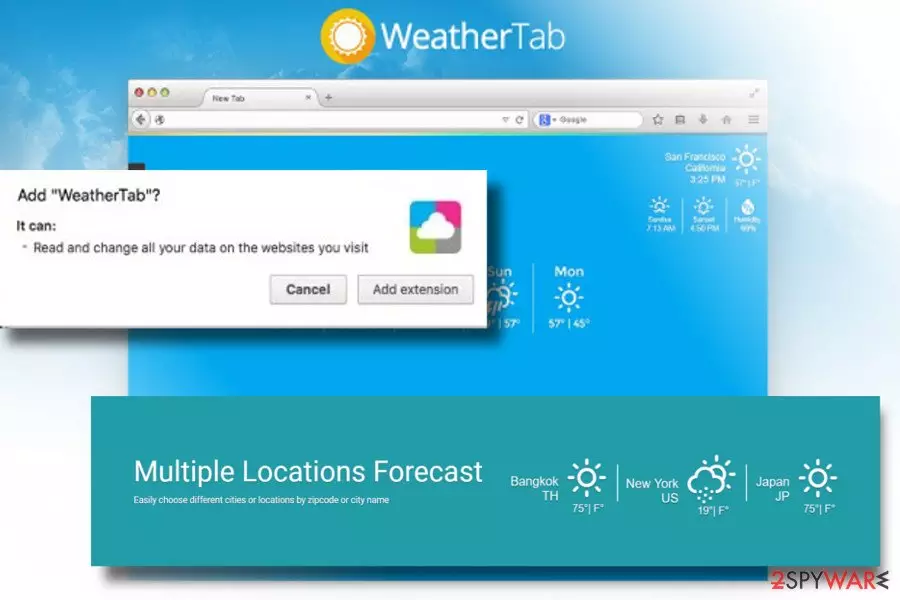
WeatherTab is a misleading Chome browser extension developed and maintained by Tightrope Interactive. While its colorful design and promises to get local weather forecasts, sunset/sunrise time all at one place – New Tab page may seem appealing to many, NoVirus.uk team expressed concern about the exact behavior that this extension practices.
Its developer does not explicitly inform wanna-be users that the New tab will not be the only modification. The WeatherTab virus will also change a default start page and search provider to http://www.weathertab.org, set new tab URL, and install doubtful web browser's toolbars. Due to these modification and the consequences that they may lead to, WeatherTab virus has been classified as a browser hijacker and potentially unwanted program (PUP).
WeatherTab hijack is an unpleasant occurrence, and computer users should avoid is as much as they can. Once installed, it adds an extension that alters settings in Chrome without even touching them. For example, your homepage and new tab page will be changed, but you will not see these changes in your settings. To revert them, you will need to remove WeatherTab using instructions provided below or automatically with FortectIntego or similar program.
The aim of this program is to advertise a new search engine that is not that popular among computer users yet. We have discovered some suspicious details about this search engine that indicate that it is not as trustworthy as it may seem to be. After entering a search query, we have noticed an URL change in the address bar – firstly, our researcher got redirected to Trovi.com and only then to search results. It is quite suspicious considering that Trovi is one of the most infamous browser hijackers in the world.

Besides, it appears that WeatherTab is powered by ClientConnect Ltd, an untrustworthy company that is known to be responsible for the existence of other browser hijackers such as Trovigo.com, Look4Like, and ClearSearches.com. All these browser hijackers have been developed for one and same purpose – to present sponsored links and cause redirections to various affiliate websites.
There is a huge possibility that these websites can be untrustworthy or even malicious and might introduce you to infectious content, such as fake software updates or spyware and malware-related programs, so for your own sake, stay away from such sites and NEVER agree to install anything from them. If your security is important to you, protect your computer by completing WeatherTab removal.
Browser hijackers don't ask for permission to be installed directly
You can download this search engine from its official website, weathertab(.)org, or add it to your browser from Google Chrome Store. However, if this hijacker didn't come to your system either one or another way, then it is apparent that it has been installed on your PC together with another free program, maybe a potentially unwanted one. This means that you do not know how to control installation setups and most likely you rush to complete them as quickly as you can. Wrong!
The first thing you should do after downloading a program from the Internet is to behave carefully. Do not rush to install the program and carefully read every piece of information its installer provides. The most relevant information is typically hidden in Privacy Policy document, so make sure you read it. Next, adjust installation settings and select Custom or Advanced option rather than Default or Standard one. This way, you can see what optional downloads were added to your desired program and reject them if you wish to. For that, just deselect unwanted additions and proceed with the installation then.
Instructions on how to remove WeatherTab
If you have discovered WeatherTab virus in your browser, you probably were surprised; if this program has been installed without your knowledge, there is a great chance that several unwanted applications have been added to the system, too. Therefore, we believe that you should clean up the system by running an automatic tool for WeatherTab removal. It will help you to find and delete all unwanted spyware and malware variants from the system.
Uninstall from Windows
Uninstall from Windows 10/8:
- Type Control Panel into the Windows search box and open the result.
- Under Programs, select Uninstall a program.


Uninstall from Windows 7/XP:
- Click on Windows Start > Control Panel (Windows XP users should click on Add/Remove Programs).
- In Control Panel, select Programs > Uninstall a program.


Remove the unwanted program:
- In the Programs and Features window, look for any recently installed suspicious entries, select them, and click Uninstall.
- If User Account Control appears, click Yes to confirm, then complete the removal.


Delete from macOS
Remove the unwanted application:
- From the menu bar, select Go > Applications.
- In the Applications folder, look for any suspicious entries, then drag them to Trash (or right-click and pick Move to Trash).


Delete leftover files and folders:
- Select Go > Go to Folder.
- Enter /Library/Application Support and remove any suspicious folders related to the unwanted program.
- Repeat the same check in the /Library/LaunchAgents and /Library/LaunchDaemons folders, deleting any suspicious entries.

- Finally, empty the Trash to permanently remove the leftovers.

Remove from Google Chrome
Delete malicious extensions from Google Chrome:
- Open Google Chrome, click on the Menu (three vertical dots at the top-right corner) and select More tools > Extensions.
- In the newly opened window, you will see all the installed extensions. Uninstall all suspicious extensions related to the unwanted program by clicking Remove.


Clear cache and web data from Chrome:
- Click on Menu and pick Settings.
- Under Privacy and security, select Clear browsing data.
- Select Browsing history, Cookies and other site data, as well as Cached images and files.
- Click Clear data.


Change your homepage:
- Click menu and choose Settings.
- Look for a suspicious site in the On startup section.
- Click on Open a specific or set of pages and click on three dots to find the Remove option.
Reset Google Chrome:
If the previous methods did not help you, reset Google Chrome to eliminate all the unwanted components:
- Click on Menu and select Settings.
- In the Settings, scroll down and click Advanced.
- Scroll down and locate Reset and clean up section.
- Now click Restore settings to their original defaults.
- Confirm with Reset settings.


Did this guide help?
Be the first to comment