

Important information about Mim-search2016.com
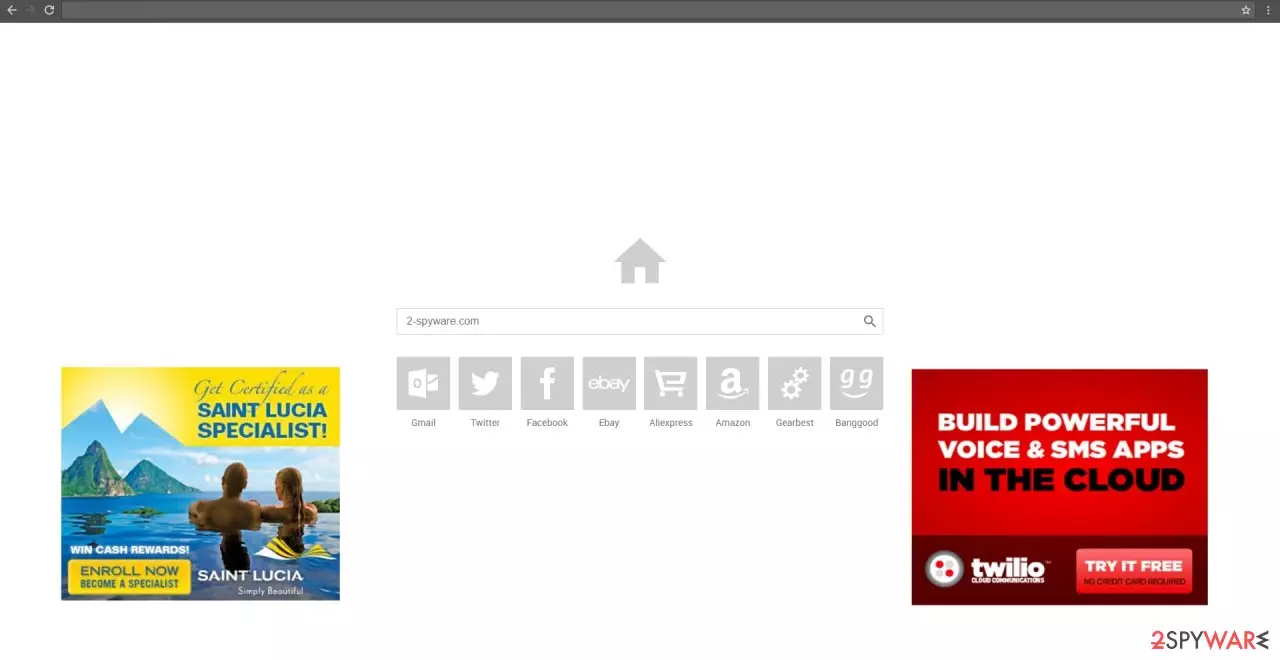
If your homepage has been replaced with mim-search2016.com, there is no need to panic. A browser hijacker has invaded your computer. Its field of activity includes redirects to other web pages, displaying ads on various websites, attaching affiliated plug-ins to your browser.
Unfortunately, it may create system vulnerabilities. Thus, it would be better to initiate its.com removal right away. This article contains a detailed examination of the browser hijacker, its spreading techniques, and of course removal options and detailed instructions.
If you are interested in computer viruses, you might notice that there have been similar browser hijackers released already. All of them are from the same series. Thus, you might run into mefuli-search2016.com, led-search2016.com, or newsearch2016.com browser hijackers.
All of them share the exact front page design and search engine. What is more, credulous users might get tempted to use the search engines as they offer access to a broad range of websites: varying from computer topics to arts. However, such utility has its cost.
Even if the sponsored domains contain any valuable information, they might harbor cyber threats within them. Speaking of which, some users might be denied access to the main page of the hijacker as the anti-virus applications block the web page due to malware within it. Likewise, you should be encouraged to eliminate the hijacker right away.
| Name | Mim-search2016.com virus |
|---|---|
| Type | Browser hijacker, PUP |
| Symptoms of infection | Default browser settings are altered without your direct consent; redirects to shady domains; intrusive ads while browsing |
| Distribution | Deceptive ads, software bundles |
| Elimination | You can remove any intruder from your device by using a reliable anti-malware software |
| System health | Use the time-tested FortectIntego software to repair system-related errors, so your device doesn't exhibit odd behavior |
Moving on, there is another substantial reason for speeding up the elimination process. Mim-search2016.com redirect does not only cause inconveniences for users by misguiding themselves to unknown domains, but it increases the risk of getting entangled by a virus.
Taking into account that the very web page of this hijacker is infected, it is obvious that it may misdirect you to other advertising domains which are more heavily crammed with cyber viruses. If you value cybersecurity, you should cancel the ads or exit the redirect web page before it finished the redirect process.
Keep in mind that Mim Search2016 also collects quite a lot of information about your online activities, including the visited websites and surfing frequency. This data might not only fall into the hands of online advertisers but hackers as well. Thus, remove the hijacker at once.
there are a couple of methods to remove Mim-search2016.com, and you can choose freely between them. For automatic removal, we suggest using the proper security software such as MalwarebytesMalwarebytes or SpyHunterCombo Cleaner. Either of these apps will take care of all intruders within a couple of minutes.
Manual removal can be accomplished by using our guides posted below, although we recommend the automatic option as it ensures that no other malware is present. Lastly, scan your device with the FortectIntego software to ensure a stable working environment.
When did the hijacker slither into the PC?
Mim-search2016.com hijack might have taken place while installing freeware. Unfortunately, free applications, such as PC optimizers or file converters are preferred vessels for spreading PUP-like applications. What is more, users facilitate the transmission technique since they dash away through the stages of the installation guide.
Taking into account such behavior and transmission techniques, we offer you to install new programs differently. When you initialize the installation wizard, select “Custom” settings. They will disclose optional add-ons. Likewise, you will be able to escape the infiltration of potentially fraudulent programs on time.
Mim-search2016.com removal guidelines
You can remove Mim-search2016.com virus efficiently using two options – manual and automatic elimination. The former is more convenient since the software pinpoints all elements and files of the hijacker and roots out the infection completely.
Those users, who are especially mistrustful, might opt for manual removal. The guidelines are useful in not only eliminating the PUP entirely but also assist in resetting the settings. On the final note, remember that your participation is also of primary importance in ensuring cybersecurity.
Uninstall from Windows
Uninstall from Windows 10/8:
- Type Control Panel into the Windows search box and open the result.
- Under Programs, select Uninstall a program.


Uninstall from Windows 7/XP:
- Click on Windows Start > Control Panel (Windows XP users should click on Add/Remove Programs).
- In Control Panel, select Programs > Uninstall a program.


Remove the unwanted program:
- In the Programs and Features window, look for any recently installed suspicious entries, select them, and click Uninstall.
- If User Account Control appears, click Yes to confirm, then complete the removal.


Delete from macOS
Remove the unwanted application:
- From the menu bar, select Go > Applications.
- In the Applications folder, look for any suspicious entries, then drag them to Trash (or right-click and pick Move to Trash).


Delete leftover files and folders:
- Select Go > Go to Folder.
- Enter /Library/Application Support and remove any suspicious folders related to the unwanted program.
- Repeat the same check in the /Library/LaunchAgents and /Library/LaunchDaemons folders, deleting any suspicious entries.

- Finally, empty the Trash to permanently remove the leftovers.

Remove from Microsoft Edge
Delete unwanted extensions from MS Edge:
- Select Menu (three horizontal dots at the top-right of the browser window) and pick Extensions.
- From the list, pick the extension and click on the Gear icon.
- Click Remove.


Clear cookies and other browser data:
- Click on the Menu (three horizontal dots at the top-right of the browser window) and select Settings > Privacy, search, and services..
- Under Clear browsing data, pick Choose what to clear.
- Select Cookies and other site data and Cached images and files. (apart from passwords, although you might want to include Media licenses as well, if applicable) and click on Clear.


Restore new tab and homepage settings:
- Click the menu icon and choose Settings.
- Then find On startup section.
- Click Remove next to any suspicious startup page.
Reset MS Edge if the above steps did not work:
- Press on Ctrl + Shift + Esc to open Task Manager.
- Click on More details arrow at the bottom of the window.
- Select Details tab.
- Now scroll down and locate every entry with Microsoft Edge name in it. Right-click on each of them and select End Task to stop MS Edge from running.


Instructions for Chromium-based Edge
Delete extensions from MS Edge (Chromium):
- Open Edge and click select Settings > Extensions.
- Delete unwanted extensions by clicking Remove.


Clear cache and site data:
- Click on Menu and go to Settings.
- Select Privacy, search and services.
- Under Clear browsing data, pick Choose what to clear.
- Under Time range, pick All time.
- Select Clear now.


Reset Chromium-based MS Edge:
- Click on Menu and select Settings.
- On the left side, pick Reset settings.
- Select Restore settings to their default values.
- Confirm with Reset.
- This will disable extensions and reset startup pages but will not delete bookmarks, saved passwords, or browsing history.


Remove from Mozilla Firefox (FF)
Remove dangerous extensions:
- Open Mozilla Firefox browser and click on the Menu (three horizontal lines at the top-right of the window).
- Select Add-ons.
- In here, select the unwanted extension and click Remove.


Reset the homepage:
- Click three horizontal lines at the top right corner to open the menu.
- Choose Settings.
- Under Home, set your preferred homepage and new tab settings.
Clear cookies and site data:
- Click Menu and pick Settings.
- Go to Privacy & Security section.
- Scroll down to locate Cookies and Site Data.
- Click on Clear Data...
- Select Cookies and Site Data and Temporary cached files and pages, then click Clear.


Reset Mozilla Firefox
If clearing the browser as explained above did not help, reset Mozilla Firefox:
- Open Mozilla Firefox browser and click the Menu.
- Go to Help and then choose Troubleshooting Information.

- Under Give Firefox a tune up section, click on Refresh Firefox...
- Once the pop-up shows up, confirm the action by pressing on Refresh Firefox.



Remove from Google Chrome
Delete malicious extensions from Google Chrome:
- Open Google Chrome, click on the Menu (three vertical dots at the top-right corner) and select More tools > Extensions.
- In the newly opened window, you will see all the installed extensions. Uninstall all suspicious extensions related to the unwanted program by clicking Remove.


Clear cache and web data from Chrome:
- Click on Menu and pick Settings.
- Under Privacy and security, select Clear browsing data.
- Select Browsing history, Cookies and other site data, as well as Cached images and files.
- Click Clear data.


Change your homepage:
- Click menu and choose Settings.
- Look for a suspicious site in the On startup section.
- Click on Open a specific or set of pages and click on three dots to find the Remove option.
Reset Google Chrome:
If the previous methods did not help you, reset Google Chrome to eliminate all the unwanted components:
- Click on Menu and select Settings.
- In the Settings, scroll down and click Advanced.
- Scroll down and locate Reset and clean up section.
- Now click Restore settings to their original defaults.
- Confirm with Reset settings.


Delete from Safari
Remove dangerous extensions:
- Open Safari, click Safari in the menu at the top-left of the screen, and select Preferences.
- Go to the Extensions tab, look for any suspicious entries, and click Uninstall to remove them.


Clear history and website data:
- Click Safari in the menu and pick Clear History.
- Set Clear to all history and confirm with Clear History.


Reset Safari:
- Click Safari in the menu and select Preferences > Advanced.
- Enable Show Develop menu in menu bar.
- From the menu bar, click Develop and select Empty Caches.


Did this guide help?
2 comments
stul352
Getting bored with the hijackers...
ninetailsfox
Deleted it in a flash.