

Search.easyvideoconverteraccess is a suspicious program that promotes other application by offering usefulness
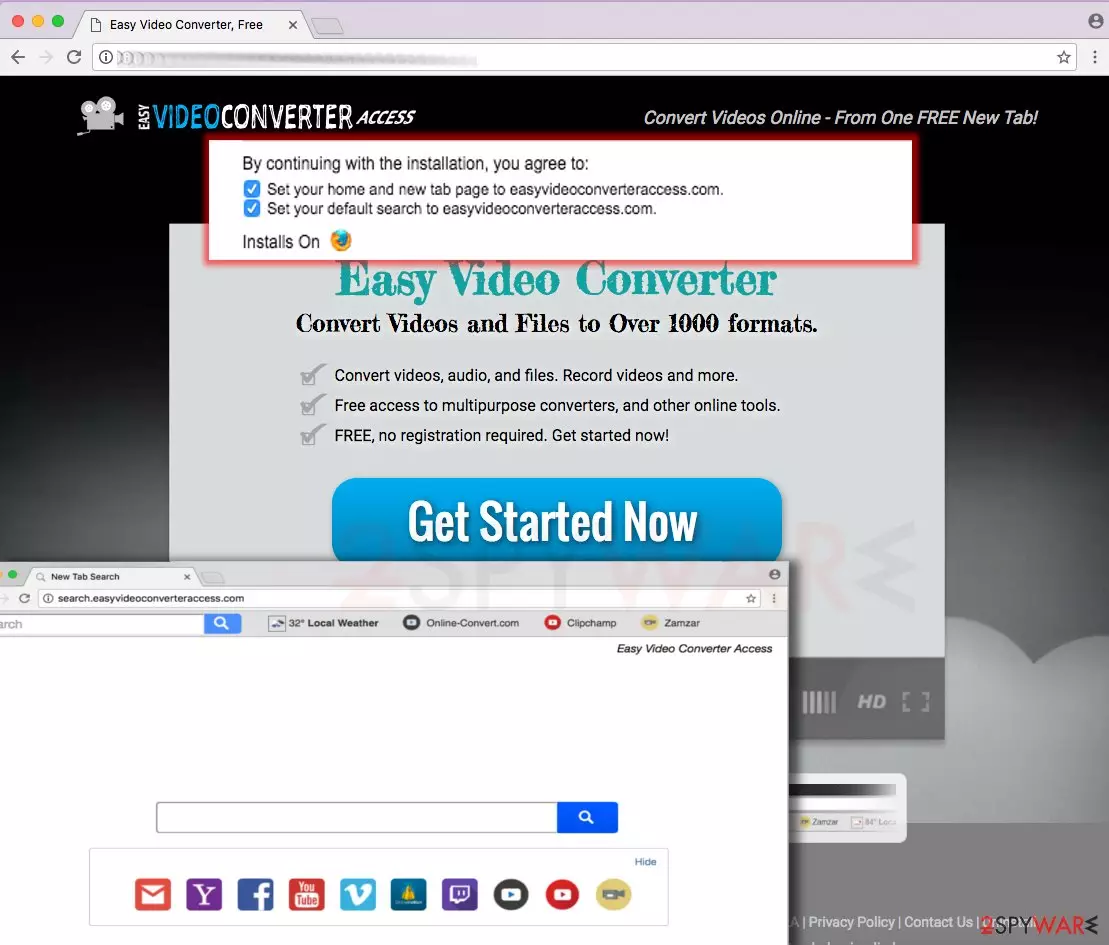
Search.easyvideoconverteraccess.com virus (or Easy Video Converter Access) is the latest browser hijacker or hijackware [1]. It is closely connected to SaferBrowser virus and other potentially unwanted programs (PUPs) that have been actively spread with the help of bundling. That's how potentially unwanted programs manage to get into computer systems unnoticed and are mistaken for viruses.
In reality, browser hijackers, including Search.easyvideoconverteraccess.com, are not as harmful as ransomware [2] or viruses that hail from other malware groups. However, they can easily change your system settings, such as the homepage, the default search engine, the new tab URL, and similar settings. We believe that we do not need to mention what URL this troublesome program inputs into these settings.
| Name | Search.easyvideoconverteraccess.com |
|---|---|
| Type | Browser hijacker, potentially unwanted program |
| Claims | The application promotes video converter, other rogue applications |
| Problems | The system gets slow and processes cannot run properly when redirects, pop-ups, and other content appears on the screen repeatedly |
| Distribution | Freeware installations, torrent sites, other PUPs |
| Danger | The content users get displays includes random promotions and direct download links to useless or even dangerous tools. Advertisers also can track data about users' behavior and habits online |
| Removal | Your system can get cleaned with anti-malware tools. System repair tools like FortectIntego also can help with the system repair |
It can also add Easy Video Converter Access extension to every browser which is typically presented as a tool to help the victim “convert videos and files to over 1000 formats.” In reality, this extension is not capable of converting anything – it only provides several shortcuts leading to sites that can do it.
Just like the Search.easyvideoconverteraccess.com virus, it was purely made only to promote shady websites that are trying to increase their popularity. In exchange for this service, it generates pay-per-click revenue [3] for its developers.
As there is no guarantee that it has nothing in common with malicious websites, we recommend you to speed up the Search.easyvideoconverteraccess.com removal procedure. For that, use SpyHunterCombo Cleaner, MalwarebytesMalwarebytes, or a guide that is given below. Beware that Chrome and other reputable browsers are the only ones that can warn you about the shady website you are trying to enter. [4]
If you entered a search query into this search engine, you should see that it provides Yahoo search results. “How can these search results be bad,” you might think. However, if you looked at the tab name of the results page closer, you would notice that it says “SaferBrowser Yahoo Search Results.”
SaferBrowser is a name of the company that produces numerous browser hijackers. This redirect virus is not the first and the last product of this company that desperately seeks to earn the money with the help of every possible method.
After clicking one of the search results provided by its hijacker, you can find yourself on a malicious domain that is paying for its position on this search engine. As you may have already understood, there is no guarantee that one of such redirect activities won't trick you into visiting a malicious page.
If you want to keep your computer in its best shape, you should think about the removal of this hijacker. As long as this adware relies on additional components, such as browser helper objects [5] and others, it would be wise to remove Search.easyvideoconverteraccess.com from the system using the automatic removal method.
People themselves can install this software on the system
If you have never visited the official website of this hijacker by your choice, but the hijack already happened, you are probably slightly confused now. However, it doesn’t mean that somebody has hacked or infected your computer with malicious viruses. You might be shocked to hear this, but potentially unwanted programs can be installed ONLY with PC user’s authorization because, despite the fact that they are annoying, they are considered to be legitimate programs. Only viruses proliferate using illegal software distribution techniques.
To install this browser hijacker, you have to agree with its installation, and it typically happens when installing a different piece of software. Let’s say that you have just downloaded a free game or another program from the internet – how are you going to install it?
Make no mistake and choose Custom or Advanced installation settings – these will allow you to drop off unwanted “recommended” pieces of the software suggested by third parties. If you selected Default/Standard/Express configuration, you would lose the opportunity to do that because these settings automatically include your permissions to install additional software.
Search.easyvideoconverteraccess.com removal options and instructions on the browser recovery
If your computer has been compromised by the virus, it is not a big problem because you are dealing with the potentially unwanted program, not a virus. However, such an example reveals the fact that your system can be vulnerable to spyware and malware attacks, and, during your next searching on the web, you can accidentally infect the system with more severe software.
Therefore, we recommend you install anti-malware software to remove Search.Easyvideoconverteraccess.com from the system. This way, you can check if no other dangerous programs were installed in the past, and in case there are some, remove them along with this hijacker. Of course, you can always use the removal instructions (below) and eliminate this PUP manually.
Uninstall from Windows
Uninstall from Windows 10/8:
- Type Control Panel into the Windows search box and open the result.
- Under Programs, select Uninstall a program.


Uninstall from Windows 7/XP:
- Click on Windows Start > Control Panel (Windows XP users should click on Add/Remove Programs).
- In Control Panel, select Programs > Uninstall a program.


Remove the unwanted program:
- In the Programs and Features window, look for any recently installed suspicious entries, select them, and click Uninstall.
- If User Account Control appears, click Yes to confirm, then complete the removal.


Delete from macOS
Remove the unwanted application:
- From the menu bar, select Go > Applications.
- In the Applications folder, look for any suspicious entries, then drag them to Trash (or right-click and pick Move to Trash).


Delete leftover files and folders:
- Select Go > Go to Folder.
- Enter /Library/Application Support and remove any suspicious folders related to the unwanted program.
- Repeat the same check in the /Library/LaunchAgents and /Library/LaunchDaemons folders, deleting any suspicious entries.

- Finally, empty the Trash to permanently remove the leftovers.

Remove from Microsoft Edge
Delete unwanted extensions from MS Edge:
- Select Menu (three horizontal dots at the top-right of the browser window) and pick Extensions.
- From the list, pick the extension and click on the Gear icon.
- Click Remove.


Clear cookies and other browser data:
- Click on the Menu (three horizontal dots at the top-right of the browser window) and select Settings > Privacy, search, and services..
- Under Clear browsing data, pick Choose what to clear.
- Select Cookies and other site data and Cached images and files. (apart from passwords, although you might want to include Media licenses as well, if applicable) and click on Clear.


Restore new tab and homepage settings:
- Click the menu icon and choose Settings.
- Then find On startup section.
- Click Remove next to any suspicious startup page.
Reset MS Edge if the above steps did not work:
- Press on Ctrl + Shift + Esc to open Task Manager.
- Click on More details arrow at the bottom of the window.
- Select Details tab.
- Now scroll down and locate every entry with Microsoft Edge name in it. Right-click on each of them and select End Task to stop MS Edge from running.


Instructions for Chromium-based Edge
Delete extensions from MS Edge (Chromium):
- Open Edge and click select Settings > Extensions.
- Delete unwanted extensions by clicking Remove.


Clear cache and site data:
- Click on Menu and go to Settings.
- Select Privacy, search and services.
- Under Clear browsing data, pick Choose what to clear.
- Under Time range, pick All time.
- Select Clear now.


Reset Chromium-based MS Edge:
- Click on Menu and select Settings.
- On the left side, pick Reset settings.
- Select Restore settings to their default values.
- Confirm with Reset.
- This will disable extensions and reset startup pages but will not delete bookmarks, saved passwords, or browsing history.


Remove from Mozilla Firefox (FF)
Remove dangerous extensions:
- Open Mozilla Firefox browser and click on the Menu (three horizontal lines at the top-right of the window).
- Select Add-ons.
- In here, select the unwanted extension and click Remove.


Reset the homepage:
- Click three horizontal lines at the top right corner to open the menu.
- Choose Settings.
- Under Home, set your preferred homepage and new tab settings.
Clear cookies and site data:
- Click Menu and pick Settings.
- Go to Privacy & Security section.
- Scroll down to locate Cookies and Site Data.
- Click on Clear Data...
- Select Cookies and Site Data and Temporary cached files and pages, then click Clear.


Reset Mozilla Firefox
If clearing the browser as explained above did not help, reset Mozilla Firefox:
- Open Mozilla Firefox browser and click the Menu.
- Go to Help and then choose Troubleshooting Information.

- Under Give Firefox a tune up section, click on Refresh Firefox...
- Once the pop-up shows up, confirm the action by pressing on Refresh Firefox.



Remove from Google Chrome
Delete malicious extensions from Google Chrome:
- Open Google Chrome, click on the Menu (three vertical dots at the top-right corner) and select More tools > Extensions.
- In the newly opened window, you will see all the installed extensions. Uninstall all suspicious extensions related to the unwanted program by clicking Remove.


Clear cache and web data from Chrome:
- Click on Menu and pick Settings.
- Under Privacy and security, select Clear browsing data.
- Select Browsing history, Cookies and other site data, as well as Cached images and files.
- Click Clear data.


Change your homepage:
- Click menu and choose Settings.
- Look for a suspicious site in the On startup section.
- Click on Open a specific or set of pages and click on three dots to find the Remove option.
Reset Google Chrome:
If the previous methods did not help you, reset Google Chrome to eliminate all the unwanted components:
- Click on Menu and select Settings.
- In the Settings, scroll down and click Advanced.
- Scroll down and locate Reset and clean up section.
- Now click Restore settings to their original defaults.
- Confirm with Reset settings.


Did this guide help?
4 comments
amanda
Thanks for the help. This hijacker ruined my browser, but I have already fixed it!
extra8
Found the EasyVideoConverterAccess in Chrome!
Flex
I hate computer viruses.... especially those that sneak into the system without my permission, goddamit!
yeah:>
thanks, removed the threat