

My.yoursearch.me – a browser hijacker that causes redirects to shady sites and records your browsing activities
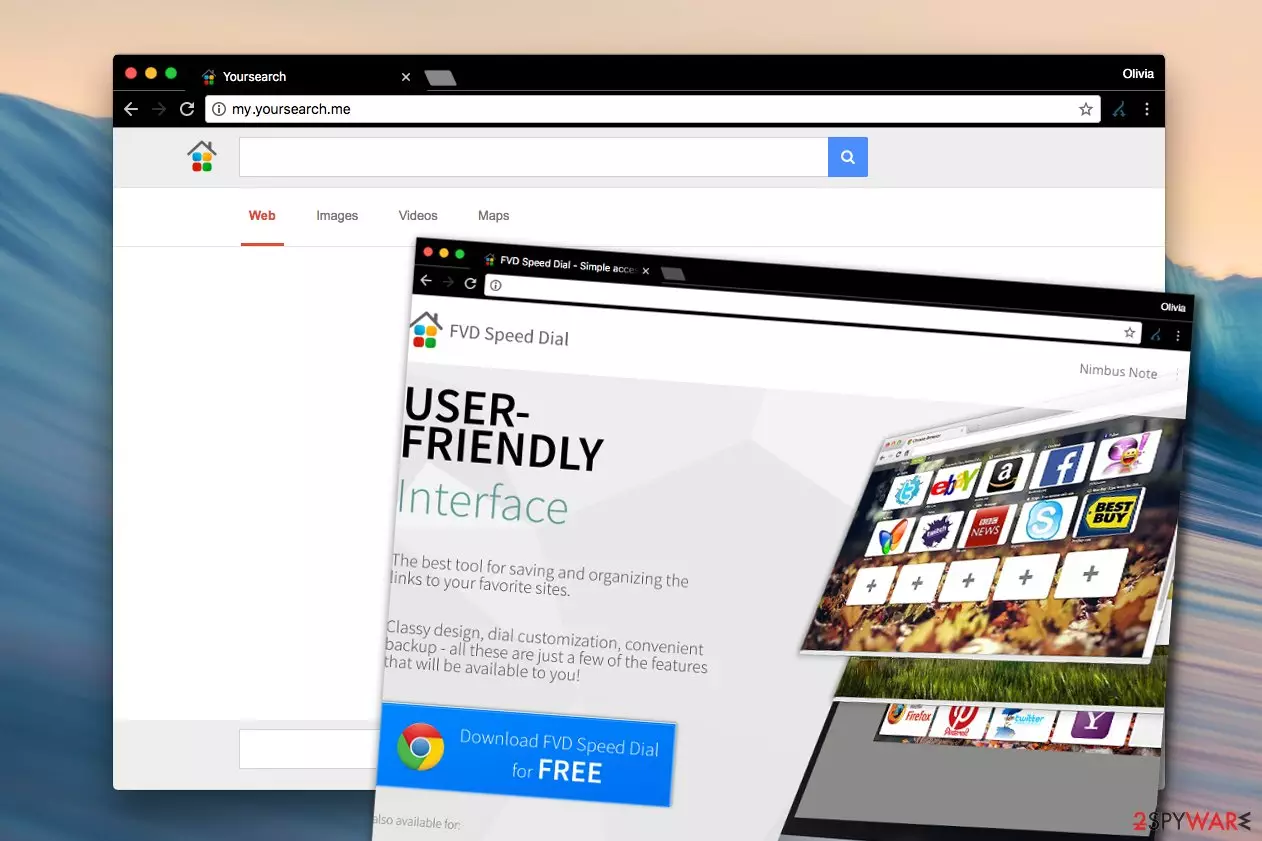
Firstly, let us note that My.Yoursearch.me is classified as a browser hijacker. If you are thinking to install FVD Speed Dial and set the article's culprit's domain as your main search engine, restrain yourself from this action. Luckily, it is not a highly aggressive potentially unwanted program.
However, do not let it stay in your system too long. Within a while, you might get annoyed by its tendency to direct you to commercial websites. Even if you do not care much about your personal information[1], note that disclosing too many details about yourself deliberately or accidentally may endanger your privacy and may even affect the performance of the computer.
| name | My.Yoursearch.me |
|---|---|
| Type | Redirect virus, potentially unwanted program, browser hijacker |
| Symptoms | Altered browser settings; diminished page loading time; search results contain deceptive ads that lead to questionable domains |
| Risks | Privacy issues, monetary losses, PUP installation |
| Distribution | Software bundles, fake Flash Player updates |
| Elimination | Entrust the removal of all PUPs and malware to dependable security software. Recommendations below |
| System health | Repair damaged system sectors by running a deep scan with the FortectIntego PC optimizer |
Speaking of this search provider, the privacy policy of this hijacker sparks speculations. The provisions try to persuade users of the reliability of the search engine and promises to protect their privacy. However, such exaggerated determination resembles the case of Web of Trust (WOT) when it claimed to ensure utmost privacy while selling user data to third parties behind the scenes[2].
Regarding the browsing tool, it does not mention what information is collected. Instead, it stresses your role of ensuring your data. While it is true on one hand, such ambiguities should encourage you to remove my.yoursearch.me. For that reason, install MalwarebytesMalwarebytes or SpyHunterCombo Cleaner to quicken the elimination process.
Alternatively known as FVD Speed Dial, this browsing engine does not spark any suspicion in the first place. While it is commendable that it does not contain any quick-access links to other websites on its homepage, there are other features that may raise concern.
Browser extensions and plug-ins might not only serve as the accelerators of certain browser functions but may as well increase the risk of a virus hijack[3]. It is of high importance that you pay attention to the plug-ins you enable. There has been a trend among hackers to exploit them in bigger malware attacks as well[4].
On the other hand, there is also a variety of security-ensuring plug-ins. In this regard, you may be disappointed after finding out that this hijacker does not support such extensions. Once you remove My.Yoursearch.me, we recommend performing system diagnostics with the FortectIntego software to resolve system-related issues and wipe out tracking cookies.

Consequently, you are deprived of the possibility to know which website is positively or negatively rated before entering it. Though malware authors find alternative workarounds for this feature, it might serve as a small detail lowering the risk of getting infected.
In addition, you should not ignore yoursearch.me redirect phenomenon. You might find yourself on a sponsored web page which contains dubious links and a fake download button, In general, there are more chances to meet a virus there. We recommend you proceed to the browser hijacker's removal right away.
Variations of YourSearch.me browser hijackers
Start.yoursearch.me virus. This suspicious hijacker emerged in summer 2017 and ever since then it has continued to bother inexperienced computer users daily. Installation of this potentially unwanted program sets the domain of the hijacker as your default search engine.
It is a dubious website that might employ tracking cookies and other technologies to spy on your search queries, browsing history and transfer collected data to ad networks to serve catchy ads and generate more pay-per-click revenue. The only problem is that sites this hijacker might redirect you to can be untrustworthy and put your security at risk.
Mys.yoursearch.com virus. If it keeps appearing in your web browser, it is time to check what programs you have on your computer. Most likely you will find the FVD Speed Dial virus, which needs to be uninstalled in order to solve the redirect problem.
After installing this browser hijacker on your system, you will notice that your web browsers automatically open this domain for you despite that you did not enter anything into the URL bar. These redirections are implemented by the potentially unwanted program that seeks you to use a suspicious search engine and, possibly, click on sponsored results.
Protect yourself from PUPs
Wondering when did you install one of the browser hijacker's variations? The answer to this question is quite simple: you might have installed it accidentally. Do you recall installing a new application recently? Lesvirus.fr experts say that the habit of skipping the steps of the installation wizard often leaves users unaware of optional applications.[5] As a result, a hijack occurs.
Suggestions to add potentially unwanted programs usually hide under the “Recommended” settings. You can cease the installation of unwanted elements by choosing “Advanced” or “Custom” mode. Carefully advance through the installation steps to unmark the unwanted add-ons. When you are sure that no dubious programs will be installed, click the “Install” button.
Simple instructions to remove Yoursearch.me virus
You can uninstall the hijacker manually and automatically. If you want to save time, opt for automatic my.yoursearch.me removal. It requires minimum intervention and gets rid of all shady components. It is a useful tool when confronting more exquisite virtual infections. If you do not want to use software, the instructions below will aid you with manual removal.
Look for additional plug-ins and browser extensions that might have appeared after installing the browser hijacker. Delete them as well. Next time when you decide to change the search engine into a new one or install a new app, take a look at its privacy policy. Indeed, the protection of your personal data highly depends on your participation as well[6].
Uninstall from Windows
Uninstall from Windows 10/8:
- Type Control Panel into the Windows search box and open the result.
- Under Programs, select Uninstall a program.


Uninstall from Windows 7/XP:
- Click on Windows Start > Control Panel (Windows XP users should click on Add/Remove Programs).
- In Control Panel, select Programs > Uninstall a program.


Remove the unwanted program:
- In the Programs and Features window, look for any recently installed suspicious entries, select them, and click Uninstall.
- If User Account Control appears, click Yes to confirm, then complete the removal.


Delete from macOS
Remove the unwanted application:
- From the menu bar, select Go > Applications.
- In the Applications folder, look for any suspicious entries, then drag them to Trash (or right-click and pick Move to Trash).


Delete leftover files and folders:
- Select Go > Go to Folder.
- Enter /Library/Application Support and remove any suspicious folders related to the unwanted program.
- Repeat the same check in the /Library/LaunchAgents and /Library/LaunchDaemons folders, deleting any suspicious entries.

- Finally, empty the Trash to permanently remove the leftovers.

Remove from Microsoft Edge
Delete unwanted extensions from MS Edge:
- Select Menu (three horizontal dots at the top-right of the browser window) and pick Extensions.
- From the list, pick the extension and click on the Gear icon.
- Click Remove.


Clear cookies and other browser data:
- Click on the Menu (three horizontal dots at the top-right of the browser window) and select Settings > Privacy, search, and services..
- Under Clear browsing data, pick Choose what to clear.
- Select Cookies and other site data and Cached images and files. (apart from passwords, although you might want to include Media licenses as well, if applicable) and click on Clear.


Restore new tab and homepage settings:
- Click the menu icon and choose Settings.
- Then find On startup section.
- Click Remove next to any suspicious startup page.
Reset MS Edge if the above steps did not work:
- Press on Ctrl + Shift + Esc to open Task Manager.
- Click on More details arrow at the bottom of the window.
- Select Details tab.
- Now scroll down and locate every entry with Microsoft Edge name in it. Right-click on each of them and select End Task to stop MS Edge from running.


Instructions for Chromium-based Edge
Delete extensions from MS Edge (Chromium):
- Open Edge and click select Settings > Extensions.
- Delete unwanted extensions by clicking Remove.


Clear cache and site data:
- Click on Menu and go to Settings.
- Select Privacy, search and services.
- Under Clear browsing data, pick Choose what to clear.
- Under Time range, pick All time.
- Select Clear now.


Reset Chromium-based MS Edge:
- Click on Menu and select Settings.
- On the left side, pick Reset settings.
- Select Restore settings to their default values.
- Confirm with Reset.
- This will disable extensions and reset startup pages but will not delete bookmarks, saved passwords, or browsing history.


Remove from Mozilla Firefox (FF)
Remove dangerous extensions:
- Open Mozilla Firefox browser and click on the Menu (three horizontal lines at the top-right of the window).
- Select Add-ons.
- In here, select the unwanted extension and click Remove.


Reset the homepage:
- Click three horizontal lines at the top right corner to open the menu.
- Choose Settings.
- Under Home, set your preferred homepage and new tab settings.
Clear cookies and site data:
- Click Menu and pick Settings.
- Go to Privacy & Security section.
- Scroll down to locate Cookies and Site Data.
- Click on Clear Data...
- Select Cookies and Site Data and Temporary cached files and pages, then click Clear.


Reset Mozilla Firefox
If clearing the browser as explained above did not help, reset Mozilla Firefox:
- Open Mozilla Firefox browser and click the Menu.
- Go to Help and then choose Troubleshooting Information.

- Under Give Firefox a tune up section, click on Refresh Firefox...
- Once the pop-up shows up, confirm the action by pressing on Refresh Firefox.



Remove from Google Chrome
Delete malicious extensions from Google Chrome:
- Open Google Chrome, click on the Menu (three vertical dots at the top-right corner) and select More tools > Extensions.
- In the newly opened window, you will see all the installed extensions. Uninstall all suspicious extensions related to the unwanted program by clicking Remove.


Clear cache and web data from Chrome:
- Click on Menu and pick Settings.
- Under Privacy and security, select Clear browsing data.
- Select Browsing history, Cookies and other site data, as well as Cached images and files.
- Click Clear data.


Change your homepage:
- Click menu and choose Settings.
- Look for a suspicious site in the On startup section.
- Click on Open a specific or set of pages and click on three dots to find the Remove option.
Reset Google Chrome:
If the previous methods did not help you, reset Google Chrome to eliminate all the unwanted components:
- Click on Menu and select Settings.
- In the Settings, scroll down and click Advanced.
- Scroll down and locate Reset and clean up section.
- Now click Restore settings to their original defaults.
- Confirm with Reset settings.


Delete from Safari
Remove dangerous extensions:
- Open Safari, click Safari in the menu at the top-left of the screen, and select Preferences.
- Go to the Extensions tab, look for any suspicious entries, and click Uninstall to remove them.


Clear history and website data:
- Click Safari in the menu and pick Clear History.
- Set Clear to all history and confirm with Clear History.


Reset Safari:
- Click Safari in the menu and select Preferences > Advanced.
- Enable Show Develop menu in menu bar.
- From the menu bar, click Develop and select Empty Caches.


Did this guide help?
Be the first to comment