

Don’t install anything off of Searchanonymo.com! Here’s why:
Searchanonymo.com virus is yet another name that the experts give to a shady browser extension called Search Anonymo. As already suggested by its title, this website is an official Search Anonymo download source, though it is not the only way this extension [1] may reach computers. But more on that later. We should first discuss what this tool is all about. Later on, we will also look into Searchanonymo.com removal, so if you are interested, keep on reading.
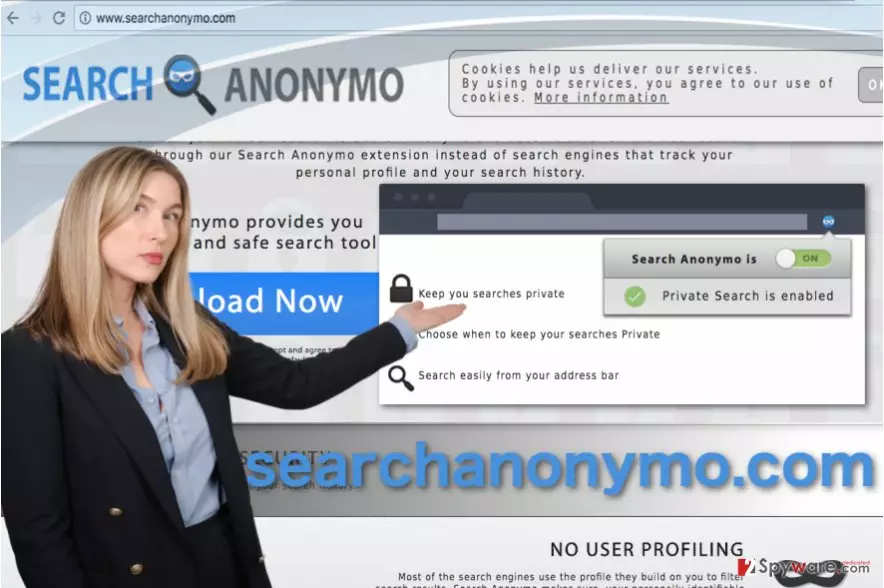
In the current day and age when online privacy is becoming a major issue [2], computer users are looking for tools that would ensure a more private and secure browsing online. One New York-based company, who refer to themselves as SMM, are offering that and much more. On Searchanonymo.com, you can find their promises to provide you with a tool which will ensure and secure search service, reduced risks of tracking and user profiling as well as protection against search leakage [3]. The application is absolutely free and does not require any sign-up. Sounds too good to be true? Well, that’s because most of these proclaimed benefits are actually false advertising. Free software with functionalities that many paid programs do not even have? We do not think so. There’s definitely a catch. And it all boils down to the software monetization [4]. If the software is free, there should be other channels through which the app developers could generate money for the maintenance of the service. Affiliate marketing is one of the typical practices applied in such cases. It is a marketing technique which is based on businesses advertising other third parties, their products or services and being granted payment for this promotion. It is likely that Search Anonymo might be involved in this business, too. If this is the case, there are a few things the users should beware of — sponsored ads and redirects. For instance, if you are using Google, you may notice unusual advertisements on your browsers that do not originate from Google ads or AdChoices [5]. You may hope that these ads and links are completely harmless and click on them. Nevertheless, it would be an unsafe thing to do since you do not know where they are going to redirect you.
To sum up, if you find a website promoting Search Anonymo security product set as your homepage, do not jump straight into installing anything. Instead, find the PUP that is responsible for assigning this domain as your start page and delete it. You will remove Searchanonymo.com along with it, so it will not bother you with the redirects anymore. Apply FortectIntego to perform a quick fix.
How did this website replace your default start page?
Searchanonymo.com might show up instead of your regular homepage after installing a rebundled software on your computer. In particular, you may have missed some check mark while installing freeware on your computer, and allowed the undesirable domain to take over your start page inadvertently. In fact, this is the most common way potentially unwanted programs sneak into the computers. Luckily, such infiltration may be prevented by deselecting the undesirable components, say Searchanonymo.com, via the “Advanced” installation mode. Just do not forget to opt for this mode at the beginning of the installation.
Brief Searchanonymo.com removal guide:
When preparing for the Searchanonymo.com removal, choose the proper method first. If you are less experienced in computing or simply dealing with browser hijackers for the first time, just stick to the automatic anti-malware tools and let them do their job. Even if you think you can remove Searchanonymo.com virus yourself, we do not recommend wasting your time on this. The benefits of automatic virus removal are numerous: it is much quicker, more precise and more user-friendly way of banishing malware from the infected system which also gives more freedom to engage in other activities while the elimination is being executed.
Uninstall from Windows
Uninstall from Windows 10/8:
- Type Control Panel into the Windows search box and open the result.
- Under Programs, select Uninstall a program.


Uninstall from Windows 7/XP:
- Click on Windows Start > Control Panel (Windows XP users should click on Add/Remove Programs).
- In Control Panel, select Programs > Uninstall a program.


Remove the unwanted program:
- In the Programs and Features window, look for any recently installed suspicious entries, select them, and click Uninstall.
- If User Account Control appears, click Yes to confirm, then complete the removal.


Delete from macOS
Remove the unwanted application:
- From the menu bar, select Go > Applications.
- In the Applications folder, look for any suspicious entries, then drag them to Trash (or right-click and pick Move to Trash).


Delete leftover files and folders:
- Select Go > Go to Folder.
- Enter /Library/Application Support and remove any suspicious folders related to the unwanted program.
- Repeat the same check in the /Library/LaunchAgents and /Library/LaunchDaemons folders, deleting any suspicious entries.

- Finally, empty the Trash to permanently remove the leftovers.

Reset Internet Explorer
Remove dangerous add-ons:
- Open Internet Explorer, click on the Gear icon (IE menu) on the top-right corner of the browser
- Pick Manage Add-ons.
- You will see a Manage Add-ons window. Here, look for suspicious plugins. Click on these entries and select Disable.


Change your homepage if it was altered:
- Open IE and click on the Gear icon.
- Select Internet Options.
- In the General tab, delete the Home page address and replace it by your preferred one (for example, Google.com).
- Click Apply and then select OK.


Delete temporary files:
- Press on the Gear icon and select Internet Options.
- Under Browsing history, click Delete...
- Select relevant fields and press Delete.


Reset Internet Explorer:
- Click on Gear icon > Internet options and select Advanced tab.
- Select Reset.
- In the new window, check Delete personal settings and select Reset.


Remove from Microsoft Edge
Delete unwanted extensions from MS Edge:
- Select Menu (three horizontal dots at the top-right of the browser window) and pick Extensions.
- From the list, pick the extension and click on the Gear icon.
- Click Remove.


Clear cookies and other browser data:
- Click on the Menu (three horizontal dots at the top-right of the browser window) and select Settings > Privacy, search, and services..
- Under Clear browsing data, pick Choose what to clear.
- Select Cookies and other site data and Cached images and files. (apart from passwords, although you might want to include Media licenses as well, if applicable) and click on Clear.


Restore new tab and homepage settings:
- Click the menu icon and choose Settings.
- Then find On startup section.
- Click Remove next to any suspicious startup page.
Reset MS Edge if the above steps did not work:
- Press on Ctrl + Shift + Esc to open Task Manager.
- Click on More details arrow at the bottom of the window.
- Select Details tab.
- Now scroll down and locate every entry with Microsoft Edge name in it. Right-click on each of them and select End Task to stop MS Edge from running.


Instructions for Chromium-based Edge
Delete extensions from MS Edge (Chromium):
- Open Edge and click select Settings > Extensions.
- Delete unwanted extensions by clicking Remove.


Clear cache and site data:
- Click on Menu and go to Settings.
- Select Privacy, search and services.
- Under Clear browsing data, pick Choose what to clear.
- Under Time range, pick All time.
- Select Clear now.


Reset Chromium-based MS Edge:
- Click on Menu and select Settings.
- On the left side, pick Reset settings.
- Select Restore settings to their default values.
- Confirm with Reset.
- This will disable extensions and reset startup pages but will not delete bookmarks, saved passwords, or browsing history.


Remove from Mozilla Firefox (FF)
Remove dangerous extensions:
- Open Mozilla Firefox browser and click on the Menu (three horizontal lines at the top-right of the window).
- Select Add-ons.
- In here, select the unwanted extension and click Remove.


Reset the homepage:
- Click three horizontal lines at the top right corner to open the menu.
- Choose Settings.
- Under Home, set your preferred homepage and new tab settings.
Clear cookies and site data:
- Click Menu and pick Settings.
- Go to Privacy & Security section.
- Scroll down to locate Cookies and Site Data.
- Click on Clear Data...
- Select Cookies and Site Data and Temporary cached files and pages, then click Clear.


Reset Mozilla Firefox
If clearing the browser as explained above did not help, reset Mozilla Firefox:
- Open Mozilla Firefox browser and click the Menu.
- Go to Help and then choose Troubleshooting Information.

- Under Give Firefox a tune up section, click on Refresh Firefox...
- Once the pop-up shows up, confirm the action by pressing on Refresh Firefox.



Remove from Google Chrome
Delete malicious extensions from Google Chrome:
- Open Google Chrome, click on the Menu (three vertical dots at the top-right corner) and select More tools > Extensions.
- In the newly opened window, you will see all the installed extensions. Uninstall all suspicious extensions related to the unwanted program by clicking Remove.


Clear cache and web data from Chrome:
- Click on Menu and pick Settings.
- Under Privacy and security, select Clear browsing data.
- Select Browsing history, Cookies and other site data, as well as Cached images and files.
- Click Clear data.


Change your homepage:
- Click menu and choose Settings.
- Look for a suspicious site in the On startup section.
- Click on Open a specific or set of pages and click on three dots to find the Remove option.
Reset Google Chrome:
If the previous methods did not help you, reset Google Chrome to eliminate all the unwanted components:
- Click on Menu and select Settings.
- In the Settings, scroll down and click Advanced.
- Scroll down and locate Reset and clean up section.
- Now click Restore settings to their original defaults.
- Confirm with Reset settings.


Delete from Safari
Remove dangerous extensions:
- Open Safari, click Safari in the menu at the top-left of the screen, and select Preferences.
- Go to the Extensions tab, look for any suspicious entries, and click Uninstall to remove them.


Clear history and website data:
- Click Safari in the menu and pick Clear History.
- Set Clear to all history and confirm with Clear History.


Reset Safari:
- Click Safari in the menu and select Preferences > Advanced.
- Enable Show Develop menu in menu bar.
- From the menu bar, click Develop and select Empty Caches.


Did this guide help?
Be the first to comment