

Error # FXX07 is a name of a online scam you should ignore
Error # FXX07 is one of those fake messages that help tech support scammers[1] deceive more people. Its main goal is to use scare tactics and social engineering to mislead users, make them believe that their PCs are infected, and consequently call the provided tech support number. This is a scam, and you should never contact these scammers, as you might end up losing hundreds of dollars.
While you might encounter this pop-up message after clicking a link or after being redirected from a malicious website, there is a chance that there is an adware program installed on your system and causes these redirects. This is especially true if you also notice an overall increased number of ads or altered search preferences.
| Name | Error # FXX07 |
| Type | Tech support scam |
| Distribution | A malicious website that displays misleading information might be accessed accidentally, although adware can also cause automatic redirects |
| Dangers | Monetary losses, installation of malware or PUPs, personal information disclosure to cybercriminals |
| Removal | If you can't close the tab were the scam message is displayed, press Ctrl + Shit + Esc and shut down the window. Then, check your system for adware either manually or with a reliable antivirus tool |
| Further steps | If you have already contacted the tech support scammers and allowed them to access your device remotely, scan your PC for malware with SpyHunterCombo Cleaner or FortectIntego. Also, change all your passwords and monitor your bank account |
If you opened your web browser and were redirected to a bogus website that is designed to look like Microsoft’s support page[2] that immediately triggered a pop-up saying that you are dealing with the # FXX07 problem, you should firstly not panic.
The pop-up displayed by the phishing website[3] that poses as Microsoft Support page typically accuses the user of various wrongdoings, for instance, using/distributing copyrighted content, watching illegal adult content, and says that the access to the Internet has been restricted.
You might also encounter the second version of the scam message, which says that the user’s computer has been blocked[4] and that various information is stolen. You can identify tech-support-type alerts from one detail that all of them share – you will surely find a “toll-free” tech support number in them, and you will definitely be asked to dial it “for help.”
However, at this point, you should remember that Microsoft never asks you to provide any sensitive information via phone and also doesn’t ask to provide remote access to your computer. Also, the company never provides tech support contact information within its error messages on Windows.
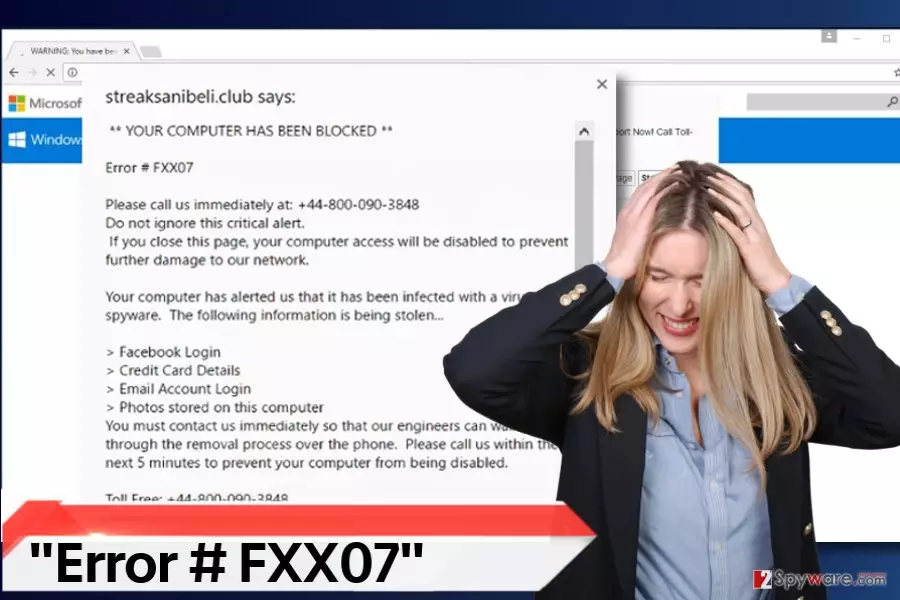
If you decided to call a number provided in the message, you should shortly realize how impatient the “tech support expert” is and how he/she rushes you to obey their commands. Most likely, they will ask you to sit near your computer and perform several useless tasks just to show you random directories and say that there is plenty of errors to be fixed.
You might also be advised to stay calm and listen to “experts” without asking “stupid questions.” Remember – professional experts do not talk like that with their clients, so it means that you’re dealing with a tech support scammer[5].
Such scammers can install malware on your computer if you make them angry, or, if you follow their commands, they will ask you to log into some suspicious website and buy certain “security” software for a price two or three times bigger than it actually costs.
Be careful, and if you noticed that your web browser continuously redirects you to such scam pages, take action to remove the Error # FXX07 virus from the system. You might want to use professional anti-malware software for removing it – we recommend using SpyHunterCombo Cleaner.
Adware can cause redirects to malicious sites
Tech support scammers create free programs that cause continuous redirects to certain websites. However, these sites get taken down quite quickly because users report them. Scammers then create identical phishing pages on different domains and continue their filthy activities.
If you do not want to install software that causes redirects to these pages, you should be careful when installing free software and avoid choosing Default/Standard installation options. If you select these options, you automatically agree to all conditions and also permit to install bundled programs alongside the main program. We highly recommend using Custom/Advanced settings because these will reveal the list of programs bundled with your download.
All you need to do is to deselect these additions and proceed to the next installation stage. In case you were tricked into installing dangerous software on your PC, follow the removal instructions given below the article.
Safest way to remove Error # FXX07
There are two things you need to worry about when dealing with a scam message:
- Whether you contacted criminals via the provided number
- Adware that could be hiding on your system (which is causing the redirects in the firs place).
To deal with this situation, we strongly recommend you perform a full system scan with anti-malware software – FortectIntego or SpyHunterCombo Cleaner can be decent options. Alternatively, you can check out the instructions below on how to find and delete adware from your PC. However, a scan with security software is mandatory if you allowed cybercriminals to access your device remotely.
If you have paid for any of these “services” offered by scammers, you should report it to your local authority branch that deals with fraud (you will find links below) and also contact your bank to dispute the transactions.
Uninstall from Windows
Uninstall from Windows 10/8:
- Type Control Panel into the Windows search box and open the result.
- Under Programs, select Uninstall a program.


Uninstall from Windows 7/XP:
- Click on Windows Start > Control Panel (Windows XP users should click on Add/Remove Programs).
- In Control Panel, select Programs > Uninstall a program.


Remove the unwanted program:
- In the Programs and Features window, look for any recently installed suspicious entries, select them, and click Uninstall.
- If User Account Control appears, click Yes to confirm, then complete the removal.


Delete from macOS
Remove the unwanted application:
- From the menu bar, select Go > Applications.
- In the Applications folder, look for any suspicious entries, then drag them to Trash (or right-click and pick Move to Trash).


Delete leftover files and folders:
- Select Go > Go to Folder.
- Enter /Library/Application Support and remove any suspicious folders related to the unwanted program.
- Repeat the same check in the /Library/LaunchAgents and /Library/LaunchDaemons folders, deleting any suspicious entries.

- Finally, empty the Trash to permanently remove the leftovers.

Remove from Microsoft Edge
Delete unwanted extensions from MS Edge:
- Select Menu (three horizontal dots at the top-right of the browser window) and pick Extensions.
- From the list, pick the extension and click on the Gear icon.
- Click Remove.


Clear cookies and other browser data:
- Click on the Menu (three horizontal dots at the top-right of the browser window) and select Settings > Privacy, search, and services..
- Under Clear browsing data, pick Choose what to clear.
- Select Cookies and other site data and Cached images and files. (apart from passwords, although you might want to include Media licenses as well, if applicable) and click on Clear.


Restore new tab and homepage settings:
- Click the menu icon and choose Settings.
- Then find On startup section.
- Click Remove next to any suspicious startup page.
Reset MS Edge if the above steps did not work:
- Press on Ctrl + Shift + Esc to open Task Manager.
- Click on More details arrow at the bottom of the window.
- Select Details tab.
- Now scroll down and locate every entry with Microsoft Edge name in it. Right-click on each of them and select End Task to stop MS Edge from running.


Instructions for Chromium-based Edge
Delete extensions from MS Edge (Chromium):
- Open Edge and click select Settings > Extensions.
- Delete unwanted extensions by clicking Remove.


Clear cache and site data:
- Click on Menu and go to Settings.
- Select Privacy, search and services.
- Under Clear browsing data, pick Choose what to clear.
- Under Time range, pick All time.
- Select Clear now.


Reset Chromium-based MS Edge:
- Click on Menu and select Settings.
- On the left side, pick Reset settings.
- Select Restore settings to their default values.
- Confirm with Reset.
- This will disable extensions and reset startup pages but will not delete bookmarks, saved passwords, or browsing history.


Remove from Mozilla Firefox (FF)
Remove dangerous extensions:
- Open Mozilla Firefox browser and click on the Menu (three horizontal lines at the top-right of the window).
- Select Add-ons.
- In here, select the unwanted extension and click Remove.


Reset the homepage:
- Click three horizontal lines at the top right corner to open the menu.
- Choose Settings.
- Under Home, set your preferred homepage and new tab settings.
Clear cookies and site data:
- Click Menu and pick Settings.
- Go to Privacy & Security section.
- Scroll down to locate Cookies and Site Data.
- Click on Clear Data...
- Select Cookies and Site Data and Temporary cached files and pages, then click Clear.


Reset Mozilla Firefox
If clearing the browser as explained above did not help, reset Mozilla Firefox:
- Open Mozilla Firefox browser and click the Menu.
- Go to Help and then choose Troubleshooting Information.

- Under Give Firefox a tune up section, click on Refresh Firefox...
- Once the pop-up shows up, confirm the action by pressing on Refresh Firefox.



Remove from Google Chrome
Delete malicious extensions from Google Chrome:
- Open Google Chrome, click on the Menu (three vertical dots at the top-right corner) and select More tools > Extensions.
- In the newly opened window, you will see all the installed extensions. Uninstall all suspicious extensions related to the unwanted program by clicking Remove.


Clear cache and web data from Chrome:
- Click on Menu and pick Settings.
- Under Privacy and security, select Clear browsing data.
- Select Browsing history, Cookies and other site data, as well as Cached images and files.
- Click Clear data.


Change your homepage:
- Click menu and choose Settings.
- Look for a suspicious site in the On startup section.
- Click on Open a specific or set of pages and click on three dots to find the Remove option.
Reset Google Chrome:
If the previous methods did not help you, reset Google Chrome to eliminate all the unwanted components:
- Click on Menu and select Settings.
- In the Settings, scroll down and click Advanced.
- Scroll down and locate Reset and clean up section.
- Now click Restore settings to their original defaults.
- Confirm with Reset settings.


Delete from Safari
Remove dangerous extensions:
- Open Safari, click Safari in the menu at the top-left of the screen, and select Preferences.
- Go to the Extensions tab, look for any suspicious entries, and click Uninstall to remove them.


Clear history and website data:
- Click Safari in the menu and pick Clear History.
- Set Clear to all history and confirm with Clear History.


Reset Safari:
- Click Safari in the menu and select Preferences > Advanced.
- Enable Show Develop menu in menu bar.
- From the menu bar, click Develop and select Empty Caches.


Did this guide help?
3 comments
Gap
I almost called these scammers!!! Thanks for sharing such information with us!
Phillip
Scammers create more and more random error codes just to scare computer users, huh?
Lambda
goddamn they never stop. I had to reboot my PC into safe mode before trying to remove the cause of Error # FXX07 pop-ups, but it worked! I no longer receive these incredibly annoying pop-ups.