

Search.weather-genie.com is a search engine promoted with a help of a suspicious browser extension
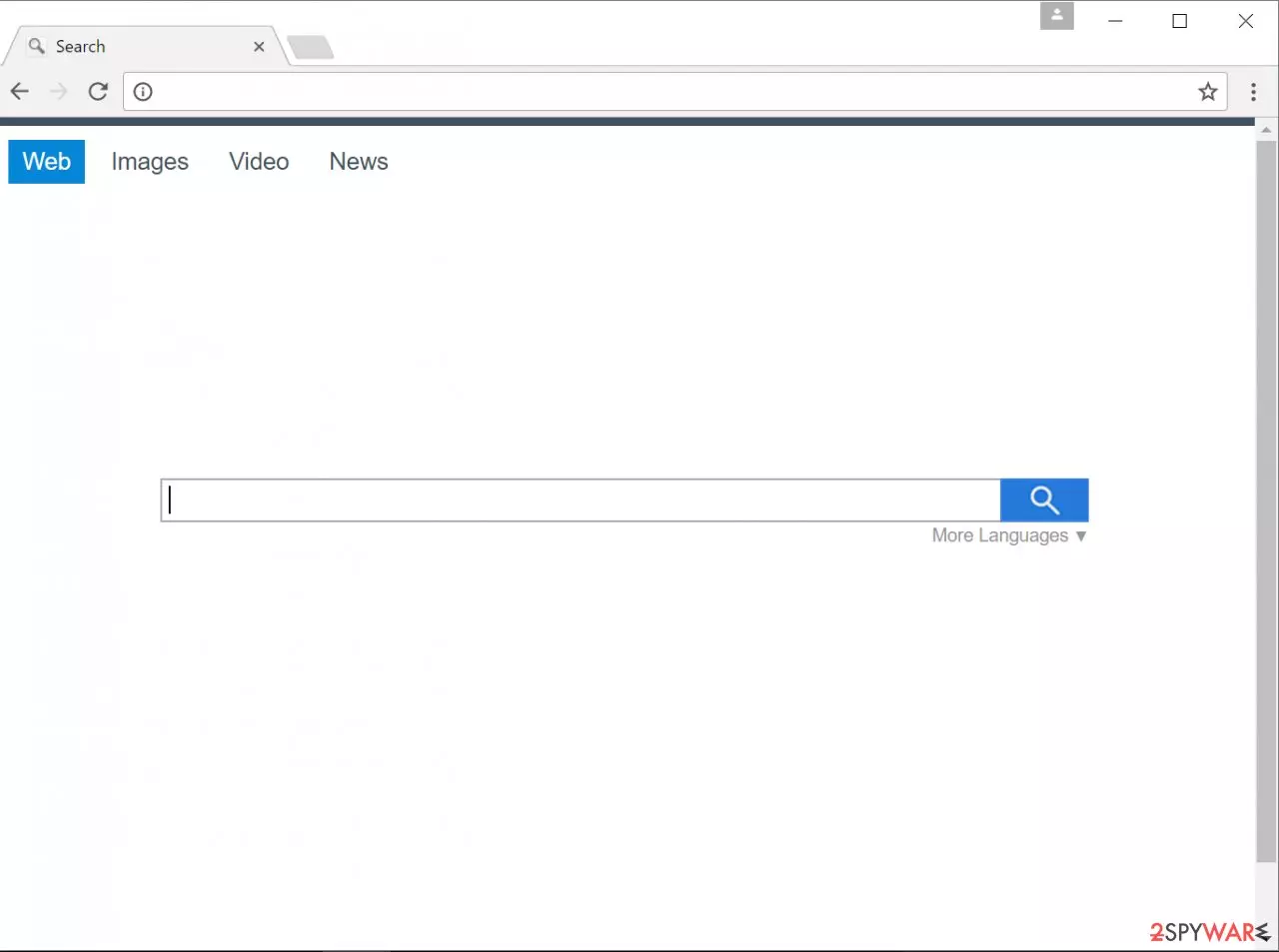
Search.weather-genie.com is a suspicious website that looks like a legitimate search engine at first. However, its functionality might be questionable. Our attempts to access the “About us” section which should technically introduce us to its creators always hit the dead end.
However, we managed to find out that it has been developed by a company that has also developed Linkury Smartbar, a questionable browser extension that changes the default browser’s homepage, search engine, and new tab settings. In the case of the Weather-Genie extension, feed.weather-genie.com URL might be assigned to these settings.
Besides, its other product, known as Safe Finder, has also been causing headaches for computer users for a long time. Both of these browser extensions belong to the potentially unwanted programs (PUPs) category, and due to their ability to change the aforementioned browser settings, they fall into the browser hijackers’ group[1]. Such programs are untrustworthy and should be kept away from the system due to several reasons.
The suspicious extension comes with tracking technologies that automatically collect data such as:
- search logs,
- visited pages,
- operating system type,
- IP address,
- internet service provider
- and similar information.
| Name | Search.weather-genie.com |
|---|---|
| Type | Browser hijacker |
| Symptoms | Default search engine, homepage, new tab settings get changed to this site. Often these programs can install other browser-based extensions or applications |
| Problems | Redirects and commercial content injection keeps the user from accessing the wanted content online while searching |
| Distribution | Sites that promote and distribute such free programs can use software bundling methods to spread PUPs alongside freeware |
| Alleged functionality | The app should improve searches and browsing activities, show forecasts and other information on the homepage |
| Elimination | When you run the anti-malware tool you can clean the system fully. However, there are issues with web browsers, so go to the guide below and make sure to repair normal settings there |
| System fix | Due to various changes in settings and even file alterations, PUPs can trigger system damage. Run FortectIntego to find and possibly repair altered data |
Although such data is classified as personally non-identifiable one, search queries might contain some details that could reveal your identity. The company admits sharing collected data with its affiliates and service providers. Weather-Genie’s service providers can also employ tracking technologies to track and analyze user’s preferences.
Although the company swears to be using collected data to perform analysis and research, improve the service and to fight against fraud, security or technical issues, you can never be sure about that. The developer claims to be using “commercially acceptable means and procedures” to protect collected information, they refuse to confirm that their systems are absolutely safe.
In our opinion, the distribution method used to promote the extension that sets search.weather-genie.com as default start page and search tool in user’s browsers is quite deceptive. Software bundling is used to promote many ad-supported programs.
Although the method is legitimate, users are not quite happy to find some additional programs in their computers all of a sudden. There is nothing bad in monetizing one’s creations, but not when it is done by taking advantage of unsuspecting users[2].
We must warn you that the described search tool always provides dozens of various URLs (a.k.a. search results) linking to various external sites. The search tool also includes ads to monetize its free service. As its Privacy Policy states, “the Product includes links to third party sites or content.”
However, what concerns us is that the company claims that it has no control over and assumes no responsibility for third-party content. It says that all responsibility and risk of using and interacting with Third Party Content is a matter of the user. The company disclaims any and all liability to users or third parties regarding third-party content.
We suggest you think twice before using this search tool because clearly, the developer of it doesn’t really care whether the sites it lists in the search results are trustworthy or not. It is not considered helpful at all. You might even unexpectedly land on dangerous sites[3]!

Another suspicious fact is that the software was earlier available to download at install.weather-genie.com, and now the website is down. The uninstall.weather-genie.com site is, however, still active, and we assume it means that the suspicious browser hijacker is promoted in some other ways than via its official website.
If it entered your system unexpectedly and you do not want to use it any longer, perform the proper PUP removal using spyware removal tools. You might want to use SpyHunterCombo Cleaner or MalwarebytesMalwarebytes. Anti-malware tools should find all pieces and possibly related programs and remove them fully.
Search.weather-genie.com hijack is a warning which should urge you to upgrade your security equipment and re-evaluate your own browsing habits[4]. While the potentially unwanted program is still on your computer, we recommend refraining from extensive web browsing. This is primarily because you can never know whether the parties this advertiser promotes are actually reliable.
It might be that among the numerous advertisement and sponsored links that this search provider generates, there is some content that may potentially harm your computer. We want to point out that while the browser hijacker is NOT malicious itself, the content it provides (links to external sites) can be untrustworthy. In our opinion, the company should use at least some filters in order to provide more secure URLs to users of their software.
Ways to install unwanted browser extensions and ad-supported programs
When it comes to the distribution of the PUP, we cannot name one specific strategy because the developer of it might be changing it from time to time. However, we want to introduce you to the main methods used to distribute ad-supported programs. The truth is, computer users typically do not want such programs on their systems. Consequently, to force users to install them, their developers use one of these techniques (or some of them at once):
- Software bundling. Software bundling is a legitimate, yet very questionable software distribution method that allows spreading several programs at once. You should double-check software installation settings and make sure the Advanced or Custom option is selected. These options allow decomposing software packages by opting out suggested additions.
- Pop-up ads. Sometimes people encounter offers to install certain browser extensions that appear in pop-up windows on their screen. If this happens to you, it is likely that you have an adware program installed on your computer.
More dangerous programs like viruses may use spam [5] or drive-by downloads to sneak into the system, but lightweight parasites like this do not need all that. As we said, ad-supported programs are simply added to the software packages as suggested programs and install along with whatever software the user is setting up on the computer.
A quick way to uninstall Search.weather-genie.com
You have the right to choose how to remove Search.weather-genie.com from your computer. It is possible to uninstall it manually – we have provided instructions right below this article for your convenience. You can also just install a reliable anti-spyware product and uninstall this potentially unwanted program automatically. If you choose to remove the hijacker manually but do not have the right skills or guidance, you cannot simply expect great results.
In most cases, the easiest and quickest way to uninstall such programs is to use an automatic adware and spyware removal tool. Anti-spyware utilities are specifically designed for this purpose and guarantee that the device is also protected from spyware or malware returning to your computer in the future. Another reason why we suggest using an automatic spyware removal tool is that users tend to complain that instructions provided on the hijacker’s developer site do not help to eliminate their products from the system[6].
Uninstall from Windows
Uninstall from Windows 10/8:
- Type Control Panel into the Windows search box and open the result.
- Under Programs, select Uninstall a program.


Uninstall from Windows 7/XP:
- Click on Windows Start > Control Panel (Windows XP users should click on Add/Remove Programs).
- In Control Panel, select Programs > Uninstall a program.


Remove the unwanted program:
- In the Programs and Features window, look for any recently installed suspicious entries, select them, and click Uninstall.
- If User Account Control appears, click Yes to confirm, then complete the removal.


Delete from macOS
Remove the unwanted application:
- From the menu bar, select Go > Applications.
- In the Applications folder, look for any suspicious entries, then drag them to Trash (or right-click and pick Move to Trash).


Delete leftover files and folders:
- Select Go > Go to Folder.
- Enter /Library/Application Support and remove any suspicious folders related to the unwanted program.
- Repeat the same check in the /Library/LaunchAgents and /Library/LaunchDaemons folders, deleting any suspicious entries.

- Finally, empty the Trash to permanently remove the leftovers.

Remove from Microsoft Edge
Delete unwanted extensions from MS Edge:
- Select Menu (three horizontal dots at the top-right of the browser window) and pick Extensions.
- From the list, pick the extension and click on the Gear icon.
- Click Remove.


Clear cookies and other browser data:
- Click on the Menu (three horizontal dots at the top-right of the browser window) and select Settings > Privacy, search, and services..
- Under Clear browsing data, pick Choose what to clear.
- Select Cookies and other site data and Cached images and files. (apart from passwords, although you might want to include Media licenses as well, if applicable) and click on Clear.


Restore new tab and homepage settings:
- Click the menu icon and choose Settings.
- Then find On startup section.
- Click Remove next to any suspicious startup page.
Reset MS Edge if the above steps did not work:
- Press on Ctrl + Shift + Esc to open Task Manager.
- Click on More details arrow at the bottom of the window.
- Select Details tab.
- Now scroll down and locate every entry with Microsoft Edge name in it. Right-click on each of them and select End Task to stop MS Edge from running.


Instructions for Chromium-based Edge
Delete extensions from MS Edge (Chromium):
- Open Edge and click select Settings > Extensions.
- Delete unwanted extensions by clicking Remove.


Clear cache and site data:
- Click on Menu and go to Settings.
- Select Privacy, search and services.
- Under Clear browsing data, pick Choose what to clear.
- Under Time range, pick All time.
- Select Clear now.


Reset Chromium-based MS Edge:
- Click on Menu and select Settings.
- On the left side, pick Reset settings.
- Select Restore settings to their default values.
- Confirm with Reset.
- This will disable extensions and reset startup pages but will not delete bookmarks, saved passwords, or browsing history.


Remove from Mozilla Firefox (FF)
Remove dangerous extensions:
- Open Mozilla Firefox browser and click on the Menu (three horizontal lines at the top-right of the window).
- Select Add-ons.
- In here, select the unwanted extension and click Remove.


Reset the homepage:
- Click three horizontal lines at the top right corner to open the menu.
- Choose Settings.
- Under Home, set your preferred homepage and new tab settings.
Clear cookies and site data:
- Click Menu and pick Settings.
- Go to Privacy & Security section.
- Scroll down to locate Cookies and Site Data.
- Click on Clear Data...
- Select Cookies and Site Data and Temporary cached files and pages, then click Clear.


Reset Mozilla Firefox
If clearing the browser as explained above did not help, reset Mozilla Firefox:
- Open Mozilla Firefox browser and click the Menu.
- Go to Help and then choose Troubleshooting Information.

- Under Give Firefox a tune up section, click on Refresh Firefox...
- Once the pop-up shows up, confirm the action by pressing on Refresh Firefox.



Remove from Google Chrome
Delete malicious extensions from Google Chrome:
- Open Google Chrome, click on the Menu (three vertical dots at the top-right corner) and select More tools > Extensions.
- In the newly opened window, you will see all the installed extensions. Uninstall all suspicious extensions related to the unwanted program by clicking Remove.


Clear cache and web data from Chrome:
- Click on Menu and pick Settings.
- Under Privacy and security, select Clear browsing data.
- Select Browsing history, Cookies and other site data, as well as Cached images and files.
- Click Clear data.


Change your homepage:
- Click menu and choose Settings.
- Look for a suspicious site in the On startup section.
- Click on Open a specific or set of pages and click on three dots to find the Remove option.
Reset Google Chrome:
If the previous methods did not help you, reset Google Chrome to eliminate all the unwanted components:
- Click on Menu and select Settings.
- In the Settings, scroll down and click Advanced.
- Scroll down and locate Reset and clean up section.
- Now click Restore settings to their original defaults.
- Confirm with Reset settings.


Delete from Safari
Remove dangerous extensions:
- Open Safari, click Safari in the menu at the top-left of the screen, and select Preferences.
- Go to the Extensions tab, look for any suspicious entries, and click Uninstall to remove them.


Clear history and website data:
- Click Safari in the menu and pick Clear History.
- Set Clear to all history and confirm with Clear History.


Reset Safari:
- Click Safari in the menu and select Preferences > Advanced.
- Enable Show Develop menu in menu bar.
- From the menu bar, click Develop and select Empty Caches.


Did this guide help?
Be the first to comment