

Full description of DirectionsOnline Toolbar
DirectionsOnline Toolbar is a computer program that belongs to freeware category. It can be installed in most popular web browsers such as Google Chrome, Mozilla Firefox, and others. It suggests searching for directions online with a help of Toolbar’s shortcuts to “trusted map sources,” however, this browser extension also changes browser’s homepage and new tab page to a custom version of hp.myway.com search engine. We assume that this piece of software does not clearly disclose what happens after adding “Directions Online New Tab” to web browsers, because users tend to complain about homepage changes that were made without their knowledge. The search engine provided by this browser extension tends to provide quite a lot sponsored search results[1], too, and that is yet another reason why users are not happy with it. If you no longer want to use the described new tab page, remove DirectionsOnline Toolbar using instructions we added to this page.
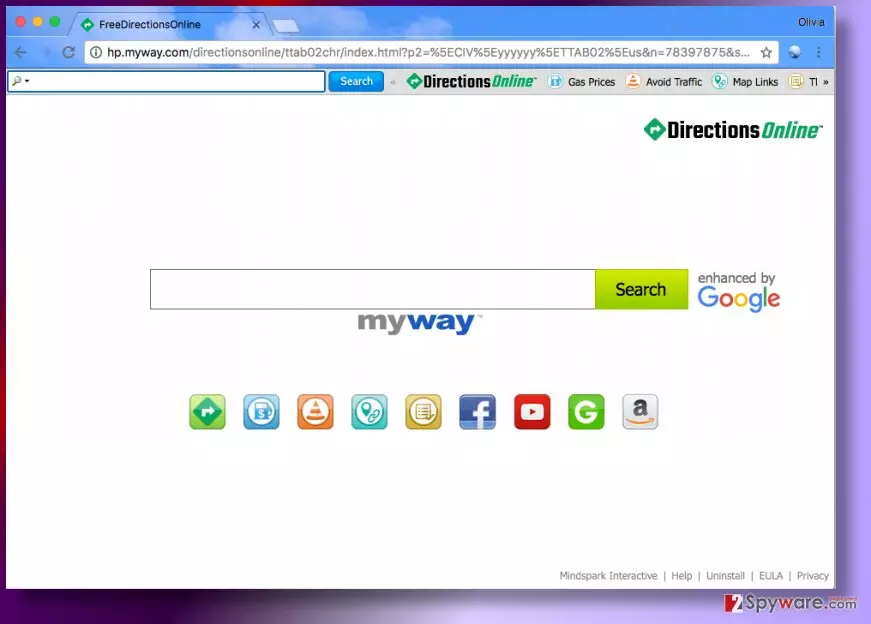
It turns out that the new tab page presented by this toolbar attempts to collect particular pieces of information during your browsing sessions. The developer of the app collects and stores information you provide to it, for instance, when you register on the site, or provide it in some other manner. It might collect your name, email address, telephone number, username and password. In addition to that, this system tool also captures personally non-identifiable information automatically by using cookies. Such information may include IP address, browser type, a time-stamp, search queries, results clicked, websites accessed, and even more. Such data can be used to “respond to your queries with best possible answers and search results” and “communicate with you by e-mail, postal mail, telephone, […] about products or services may be of interest you either from [developer of the app], IAC affiliates or other third-parties.” Now, we would like to encourage you to think about these statements and decide if you want to continue using these services. Besides, the developer admits to be providing links to external websites that it “does not control.” Some of these websites can be untrustworthy and provide possibly dangerous content, so we suggest you stay attentive when exploring these search results. You might want to start thinking about DirectionsOnline removal options; we provided two of them below the article.
Possible ways to install browser toolbars
Browser toolbars that are ad-supported (but not necessarily DirectionsOnline Toolbar) can be distributed in various ways. Some of them have official websites, others can be found in browser’s extension/app stores, and the rest chooses to travel alongside other free programs[2]. The last method we mentioned proves to be the most efficient one when trying to distribute ad-supported programs. It is associated with free programs that suggest installing other, less known free programs that are typically considered to be potentially unwanted ones. More popular programs insert a few suggestions to add extra programs during the installation, and these suggestions can be opted out only via Custom/Advanced installation settings, meaning that users who rely on Default or Standard ones agree to install these extras without even realizing it.
Recently, the developer of this program contacted us asking us to remove this post from 2-spyware.com website. We believe that we shouldn’t do that as long as programs that we offer for the removal of DirectionsOnline Toolbar can detect it and help users to remove it from the system. As it is mentioned under each of download buttons, we ARE affiliated with these anti-malware programs, and while some of them are free, others can remove a virus only after purchasing them. These mentions fully fulfill each of the requirements of FTC.
Nevertheless, we have recently decided to make a revision of this and other posts that are related to this developer. We claim that all of them are described properly.
Removal of DirectionsOnline Toolbar
If you cannot find this toolbar in your PC no matter how hard you try, stop wasting your valuable time and remove DirectionsOnline Toolbar using the guide we provided below. In case you’re looking for a computer security software that could clear all shady programs and files from the system at once and guard the computer against future malware or spyware attacks, consider investing in a good anti-spyware or anti-malware software.
Uninstall from Windows
Uninstall from Windows 10/8:
- Type Control Panel into the Windows search box and open the result.
- Under Programs, select Uninstall a program.


Uninstall from Windows 7/XP:
- Click on Windows Start > Control Panel (Windows XP users should click on Add/Remove Programs).
- In Control Panel, select Programs > Uninstall a program.


Remove the unwanted program:
- In the Programs and Features window, look for any recently installed suspicious entries, select them, and click Uninstall.
- If User Account Control appears, click Yes to confirm, then complete the removal.


Delete from macOS
Remove the unwanted application:
- From the menu bar, select Go > Applications.
- In the Applications folder, look for any suspicious entries, then drag them to Trash (or right-click and pick Move to Trash).


Delete leftover files and folders:
- Select Go > Go to Folder.
- Enter /Library/Application Support and remove any suspicious folders related to the unwanted program.
- Repeat the same check in the /Library/LaunchAgents and /Library/LaunchDaemons folders, deleting any suspicious entries.

- Finally, empty the Trash to permanently remove the leftovers.

Reset Internet Explorer
Remove dangerous add-ons:
- Open Internet Explorer, click on the Gear icon (IE menu) on the top-right corner of the browser
- Pick Manage Add-ons.
- You will see a Manage Add-ons window. Here, look for suspicious plugins. Click on these entries and select Disable.


Change your homepage if it was altered:
- Open IE and click on the Gear icon.
- Select Internet Options.
- In the General tab, delete the Home page address and replace it by your preferred one (for example, Google.com).
- Click Apply and then select OK.


Delete temporary files:
- Press on the Gear icon and select Internet Options.
- Under Browsing history, click Delete...
- Select relevant fields and press Delete.


Reset Internet Explorer:
- Click on Gear icon > Internet options and select Advanced tab.
- Select Reset.
- In the new window, check Delete personal settings and select Reset.


Remove from Microsoft Edge
Delete unwanted extensions from MS Edge:
- Select Menu (three horizontal dots at the top-right of the browser window) and pick Extensions.
- From the list, pick the extension and click on the Gear icon.
- Click Remove.


Clear cookies and other browser data:
- Click on the Menu (three horizontal dots at the top-right of the browser window) and select Settings > Privacy, search, and services..
- Under Clear browsing data, pick Choose what to clear.
- Select Cookies and other site data and Cached images and files. (apart from passwords, although you might want to include Media licenses as well, if applicable) and click on Clear.


Restore new tab and homepage settings:
- Click the menu icon and choose Settings.
- Then find On startup section.
- Click Remove next to any suspicious startup page.
Reset MS Edge if the above steps did not work:
- Press on Ctrl + Shift + Esc to open Task Manager.
- Click on More details arrow at the bottom of the window.
- Select Details tab.
- Now scroll down and locate every entry with Microsoft Edge name in it. Right-click on each of them and select End Task to stop MS Edge from running.


Instructions for Chromium-based Edge
Delete extensions from MS Edge (Chromium):
- Open Edge and click select Settings > Extensions.
- Delete unwanted extensions by clicking Remove.


Clear cache and site data:
- Click on Menu and go to Settings.
- Select Privacy, search and services.
- Under Clear browsing data, pick Choose what to clear.
- Under Time range, pick All time.
- Select Clear now.


Reset Chromium-based MS Edge:
- Click on Menu and select Settings.
- On the left side, pick Reset settings.
- Select Restore settings to their default values.
- Confirm with Reset.
- This will disable extensions and reset startup pages but will not delete bookmarks, saved passwords, or browsing history.


Remove from Mozilla Firefox (FF)
Remove dangerous extensions:
- Open Mozilla Firefox browser and click on the Menu (three horizontal lines at the top-right of the window).
- Select Add-ons.
- In here, select the unwanted extension and click Remove.


Reset the homepage:
- Click three horizontal lines at the top right corner to open the menu.
- Choose Settings.
- Under Home, set your preferred homepage and new tab settings.
Clear cookies and site data:
- Click Menu and pick Settings.
- Go to Privacy & Security section.
- Scroll down to locate Cookies and Site Data.
- Click on Clear Data...
- Select Cookies and Site Data and Temporary cached files and pages, then click Clear.


Reset Mozilla Firefox
If clearing the browser as explained above did not help, reset Mozilla Firefox:
- Open Mozilla Firefox browser and click the Menu.
- Go to Help and then choose Troubleshooting Information.

- Under Give Firefox a tune up section, click on Refresh Firefox...
- Once the pop-up shows up, confirm the action by pressing on Refresh Firefox.



Remove from Google Chrome
Delete malicious extensions from Google Chrome:
- Open Google Chrome, click on the Menu (three vertical dots at the top-right corner) and select More tools > Extensions.
- In the newly opened window, you will see all the installed extensions. Uninstall all suspicious extensions related to the unwanted program by clicking Remove.


Clear cache and web data from Chrome:
- Click on Menu and pick Settings.
- Under Privacy and security, select Clear browsing data.
- Select Browsing history, Cookies and other site data, as well as Cached images and files.
- Click Clear data.


Change your homepage:
- Click menu and choose Settings.
- Look for a suspicious site in the On startup section.
- Click on Open a specific or set of pages and click on three dots to find the Remove option.
Reset Google Chrome:
If the previous methods did not help you, reset Google Chrome to eliminate all the unwanted components:
- Click on Menu and select Settings.
- In the Settings, scroll down and click Advanced.
- Scroll down and locate Reset and clean up section.
- Now click Restore settings to their original defaults.
- Confirm with Reset settings.


Delete from Safari
Remove dangerous extensions:
- Open Safari, click Safari in the menu at the top-left of the screen, and select Preferences.
- Go to the Extensions tab, look for any suspicious entries, and click Uninstall to remove them.


Clear history and website data:
- Click Safari in the menu and pick Clear History.
- Set Clear to all history and confirm with Clear History.


Reset Safari:
- Click Safari in the menu and select Preferences > Advanced.
- Enable Show Develop menu in menu bar.
- From the menu bar, click Develop and select Empty Caches.


Did this guide help?
Be the first to comment