

Aubamy Downloader is the program that sparks suspicions over its reliability
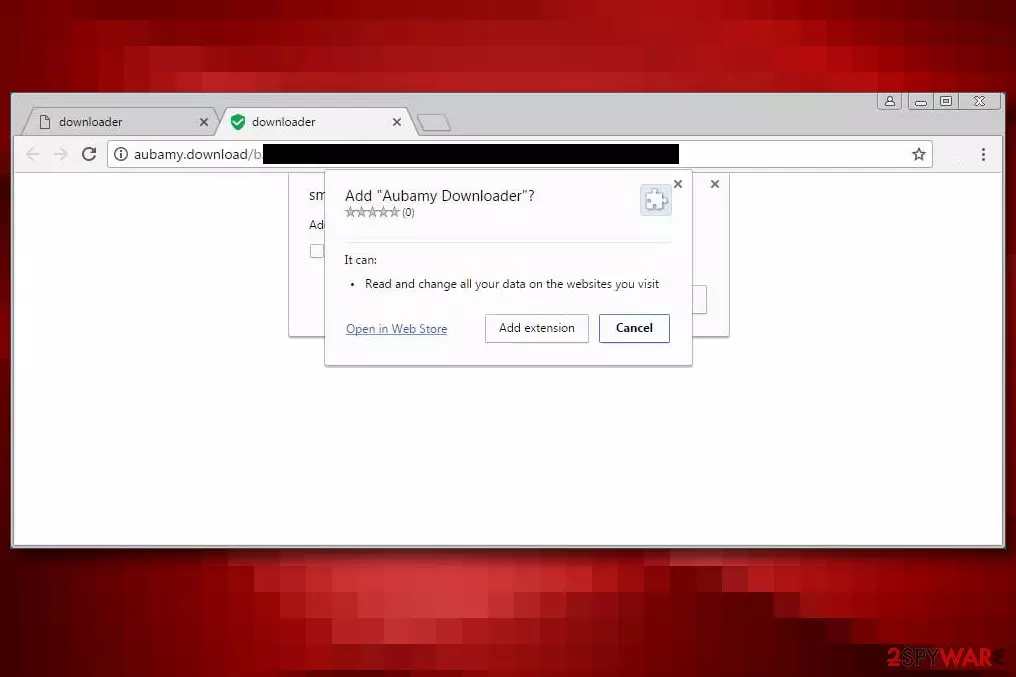
Aubamy Downloader serves as a browser hijacker that mostly affects Google Chrome users. It hijacks the victim’s web browser to replace the current search provider with Clever-find.com. The hijacker configures search results, and although they look like Yahoo provided them, they can be filled with additional ads that link to possibly insecure websites[1].
The questionable add-on can be attached via deceptive “Add Extension to Leave” sites[2] that urgently push you to install unwanted extensions such as Web Friend, Cookies On-Off, unTabs, or Speed Reader. These add-ons are visible only in specific browser settings.
| Name | Aubamy Downloader |
|---|---|
| Type | Browser hijacker, potentially unwanted program |
| Symptoms | The program changes homepage, new tab, search engine preferences and controls the online traffic |
| Problems | Searching online gets affected by continuous redirects, pop-ups, and banners that get injected randomly |
| Distribution | Freeware installations where software bundling is used leads to silent infiltration of such PUPs |
| Elimination | Rely on the anti-malware tools and the guide below for the proper system cleaning |
| Repair | Run FortectIntego to check for possible damage and reair affected files or functions |
The extension, unfortunately, creates a folder in the system and drops some JavaScript files that are used by the manifest.json file. These .js files contain hxxp://clever-find.com/ari/?keyword= URL, which is used to deliver modified search results to the user.
Furthermore, the components of this hijacker are responsible for identifying user’s attempts to perform a search via Bing, genuine Yahoo, Google, and other search engines, grab the search phrase and deliver results from CleverFind instead.
Such activity is highly intrusive and does not create a positive impression. If you do not want to receive these modified search results, you have to remove Aubamy Downloader right now. We suggest using tools like SpyHunterCombo Cleaner, MalwarebytesMalwarebytes for its removal.
If you landed on a website that aggressively pushes you to add an extension to leave, most likely it will try to convince you to do that by freezing your computer or opening the browser window in full-screen mode. The only way to close such a site is to Force Quit it or just shut down your browser via Windows Task Manager.

If you notice that your browser opens random new tabs or browser windows and loads various ads, including those advertising vague browser extensions, you should check your system for adware.
As we said, you can perform Aubamy Downloader removal and clean all other spyware programs at once automatically, although you can also delete the extension manually. We provided the guide on how to do it below. You can also check guides provided in different languages on sites such as UsunWirusa.pl[3].
Ways to get infected with silent PUPs
As we said, the described extension is actively promoted via deceptive “Add Extension to Leave” pages. It can also be distributed via the software bundling technique. It is possible to prevent the installation of the virus by closing the websites that urge you to do it, but if that is not the case and the extension was installed without your knowledge, you should rethink your way of installing new computer programs.
Programs can be easily downloaded from the Internet; however, it doesn’t mean all of them are safe. Even if you attempt to download a legitimate program from a file-sharing site, check its reputation by reading user reviews online. Besides, it is critical to inspect whether it contains additional programs or not.
To deselect additional programs bundled with your downloaded software, choose Custom/Advanced software installation settings. Remember that such changes can’t be made via Default/Standard options that appear to be the “safe choice” at first.
Delete Aubamy Downloader completely
Remove the suspicious program and get rid of the virus without a wait because as long as it stays on the system, your browsing activities will be tracked and collected information will be transmitted, so servers associated with this suspicious extension.
Besides, this extension forces you to employ a disputable search engine. Thus, that is another reason to get rid of it. We suggest you perform Aubamy Downloader removal using anti-malware software, but if you wish, you can delete the hijacker manually as well.
Uninstall from Windows
Uninstall from Windows 10/8:
- Type Control Panel into the Windows search box and open the result.
- Under Programs, select Uninstall a program.


Uninstall from Windows 7/XP:
- Click on Windows Start > Control Panel (Windows XP users should click on Add/Remove Programs).
- In Control Panel, select Programs > Uninstall a program.


Remove the unwanted program:
- In the Programs and Features window, look for any recently installed suspicious entries, select them, and click Uninstall.
- If User Account Control appears, click Yes to confirm, then complete the removal.


Delete from macOS
Remove the unwanted application:
- From the menu bar, select Go > Applications.
- In the Applications folder, look for any suspicious entries, then drag them to Trash (or right-click and pick Move to Trash).


Delete leftover files and folders:
- Select Go > Go to Folder.
- Enter /Library/Application Support and remove any suspicious folders related to the unwanted program.
- Repeat the same check in the /Library/LaunchAgents and /Library/LaunchDaemons folders, deleting any suspicious entries.

- Finally, empty the Trash to permanently remove the leftovers.

Remove from Microsoft Edge
Delete unwanted extensions from MS Edge:
- Select Menu (three horizontal dots at the top-right of the browser window) and pick Extensions.
- From the list, pick the extension and click on the Gear icon.
- Click Remove.


Clear cookies and other browser data:
- Click on the Menu (three horizontal dots at the top-right of the browser window) and select Settings > Privacy, search, and services..
- Under Clear browsing data, pick Choose what to clear.
- Select Cookies and other site data and Cached images and files. (apart from passwords, although you might want to include Media licenses as well, if applicable) and click on Clear.


Restore new tab and homepage settings:
- Click the menu icon and choose Settings.
- Then find On startup section.
- Click Remove next to any suspicious startup page.
Reset MS Edge if the above steps did not work:
- Press on Ctrl + Shift + Esc to open Task Manager.
- Click on More details arrow at the bottom of the window.
- Select Details tab.
- Now scroll down and locate every entry with Microsoft Edge name in it. Right-click on each of them and select End Task to stop MS Edge from running.


Instructions for Chromium-based Edge
Delete extensions from MS Edge (Chromium):
- Open Edge and click select Settings > Extensions.
- Delete unwanted extensions by clicking Remove.


Clear cache and site data:
- Click on Menu and go to Settings.
- Select Privacy, search and services.
- Under Clear browsing data, pick Choose what to clear.
- Under Time range, pick All time.
- Select Clear now.


Reset Chromium-based MS Edge:
- Click on Menu and select Settings.
- On the left side, pick Reset settings.
- Select Restore settings to their default values.
- Confirm with Reset.
- This will disable extensions and reset startup pages but will not delete bookmarks, saved passwords, or browsing history.


Remove from Mozilla Firefox (FF)
Remove dangerous extensions:
- Open Mozilla Firefox browser and click on the Menu (three horizontal lines at the top-right of the window).
- Select Add-ons.
- In here, select the unwanted extension and click Remove.


Reset the homepage:
- Click three horizontal lines at the top right corner to open the menu.
- Choose Settings.
- Under Home, set your preferred homepage and new tab settings.
Clear cookies and site data:
- Click Menu and pick Settings.
- Go to Privacy & Security section.
- Scroll down to locate Cookies and Site Data.
- Click on Clear Data...
- Select Cookies and Site Data and Temporary cached files and pages, then click Clear.


Reset Mozilla Firefox
If clearing the browser as explained above did not help, reset Mozilla Firefox:
- Open Mozilla Firefox browser and click the Menu.
- Go to Help and then choose Troubleshooting Information.

- Under Give Firefox a tune up section, click on Refresh Firefox...
- Once the pop-up shows up, confirm the action by pressing on Refresh Firefox.



Remove from Google Chrome
Delete malicious extensions from Google Chrome:
- Open Google Chrome, click on the Menu (three vertical dots at the top-right corner) and select More tools > Extensions.
- In the newly opened window, you will see all the installed extensions. Uninstall all suspicious extensions related to the unwanted program by clicking Remove.


Clear cache and web data from Chrome:
- Click on Menu and pick Settings.
- Under Privacy and security, select Clear browsing data.
- Select Browsing history, Cookies and other site data, as well as Cached images and files.
- Click Clear data.


Change your homepage:
- Click menu and choose Settings.
- Look for a suspicious site in the On startup section.
- Click on Open a specific or set of pages and click on three dots to find the Remove option.
Reset Google Chrome:
If the previous methods did not help you, reset Google Chrome to eliminate all the unwanted components:
- Click on Menu and select Settings.
- In the Settings, scroll down and click Advanced.
- Scroll down and locate Reset and clean up section.
- Now click Restore settings to their original defaults.
- Confirm with Reset settings.


Delete from Safari
Remove dangerous extensions:
- Open Safari, click Safari in the menu at the top-left of the screen, and select Preferences.
- Go to the Extensions tab, look for any suspicious entries, and click Uninstall to remove them.


Clear history and website data:
- Click Safari in the menu and pick Clear History.
- Set Clear to all history and confirm with Clear History.


Reset Safari:
- Click Safari in the menu and select Preferences > Advanced.
- Enable Show Develop menu in menu bar.
- From the menu bar, click Develop and select Empty Caches.


Did this guide help?
Be the first to comment