

Search.poreskanaf.com attempts to generate revenue by serving fake search results
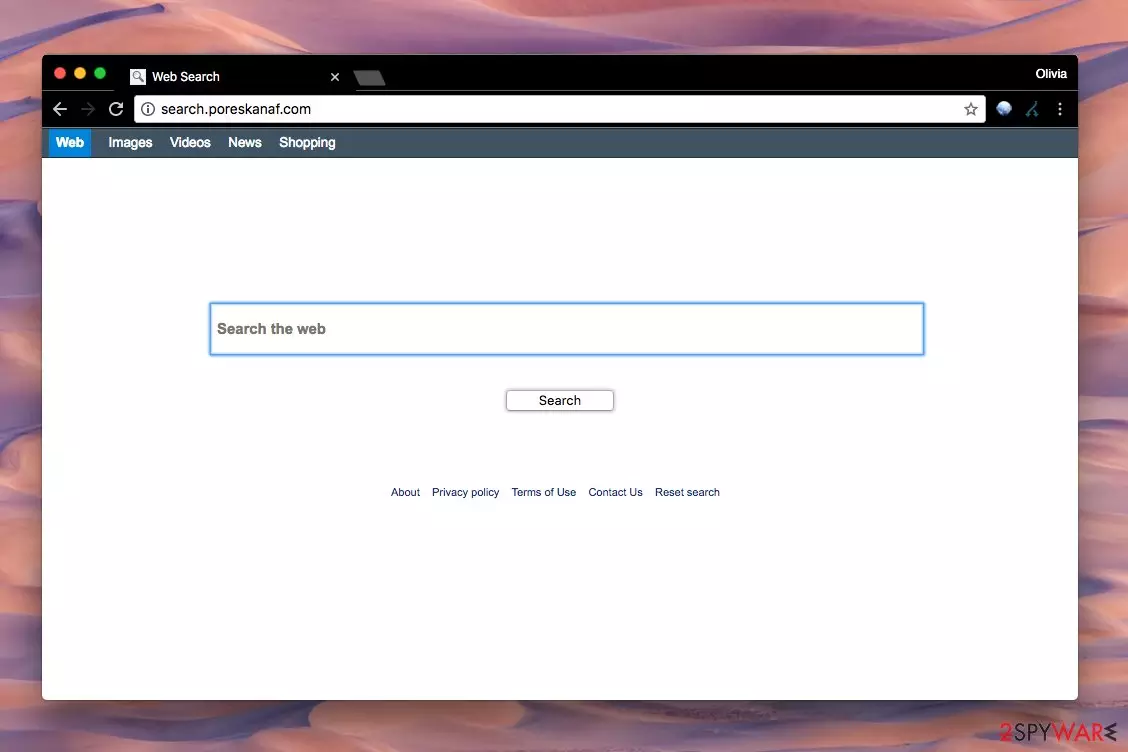
Search.poreskanaf.com might seem like a useful search engine that operates like any other one, although it is not correct. While it can be accessed manually simply by entering the address in the URL bar, it is mostly appended to Safari, Google Chrome, Mozilla Firefox, or another browser after Poreskanaf or Genieo Search virus is installed on Mac computers.
This search engine is nothing more but a browser hijacker[1] – once it finds a way into users' machine, it sets its own homepage and changes other settings in an attempt to take over the web browser and promote sponsored links and ads. In the background, PUPs are known for their ability to track user data for marketing purposes.
| Name | Search.poreskanaf.com |
| Type | Mac virus |
| Distribution | Software bundle packages, insecure websites |
| Operation | Replaces homepage and new tab with its own URL; uses a customized search engine to provide results; search results are littered with ads and sponsored links |
| Deletion | You can delete the unwanted app by following the guide we provide below |
| Further steps | We recommend using FortectIntego after virus removal for best results |
Many users ask how to remove Search.poreskanaf.com, as it usually can't be removed like typical Mac applications. To get rid of the unwanted changes, the correlating app needs to be eliminated from the device (be it an extension or an application).
The entire time this hijacker stays on the system, it tries to stop the victim from using any other search engine than the one provided by the redirect virus. The point of doing this is to serve ads alongside regular search results and convince the victim to click on them.
If the aim is achieved, the developer of the Mac hijacker[2] earns money for making the user visit a particular website. This greatly changes how you would browse the web, as most people simply click on the first results provided. What they mostly don't know is that the link is sponsored, i.e., paid for, so your browsing routine is manipulated by a third party.
Sadly, not all of the advertised sites are endorsed and inspected carefully. In fact, it is unsure whether the author of the app does that. Assuming that it doesn’t, you should take care of your privacy and security and remove the PUP immediately. Instead of this search tool, you can use any other well-known and trustworthy provider.
If you decide to continue using the shady search engine, you might notice that it delivers “Genieo Yahoo search results.” Let us remind you that these are not the same as simple “Yahoo search results.”
It means that Genieo inserts ads and links to external third-party websites to promote them and generate revenue each time a user clicks on them.

To put it simply, Search.poreskanaf.com removal will allow you to choose which search engine you want to use and what website to set as the default start page. Besides, you will likely receive more relevant search results without myriads of ads.
Instructions provided at the end of this page can help you to uninstall the browser hijacker manually, however, using FortectIntego is an even better option than that. For more similar instructions, we recommend visiting NoVirus.uk site[3].
Install software correctly to avoid browser hijacking
If you’d like to avoid browser hijackers, follow these easy steps to install only the computer programs you want.
- Check whether the program you want to install is legal. Then, find its developer’s site and download it from there.
- If you can’t find its official website, you might attempt to download the program from one of those file sharing sites. If you do so, be extremely careful. We highly recommend checking website’s reputation online before downloading anything from them.
- Once you have the installer on the system, remind yourself to be careful. You do not want to install the new download in a rush, so do not click the “Next” button hastily.
- Read every statement and line provided by the installer. Study the program’s Privacy Policy and Terms of Use. It can be boring, but these documents are important!
- Do not choose Default or Standard settings for the installation. Instead, pick Custom or Advanced.
- Deselect every suggested program that shouldn’t come in a bundle with your chosen one.
Clean your Mac and your browsers from junk
The only way to get rid of browser redirects is to remove all the potentially unwanted programs that reside on the system. However, to find the culprit of all these Mac problems it caused lately, you will need to carefully read the tutorial we provided. If you feel that you don’t have time to study it attentively, you might want to choose a second option – anti-malware software.
Search.poreskanaf.com removal can be completed in less than 10 minutes if you use a powerful Mac scanner. We have listed programs compatible with this operating system. Choose one and let it clean your Mac.
Delete from macOS
Remove the unwanted application:
- From the menu bar, select Go > Applications.
- In the Applications folder, look for any suspicious entries, then drag them to Trash (or right-click and pick Move to Trash).


Delete leftover files and folders:
- Select Go > Go to Folder.
- Enter /Library/Application Support and remove any suspicious folders related to the unwanted program.
- Repeat the same check in the /Library/LaunchAgents and /Library/LaunchDaemons folders, deleting any suspicious entries.

- Finally, empty the Trash to permanently remove the leftovers.

Remove from Microsoft Edge
Delete unwanted extensions from MS Edge:
- Select Menu (three horizontal dots at the top-right of the browser window) and pick Extensions.
- From the list, pick the extension and click on the Gear icon.
- Click Remove.


Clear cookies and other browser data:
- Click on the Menu (three horizontal dots at the top-right of the browser window) and select Settings > Privacy, search, and services..
- Under Clear browsing data, pick Choose what to clear.
- Select Cookies and other site data and Cached images and files. (apart from passwords, although you might want to include Media licenses as well, if applicable) and click on Clear.


Restore new tab and homepage settings:
- Click the menu icon and choose Settings.
- Then find On startup section.
- Click Remove next to any suspicious startup page.
Reset MS Edge if the above steps did not work:
- Press on Ctrl + Shift + Esc to open Task Manager.
- Click on More details arrow at the bottom of the window.
- Select Details tab.
- Now scroll down and locate every entry with Microsoft Edge name in it. Right-click on each of them and select End Task to stop MS Edge from running.


Instructions for Chromium-based Edge
Delete extensions from MS Edge (Chromium):
- Open Edge and click select Settings > Extensions.
- Delete unwanted extensions by clicking Remove.


Clear cache and site data:
- Click on Menu and go to Settings.
- Select Privacy, search and services.
- Under Clear browsing data, pick Choose what to clear.
- Under Time range, pick All time.
- Select Clear now.


Reset Chromium-based MS Edge:
- Click on Menu and select Settings.
- On the left side, pick Reset settings.
- Select Restore settings to their default values.
- Confirm with Reset.
- This will disable extensions and reset startup pages but will not delete bookmarks, saved passwords, or browsing history.


Remove from Mozilla Firefox (FF)
Remove dangerous extensions:
- Open Mozilla Firefox browser and click on the Menu (three horizontal lines at the top-right of the window).
- Select Add-ons.
- In here, select the unwanted extension and click Remove.


Reset the homepage:
- Click three horizontal lines at the top right corner to open the menu.
- Choose Settings.
- Under Home, set your preferred homepage and new tab settings.
Clear cookies and site data:
- Click Menu and pick Settings.
- Go to Privacy & Security section.
- Scroll down to locate Cookies and Site Data.
- Click on Clear Data...
- Select Cookies and Site Data and Temporary cached files and pages, then click Clear.


Reset Mozilla Firefox
If clearing the browser as explained above did not help, reset Mozilla Firefox:
- Open Mozilla Firefox browser and click the Menu.
- Go to Help and then choose Troubleshooting Information.

- Under Give Firefox a tune up section, click on Refresh Firefox...
- Once the pop-up shows up, confirm the action by pressing on Refresh Firefox.



Remove from Google Chrome
Delete malicious extensions from Google Chrome:
- Open Google Chrome, click on the Menu (three vertical dots at the top-right corner) and select More tools > Extensions.
- In the newly opened window, you will see all the installed extensions. Uninstall all suspicious extensions related to the unwanted program by clicking Remove.


Clear cache and web data from Chrome:
- Click on Menu and pick Settings.
- Under Privacy and security, select Clear browsing data.
- Select Browsing history, Cookies and other site data, as well as Cached images and files.
- Click Clear data.


Change your homepage:
- Click menu and choose Settings.
- Look for a suspicious site in the On startup section.
- Click on Open a specific or set of pages and click on three dots to find the Remove option.
Reset Google Chrome:
If the previous methods did not help you, reset Google Chrome to eliminate all the unwanted components:
- Click on Menu and select Settings.
- In the Settings, scroll down and click Advanced.
- Scroll down and locate Reset and clean up section.
- Now click Restore settings to their original defaults.
- Confirm with Reset settings.


Delete from Safari
Remove dangerous extensions:
- Open Safari, click Safari in the menu at the top-left of the screen, and select Preferences.
- Go to the Extensions tab, look for any suspicious entries, and click Uninstall to remove them.


Clear history and website data:
- Click Safari in the menu and pick Clear History.
- Set Clear to all history and confirm with Clear History.


Reset Safari:
- Click Safari in the menu and select Preferences > Advanced.
- Enable Show Develop menu in menu bar.
- From the menu bar, click Develop and select Empty Caches.


Did this guide help?
Be the first to comment