
Genio Search: what it is and how to remove it
Genieo Search, also known as Go.searchgenieo.com, is a potentially unwanted program, which can start pushing sponsored content via Internet Explorer, Google Chrome, Mozilla Firefox or other web browsers out of nowhere. It is part of Genieo adware , which is also known as "content recommendation" software.
Facts checked October 6, 2026. Removal steps tested on Windows 11 (26H2) and checked against Microsoft's and the browser makers' current documentation. Sections marked as our earlier report are the original text: they describe the threat as it was then and have not been reviewed since. The 2026 status, the removal steps and the questions are current.
Automatic
Get a free scan and check if your PC is infected.
Fortect finds malware, unwanted programs and the Windows damage they leave behind, and repairs it in one pass.
A quick scan confirms nothing else was installed alongside the go.searchgenieo.com search hijacker.
Do it yourself · free Remove Genio Search yourself 5 steps, about 15 minutes, no software needed.
Start the steps
Genio Search: summary
| Damage | Installation of other potentially unwanted applications, malware infection, sensitive data disclosure to malicious parties (cybercriminals), money loss, identity fraud, etc. |
|---|---|
| Name | Genio Search |
| Homepage | Go.searchgenieo.com |
| Type | Adware, browser hijacker |
| Targeted systems | macOS |
| Release date | 2013 |
| Removal | Scan the PC with security software to find and remove the malware and anything installed with it. Fortect scans Windows for malware and repairs the system files and settings it damaged. Remove it nowTo use the full-featured product, you have to purchase a license for Fortect. The scan is free. |
Show 10 more facts
| Propagation | Users install the potentially unwanted program unintentionally – they are often tricked by a fake Flash Player update. Malware was also found being presented as a codec needed to view various videos on Macs. Finally, software bundling is also often used to distribute Genio on third-party websites like Softonic |
|---|---|
| SYMPTOMS | Installs an extension on the browser, displays ads on all visited sites, sets search.genieo.com as a homepage and new tab and redirects all searches to Yahoo, promotes potentially dangerous software |
| Detection names | No Microsoft detection name is known |
| Distribution | Not recorded in the old report |
| Symptoms | A changed search engine |
| Evidence | 7 write-ups by security sites; details still limited |
| Search page | go.searchgenieo.com |
| Browsers | Chrome, Edge and Firefox |
| First seen | 14 January 2020 |
| Facts checked | 6 October 2026 |
Is Genio Search dangerous? What it collects
From our report of Jan 2020 · not reviewed since
Genieo Search - a fake search tool that specializes in showing Mac users sponsored content for profit
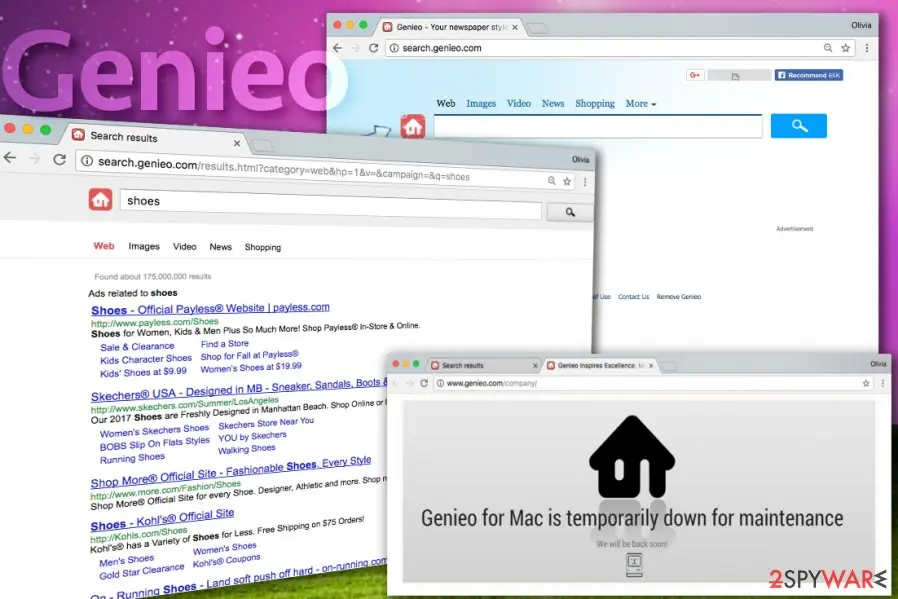
Genieo Search, also known as Go.searchgenieo.com, is a potentially unwanted program, which can start pushing sponsored content via Internet Explorer, Google Chrome, Mozilla Firefox or other web browsers out of nowhere. It is part of Genieo adware , which is also known as "content recommendation" software.
Initially not considered malicious, Genieo Search was seen being installed on thousands of users' Macs via software bundle packages and then modifying browsers' homepage, URL bar, and default search engine without asking for the users' permission. However, as the time went by, new versions of Genieo Search virus were seen intercepting macOS' Keychain, which grants access to users sensitive data, such as credit card details, usernames, passwords, etc.
Genieo Search deception does not finish there, however, as it is also known to be distributed via fake Flash Player updates, and is also often offered via various shady software installers that use deception in order to make users install the browser-hijacking application on Macs.
For a long time, Genieo virus started bothering Mac users, , and soon was included in Apple's XProtect anti-malware services database - listed as malware - and rightfully so. A potentially unwanted application that can gain access to most private user data is malicious and should be terminated as soon as possible.
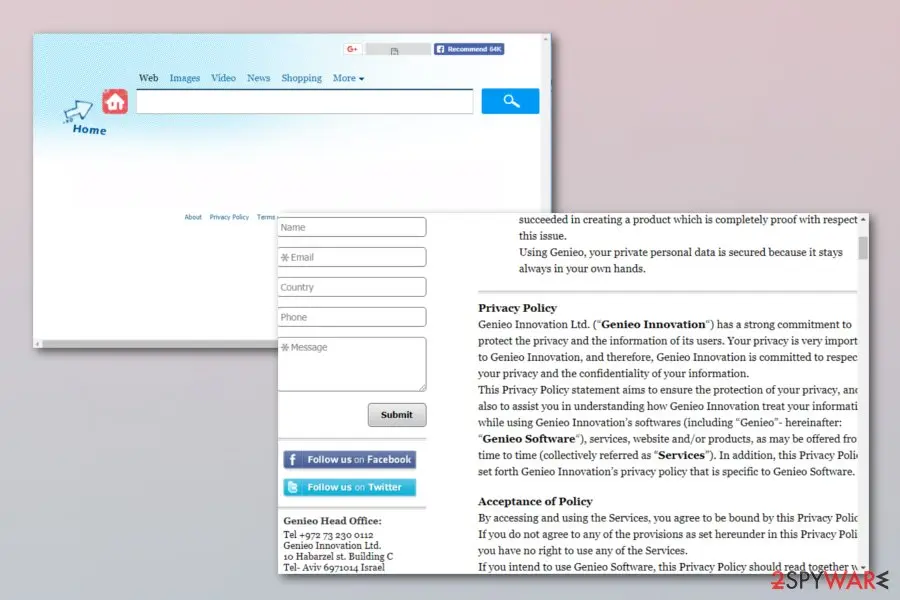
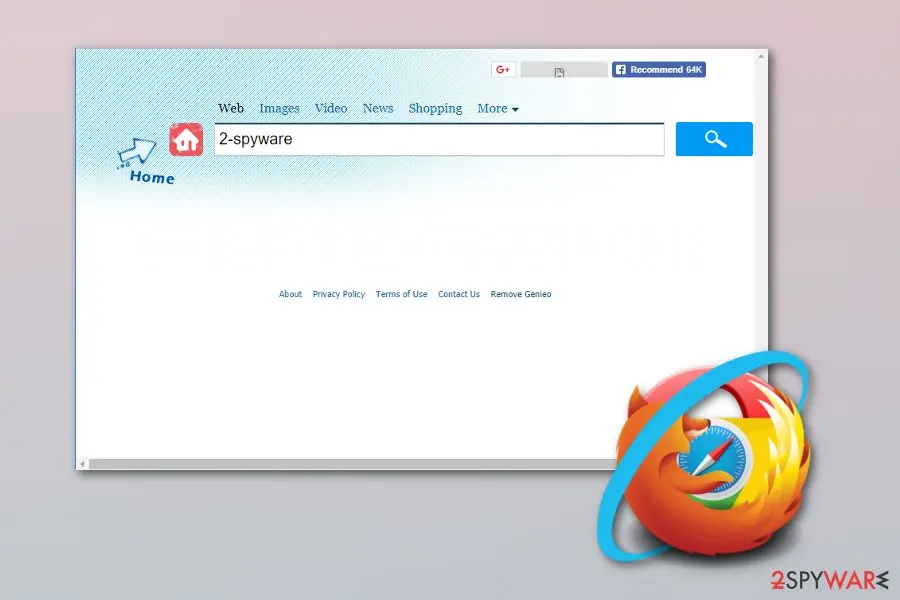
Once installed, Genieo Search changes the infected browser's homepage setting it to search.genieo.com and adds this search site as the main search provider.
While the PUP sets a customized search engine, it redirects all searches to Yahoo, although it diverts users to non-organic search results, i.e., top links are sponsored ads that benefit Genieo Search financially as long as users click on them. This behavior can only be stopped by terminating the PUP.
Nevertheless, such browser-hijacking apps can redirect you not only to developer-promoted pages but also to potentially dangerous ones. In order to avoid such unwanted consequences, you need to remove Genio Search virus from your computer system permanently and get rid of all PUP-added content from your affected web browsers.
Finally, it is known that Genieo Search may start collecting information about people's browsing habits and accumulate information about their search terms, most visited websites, time that they spend there, data that they enter, saved bookmarks, pictures, and videos viewed, IPs, etc. If you don't want to run into privacy-related issues, you should be very careful with that.
If you never intended to install Genieo Search on your computer, you should follow a guide that is given below and get rid of this browser hijacker. Of course, the easiest way to do this is to run a full system scan with updated anti-malware, although you can also perform a full Genieo Search removal manually by following our guide below.
Additionally, we highly recommend scanning the machine with for the best results, as well as resetting all the installed browsers.
From our report of Jan 2020 · not reviewed since
Everything you need to know about Genieo on Mac
Genieo on Mac is a potentially unwanted program that can arrive in tandem with another application or be installed after clicking on an Internet ad promoting it.
Once installed, it drops a bunch of files onto Mac OS to set itself up and remain on the computer as long as it is possible. DieViren.de experts advise removing this unwanted application from Mac as soon as possible, although it can seem like a challenging task at first.
Mac users have been complaining about ads, redirects, altered search settings and other problems caused by Genieo Search virus. Despite being non-malicious, this browser hijacker-related software tracks the user at all times and keeps delivering even more Internet ads daily. Besides, users have noticed that Genieo keeps coming back even after removing its components from the system.
If you have been experiencing problems when trying to remove Genieo from Mac, please read the full instructions on how to do it properly. We have added the directions right below this article and also provided informative screenshots to help you locate and delete Genieo-related files from OS X.
From our report of Jan 2020 · not reviewed since
Strategies used for promotion of suspicious programs
According to IT experts, various potentially unwanted programs such as browser-hijacking apps are promoted by spreading them through suspicious websites.
Third-party websites often might include unwanted content in a form of a link which, once clicked, might relate in a secret installation of the potentially unwanted application. To avoid such risk, stay away from all questionable web pages.
Furthermore, browser hijackers are very likely to be spread via a deceptive marketing technique called "bundling" . Such PUPs and all their components come included together with regular software that users download from the Internet. You can avoid such secret installation if you choose the Custom/Advanced installation mode over the Quick/Recommended one. Here you will be able to control all incoming downloads and opt-out the unwanted ones.
From our report of Jan 2020 · not reviewed since
More from our earlier report on Genio Search
- Scan your macOS with to optimize it
Check your browser and PC
- Address:
go.searchgenieo.com
How to remove Genio Search
How to remove Genio Search and get your search engine back
Remove the extension first.
The search settings only stay fixed once nothing on the PC can change them again.
Step 1: Remove extensions you did not add
Genio Search often works through an extension, so go through the extension list of each browser:
chrome://extensionsedge://extensions- Extensions and themes in Firefox
Switch suspicious extensions off one at a time and reload the page where the problem shows, then remove the one that stops it, and any other you did not add.
Remember the other browsers and profiles on the PC. If Remove is missing or greyed out, a policy forces the extension, which the policy step deals with. Windows 11 and Windows 10 show the same pages.
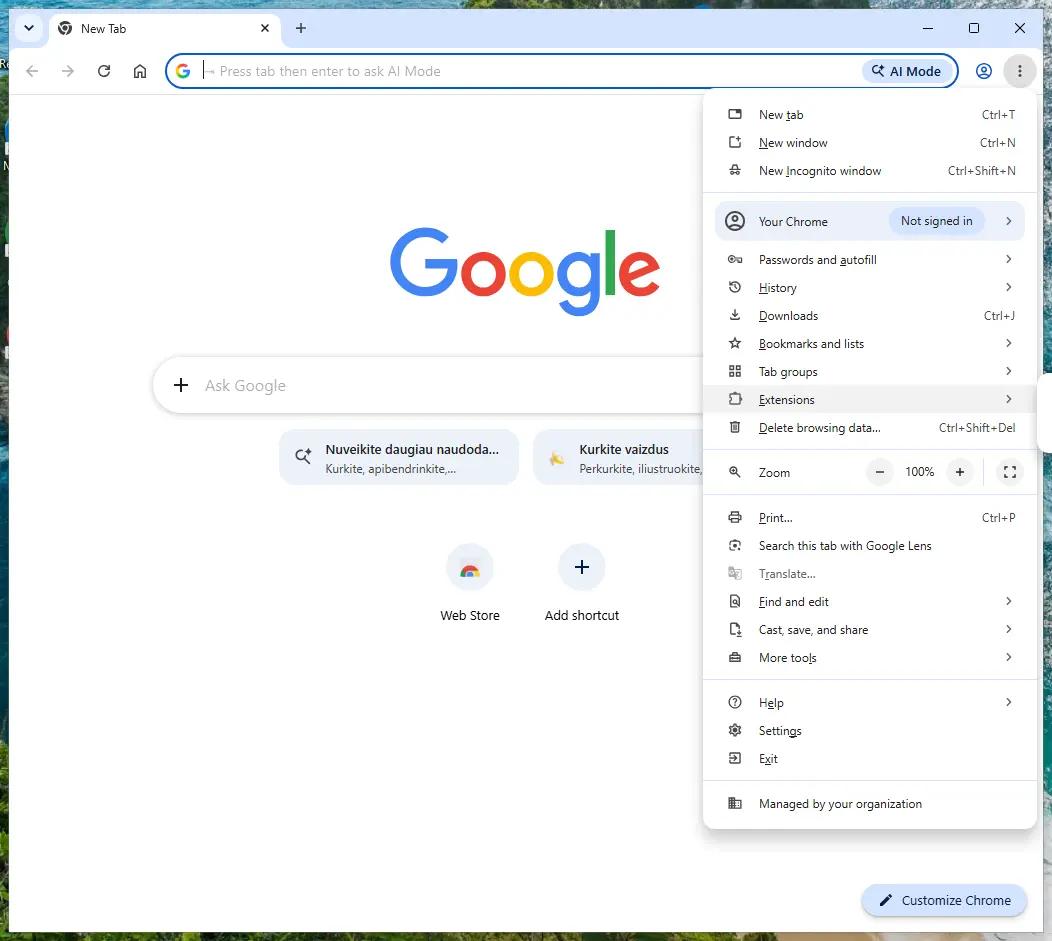
Chrome on Windows 11: More > Extensions > Manage extensions. Full procedure with screenshots: Remove a browser extension
Step 2: Put the search engine back and delete go.searchgenieo.com
Searches that pass through
go.searchgenieo.commean the browser's default search engine was replaced. Chrome: Settings > Search engine > Manage search engines and site search, then Make default on Google, Bing or another engine you chose, and Delete on go.searchgenieo.com.Edge has the same list under Manage search engines (search the Settings page for it), and Firefox under Settings > Search.
Look at On startup and the homepage settings too and remove the hijacker's address there. Nothing in this step differs between Windows 11 and Windows 10.
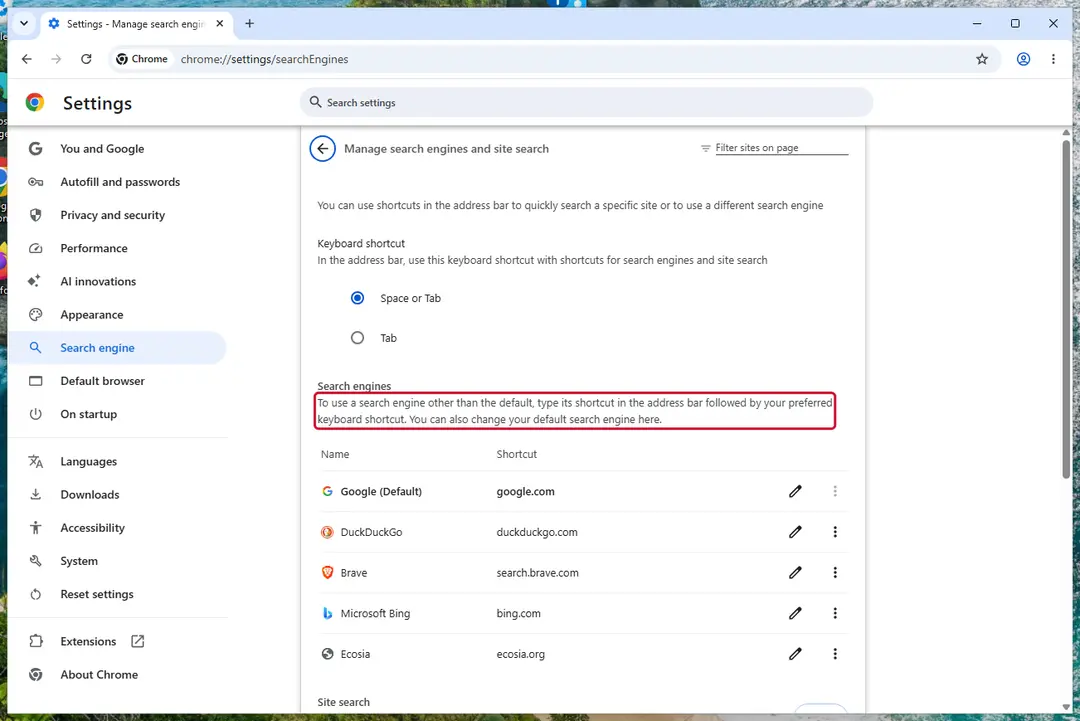
Chrome on Windows 11: check Search engine and On startup. Full procedure with screenshots: Reset a browser and fix a hijacked search engine
Step 3: Uninstall programs you did not mean to install
Open Settings > Apps > Installed apps in Windows 11, or Settings > Apps > Apps & features in Windows 10, and sort the list by install date. Look at what appeared around the day the problem started and uninstall every program you do not recognise or did not choose.
Free converters, PDF and video tools, "system optimizers" and unknown browsers are the usual carriers of Genio Search. If a name is unclear, search for it before you remove it, so you do not uninstall a driver or a Windows component.
Full procedure with screenshots: Uninstall a program or app in Windows On uGetFix
Step 4: Reset the browser
Finish the browser part with a reset, which puts the search engine, start page, new tab page and site permissions back to their defaults and switches extensions off. Chrome: Settings > Reset settings > Restore settings to their original defaults.
Edge: Settings > Reset settings. Firefox: Help > More troubleshooting information > Refresh Firefox, which also removes its extensions. Your bookmarks and saved passwords are kept, and the menus are the same on Windows 11 and Windows 10.
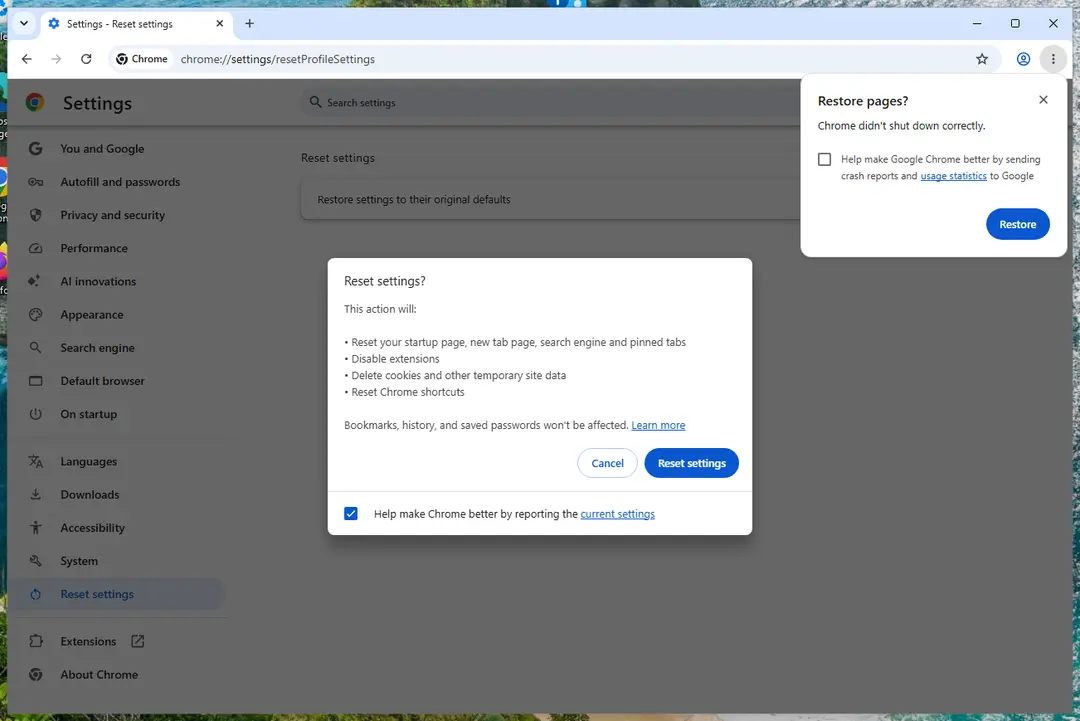
Chrome on Windows 11: Settings > Reset settings. Full procedure with screenshots: Reset a browser and fix a hijacked search engine
Step 5: Scan the PC, then run the offline scan
Open Windows Security > Virus & threat protection > Scan options, run a Full scan and remove everything it finds. Then select Microsoft Defender Antivirus (offline scan) and click Scan now: the PC restarts and scans before Windows loads, which finds files that hide while Windows runs.
Save your work first, because the offline scan takes about 15 minutes. Both scans are built into Windows 11 and Windows 10, and a second scanner from another vendor is a useful extra opinion.

Windows 11: Windows Security > Virus & threat protection > Scan options. Full procedure with screenshots: Run a Microsoft Defender Offline scan
Instructions for each browser and system
The detailed steps for every browser and system this guide covers. Open the one you use.
Uninstall from Windows
To remove Genieo Search virus from Windows computer, use given guidelines. However, experts hardly ever recommend deleting this computer infection manually:
Uninstall from Windows 10/8:
- Type Control Panel into the Windows search box and open the result.
- Under Programs, select Uninstall a program.
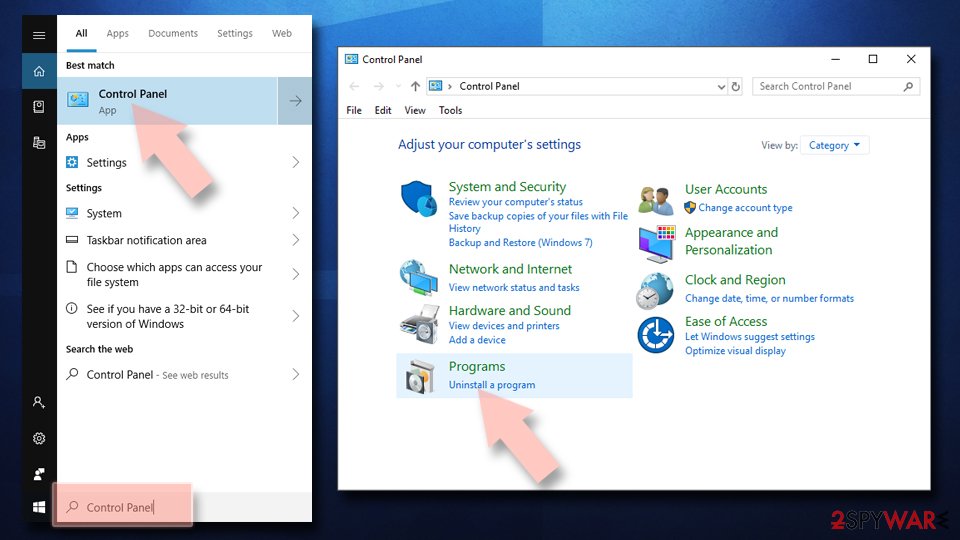
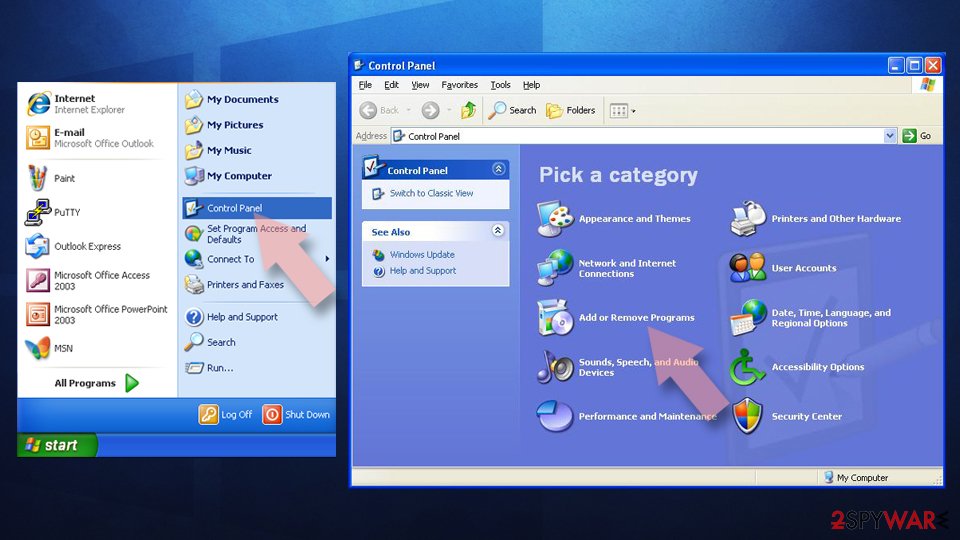
Uninstall from Windows 7/XP:
- Click on Windows Start > Control Panel (Windows XP users should click on Add/Remove Programs).
- In Control Panel, select Programs > Uninstall a program.
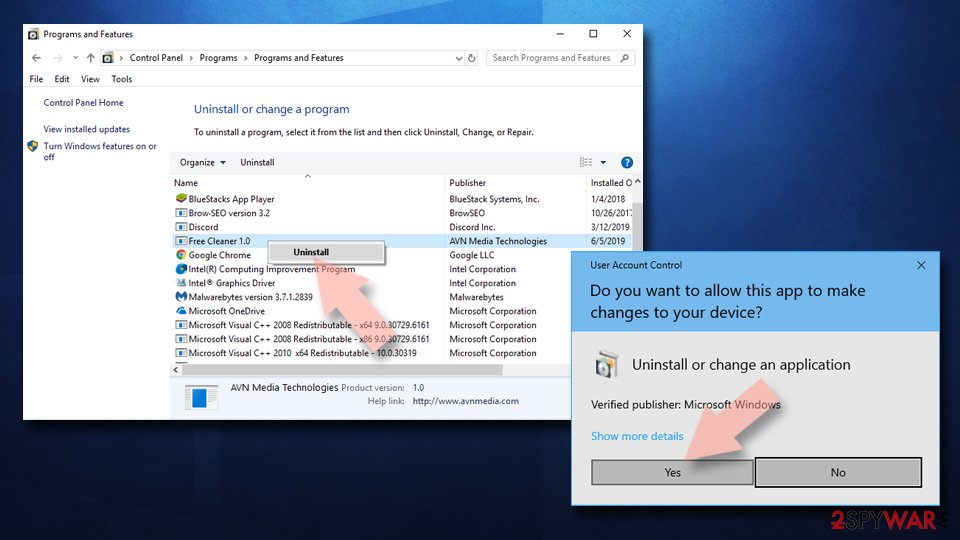
Remove the unwanted program:
- In the Programs and Features window, look for any recently installed suspicious entries, select them, and click Uninstall.
- If User Account Control appears, click Yes to confirm, then complete the removal.
Remove from Google Chrome
If Google Chrome got infected with the browser-hijacking application, you should follow the instructions to get rid of all unwanted components from your browser:
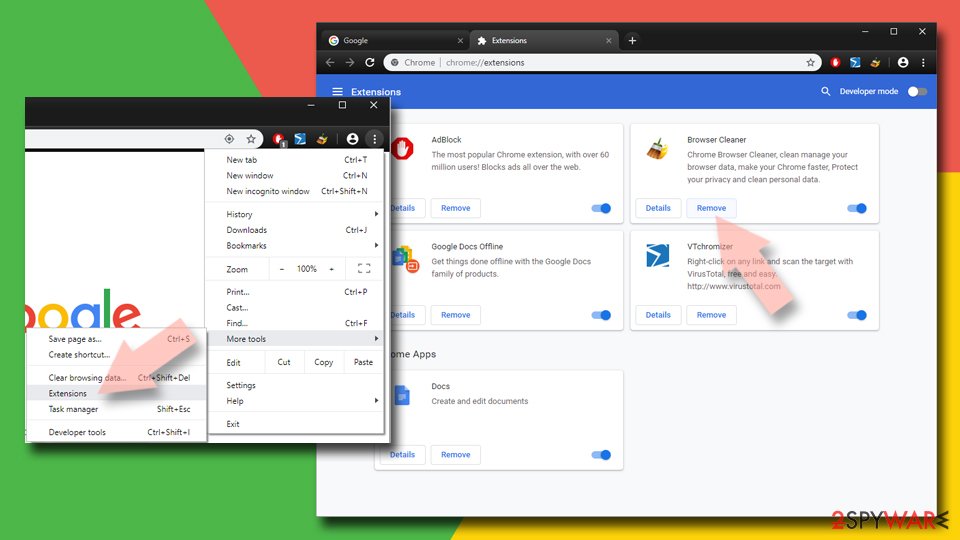
Delete malicious extensions from Google Chrome:
- Open Google Chrome, click on the Menu (three vertical dots at the top-right corner) and select More tools > Extensions.
- In the newly opened window, you will see all the installed extensions. Uninstall all suspicious extensions related to the unwanted program by clicking Remove.
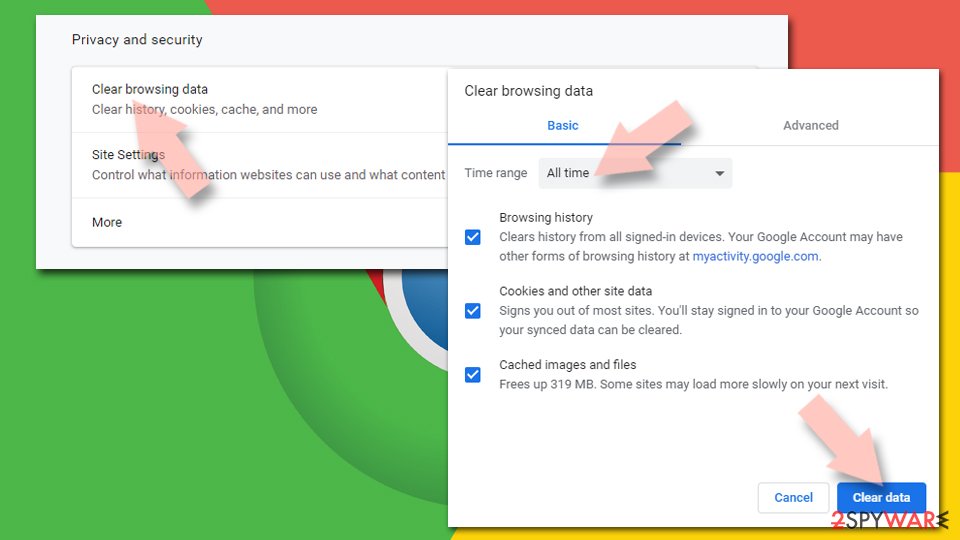
Clear cache and web data from Chrome:
- Click on Menu and pick Settings.
- Under Privacy and security, select Clear browsing data.
- Select Browsing history, Cookies and other site data, as well as Cached images and files.
- Click Clear data.
Change your homepage:
- Click menu and choose Settings.
- Look for a suspicious site in the On startup section.
- Click on Open a specific or set of pages and click on three dots to find the Remove option.
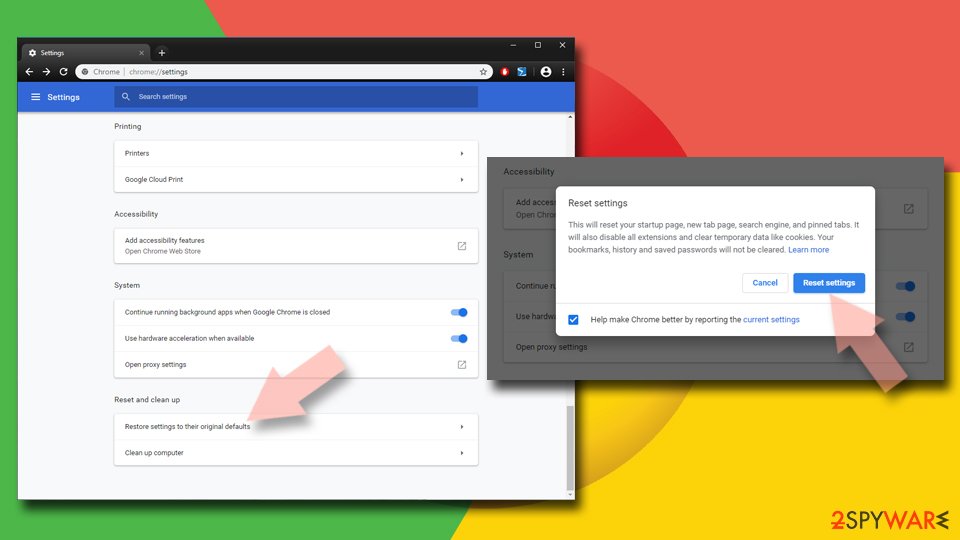
Reset Google Chrome:
If the previous methods did not help you, reset Google Chrome to eliminate all the unwanted components:
- Click on Menu and select Settings.
- In the Settings, scroll down and click Advanced.
- Scroll down and locate Reset and clean up section.
- Now click Restore settings to their original defaults.
- Confirm with Reset settings.
Remove from Microsoft Edge
Microsoft Edge can be a target of various potentially unwanted programs too. If such thing happened, perform the cleaning process by reading these guidelines:
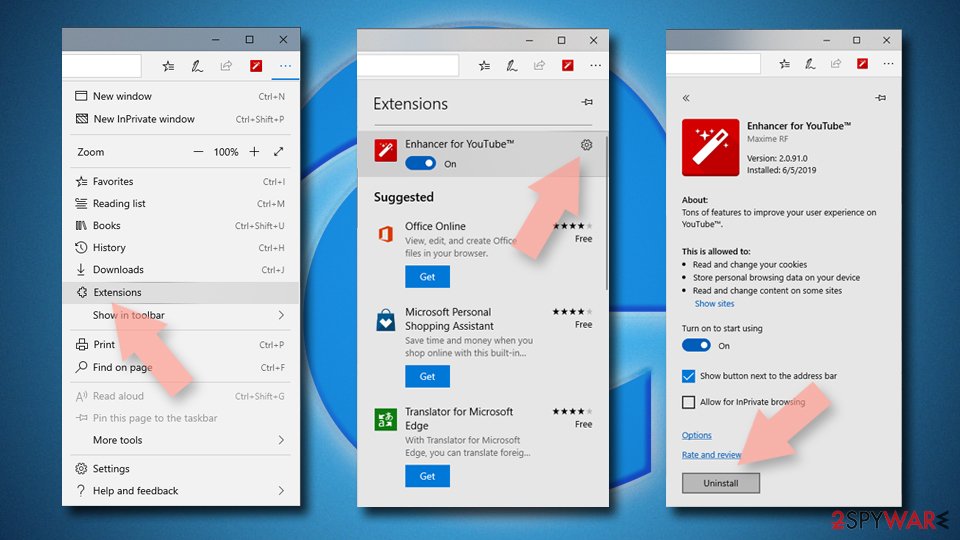
Delete unwanted extensions from MS Edge:
- Select Menu (three horizontal dots at the top-right of the browser window) and pick Extensions.
- From the list, pick the extension and click on the Gear icon.
- Click Remove.
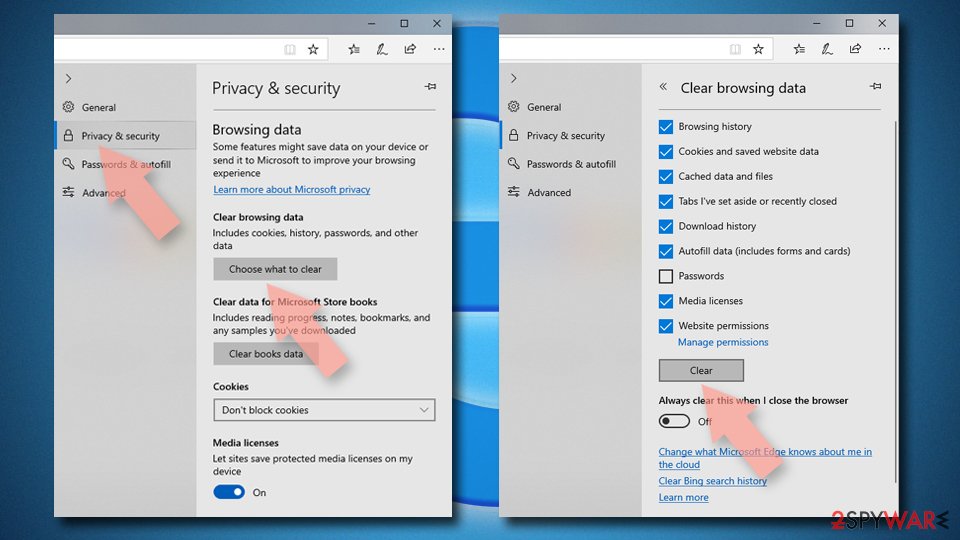
Clear cookies and other browser data:
- Click on the Menu (three horizontal dots at the top-right of the browser window) and select Settings > Privacy, search, and services..
- Under Clear browsing data, pick Choose what to clear.
- Select Cookies and other site data and Cached images and files. (apart from passwords, although you might want to include Media licenses as well, if applicable) and click on Clear.
Restore new tab and homepage settings:
- Click the menu icon and choose Settings.
- Then find On startup section.
- Click Remove next to any suspicious startup page.
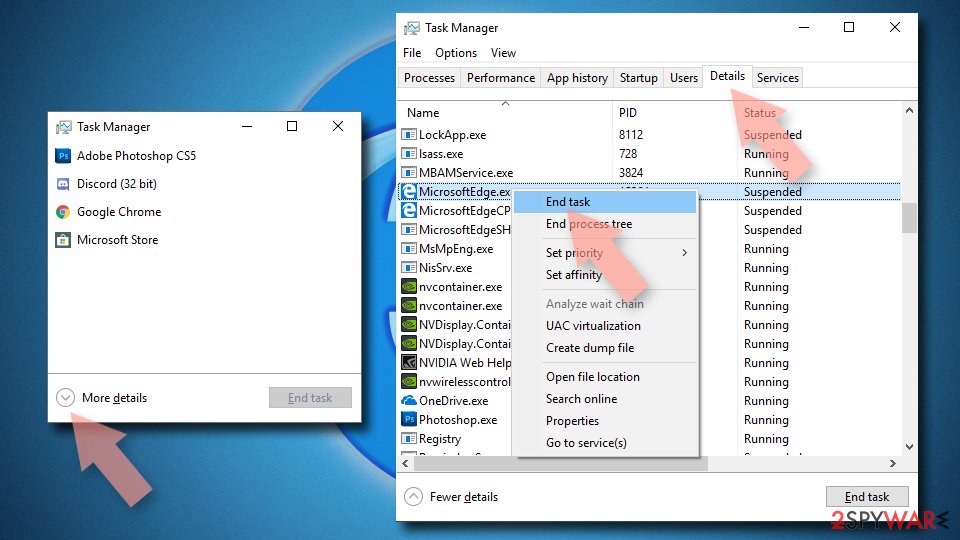
Reset MS Edge if the above steps did not work:
- Press on Ctrl + Shift + Esc to open Task Manager.
- Click on More details arrow at the bottom of the window.
- Select Details tab.
- Now scroll down and locate every entry with Microsoft Edge name in it. Right-click on each of them and select End Task to stop MS Edge from running.
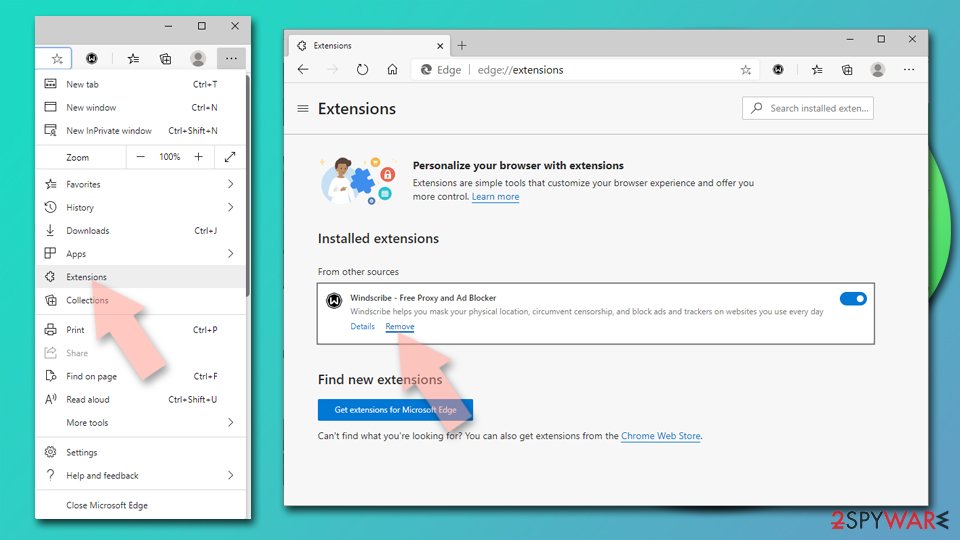
Delete extensions from MS Edge (Chromium):
- Open Edge and click select Settings > Extensions.
- Delete unwanted extensions by clicking Remove.
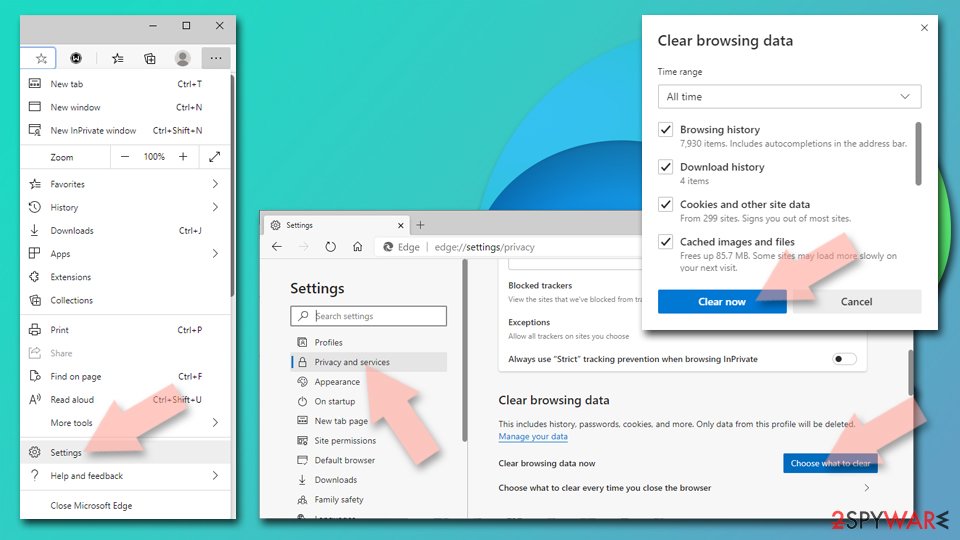
Clear cache and site data:
- Click on Menu and go to Settings.
- Select Privacy, search and services.
- Under Clear browsing data, pick Choose what to clear.
- Under Time range, pick All time.
- Select Clear now.
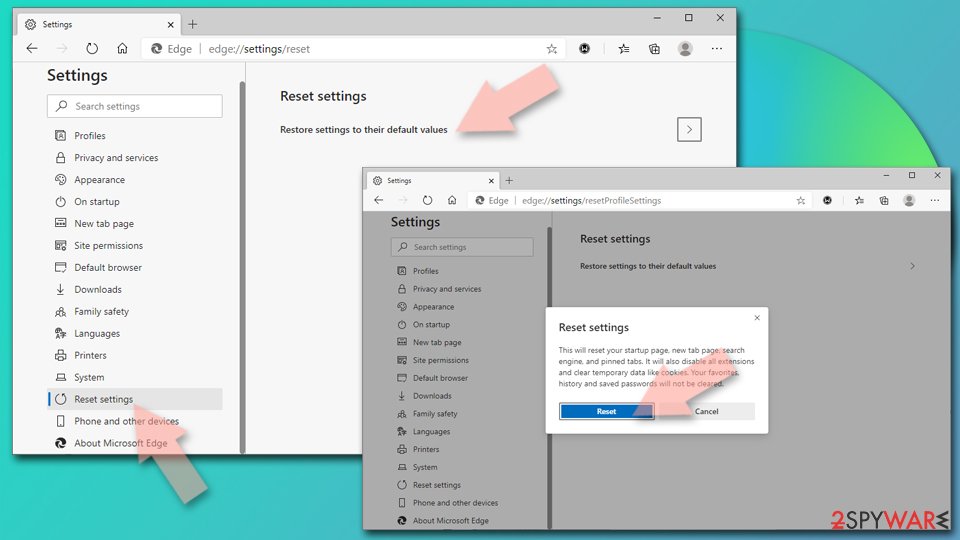
Reset Chromium-based MS Edge:
- Click on Menu and select Settings.
- On the left side, pick Reset settings.
- Select Restore settings to their default values.
- Confirm with Reset.
- This will disable extensions and reset startup pages but will not delete bookmarks, saved passwords, or browsing history.
Remove from Mozilla Firefox (FF)
You can clean your Mozilla Firefox web browser form all suspicious content by using these guidelines:
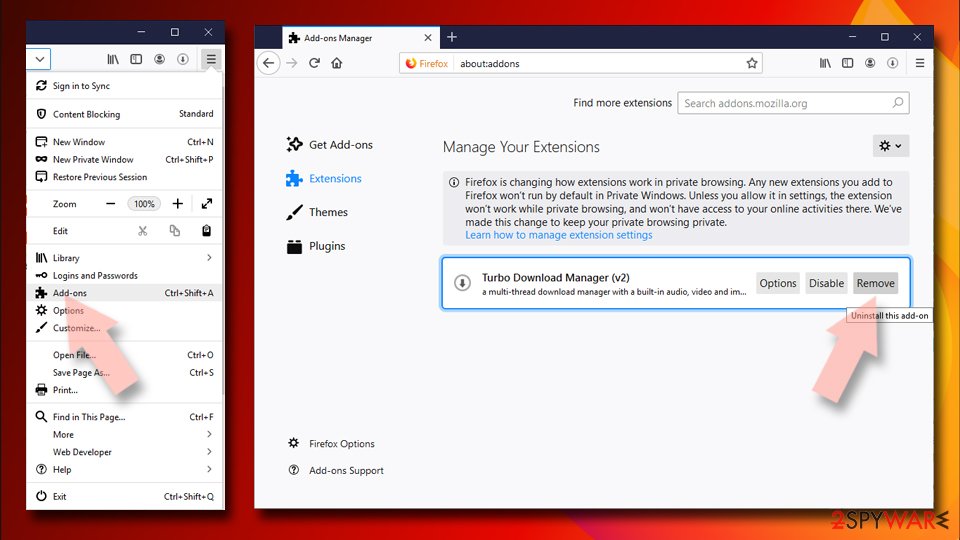
Remove dangerous extensions:
- Open Mozilla Firefox browser and click on the Menu (three horizontal lines at the top-right of the window).
- Select Add-ons.
- In here, select the unwanted extension and click Remove.
Reset the homepage:
- Click three horizontal lines at the top right corner to open the menu.
- Choose Settings.
- Under Home, set your preferred homepage and new tab settings.
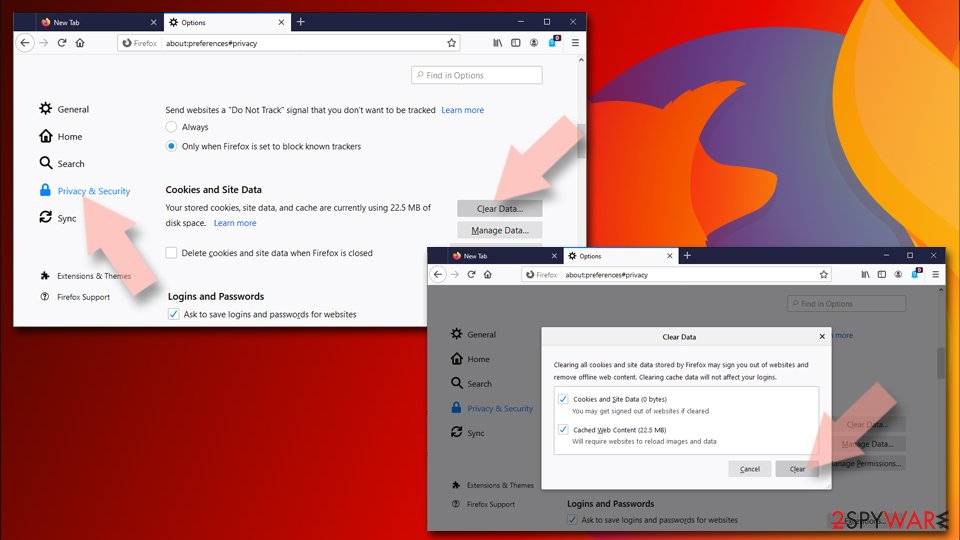
Clear cookies and site data:
- Click Menu and pick Settings.
- Go to Privacy & Security section.
- Scroll down to locate Cookies and Site Data.
- Click on Clear Data...
- Select Cookies and Site Data and Temporary cached files and pages, then click Clear.
Reset Mozilla Firefox
If clearing the browser as explained above did not help, reset Mozilla Firefox:
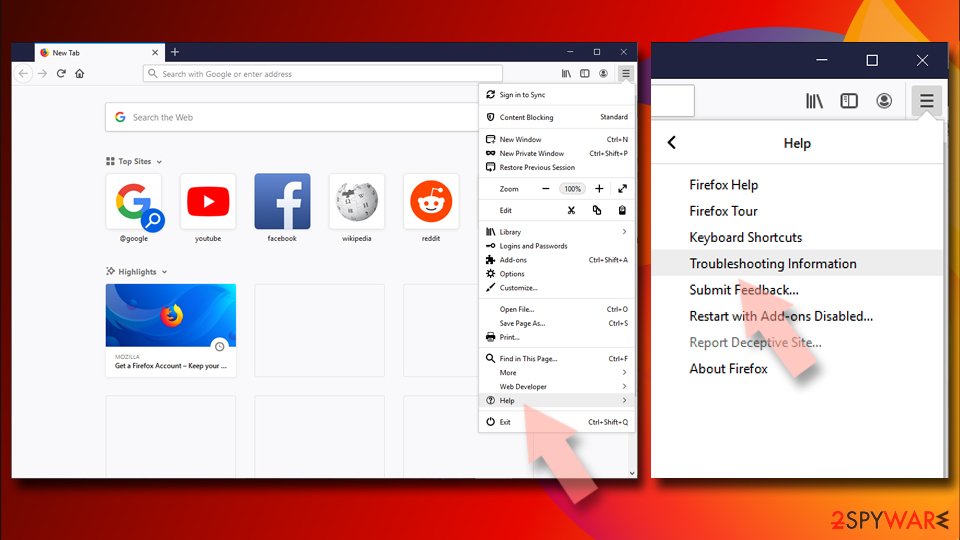
- Open Mozilla Firefox browser and click the Menu.
- Go to Help and then choose Troubleshooting Information.
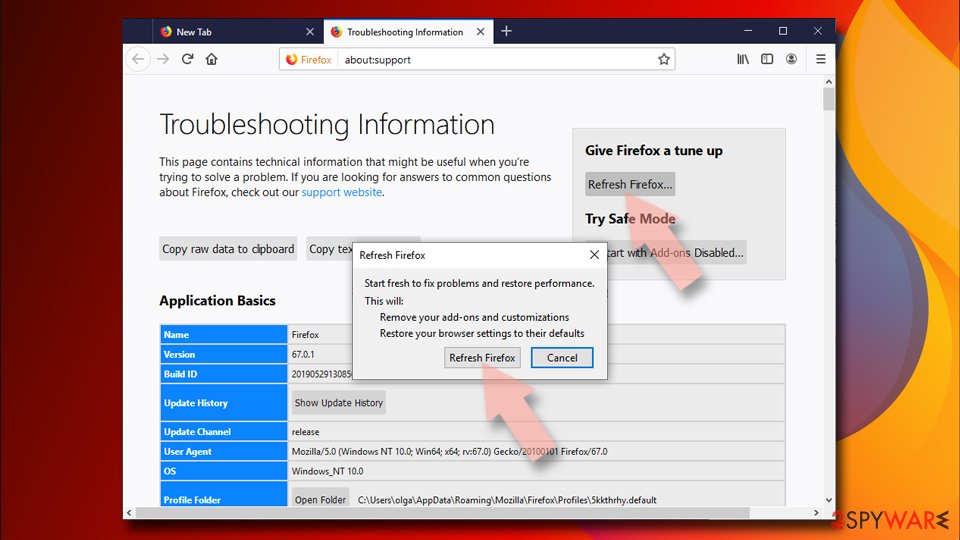
- Under Give Firefox a tune up section, click on Refresh Firefox...
- Once the pop-up shows up, confirm the action by pressing on Refresh Firefox.
Delete from Safari
Clean and refresh Safari by performing our given instructions:
Remove dangerous extensions:
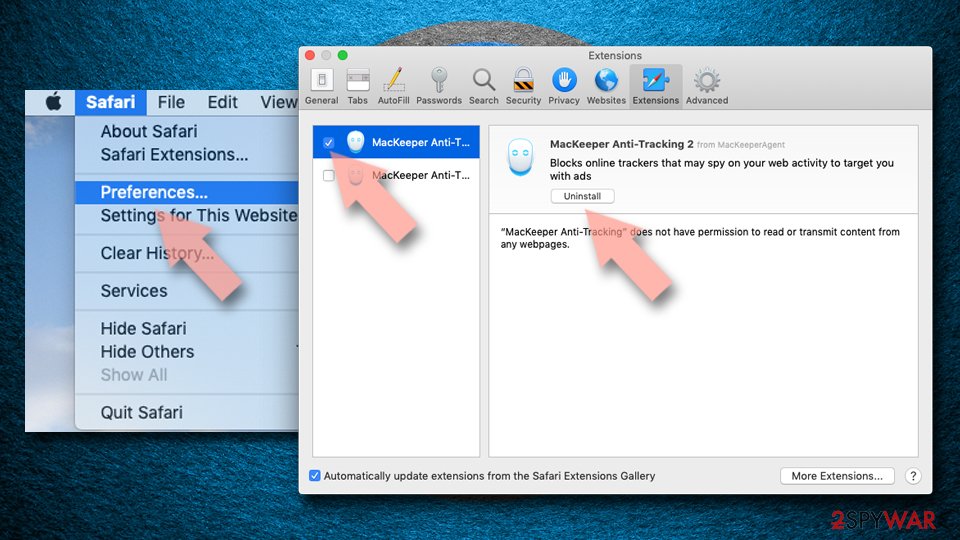
- Open Safari, click Safari in the menu at the top-left of the screen, and select Preferences.
- Go to the Extensions tab, look for any suspicious entries, and click Uninstall to remove them.
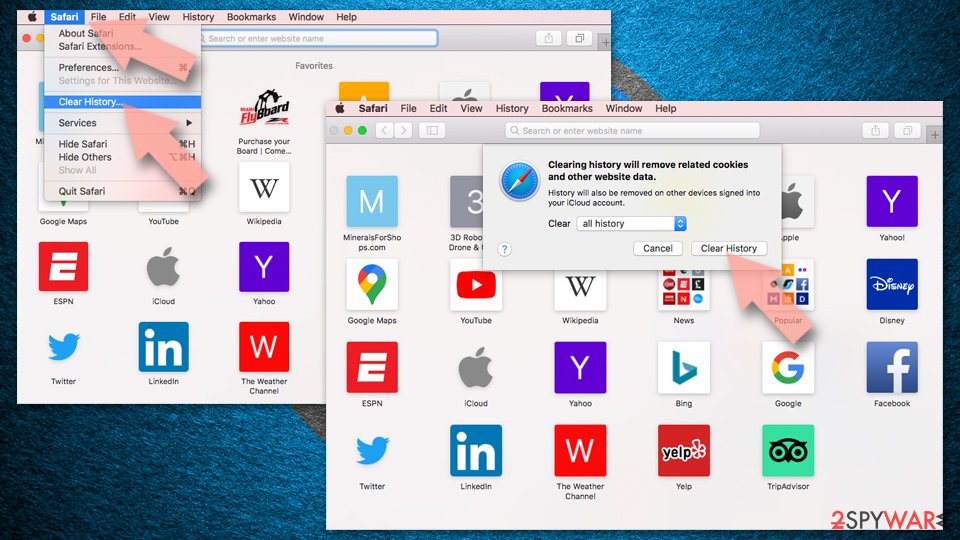
Clear history and website data:
- Click Safari in the menu and pick Clear History.
- Set Clear to all history and confirm with Clear History.
Reset Safari:
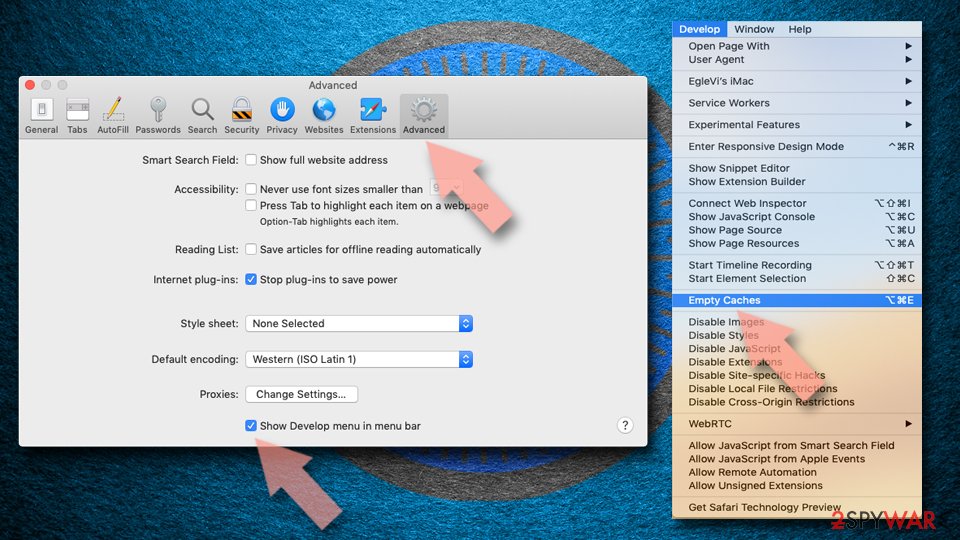
- Click Safari in the menu and select Preferences > Advanced.
- Enable Show Develop menu in menu bar.
- From the menu bar, click Develop and select Empty Caches.
Delete from macOS
To remove Genieo Search on Mac, follow the given directions and clear the Applications folder from Genieo virus remains:
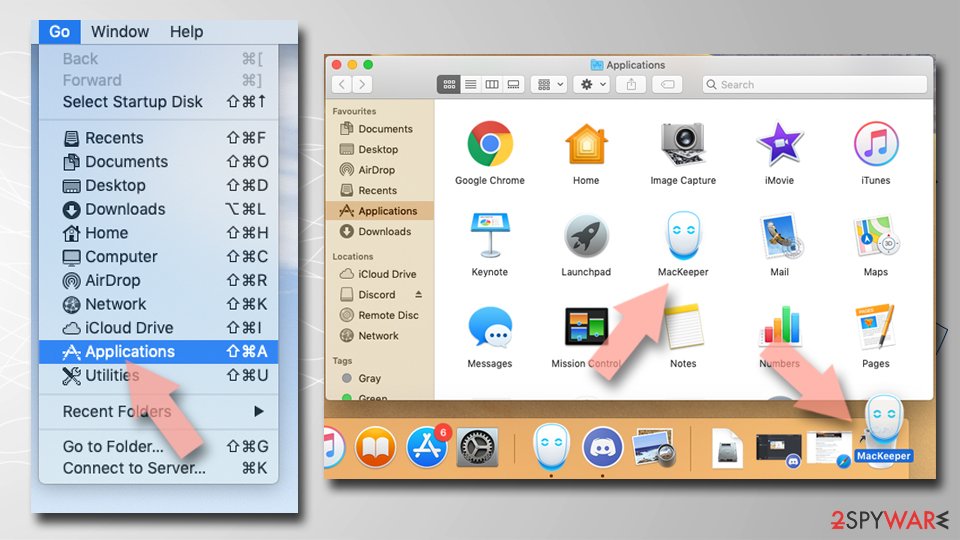
Remove the unwanted application:
- From the menu bar, select Go > Applications.
- In the Applications folder, look for any suspicious entries, then drag them to Trash (or right-click and pick Move to Trash).
Delete leftover files and folders:
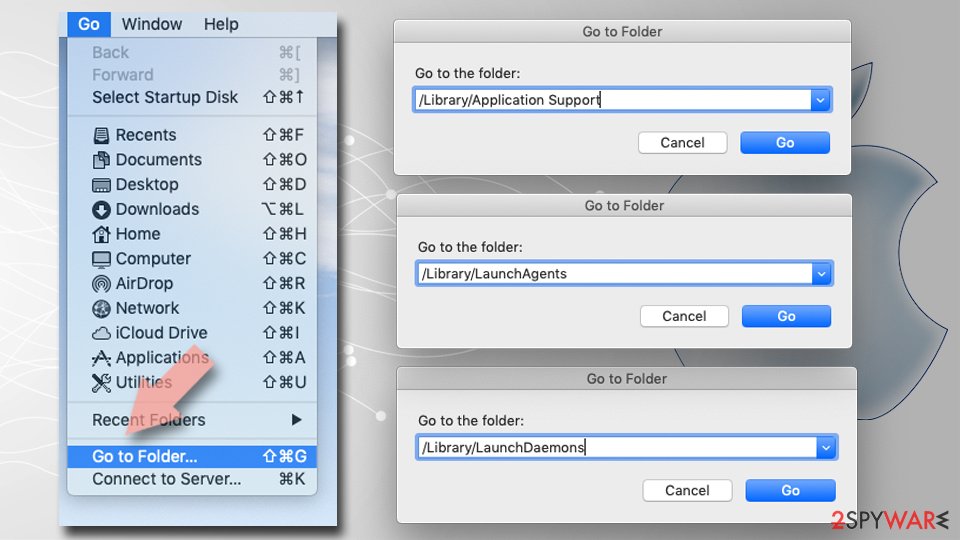
- Select Go > Go to Folder.
- Enter /Library/Application Support and remove any suspicious folders related to the unwanted program.
- Repeat the same check in the /Library/LaunchAgents and /Library/LaunchDaemons folders, deleting any suspicious entries.
- Finally, empty the Trash to permanently remove the leftovers.
Reset Internet Explorer
If Internet Explorer got hijacked, you can perform these steps to eliminate all unwanted components from the web browser:
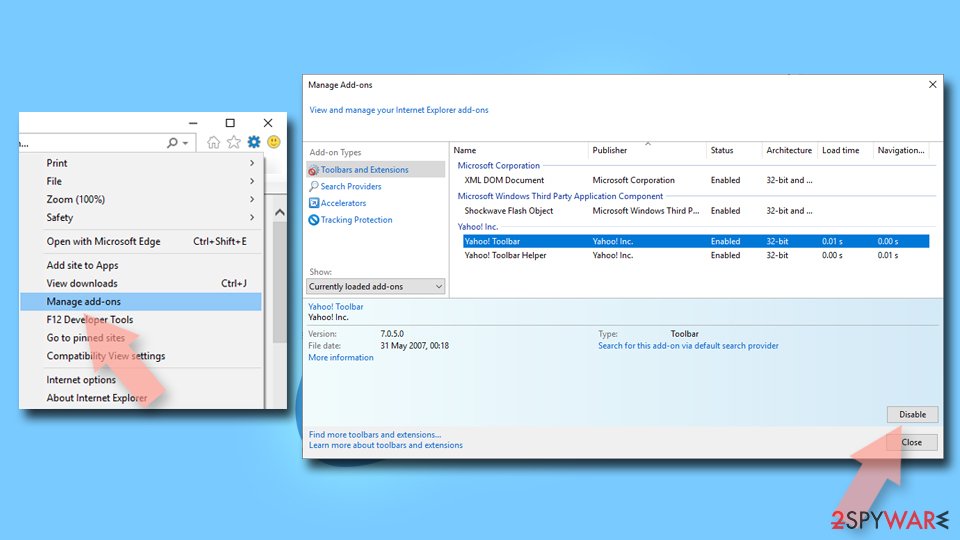
Remove dangerous add-ons:
- Open Internet Explorer, click on the Gear icon (IE menu) on the top-right corner of the browser
- Pick Manage Add-ons.
- You will see a Manage Add-ons window. Here, look for suspicious plugins. Click on these entries and select Disable.
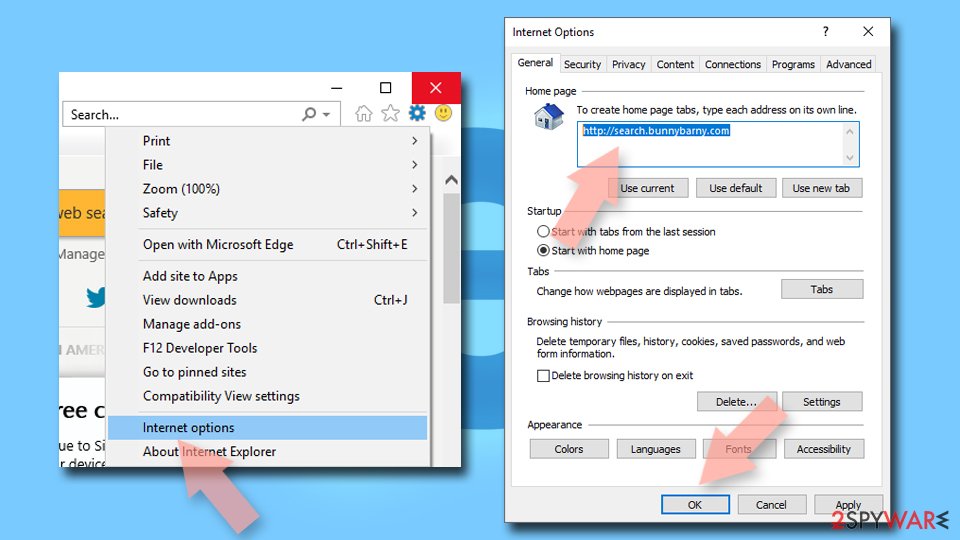
Change your homepage if it was altered:
- Open IE and click on the Gear icon.
- Select Internet Options.
- In the General tab, delete the Home page address and replace it by your preferred one (for example, Google.com).
- Click Apply and then select OK.
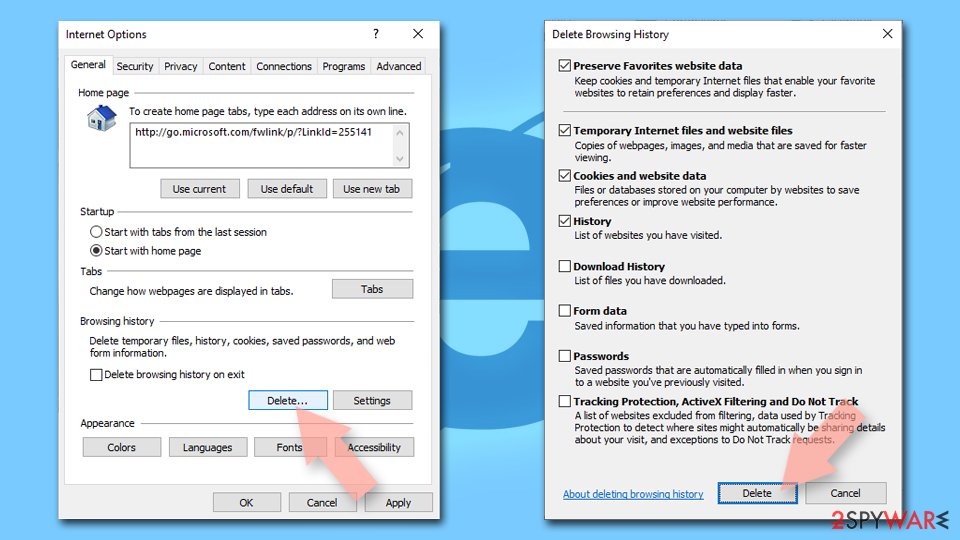
Delete temporary files:
- Press on the Gear icon and select Internet Options.
- Under Browsing history, click Delete...
- Select relevant fields and press Delete.
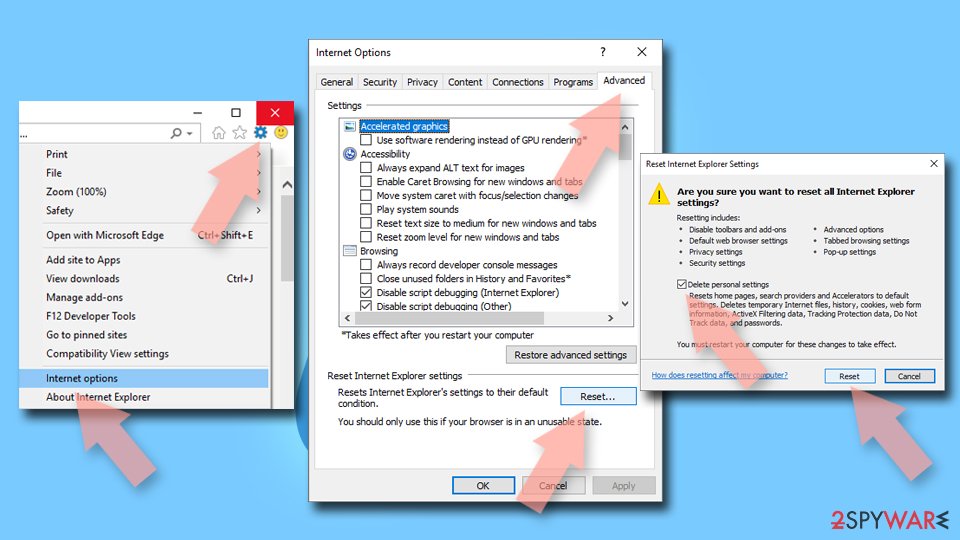
Reset Internet Explorer:
- Click on Gear icon > Internet options and select Advanced tab.
- Select Reset.
- In the new window, check Delete personal settings and select Reset.
Do not let government spy on you
The government has many issues in regards to tracking users' data and spying on citizens, so you should take this into consideration and learn more about shady information gathering practices.
Avoid any unwanted government tracking or spying by going totally anonymous on the internet.
You can choose a different location when you go online and access any material you want without particular content restrictions. You can easily enjoy internet connection without any risks of being hacked by using VPN.
Control the information that can be accessed by government any other unwanted party and surf online without being spied on. Even if you are not involved in illegal activities or trust your selection of services, platforms, be suspicious for your own security and take precautionary measures by using the VPN service.
Backup files for the later use, in case of the malware attack
Computer users can suffer from data losses due to cyber infections or their own faulty doings.
Ransomware can encrypt and hold files hostage, while unforeseen power cuts might cause a loss of important documents. If you have proper up-to-date backups, you can easily recover after such an incident and get back to work. It is also equally important to update backups on a regular basis so that the newest information remains intact - you can set this process to be performed automatically.
When you have the previous version of every important document or project you can avoid frustration and breakdowns. It comes in handy when malware strikes out of nowhere. Use for the data restoration process.
From our report of Jan 2020 · not reviewed since
Remove Genieo Search from Mac or Windows
Complaints shared by affected computer users prove that it can be tough to remove Genieo Search virus from Mac or Windows.
The browser-hijacking application leaves a variety of files on the system and tries to stay undetected. Typically, users identify the issue causing browser redirects and ads only after running a security software on the affected computer.
Therefore, if your security software detected PUP.Genieo or a similar entry on your system, make sure you wipe the suspicious files using an anti-spyware or anti-malware program. You can use a computer security application from our suggested list or feel free to perform the elimination by using any program of your own.
You can also try to perform Genieo Search removal manually - here are the files you need to delete from your system after making sure that the app is not running the in the background via the Activity Monitor:
- /Applications/Genieo
- /Applications/InstallMac
- /Applications/Uninstall Genieo
- /Applications/Uninstall IM Completer.app
- ~/Library/Application Support/com.genieoinnovation.Installer/
- ~/Library/Application Support/Genieo/
- ~/Library/LaunchAgents/com.genieo.completer.download.plist
- ~/Library/LaunchAgents/com.genieo.completer.update.plist
- /Library/LaunchAgents/com.genieoinnovation.macextension.plist
- /Library/LaunchAgents/com.genieo.engine.plist
- /Library/LaunchAgents/com.genieo.completer.update.plist
- /Library/LaunchDaemons/com.genieoinnovation.macextension.client.plist
- /Library/PrivilegedHelperTools/com.genieoinnovation.macextension.client
- /usr/lib/libgenkit.dylib
- /usr/lib/libgenkitsa.dylib
- /usr/lib/libimckit.dylib
- /usr/lib/libimckitsa.dylib
Questions about Genio Search
Why does my search engine keep changing to go.searchgenieo.com?
Because something keeps setting it. An extension can change the search engine every time the browser starts, and an ad-supported program in Windows can do it for every browser and re-add the extension after you remove it. Some hijackers also add a policy that locks the setting.
Changing the search engine back only works once the source is gone. Remove extensions you do not recognise, uninstall programs installed around the time go.searchgenieo.com first appeared, and then set the search engine again. If it still returns, check the browser for the Managed by your organization message and follow the policy steps in this guide.
Is go.searchgenieo.com a virus?
It is a browser hijacker, not a virus in the classic sense. go.searchgenieo.com is a search page that an extension or program set as your default without a clear choice from you.
It does not destroy files or spread to other PCs, but it takes control of your searches, collects them and shows ads, and the software behind it is often bundled with other unwanted programs.
Many antivirus products flag such software as potentially unwanted. Removing the extension or program and resetting the search engine is enough in most cases. A full scan afterwards checks for anything else that came with it.
Why do my searches go to go.searchgenieo.com?
Because the browser's default search engine was changed to it. Genio Search did that through an extension, a program or a browser policy, and as long as that source remains, the setting points to go.searchgenieo.com.
The page then passes your query to a real search provider, so the results look almost normal, with extra sponsored links on top. Changing the search engine back on its own does not last, because the source resets it. Remove the extension or program first, then the policies if any, then set your own search engine.
Is it safe to keep searching with go.searchgenieo.com?
We would not. Every query you type is logged by its operators and shared with their advertising partners, and the sponsored links at the top are chosen for payment, not relevance. Results that look like a download page or a support site may lead to scams.
The page will not damage Windows by itself, but there is no benefit in keeping it: the results come from another search engine anyway. Remove Genio Search and use that search engine directly, by typing its address or choosing it in the browser settings.
Which browsers does Genio Search affect?
We saw it in Chrome, Edge and Firefox. That does not mean the other browsers on your PC are safe: hijacker installers usually change every browser they find, and browser sync can carry an extension to other computers signed in to the same account.
Check the search engine, home page, new tab, extensions and policies in each browser you have, including ones you rarely open. Chrome and Edge profiles count separately, so switch to each profile and check it as well before you call the job done.
What does go.searchgenieo.com know about me?
It knows what you searched for while it was your search engine, when, from which IP address and with which browser, and usually which results you opened. Tracking cookies let it connect those searches into a profile. It does not see your saved passwords or files.
After removing Genio Search, delete the cookies and site data for go.searchgenieo.com so the profile cannot be continued, and remove it from the browser's list of saved search engines. Signing out of important sites and back in also replaces session cookies.
Will resetting the browser remove Genio Search?
A reset disables extensions, restores the default search engine, start page and new tab, and clears temporary data and cookies. It keeps bookmarks, history and saved passwords. For many hijackers that is enough.
It does not remove a program installed in Windows, policies in the registry, changes to the hosts file or DNS, or edited shortcuts, so Genio Search can come back after a reset if one of those remains. Do the reset after removing the program and policies, not instead of it.
I changed the search engine, but it switched back. Why?
The hijacker is still installed, and it rewrites the setting whenever the browser starts or the extension updates. Changing the setting is the last step, not the first. Find what controls it: the search settings page usually names the extension, and a greyed-out field means a policy.
Remove that source, restart the browser, then pick your search engine and delete the hijacker's entry from the list of saved search engines so it cannot be chosen by accident. Check again after a day, when extensions have had a chance to update.
The results look like Google or Bing. Is that real?
Partly. Many hijacker search pages pass your query to a real search engine and show its results, so the list looks familiar. What changes is the frame around it:
- extra sponsored links at the top
- the hijacker's own tracking
- sometimes a design that copies a known search engine
You can tell by the address bar. If it shows go.searchgenieo.com or another unfamiliar domain instead of the search engine you know, the results come through a middleman. Remove Genio Search and search directly.
Will Fortect remove Genio Search?
Fortect scans Windows for malware and unwanted programs and repairs the system files and settings they change, and its free scan shows what it finds on your PC before you decide anything.
For Genio Search, follow the plan above as well: the browser steps take back permissions and settings that no scanner treats as a threat, and uninstalling the program that brought it removes the source.
Run Microsoft Defender's full scan and, if anything was found, its offline scan as a second opinion. If the symptoms are gone after the plan and both scans are clean, there is nothing more to do.
Sources
- Wikipedia: Genieo (read October 6, 2026)
- Malwarebytes Labs: Genieo installer tricks keychain (read October 6, 2026)
- Official Apple Support Communities: What is Genieo and why did it appeared misteriosouly on my MacBook Pro? (read October 6, 2026)
- Search Security: Browser hijacker (browser hijacking) (read October 6, 2026)
- DieViren: Dieviren (read October 6, 2026)