

Search.tokyofalcon.com hijack causes series of problems to computer users
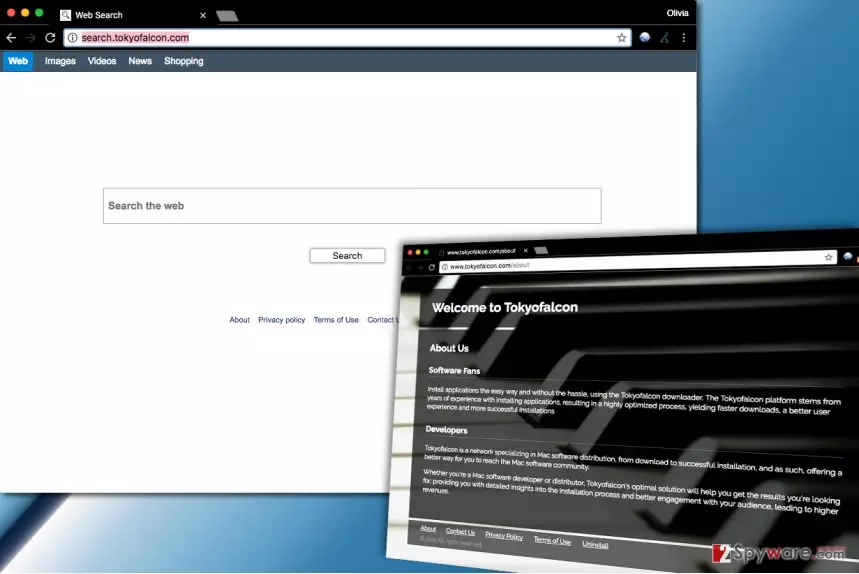
Search.tokyofalcon.com is a fake search engine that is distributed with the help of browser-hijacking TokyoFalcon software that mainly targets Mac computers[1]. The program is set to place hxxp://Search.tokyofalcon.com/ into default homepage and search engine settings. Consequently, it starts redirecting the victim to the suspicious search site and forces one to start using it.
Sadly, results brought by TokyoFalcon virus aren’t trustworthy, and the same can be said about Search.worthut.com, Search.pogypon.com or Search.arcahol.com. Clicking on them can immediately reroute you to potentially dangerous Internet websites filled with scam surveys, bogus download links or ads from suspicious ad networks. You should remember that your Mac isn’t protected against all viruses[2] and browsing through shady sites isn’t a good idea.
On top of that, we suggest you to think about another suspicious activity that this browser hijacker[3] initiates. Search.tokyofalcon tends to use tracking cookies to spy on user’s online activities and deliver collected details to its remote server.
Later on, collected data can be analyzed or shared with third-parties for market research or selection of interest-based advertisements. However, you shouldn’t forget that results brought by this suspicious search tool can be deceptive and lead you to websites that are entirely different than the search result that you clicked on.

We recommend you to remove Search.tokyofalcon.com as soon as possible because this program hardly benefits you in any way. In short, the hijacker initiates such unpleasant activities:
- Swaps your current browser preferences with its own ones without informing you in a clear way first;
- Infiltrates your computer system using stealth techniques;
- Interferes with your browsing and slows down your web browser;
- Collects browsing-related data such as search queries, IP address, the list of visited websites, impressions, and so on.
An immediate Search.tokyofalcon.com removal prevents this hijacker from controlling your browsing experience. Deleting it lets you control your browser settings and alter them in any way you want. We strongly recommend you to follow the guidelines we provided or use anti-spyware software compatible with Macs (MalwarebytesMalwarebytes).
Prevent browser hijackers from stepping into your system unnoticed
When installing computer programs, you should aim to select Custom or Advanced settings. These will give you full access to components of your download and allow you to alter them.
Do not miss a chance to do it and deselect every suspicious program you find there. Please, do not count on Default or Standard settings because these will simply plant potentially unwanted software that was bundled with your download without any early warnings.
Expel Search.tokyofalcon.com virus from your Mac with ease
There is no need to keep TokyoFalcon virus on your Mac. To clean your OS X and remove Search.tokyofalcon.com virus, use the instructions we added to this article. Follow them carefully to eliminate every suspicious component from your Mac.
Although browser hijackers are spyware-type programs, that doesn’t mean that it is very easy to get rid of them. If you struggle with Search.tokyofalcon.com removal and can’t get rid of it no matter what you do, consider using automatic spyware removal tool such as ones we have listed below.
Delete from macOS
Remove the unwanted application:
- From the menu bar, select Go > Applications.
- In the Applications folder, look for any suspicious entries, then drag them to Trash (or right-click and pick Move to Trash).


Delete leftover files and folders:
- Select Go > Go to Folder.
- Enter /Library/Application Support and remove any suspicious folders related to the unwanted program.
- Repeat the same check in the /Library/LaunchAgents and /Library/LaunchDaemons folders, deleting any suspicious entries.

- Finally, empty the Trash to permanently remove the leftovers.

Reset Internet Explorer
Remove dangerous add-ons:
- Open Internet Explorer, click on the Gear icon (IE menu) on the top-right corner of the browser
- Pick Manage Add-ons.
- You will see a Manage Add-ons window. Here, look for suspicious plugins. Click on these entries and select Disable.


Change your homepage if it was altered:
- Open IE and click on the Gear icon.
- Select Internet Options.
- In the General tab, delete the Home page address and replace it by your preferred one (for example, Google.com).
- Click Apply and then select OK.


Delete temporary files:
- Press on the Gear icon and select Internet Options.
- Under Browsing history, click Delete...
- Select relevant fields and press Delete.


Reset Internet Explorer:
- Click on Gear icon > Internet options and select Advanced tab.
- Select Reset.
- In the new window, check Delete personal settings and select Reset.


Remove from Microsoft Edge
Delete unwanted extensions from MS Edge:
- Select Menu (three horizontal dots at the top-right of the browser window) and pick Extensions.
- From the list, pick the extension and click on the Gear icon.
- Click Remove.


Clear cookies and other browser data:
- Click on the Menu (three horizontal dots at the top-right of the browser window) and select Settings > Privacy, search, and services..
- Under Clear browsing data, pick Choose what to clear.
- Select Cookies and other site data and Cached images and files. (apart from passwords, although you might want to include Media licenses as well, if applicable) and click on Clear.


Restore new tab and homepage settings:
- Click the menu icon and choose Settings.
- Then find On startup section.
- Click Remove next to any suspicious startup page.
Reset MS Edge if the above steps did not work:
- Press on Ctrl + Shift + Esc to open Task Manager.
- Click on More details arrow at the bottom of the window.
- Select Details tab.
- Now scroll down and locate every entry with Microsoft Edge name in it. Right-click on each of them and select End Task to stop MS Edge from running.


Instructions for Chromium-based Edge
Delete extensions from MS Edge (Chromium):
- Open Edge and click select Settings > Extensions.
- Delete unwanted extensions by clicking Remove.


Clear cache and site data:
- Click on Menu and go to Settings.
- Select Privacy, search and services.
- Under Clear browsing data, pick Choose what to clear.
- Under Time range, pick All time.
- Select Clear now.


Reset Chromium-based MS Edge:
- Click on Menu and select Settings.
- On the left side, pick Reset settings.
- Select Restore settings to their default values.
- Confirm with Reset.
- This will disable extensions and reset startup pages but will not delete bookmarks, saved passwords, or browsing history.


Remove from Mozilla Firefox (FF)
Remove dangerous extensions:
- Open Mozilla Firefox browser and click on the Menu (three horizontal lines at the top-right of the window).
- Select Add-ons.
- In here, select the unwanted extension and click Remove.


Reset the homepage:
- Click three horizontal lines at the top right corner to open the menu.
- Choose Settings.
- Under Home, set your preferred homepage and new tab settings.
Clear cookies and site data:
- Click Menu and pick Settings.
- Go to Privacy & Security section.
- Scroll down to locate Cookies and Site Data.
- Click on Clear Data...
- Select Cookies and Site Data and Temporary cached files and pages, then click Clear.


Reset Mozilla Firefox
If clearing the browser as explained above did not help, reset Mozilla Firefox:
- Open Mozilla Firefox browser and click the Menu.
- Go to Help and then choose Troubleshooting Information.

- Under Give Firefox a tune up section, click on Refresh Firefox...
- Once the pop-up shows up, confirm the action by pressing on Refresh Firefox.



Remove from Google Chrome
Delete malicious extensions from Google Chrome:
- Open Google Chrome, click on the Menu (three vertical dots at the top-right corner) and select More tools > Extensions.
- In the newly opened window, you will see all the installed extensions. Uninstall all suspicious extensions related to the unwanted program by clicking Remove.


Clear cache and web data from Chrome:
- Click on Menu and pick Settings.
- Under Privacy and security, select Clear browsing data.
- Select Browsing history, Cookies and other site data, as well as Cached images and files.
- Click Clear data.


Change your homepage:
- Click menu and choose Settings.
- Look for a suspicious site in the On startup section.
- Click on Open a specific or set of pages and click on three dots to find the Remove option.
Reset Google Chrome:
If the previous methods did not help you, reset Google Chrome to eliminate all the unwanted components:
- Click on Menu and select Settings.
- In the Settings, scroll down and click Advanced.
- Scroll down and locate Reset and clean up section.
- Now click Restore settings to their original defaults.
- Confirm with Reset settings.


Delete from Safari
Remove dangerous extensions:
- Open Safari, click Safari in the menu at the top-left of the screen, and select Preferences.
- Go to the Extensions tab, look for any suspicious entries, and click Uninstall to remove them.


Clear history and website data:
- Click Safari in the menu and pick Clear History.
- Set Clear to all history and confirm with Clear History.


Reset Safari:
- Click Safari in the menu and select Preferences > Advanced.
- Enable Show Develop menu in menu bar.
- From the menu bar, click Develop and select Empty Caches.


Did this guide help?
Be the first to comment