

JamBoxLive presents unmarked ads as search results
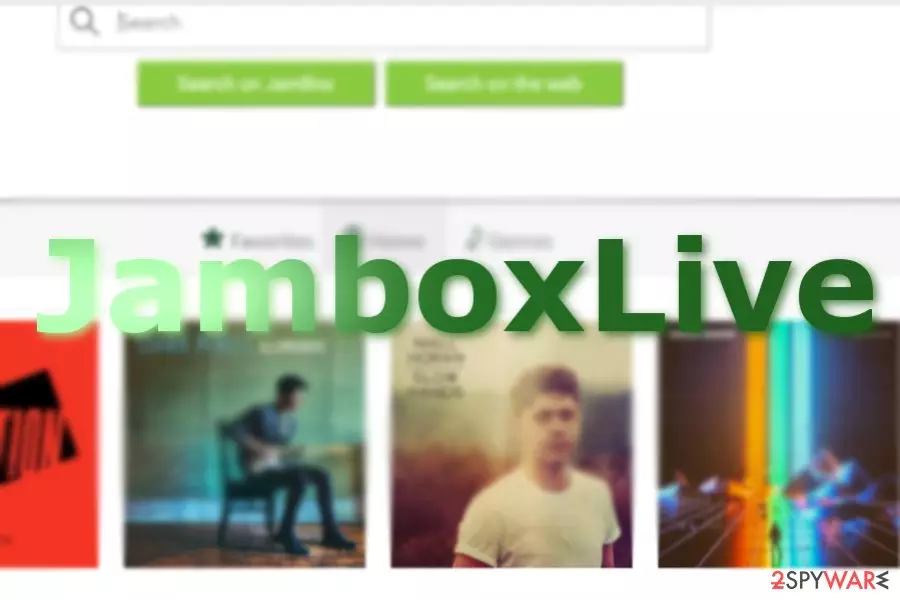
Jamboxlive.com is an alternative search provider that you might find on your URL bar after a browser hijacker is installed on your system. In most cases, a hijacker comes as an extension for Google Chrome or another web browser. While you could download the app on various websites, it might also be spread as an optional component of the freeware bundle.
Upon installation, your homepage and new tab address would be immediately altered, and all the searchers constantly redirected Yahoo, Google, or another provider. The side-effect of this is that the top results are not genuine – they are paid ads that alter your browsing experience quite a bit (these are inserted by the hijacker, not the provider).
Also, you should concern yourself about the privacy policy of the app, is it disclosed that certain data can be collected as long as the app is active and resides on your browser.
| Name | Jamboxlive.com |
| Type | Browser hijacker |
| Operation | The application provides links to a few popular songs that could |
| Activities | Hijacks the web browser by appending feed.jamboxlive.com as a homepage and tracks web browsing data with the help of cookies and other technologies; shows ads at the top of the search results |
| Removal | Uninstall the app easily with anti-malware app or follow the manual guide below |
| System fix | If you have found malware, adware, or other unknown applications on your system, we recommend you always use FortectIntego to remediate the operating system and fix the sustained damage |
Initially, this search engine is oriented toward music listeners. Besides the search tool, you will also find some album suggestions and also could listen to around five tracks per category. All these songs can be found for free on platforms such as YouTube or Spotify, except that the music selection is better by far.
One of the negative aspects of a browser hijacker is that it gathers various user information. Here is an extract from the privacy Policy document:[1]
Non-Personal Information may be automatically transmitted by the user's device. When using our Service, we assign your device with a log file, a cookie (session or persistent), web beacons or other related technologies, to collect Non-Personal Information with respect to your activity in connection with our Service.
Additionally, some personal data may also be collected, such as contact information or unique device identifiers.
While using the service, you might notice advertising. Therefore, this phenomenon will also bother the browsing process. Thus, you can remove jamboxlive.com with the assistance of an anti-malware utility, for instance, SpyHunterCombo Cleaner or MalwarebytesMalwarebytes. FortectIntego can also assist with browser cleaning and remediation of broken system components. Alternatively, you should have no problems deleting the app manually – you find the relevant information below.
Useful applications?
Observing its features, the site is not malicious nor highly aggressive PUP. It delivers you Google search results and supports security plug-ins. In addition, the home page is not overcrowded with banners and ads on the homepage.
However, due to the above-discussed behavior, redirects might be more bothersome than expected. Due to the promotion of third-party sites, you might encounter an ad that directs you to insecure domains. [2] Therefore, to lower the risk of getting misguided to an insecure domain, it is recommended to perform PUP removal, i.e., eliminate its cookies and web scripts.
Distribution methods
PUPs sometimes have their own official sites. In addition, to boost their traffic, they might be promoted in the form of adware[3] scripts in sponsored domains. In other words, after you click on a respective link or banner, you might find yourself on this page.
Speaking of JamBoxLive hijack, it will hardly be promoted as an optional add-on. Nonetheless, you should be wary of this possibility. To detect all unwanted applications, opt for “Custom” settings when installing new software. Unmark all irrelevant add-ons and proceed with the installation.

Get rid of JamBoxLive
If you get redirected to this domain occasionally, you can remove the app's scripts with the assistance of a malware elimination tool. It will also come in handy dealing with more elaborate threats.
You might also uninstall JamBoxLive with the help of our instructions below. Although, it is also important to note that the hijack might be installed either as a browser extension or a standalone program on the computer. Therefore, we recommend carefully checking both of these elements and removing everything suspicious. When it comes to web browsers, you can either reset them or simply clean them (although the latter might take much longer to complete).
Uninstall from Windows
Uninstall from Windows 10/8:
- Type Control Panel into the Windows search box and open the result.
- Under Programs, select Uninstall a program.


Uninstall from Windows 7/XP:
- Click on Windows Start > Control Panel (Windows XP users should click on Add/Remove Programs).
- In Control Panel, select Programs > Uninstall a program.


Remove the unwanted program:
- In the Programs and Features window, look for any recently installed suspicious entries, select them, and click Uninstall.
- If User Account Control appears, click Yes to confirm, then complete the removal.


Delete from macOS
Remove the unwanted application:
- From the menu bar, select Go > Applications.
- In the Applications folder, look for any suspicious entries, then drag them to Trash (or right-click and pick Move to Trash).


Delete leftover files and folders:
- Select Go > Go to Folder.
- Enter /Library/Application Support and remove any suspicious folders related to the unwanted program.
- Repeat the same check in the /Library/LaunchAgents and /Library/LaunchDaemons folders, deleting any suspicious entries.

- Finally, empty the Trash to permanently remove the leftovers.

Remove from Microsoft Edge
Delete unwanted extensions from MS Edge:
- Select Menu (three horizontal dots at the top-right of the browser window) and pick Extensions.
- From the list, pick the extension and click on the Gear icon.
- Click Remove.


Clear cookies and other browser data:
- Click on the Menu (three horizontal dots at the top-right of the browser window) and select Settings > Privacy, search, and services..
- Under Clear browsing data, pick Choose what to clear.
- Select Cookies and other site data and Cached images and files. (apart from passwords, although you might want to include Media licenses as well, if applicable) and click on Clear.


Restore new tab and homepage settings:
- Click the menu icon and choose Settings.
- Then find On startup section.
- Click Remove next to any suspicious startup page.
Reset MS Edge if the above steps did not work:
- Press on Ctrl + Shift + Esc to open Task Manager.
- Click on More details arrow at the bottom of the window.
- Select Details tab.
- Now scroll down and locate every entry with Microsoft Edge name in it. Right-click on each of them and select End Task to stop MS Edge from running.


Instructions for Chromium-based Edge
Delete extensions from MS Edge (Chromium):
- Open Edge and click select Settings > Extensions.
- Delete unwanted extensions by clicking Remove.


Clear cache and site data:
- Click on Menu and go to Settings.
- Select Privacy, search and services.
- Under Clear browsing data, pick Choose what to clear.
- Under Time range, pick All time.
- Select Clear now.


Reset Chromium-based MS Edge:
- Click on Menu and select Settings.
- On the left side, pick Reset settings.
- Select Restore settings to their default values.
- Confirm with Reset.
- This will disable extensions and reset startup pages but will not delete bookmarks, saved passwords, or browsing history.


Remove from Mozilla Firefox (FF)
Remove dangerous extensions:
- Open Mozilla Firefox browser and click on the Menu (three horizontal lines at the top-right of the window).
- Select Add-ons.
- In here, select the unwanted extension and click Remove.


Reset the homepage:
- Click three horizontal lines at the top right corner to open the menu.
- Choose Settings.
- Under Home, set your preferred homepage and new tab settings.
Clear cookies and site data:
- Click Menu and pick Settings.
- Go to Privacy & Security section.
- Scroll down to locate Cookies and Site Data.
- Click on Clear Data...
- Select Cookies and Site Data and Temporary cached files and pages, then click Clear.


Reset Mozilla Firefox
If clearing the browser as explained above did not help, reset Mozilla Firefox:
- Open Mozilla Firefox browser and click the Menu.
- Go to Help and then choose Troubleshooting Information.

- Under Give Firefox a tune up section, click on Refresh Firefox...
- Once the pop-up shows up, confirm the action by pressing on Refresh Firefox.



Remove from Google Chrome
Delete malicious extensions from Google Chrome:
- Open Google Chrome, click on the Menu (three vertical dots at the top-right corner) and select More tools > Extensions.
- In the newly opened window, you will see all the installed extensions. Uninstall all suspicious extensions related to the unwanted program by clicking Remove.


Clear cache and web data from Chrome:
- Click on Menu and pick Settings.
- Under Privacy and security, select Clear browsing data.
- Select Browsing history, Cookies and other site data, as well as Cached images and files.
- Click Clear data.


Change your homepage:
- Click menu and choose Settings.
- Look for a suspicious site in the On startup section.
- Click on Open a specific or set of pages and click on three dots to find the Remove option.
Reset Google Chrome:
If the previous methods did not help you, reset Google Chrome to eliminate all the unwanted components:
- Click on Menu and select Settings.
- In the Settings, scroll down and click Advanced.
- Scroll down and locate Reset and clean up section.
- Now click Restore settings to their original defaults.
- Confirm with Reset settings.


Delete from Safari
Remove dangerous extensions:
- Open Safari, click Safari in the menu at the top-left of the screen, and select Preferences.
- Go to the Extensions tab, look for any suspicious entries, and click Uninstall to remove them.


Clear history and website data:
- Click Safari in the menu and pick Clear History.
- Set Clear to all history and confirm with Clear History.


Reset Safari:
- Click Safari in the menu and select Preferences > Advanced.
- Enable Show Develop menu in menu bar.
- From the menu bar, click Develop and select Empty Caches.


Did this guide help?
Be the first to comment