

Google Security Warning – a scam that revolves around legitimate-looking warnings shown on Google Chrome browser
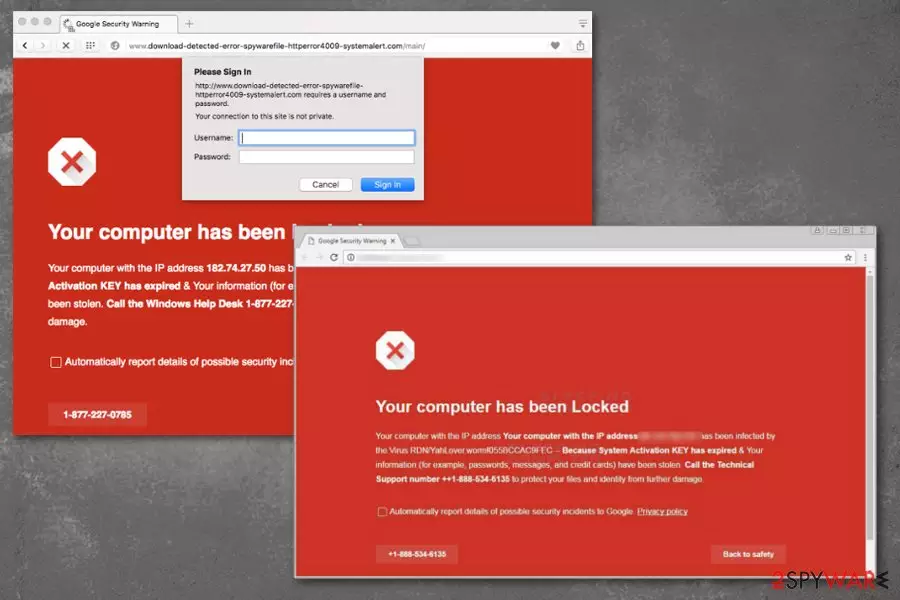
Google Security Warning is the campaign generating fake alerts and warnings aiming to trick users into calling the free phone number of technicians. Unfortunately, once the victim calls a support number to fix the possible issues, scammers can ask to install tools or software, give the remote access to their device or even claim that you need to pay for their consultation. Microsoft has nothing to do with this scam, and you should be aware that emails or phone number are not displayed on the legitimate system messages. This is nothing more than a version of the Google virus.
Although “Google Security Warning” scam claims that your computer is locked since the firewall has detected suspicious activity, there is possibly no malware on the PC. At this point, we can assure you that this red warning message is a deceptive trick to lure you into calling via the provided number and sign up for useless or even non-existent services. If you don't want to deal with cybercriminals, you need to ignore such fraudulent pop-ups and get rid of Google virus warning.[1]
| Name | Google Security Warning |
|---|---|
| Type | Scam |
| Caused by | Adware |
| Main issues caused on victim's computer | Displays fake pop-up messages, redirects to highly suspicious websites |
| Main aim | To mislead the victim into calling the fake tech support number |
| Dangers | The loss of money and personal information, high possibility of getting infected with malware |
| Elimination | To remove Google Security Warning message, use FortectIntego |
“Google Security Warning” scam is fake Google warnings delivering adware-type potentially unwanted program that makes time online significantly affected with all the unwanted pop-ups and redirects to promotional content. Besides the scary message with a security statement, user can encounter other symptoms that decrease the browsing speed and performance of the PC.
These alerts in Google Security Warning scam aim to trick people into thinking their computer has crashed or that hacker has been working on the system. However, in most cases, no virus has been detected or found on the machine. Even the particular malware indicated on these alerts is pre-determined and not running on your device.
Google warning about virus starts appearing once a victim's computer gets infected with the adware-type program. As soon as it alters system settings, it starts continuous redirects to websites delivering such pop-up messages:
Firewall detecting ‘suspicious’ incoming network connections,we recommend that you click on “Back to Safety.”
Your computer has been Locked
Your computer with the IP address might infected by the Trojans– Because System Activation KEY has expired. Your information (for example, passwords, messages, and credit cards) have been stolen. Call the Help Desk number 0800-090-3829 to protect your files and identity from further damage.
‘Google Security Warning Lock Screen. To immediate rectify issue and prevent data losePlease call Toll free :0800-090-3829
The content of Google Security Warning pop-up is designed to scare people. Scammers claim that there was a Zeus virus detected on the victim's computer due to the expired System Activation or a trojan horse, spyware that stole your personal data. According to the alerts, for this reason, sensitive information, such as passwords or credit card information, might be taken. To solve the problem and protect their data, users have to call Windows Help Desk via +1-844-843-5125 phone number.

Calling or contacting these criminals in other ways can be the only reason why your credit card credentials, passwords or any other personal information get stolen or accessed because scammer may trick you into revealing this information over the phone. Also, “Google Security Warning” scam creators try to get on the device remotely to infiltrate the PC with additional malware or obtain valuable data directly from the machine.
Google Security Warning tech support scam can have many different messages and show phone numbers, deliver Fix now button that redirects to direct or even automatic download of the rogue tool that may include malware script. In most cases, the message says the phone number is toll-free or free of charge. However, calling this number might be expensive.
Besides, they might convince you to agree to install remote access tools in order to fix the problem quicker. Once the attacker gets on targeted machine, malicious tools can get installed immediately.
Scammers usually take advantage of ad-supported applications to redirect users to such fake websites or display misleading pop-ups. However, Google Security virus warning might also cause other browsing-related problems, such as an increased amount of ads or redirects to commercial sites.

Nevertheless, fake Google Security Alert is not dangerous; you should not tolerate it. The PUP might force you to visit infected or phishing website[2] where cybercriminals might be prepared a few hoaxes to obtain your private information. Potentially unwanted programs like this can access your browsing history and other online preferences to use that data later on in sponsored malvertising campaigns.[3]
Therefore, we recommend you to get rid of Google Virus Warning not only by closing the browser’s tab. You should also use anti-malware software and run a full system scan to uninstall adware, which is responsible for suspicious activities on your browser. This procedure will help you remove Google security warning entirely.
For automatic removal of Google Security Warning PUP, we recommend FortectIntego. However, you can choose another professional anti-malware or antivirus software or follow manual adware elimination guidelines below. Besides step-by-step guides, we have a few tips for browser resetting.

The installation of free applications might bring the adware to your system
You might start encountering such fake warning messages after the reckless installation of free software. Developers bundle the potentially unwanted program which causes the deceptive messages to appear during your browsing sessions with freeware and hide the information about such actions.
Likewise, you might infiltrate the PUP showing a fake warning if you choose Recommended/Quick parameters during the installation process and do not de-select the marks allowing additional downloads. To avoid such PUP, you should pick Advanced or Custom settings and always un-tick the pre-selected checkmarks.
Get rid of Google Security Warning virus within several minutes
Once you receive a Google Security Warning popup, you can temporarily fix the problem by closing the tab/window. However, there is a high possibility that the same or similar fake message will reappear after some time. Likewise, you can take measures right away to get rid of this alert for good.
Thus, to remove Google Security Warning and other problems, you have to investigate the system and wipe out all malicious components from the PC. We suggest you ensure the elimination procedure for robust anti-spyware software. You can use one from the list below.
Additionally, you can find manual Google Security Warning removal guidelines at the end of the article. However, experts from Hungary[4] note that it might be difficult to find all adware-related files and programs manually. Thus, it’s better to save time and opt for the automatic removal option.
Uninstall from Windows
Uninstall from Windows 10/8:
- Type Control Panel into the Windows search box and open the result.
- Under Programs, select Uninstall a program.


Uninstall from Windows 7/XP:
- Click on Windows Start > Control Panel (Windows XP users should click on Add/Remove Programs).
- In Control Panel, select Programs > Uninstall a program.


Remove the unwanted program:
- In the Programs and Features window, look for any recently installed suspicious entries, select them, and click Uninstall.
- If User Account Control appears, click Yes to confirm, then complete the removal.


Delete from macOS
Remove the unwanted application:
- From the menu bar, select Go > Applications.
- In the Applications folder, look for any suspicious entries, then drag them to Trash (or right-click and pick Move to Trash).


Delete leftover files and folders:
- Select Go > Go to Folder.
- Enter /Library/Application Support and remove any suspicious folders related to the unwanted program.
- Repeat the same check in the /Library/LaunchAgents and /Library/LaunchDaemons folders, deleting any suspicious entries.

- Finally, empty the Trash to permanently remove the leftovers.

Reset Internet Explorer
Remove dangerous add-ons:
- Open Internet Explorer, click on the Gear icon (IE menu) on the top-right corner of the browser
- Pick Manage Add-ons.
- You will see a Manage Add-ons window. Here, look for suspicious plugins. Click on these entries and select Disable.


Change your homepage if it was altered:
- Open IE and click on the Gear icon.
- Select Internet Options.
- In the General tab, delete the Home page address and replace it by your preferred one (for example, Google.com).
- Click Apply and then select OK.


Delete temporary files:
- Press on the Gear icon and select Internet Options.
- Under Browsing history, click Delete...
- Select relevant fields and press Delete.


Reset Internet Explorer:
- Click on Gear icon > Internet options and select Advanced tab.
- Select Reset.
- In the new window, check Delete personal settings and select Reset.


Remove from Microsoft Edge
Delete unwanted extensions from MS Edge:
- Select Menu (three horizontal dots at the top-right of the browser window) and pick Extensions.
- From the list, pick the extension and click on the Gear icon.
- Click Remove.


Clear cookies and other browser data:
- Click on the Menu (three horizontal dots at the top-right of the browser window) and select Settings > Privacy, search, and services..
- Under Clear browsing data, pick Choose what to clear.
- Select Cookies and other site data and Cached images and files. (apart from passwords, although you might want to include Media licenses as well, if applicable) and click on Clear.


Restore new tab and homepage settings:
- Click the menu icon and choose Settings.
- Then find On startup section.
- Click Remove next to any suspicious startup page.
Reset MS Edge if the above steps did not work:
- Press on Ctrl + Shift + Esc to open Task Manager.
- Click on More details arrow at the bottom of the window.
- Select Details tab.
- Now scroll down and locate every entry with Microsoft Edge name in it. Right-click on each of them and select End Task to stop MS Edge from running.


Instructions for Chromium-based Edge
Delete extensions from MS Edge (Chromium):
- Open Edge and click select Settings > Extensions.
- Delete unwanted extensions by clicking Remove.


Clear cache and site data:
- Click on Menu and go to Settings.
- Select Privacy, search and services.
- Under Clear browsing data, pick Choose what to clear.
- Under Time range, pick All time.
- Select Clear now.


Reset Chromium-based MS Edge:
- Click on Menu and select Settings.
- On the left side, pick Reset settings.
- Select Restore settings to their default values.
- Confirm with Reset.
- This will disable extensions and reset startup pages but will not delete bookmarks, saved passwords, or browsing history.


Remove from Mozilla Firefox (FF)
Remove dangerous extensions:
- Open Mozilla Firefox browser and click on the Menu (three horizontal lines at the top-right of the window).
- Select Add-ons.
- In here, select the unwanted extension and click Remove.


Reset the homepage:
- Click three horizontal lines at the top right corner to open the menu.
- Choose Settings.
- Under Home, set your preferred homepage and new tab settings.
Clear cookies and site data:
- Click Menu and pick Settings.
- Go to Privacy & Security section.
- Scroll down to locate Cookies and Site Data.
- Click on Clear Data...
- Select Cookies and Site Data and Temporary cached files and pages, then click Clear.


Reset Mozilla Firefox
If clearing the browser as explained above did not help, reset Mozilla Firefox:
- Open Mozilla Firefox browser and click the Menu.
- Go to Help and then choose Troubleshooting Information.

- Under Give Firefox a tune up section, click on Refresh Firefox...
- Once the pop-up shows up, confirm the action by pressing on Refresh Firefox.



Remove from Google Chrome
Delete malicious extensions from Google Chrome:
- Open Google Chrome, click on the Menu (three vertical dots at the top-right corner) and select More tools > Extensions.
- In the newly opened window, you will see all the installed extensions. Uninstall all suspicious extensions related to the unwanted program by clicking Remove.


Clear cache and web data from Chrome:
- Click on Menu and pick Settings.
- Under Privacy and security, select Clear browsing data.
- Select Browsing history, Cookies and other site data, as well as Cached images and files.
- Click Clear data.


Change your homepage:
- Click menu and choose Settings.
- Look for a suspicious site in the On startup section.
- Click on Open a specific or set of pages and click on three dots to find the Remove option.
Reset Google Chrome:
If the previous methods did not help you, reset Google Chrome to eliminate all the unwanted components:
- Click on Menu and select Settings.
- In the Settings, scroll down and click Advanced.
- Scroll down and locate Reset and clean up section.
- Now click Restore settings to their original defaults.
- Confirm with Reset settings.


Delete from Safari
Remove dangerous extensions:
- Open Safari, click Safari in the menu at the top-left of the screen, and select Preferences.
- Go to the Extensions tab, look for any suspicious entries, and click Uninstall to remove them.


Clear history and website data:
- Click Safari in the menu and pick Clear History.
- Set Clear to all history and confirm with Clear History.


Reset Safari:
- Click Safari in the menu and select Preferences > Advanced.
- Enable Show Develop menu in menu bar.
- From the menu bar, click Develop and select Empty Caches.


Did this guide help?
Be the first to comment