

Using Search.anysearchresults.com search tool poses a threat to user's privacy and security online
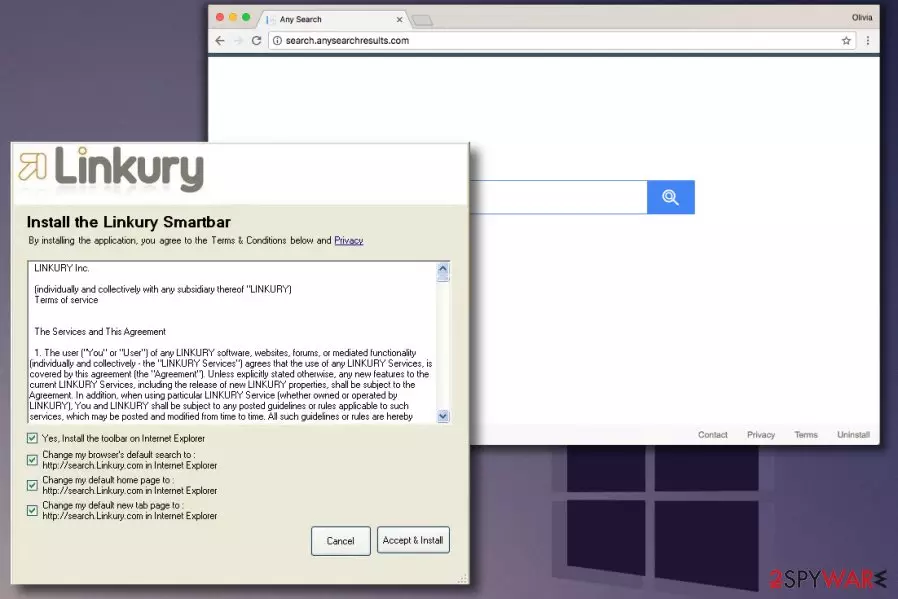
Search.anysearchresults.com by Linkury, Ltd. is a typical browser-hijacking search tool that can arrive alongside Safe Finder or Linkury SmartBar software. This program is approved as a potentially unwanted one and can cause low-level damage to your computer, so security experts recommend removing it without hesitations. AnySearchResults hijack will result in new browser start page and default search engine settings.
At first, anysearchresults.com page raises no suspicions as it is basically a blank white page with a search box in the center of it. Such plain design looks innocent and hardly waves a red flag for the user. It is important to understand that such fake search tools are no less dangerous than browsing through hardly reliable websites.
While it cannot be identified as a malicious program, it poses a great risk to user’s privacy and security because it tends to provide a lot of sponsored links in the search results.
Browser hijackers,[1] in general, aim to provide the user with sponsored results so that these would get clicked. If the victim fails to identify paid results, he risks visiting highly insecure web domains. Some of these might be deceptive, while others can be highly fraudulent and employ phishing or social engineering attack to swindle money or personal details from the victim.
Finally, inattentive behavior while browsing through external sites can result in malware or spyware infiltration,[2] and we bet that you do not want that to happen.
Also, remember that tools like Search.anysearchresults.com can collect certain data during your browsing sessions. For this reason, you must be thoughtful and avoid entering any personal data when using web search engines. Researchers from Dieviren.de[3] suggest that Linkury collects search queries, IP address, browsing history and data describing user’s computer as well as the operating system used.
Consequently, the collected details might be shared with third-parties to provide catchy adverts. These tend to be highly annoying and useless (at least in the majority of cases).
You can quickly remove Search.anysearchresults.com with anti-spyware program like FortectIntego; however, it is important to remember that the security software must be updated to its latest available version. This way, you will be using the latest threat definition database, which will ensure efficient spyware detection and removal.
Using anti-malware or anti-spyware software is not a must, so you can follow Search.anysearchresults.com removal instructions we provided to delete the hijacker manually. Please pay close attention to every detail in the given tutorial.

Distribution peculiarities explained
In case you wonder how did this spyware infiltrate your computer, remember that it spreads using legitimate methods mainly. Software bundling is the primary technique that the developer of these programs employs, and you should be extremely careful when adding new free programs to your PC. Here is a short tutorial on how to prevent infiltration of unwanted spyware-type apps:
- Install software only from trustworthy sources, if possible, from official developer’s website only.
- When you go through the steps of a software setup, do not hop over the stage where you can customize the installation. Your goal is to select Advanced/Custom settings.
- As soon as the right installation mode is selected, untick extra items bundled with your download.
Remove Search.anysearchresults.com without any effort
The best way to remove Search.anysearchresults.com virus effortlessly is to run a system check using anti-malware software. However, since this potentially unwanted program does not belong to malware category, you can try to delete its components manually. The guide provided below the article can help you to complete this task within minutes.
No matter what, do not delay Search.anysearchresults.com removal as the potentially unwanted program might deceptively try to convince you to install some other spyware-type programs. Clean up your computer as soon as you notice the virtual pest and continue using your web browser without any worries.
Uninstall from Windows
Uninstall from Windows 10/8:
- Type Control Panel into the Windows search box and open the result.
- Under Programs, select Uninstall a program.


Uninstall from Windows 7/XP:
- Click on Windows Start > Control Panel (Windows XP users should click on Add/Remove Programs).
- In Control Panel, select Programs > Uninstall a program.


Remove the unwanted program:
- In the Programs and Features window, look for any recently installed suspicious entries, select them, and click Uninstall.
- If User Account Control appears, click Yes to confirm, then complete the removal.


Delete from macOS
Remove the unwanted application:
- From the menu bar, select Go > Applications.
- In the Applications folder, look for any suspicious entries, then drag them to Trash (or right-click and pick Move to Trash).


Delete leftover files and folders:
- Select Go > Go to Folder.
- Enter /Library/Application Support and remove any suspicious folders related to the unwanted program.
- Repeat the same check in the /Library/LaunchAgents and /Library/LaunchDaemons folders, deleting any suspicious entries.

- Finally, empty the Trash to permanently remove the leftovers.

Reset Internet Explorer
Remove dangerous add-ons:
- Open Internet Explorer, click on the Gear icon (IE menu) on the top-right corner of the browser
- Pick Manage Add-ons.
- You will see a Manage Add-ons window. Here, look for suspicious plugins. Click on these entries and select Disable.


Change your homepage if it was altered:
- Open IE and click on the Gear icon.
- Select Internet Options.
- In the General tab, delete the Home page address and replace it by your preferred one (for example, Google.com).
- Click Apply and then select OK.


Delete temporary files:
- Press on the Gear icon and select Internet Options.
- Under Browsing history, click Delete...
- Select relevant fields and press Delete.


Reset Internet Explorer:
- Click on Gear icon > Internet options and select Advanced tab.
- Select Reset.
- In the new window, check Delete personal settings and select Reset.


Remove from Microsoft Edge
Delete unwanted extensions from MS Edge:
- Select Menu (three horizontal dots at the top-right of the browser window) and pick Extensions.
- From the list, pick the extension and click on the Gear icon.
- Click Remove.


Clear cookies and other browser data:
- Click on the Menu (three horizontal dots at the top-right of the browser window) and select Settings > Privacy, search, and services..
- Under Clear browsing data, pick Choose what to clear.
- Select Cookies and other site data and Cached images and files. (apart from passwords, although you might want to include Media licenses as well, if applicable) and click on Clear.


Restore new tab and homepage settings:
- Click the menu icon and choose Settings.
- Then find On startup section.
- Click Remove next to any suspicious startup page.
Reset MS Edge if the above steps did not work:
- Press on Ctrl + Shift + Esc to open Task Manager.
- Click on More details arrow at the bottom of the window.
- Select Details tab.
- Now scroll down and locate every entry with Microsoft Edge name in it. Right-click on each of them and select End Task to stop MS Edge from running.


Instructions for Chromium-based Edge
Delete extensions from MS Edge (Chromium):
- Open Edge and click select Settings > Extensions.
- Delete unwanted extensions by clicking Remove.


Clear cache and site data:
- Click on Menu and go to Settings.
- Select Privacy, search and services.
- Under Clear browsing data, pick Choose what to clear.
- Under Time range, pick All time.
- Select Clear now.


Reset Chromium-based MS Edge:
- Click on Menu and select Settings.
- On the left side, pick Reset settings.
- Select Restore settings to their default values.
- Confirm with Reset.
- This will disable extensions and reset startup pages but will not delete bookmarks, saved passwords, or browsing history.


Remove from Mozilla Firefox (FF)
Remove dangerous extensions:
- Open Mozilla Firefox browser and click on the Menu (three horizontal lines at the top-right of the window).
- Select Add-ons.
- In here, select the unwanted extension and click Remove.


Reset the homepage:
- Click three horizontal lines at the top right corner to open the menu.
- Choose Settings.
- Under Home, set your preferred homepage and new tab settings.
Clear cookies and site data:
- Click Menu and pick Settings.
- Go to Privacy & Security section.
- Scroll down to locate Cookies and Site Data.
- Click on Clear Data...
- Select Cookies and Site Data and Temporary cached files and pages, then click Clear.


Reset Mozilla Firefox
If clearing the browser as explained above did not help, reset Mozilla Firefox:
- Open Mozilla Firefox browser and click the Menu.
- Go to Help and then choose Troubleshooting Information.

- Under Give Firefox a tune up section, click on Refresh Firefox...
- Once the pop-up shows up, confirm the action by pressing on Refresh Firefox.



Remove from Google Chrome
Delete malicious extensions from Google Chrome:
- Open Google Chrome, click on the Menu (three vertical dots at the top-right corner) and select More tools > Extensions.
- In the newly opened window, you will see all the installed extensions. Uninstall all suspicious extensions related to the unwanted program by clicking Remove.


Clear cache and web data from Chrome:
- Click on Menu and pick Settings.
- Under Privacy and security, select Clear browsing data.
- Select Browsing history, Cookies and other site data, as well as Cached images and files.
- Click Clear data.


Change your homepage:
- Click menu and choose Settings.
- Look for a suspicious site in the On startup section.
- Click on Open a specific or set of pages and click on three dots to find the Remove option.
Reset Google Chrome:
If the previous methods did not help you, reset Google Chrome to eliminate all the unwanted components:
- Click on Menu and select Settings.
- In the Settings, scroll down and click Advanced.
- Scroll down and locate Reset and clean up section.
- Now click Restore settings to their original defaults.
- Confirm with Reset settings.


Delete from Safari
Remove dangerous extensions:
- Open Safari, click Safari in the menu at the top-left of the screen, and select Preferences.
- Go to the Extensions tab, look for any suspicious entries, and click Uninstall to remove them.


Clear history and website data:
- Click Safari in the menu and pick Clear History.
- Set Clear to all history and confirm with Clear History.


Reset Safari:
- Click Safari in the menu and select Preferences > Advanced.
- Enable Show Develop menu in menu bar.
- From the menu bar, click Develop and select Empty Caches.


Did this guide help?
Be the first to comment