

2018 Annual Visitor Survey is a scam related to adware that delivers surveys which tries to trick users into believing they won a prize
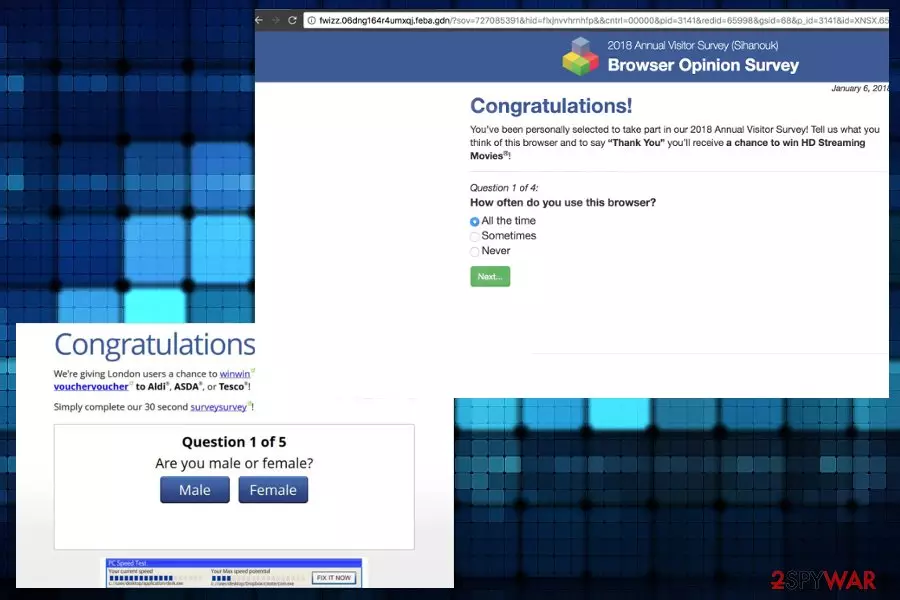
You should note that this message is a scam that is identical to the 2017 Annual Visitor Survey so it is possible that a new version comes out each year to target people all over the world and obtain their information or generate views and page visits. The pay-per-click revenue scheme is typical for ad-supported sites and general PUP infections.[1] This fake pop-up tries to mislead unsuspecting users into thinking that, after completing a quick survey of 4 or more questions they can win a prize. Victims of this hoax are promised to get an expensive gift at the end of the poll in exchange for their participation.
| Name | 2018 Annual Visitor Survey |
|---|---|
| Type | Scam |
| Caused by | Adware/ Potentially unwanted program |
| Symptoms | Continuous alerts on Chrome, Firefox, Safari or other web browsers show up out of nowhere causing additional redirects and pop-ups with suspicious content. In addition to the surveys, commercial content fills up the screen keeping the user from accessing wanted pages and extremely frustrated |
| Main danger | When the user is redirected to an advertising site or fills out the survey with personal or sensitive information all that data can be obtained by third-party companies or even malicious actors |
| Elimination | You should remove the program by running a full system scan with an anti-malware tool so anything placed in hidden places can be found and deleted |
| System cleaning tip | We recommend taking care of possible damage and altered files with system repair tools or cleaning utilities like FortectIntego that may fix the virus damage and help improve the general performance of your device |
To involve people in this fraud, 2018 Annual Visitor Survey virus offers[2] an iPad, iPhone or Samsung Galaxy. Anything valuable and popular ensures more interaction and users' involvement. However, the promised “prize” is bogus. After completing the questionnaire, you are shown various advertisements urging you to buy offered products. Despite the promises, you will never get a free gift. Remember that if the deal sounds too good to be true, it most likely is.
Although these fake survey messages differ from OS to OS and per each individual user, the following message is generally identical to those that users encounter continuously each year:
2018 Annual Visitor Survey
You’ve been personally selected to take part in our 2018 Annual Visitor Survey! Tell us what you think of Mozilla Firefox and to say “Thank You” you’ll receive a chance to get an gift cards, coupons and other amazing deals!
question 1 of 4
How often do you use Mozilla Firefox?
All the time
Sometimes
Never
Alternatively, you might be prompted to enter some personal details, such as e-mail, phone number, or similar as a requirement to obtain the winnings. This information is used to send you spam e-mails or involve you in constant advertising of unwanted products/services. These scammy messages are related to ad-supported sites, so this is obvious.
Additionally, you might be asked to buy some bogus software that you definitely do not need. Promotional pop-ups, banners, and redirects may be already altered to fit your online browsing preferences from the collected information. Therefore, we advise you to remove the 2018 Annual Visitor Survey from Chrome, Firefox, or any other web browser immediately to avoid further privacy issues.
What should you remove? The reason you are prompted continuously to complete fake surveys is caused by an adware program that might have invaded your machine without your approval. It can attack any browser, including Google Chrome, Internet Explorer, Mozilla Firefox, or Safari.
The name of the survey is typically associated with the browser name, such as “Chrome 2018 Annual Visitor Survey,” “Safari Annual Visitor Survey,” “Firefox visitor survey,” etc. This is done to emphasize the legitimacy of the survey. However, it is merely a scam, and these crooks should never be trusted.
Adware might cause additional symptoms on your PC
As soon as adware, which is responsible for showing fake ads on your browser, is installed, it starts causing these unwanted activities that typically bother PC users:
- Redirects to dubious websites (unfortunately, these redirects can lead you to malware-infested websites which can cause viruses on your computer);
- Installation of additional malware (typically, browser helper objects[3] and similar components are spread in a bundle with adware. They might be installed without your permission);
- System slowdowns and crashes. (Because of ad-supported software, your browser takes a long time to load websites).
Ultimately, the adware on your PC will multiply quickly and make your browsing experience almost impossible to perform. Without a doubt, virus removal is your only option if you want to keep your machine at its best state, so use anti-malware tools for the job. Try SpyHunterCombo Cleaner or MalwarebytesMalwarebytes for that. PC repair tools might also find the unwanted or damaged files and fix the damage without interfering with crucial parts of the OS, so double-check after virus termination using AV tools to improve the performance significantly.
Adware relies on questionable distribution methods
Inexperienced computer users often do not understand the concept of adware distribution. They think that malicious programs commonly enter computers without any action taken by the user. However, in most cases, the user is the one that triggers the infection even though the interaction required is only a click on the deceptive site or shady advertisement.
The most prominent adware distribution method is freeware and PUP bundling. This deceptive marketing technique is prevalent among free software developers, especially. They rely on inexperienced and inattentive users to use the Default/Recommended installation mode.
However, hidden components can be declined in Advanced/Custom installation settings. Therefore, we can assure you that the Default or Quick method is never the best way to install the software, especially when you go for a free download site or torrent service. Additionally, make sure you download software updates from legitimate sources only, as fake updates are popular amongst crooks.
Delete 2018 Annual Visitor Survey PUP from your machine to end all the redirects
To stop undesired program symptoms and behavior of the adware, you should remove the adware from your machine. The program you need to find is not that visible as you may think. Luckily, the deletion of adware should not be a problem, as long as it is taken care of early and with trustworthy tools.
To get rid of all the 2018 Annual Visitor Survey virus symptoms manually, follow our guide below this article. There are step-by-step instructions showing how to clean each individual browser. However, please make sure you follow each step with caution as the incorrect procedure will fail to eliminate the virus.
If you lack computer knowledge, we do not advise proceeding with manual 2018 Annual Visitor Survey removal since you can damage additional parts and interfere with the system. You should install professional security software on your computer instead, as experts[4] always recommend.
Uninstall from Windows
Uninstall from Windows 10/8:
- Type Control Panel into the Windows search box and open the result.
- Under Programs, select Uninstall a program.


Uninstall from Windows 7/XP:
- Click on Windows Start > Control Panel (Windows XP users should click on Add/Remove Programs).
- In Control Panel, select Programs > Uninstall a program.


Remove the unwanted program:
- In the Programs and Features window, look for any recently installed suspicious entries, select them, and click Uninstall.
- If User Account Control appears, click Yes to confirm, then complete the removal.


Delete from macOS
Remove the unwanted application:
- From the menu bar, select Go > Applications.
- In the Applications folder, look for any suspicious entries, then drag them to Trash (or right-click and pick Move to Trash).


Delete leftover files and folders:
- Select Go > Go to Folder.
- Enter /Library/Application Support and remove any suspicious folders related to the unwanted program.
- Repeat the same check in the /Library/LaunchAgents and /Library/LaunchDaemons folders, deleting any suspicious entries.

- Finally, empty the Trash to permanently remove the leftovers.

Remove from Microsoft Edge
Delete unwanted extensions from MS Edge:
- Select Menu (three horizontal dots at the top-right of the browser window) and pick Extensions.
- From the list, pick the extension and click on the Gear icon.
- Click Remove.


Clear cookies and other browser data:
- Click on the Menu (three horizontal dots at the top-right of the browser window) and select Settings > Privacy, search, and services..
- Under Clear browsing data, pick Choose what to clear.
- Select Cookies and other site data and Cached images and files. (apart from passwords, although you might want to include Media licenses as well, if applicable) and click on Clear.


Restore new tab and homepage settings:
- Click the menu icon and choose Settings.
- Then find On startup section.
- Click Remove next to any suspicious startup page.
Reset MS Edge if the above steps did not work:
- Press on Ctrl + Shift + Esc to open Task Manager.
- Click on More details arrow at the bottom of the window.
- Select Details tab.
- Now scroll down and locate every entry with Microsoft Edge name in it. Right-click on each of them and select End Task to stop MS Edge from running.


Instructions for Chromium-based Edge
Delete extensions from MS Edge (Chromium):
- Open Edge and click select Settings > Extensions.
- Delete unwanted extensions by clicking Remove.


Clear cache and site data:
- Click on Menu and go to Settings.
- Select Privacy, search and services.
- Under Clear browsing data, pick Choose what to clear.
- Under Time range, pick All time.
- Select Clear now.


Reset Chromium-based MS Edge:
- Click on Menu and select Settings.
- On the left side, pick Reset settings.
- Select Restore settings to their default values.
- Confirm with Reset.
- This will disable extensions and reset startup pages but will not delete bookmarks, saved passwords, or browsing history.


Remove from Mozilla Firefox (FF)
Remove dangerous extensions:
- Open Mozilla Firefox browser and click on the Menu (three horizontal lines at the top-right of the window).
- Select Add-ons.
- In here, select the unwanted extension and click Remove.


Reset the homepage:
- Click three horizontal lines at the top right corner to open the menu.
- Choose Settings.
- Under Home, set your preferred homepage and new tab settings.
Clear cookies and site data:
- Click Menu and pick Settings.
- Go to Privacy & Security section.
- Scroll down to locate Cookies and Site Data.
- Click on Clear Data...
- Select Cookies and Site Data and Temporary cached files and pages, then click Clear.


Reset Mozilla Firefox
If clearing the browser as explained above did not help, reset Mozilla Firefox:
- Open Mozilla Firefox browser and click the Menu.
- Go to Help and then choose Troubleshooting Information.

- Under Give Firefox a tune up section, click on Refresh Firefox...
- Once the pop-up shows up, confirm the action by pressing on Refresh Firefox.



Remove from Google Chrome
Delete malicious extensions from Google Chrome:
- Open Google Chrome, click on the Menu (three vertical dots at the top-right corner) and select More tools > Extensions.
- In the newly opened window, you will see all the installed extensions. Uninstall all suspicious extensions related to the unwanted program by clicking Remove.


Clear cache and web data from Chrome:
- Click on Menu and pick Settings.
- Under Privacy and security, select Clear browsing data.
- Select Browsing history, Cookies and other site data, as well as Cached images and files.
- Click Clear data.


Change your homepage:
- Click menu and choose Settings.
- Look for a suspicious site in the On startup section.
- Click on Open a specific or set of pages and click on three dots to find the Remove option.
Reset Google Chrome:
If the previous methods did not help you, reset Google Chrome to eliminate all the unwanted components:
- Click on Menu and select Settings.
- In the Settings, scroll down and click Advanced.
- Scroll down and locate Reset and clean up section.
- Now click Restore settings to their original defaults.
- Confirm with Reset settings.


Delete from Safari
Remove dangerous extensions:
- Open Safari, click Safari in the menu at the top-left of the screen, and select Preferences.
- Go to the Extensions tab, look for any suspicious entries, and click Uninstall to remove them.


Clear history and website data:
- Click Safari in the menu and pick Clear History.
- Set Clear to all history and confirm with Clear History.


Reset Safari:
- Click Safari in the menu and select Preferences > Advanced.
- Enable Show Develop menu in menu bar.
- From the menu bar, click Develop and select Empty Caches.


Did this guide help?
Be the first to comment