

Search.searchgmfs.com is the application developed by Polarity Technologies, so it should not be trusted
| Name | Search.searchgmfs.com |
|---|---|
| Category | Browser hijacker, PUP |
| Symptoms | Speed of the internet and general performance of the machine suffers; various add-ons get installed on browsers; homepage, new tab, the default search engine gets set to this particular or any related site |
| Distribution | Programs like this can get installed during freeware installation processes due to software bundling methods |
| Danger | Potentially unwanted programs often trigger redirects to commercial sites with possibly dangerous content |
| Elimination | Running an anti-malware tool or security program occasionally should be a habit. This is how you can find and remove infections |
| System fix | The machine can get affected from the inside and when various system files get altered or corrupted, the device cannot run properly. Revert those changes using a tool like FortectIntego |
Polarity Technologies is an infamous developer of PUPs which created countless other browser hijackers (such as search.searchismfa.com, search.youreasyemailsh.com, search.hyourweatherinfonow.com, etc.). These dubious apps look almost identical and pretend to be very helpful in a specific sphere – e-mailing, maps, transport, local weather and similar “useful” functions.
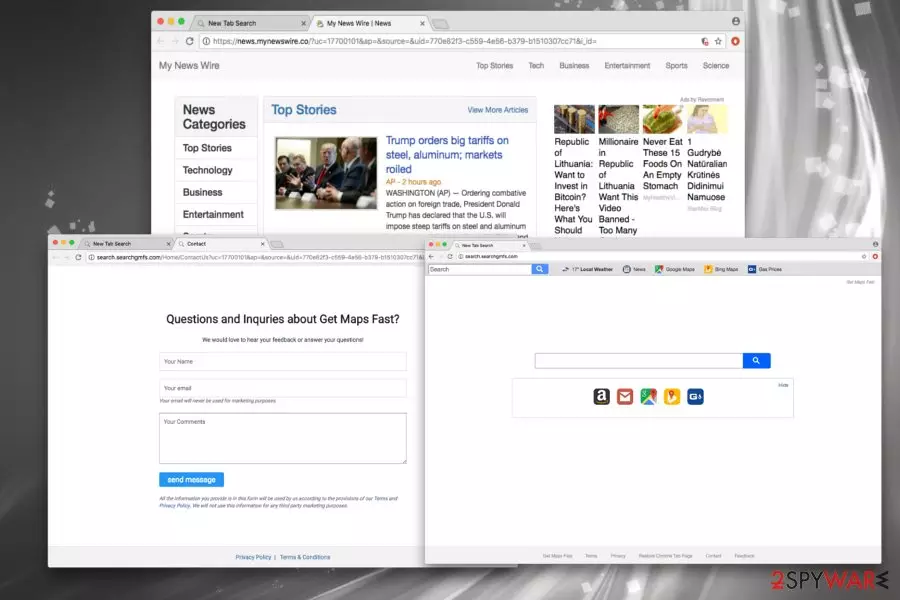
In this case, Get Maps Fast displays quick access buttons to Google Maps, Bing Maps, Gas Prices, a favorite retailer Amazon as well as Google Mail. However, do not get tricked by this functionality! Developers tend to include various buttons, claims about usefulness, so users install the app willingly.
It is merely a trick, and developers’ only interest is extortion of money at the expense of users whose browser get compromised. Thus, do not postpone Search.searchgmfs.com removal. We suggest using robust security software, like SpyHunterCombo Cleaner, MalwarebytesMalwarebytes. However, you can pick any other software you prefer.
This search virus affects web browser in many ways:
- A search engine, homepage, and new tab URL are set to hxxp://search.searchgmfs.com. These changes are irreversible, and victims are forced to browse through a hijacked engine;
- Multiple ads and pop-ups cover up the content of legitimate websites, diminished browsing experience tremendously;
- Redirects caused by the virus might lead to questionable web content where malicious JavaScrips might install dangerous malware, such as spyware[2] or ransomware;
- Additional so-called browser helper objects might be installed on users PCs without their approval.
- Computer processes run at much lower speeds than they used to. Therefore, loading of web pages or program start-ups might take a prolonged amount of time. Additionally, various applications might crash or become non-responsive.
It is especially important to remove Search.searchgmfs.com from your computer immediately, merely because PUPs tend to multiply quickly and make browsing sessions unbearable. Additionally, the probability of you infecting your machine with malware is just a question of time.

Unwanted programs might be hidden in free software installers
Cybersecurity experts from virusi.hr[3] concluded that software bundling is usually used to spread undesired programs. Users typically are unaware of this distribution method, and developers of freeware are quick to abuse this fact. Thus, to protect yourself, you should learn how to install programs correctly.
Before installing free software, make sure that it is legitimate. Always enquire some details about it on the internet if you want to proceed. There are countless forum posts, blogs, cybersecurity articles and similar websites which can provide enough information about any application.
When installing free software on the internet, make sure to read EULA and privacy policy carefully as this information might be extremely valuable. Then, pick Advanced or Custom installation mode instead of Recommended/Quick one. Despite developers’ recommendations, it is never wise to choose the latter as it does not expose the full lineup of additional components. To remove all unwanted PUPs from installation, merely untick check marks by add-ons, toolbars, search engines and similar useless software.
Search engine and PUP removal can be initiated in two different ways
We understand that some inexperienced users might find the encounter with a browser hijacker quite scary, especially if they never came across it before. However, relax and let us help you to bring your browser back to normal.
If you never dealt with browser hijackers or other PUPs before, we advise you to remove search.searchgmfs.com using powerful security software. All you have to do is download and install one of the programs mentioned below. Simply follow installation instructions, update security software to the latest version and perform a full system scan.
For those who previously dealt with unwanted programs, we can offer manual search.searchgmfs.com removal. Guidelines created by our security experts can assist you with a successful elimination. However, make sure you execute every step precisely; otherwise, you risk the reinfection of the virus.
Uninstall from Windows
Uninstall from Windows 10/8:
- Type Control Panel into the Windows search box and open the result.
- Under Programs, select Uninstall a program.


Uninstall from Windows 7/XP:
- Click on Windows Start > Control Panel (Windows XP users should click on Add/Remove Programs).
- In Control Panel, select Programs > Uninstall a program.


Remove the unwanted program:
- In the Programs and Features window, look for any recently installed suspicious entries, select them, and click Uninstall.
- If User Account Control appears, click Yes to confirm, then complete the removal.


Delete from macOS
Remove the unwanted application:
- From the menu bar, select Go > Applications.
- In the Applications folder, look for any suspicious entries, then drag them to Trash (or right-click and pick Move to Trash).


Delete leftover files and folders:
- Select Go > Go to Folder.
- Enter /Library/Application Support and remove any suspicious folders related to the unwanted program.
- Repeat the same check in the /Library/LaunchAgents and /Library/LaunchDaemons folders, deleting any suspicious entries.

- Finally, empty the Trash to permanently remove the leftovers.

Remove from Microsoft Edge
Delete unwanted extensions from MS Edge:
- Select Menu (three horizontal dots at the top-right of the browser window) and pick Extensions.
- From the list, pick the extension and click on the Gear icon.
- Click Remove.


Clear cookies and other browser data:
- Click on the Menu (three horizontal dots at the top-right of the browser window) and select Settings > Privacy, search, and services..
- Under Clear browsing data, pick Choose what to clear.
- Select Cookies and other site data and Cached images and files. (apart from passwords, although you might want to include Media licenses as well, if applicable) and click on Clear.


Restore new tab and homepage settings:
- Click the menu icon and choose Settings.
- Then find On startup section.
- Click Remove next to any suspicious startup page.
Reset MS Edge if the above steps did not work:
- Press on Ctrl + Shift + Esc to open Task Manager.
- Click on More details arrow at the bottom of the window.
- Select Details tab.
- Now scroll down and locate every entry with Microsoft Edge name in it. Right-click on each of them and select End Task to stop MS Edge from running.


Instructions for Chromium-based Edge
Delete extensions from MS Edge (Chromium):
- Open Edge and click select Settings > Extensions.
- Delete unwanted extensions by clicking Remove.


Clear cache and site data:
- Click on Menu and go to Settings.
- Select Privacy, search and services.
- Under Clear browsing data, pick Choose what to clear.
- Under Time range, pick All time.
- Select Clear now.


Reset Chromium-based MS Edge:
- Click on Menu and select Settings.
- On the left side, pick Reset settings.
- Select Restore settings to their default values.
- Confirm with Reset.
- This will disable extensions and reset startup pages but will not delete bookmarks, saved passwords, or browsing history.


Remove from Mozilla Firefox (FF)
Remove dangerous extensions:
- Open Mozilla Firefox browser and click on the Menu (three horizontal lines at the top-right of the window).
- Select Add-ons.
- In here, select the unwanted extension and click Remove.


Reset the homepage:
- Click three horizontal lines at the top right corner to open the menu.
- Choose Settings.
- Under Home, set your preferred homepage and new tab settings.
Clear cookies and site data:
- Click Menu and pick Settings.
- Go to Privacy & Security section.
- Scroll down to locate Cookies and Site Data.
- Click on Clear Data...
- Select Cookies and Site Data and Temporary cached files and pages, then click Clear.


Reset Mozilla Firefox
If clearing the browser as explained above did not help, reset Mozilla Firefox:
- Open Mozilla Firefox browser and click the Menu.
- Go to Help and then choose Troubleshooting Information.

- Under Give Firefox a tune up section, click on Refresh Firefox...
- Once the pop-up shows up, confirm the action by pressing on Refresh Firefox.



Remove from Google Chrome
Delete malicious extensions from Google Chrome:
- Open Google Chrome, click on the Menu (three vertical dots at the top-right corner) and select More tools > Extensions.
- In the newly opened window, you will see all the installed extensions. Uninstall all suspicious extensions related to the unwanted program by clicking Remove.


Clear cache and web data from Chrome:
- Click on Menu and pick Settings.
- Under Privacy and security, select Clear browsing data.
- Select Browsing history, Cookies and other site data, as well as Cached images and files.
- Click Clear data.


Change your homepage:
- Click menu and choose Settings.
- Look for a suspicious site in the On startup section.
- Click on Open a specific or set of pages and click on three dots to find the Remove option.
Reset Google Chrome:
If the previous methods did not help you, reset Google Chrome to eliminate all the unwanted components:
- Click on Menu and select Settings.
- In the Settings, scroll down and click Advanced.
- Scroll down and locate Reset and clean up section.
- Now click Restore settings to their original defaults.
- Confirm with Reset settings.


Delete from Safari
Remove dangerous extensions:
- Open Safari, click Safari in the menu at the top-left of the screen, and select Preferences.
- Go to the Extensions tab, look for any suspicious entries, and click Uninstall to remove them.


Clear history and website data:
- Click Safari in the menu and pick Clear History.
- Set Clear to all history and confirm with Clear History.


Reset Safari:
- Click Safari in the menu and select Preferences > Advanced.
- Enable Show Develop menu in menu bar.
- From the menu bar, click Develop and select Empty Caches.


Did this guide help?
Be the first to comment