

Your Mac Might Be Infected is a scam that promotes useless software
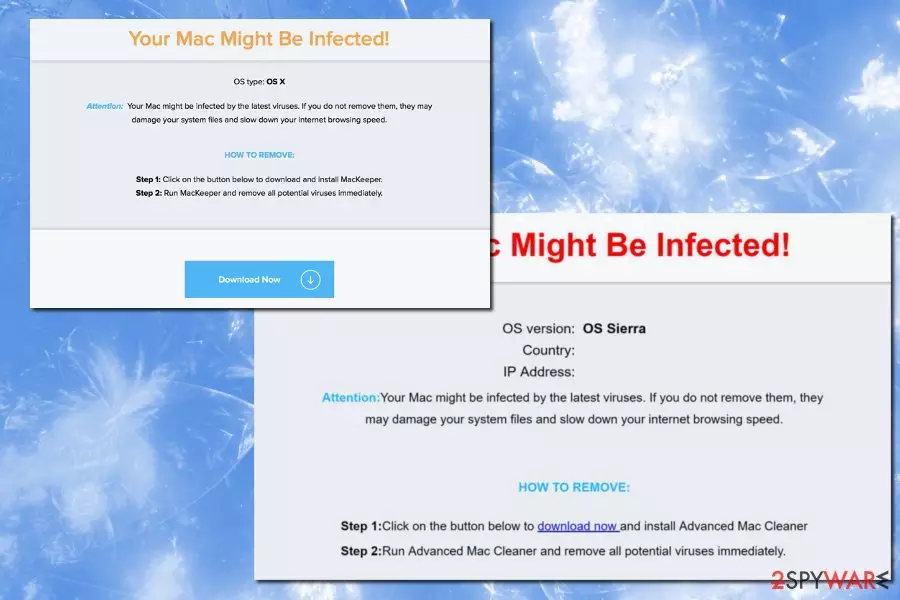
Your Mac Might Be Infected is a fake alert that threatens Mac OS users that their machines might be compromised by viruses and they need to clean them immediately. The purpose of this scam is to trick them into downloading and installing Advanced Mac Cleaner, MacKeeper, or other suspicious tools that are supposed to fix the computer. However, these programs are known as potentially unwanted and can most commonly bring more bad than good.
If you have spotted the scam message while browsing the web on Safari, Google Chrome, or another browser, ignore this warning and never interact with it. In this article, we will explore in detail what to do when you encounter this scam, as browser redirects[1] to suspicious websites might sometimes indicate adware infection.
| Name | Your Mac Might Be Infected |
| Type | Adware |
| OS affected | Mac |
| Danger Level | Medium (adware can lead to some unpleasant infections) |
| Symptoms | Pop-up ads, redirects, altered search results, slow computer performance, etc. |
| Distribution Methods | Bundling, shady websites |
| Elimination | Use anti-malware tools for general system cleaning |
| Repair | Your device can be recovered with the help of FortectIntego |
Adware is not generally considered malware, although many security experts claim that some PUPs might be particularly dangerous – they operate in a way that can hardly be called legitimate. Once installed, adware typically emits several symptoms through the app they affect the most – the web browser. These are the symptoms of adware infection:
- Ads, banners, deals, offers, coupons are injected into each of owned browsers;
- Random text on web pages is turned into hyperlinks;
- Additional browser helper objects installed without users’ approval;
- Users are redirected to suspicious domains which might be infected with malware;
- Search results are modified and link to affiliated web pages.
However, the main purpose of the Your Mac Might Be Infected virus is to display a misleading message:
Your Mac Might Be Infected!
OS version: OS Sierra
Country:
IP address: Unknown
Attention: Your Mac might be infected by the latest viruses. If you do not remove them, they may damage your system files and slow down your internet browsing speed.HOW TO REMOVE:
Step 1: Click on the button below to download now and install Advanced Mac Cleaner
Step 2: Run Advanced Mac Cleaner and remove all potential viruses immediately
It is evident that crooks are using smart social engineering[2] skills to ensure that the victim falls for the trap and installs fake software. However, it is all a scam, and there are no dangerous viruses on the users’ machines. Thus, you just need to remove the virus to stop the popup, clean the malware pieces from the device and forget about this notification.
Ironically, the scam authors warn that an unknown virus might damage system files and slow down browsing speed. However, adware that is causing these pop-ups actually is the culprit and does precisely that.
Additionally, security experts from Virusai.lt noted[3] that adware is known for collecting non-personally identifiable information used for marketing purposes. Adware developers want to control users’ browsing habits by displaying sponsored content associated with victims’ interests in order to get their clicks and generate revenue in this way.
Adware and other PUPs can multiply really fast, making every web browsing session a complete nightmare. Thus, do not delay Your Mac Might Be Infected removal. The quickest way to get rid of the virus is to use a robust security tool, like SpyHunterCombo Cleaner or MalwarebytesMalwarebytes (you can pick other trusted software, too).
However, if you want to get rid of the virus manually, you can find a detailed and illustrated guide at the end of this article. Keep in mind that ad-supported applications can hide deep in the system. Thus, if you fail to find them, redirects to the scam site come back again.

Adware can be hidden as an additional component in software bundles
The potentially unwanted program is called so for a reason, namely because it appears on the victims’ machine without adequately asking for permission. Typically, these programs bring no benefit to users and continuously disturb a normal computer and browser operation.
When installing free software from the internet, make sure you never pick Recommended/Quick/Default installation modes. Instead, proceed with Advanced/Custom settings and opt-out of any additional programs, such as toolbars, optimization tools, add-ons, search engines, video converters, and similar useless software.
Instead, if you want to use the tools suggested, find an appropriate match on official websites. This way, you will be sure that you will not be exposed to the dangers PUPs can bring.
Eliminate Your Mac Might Be Infected fake pop-up in a few minutes
The easiest way to remove these scam messages is by downloading and installing genuine anti-malware software. This way, you will not have to worry if all the components of adware are eliminated, as the security program will take care of everything automatically.
If you are against additional software on your machine, you can also follow our instructions below. However, if you noticed that the instructions are hard to understand, we urge you to pick automatic Your Mac Might Be Infected virus removal. In this way, you can be sure that adware is gone for good.
Uninstall from Windows
Uninstall from Windows 10/8:
- Type Control Panel into the Windows search box and open the result.
- Under Programs, select Uninstall a program.


Uninstall from Windows 7/XP:
- Click on Windows Start > Control Panel (Windows XP users should click on Add/Remove Programs).
- In Control Panel, select Programs > Uninstall a program.


Remove the unwanted program:
- In the Programs and Features window, look for any recently installed suspicious entries, select them, and click Uninstall.
- If User Account Control appears, click Yes to confirm, then complete the removal.


Delete from macOS
Remove the unwanted application:
- From the menu bar, select Go > Applications.
- In the Applications folder, look for any suspicious entries, then drag them to Trash (or right-click and pick Move to Trash).


Delete leftover files and folders:
- Select Go > Go to Folder.
- Enter /Library/Application Support and remove any suspicious folders related to the unwanted program.
- Repeat the same check in the /Library/LaunchAgents and /Library/LaunchDaemons folders, deleting any suspicious entries.

- Finally, empty the Trash to permanently remove the leftovers.

Remove from Microsoft Edge
Delete unwanted extensions from MS Edge:
- Select Menu (three horizontal dots at the top-right of the browser window) and pick Extensions.
- From the list, pick the extension and click on the Gear icon.
- Click Remove.


Clear cookies and other browser data:
- Click on the Menu (three horizontal dots at the top-right of the browser window) and select Settings > Privacy, search, and services..
- Under Clear browsing data, pick Choose what to clear.
- Select Cookies and other site data and Cached images and files. (apart from passwords, although you might want to include Media licenses as well, if applicable) and click on Clear.


Restore new tab and homepage settings:
- Click the menu icon and choose Settings.
- Then find On startup section.
- Click Remove next to any suspicious startup page.
Reset MS Edge if the above steps did not work:
- Press on Ctrl + Shift + Esc to open Task Manager.
- Click on More details arrow at the bottom of the window.
- Select Details tab.
- Now scroll down and locate every entry with Microsoft Edge name in it. Right-click on each of them and select End Task to stop MS Edge from running.


Instructions for Chromium-based Edge
Delete extensions from MS Edge (Chromium):
- Open Edge and click select Settings > Extensions.
- Delete unwanted extensions by clicking Remove.


Clear cache and site data:
- Click on Menu and go to Settings.
- Select Privacy, search and services.
- Under Clear browsing data, pick Choose what to clear.
- Under Time range, pick All time.
- Select Clear now.


Reset Chromium-based MS Edge:
- Click on Menu and select Settings.
- On the left side, pick Reset settings.
- Select Restore settings to their default values.
- Confirm with Reset.
- This will disable extensions and reset startup pages but will not delete bookmarks, saved passwords, or browsing history.


Remove from Mozilla Firefox (FF)
Remove dangerous extensions:
- Open Mozilla Firefox browser and click on the Menu (three horizontal lines at the top-right of the window).
- Select Add-ons.
- In here, select the unwanted extension and click Remove.


Reset the homepage:
- Click three horizontal lines at the top right corner to open the menu.
- Choose Settings.
- Under Home, set your preferred homepage and new tab settings.
Clear cookies and site data:
- Click Menu and pick Settings.
- Go to Privacy & Security section.
- Scroll down to locate Cookies and Site Data.
- Click on Clear Data...
- Select Cookies and Site Data and Temporary cached files and pages, then click Clear.


Reset Mozilla Firefox
If clearing the browser as explained above did not help, reset Mozilla Firefox:
- Open Mozilla Firefox browser and click the Menu.
- Go to Help and then choose Troubleshooting Information.

- Under Give Firefox a tune up section, click on Refresh Firefox...
- Once the pop-up shows up, confirm the action by pressing on Refresh Firefox.



Remove from Google Chrome
Delete malicious extensions from Google Chrome:
- Open Google Chrome, click on the Menu (three vertical dots at the top-right corner) and select More tools > Extensions.
- In the newly opened window, you will see all the installed extensions. Uninstall all suspicious extensions related to the unwanted program by clicking Remove.


Clear cache and web data from Chrome:
- Click on Menu and pick Settings.
- Under Privacy and security, select Clear browsing data.
- Select Browsing history, Cookies and other site data, as well as Cached images and files.
- Click Clear data.


Change your homepage:
- Click menu and choose Settings.
- Look for a suspicious site in the On startup section.
- Click on Open a specific or set of pages and click on three dots to find the Remove option.
Reset Google Chrome:
If the previous methods did not help you, reset Google Chrome to eliminate all the unwanted components:
- Click on Menu and select Settings.
- In the Settings, scroll down and click Advanced.
- Scroll down and locate Reset and clean up section.
- Now click Restore settings to their original defaults.
- Confirm with Reset settings.


Delete from Safari
Remove dangerous extensions:
- Open Safari, click Safari in the menu at the top-left of the screen, and select Preferences.
- Go to the Extensions tab, look for any suspicious entries, and click Uninstall to remove them.


Clear history and website data:
- Click Safari in the menu and pick Clear History.
- Set Clear to all history and confirm with Clear History.


Reset Safari:
- Click Safari in the menu and select Preferences > Advanced.
- Enable Show Develop menu in menu bar.
- From the menu bar, click Develop and select Empty Caches.


Did this guide help?
Be the first to comment