Str-search.com – a fake search engine that might alter the browser's startup page and other preferences
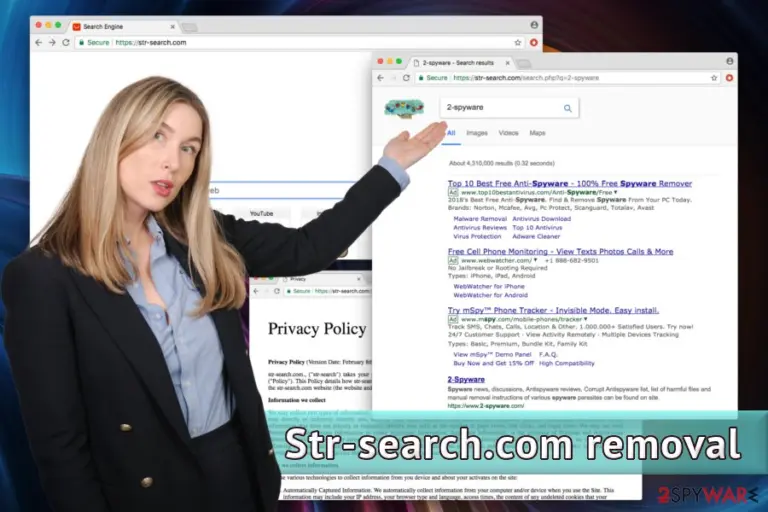
Str-search.com is a browser hijacker[1] which alters the homepage, new tab URL, the search engine of your Google Chrome, Internet Explorer, Mozilla Firefox, Safari, or another browser and sets it to str-search.com. It's considered a potentially unwanted program, or PUP for short, because typically, it infiltrates your machine unnoticed and continually displays unwanted content, redirects you to suspicious domains, and records a variety of non-personally identifiable information. We recommend removing it from your device to avoid data leakage, installation of other PUPs, and exposure to questionable sites.
Name
Str-search.com
Type
Browser Hijacker
Danger Level
Low. It cannot harm the system or corrupt files but alters the browser's settings.
Symptoms
Changes made to each of the browsers, altered search results, intrusive advertisements, etc.
Distribution Methods
Software bundling, fake Flash Player updates, deceptive ads
Elimination
If you've installed this threat and now would like to remove it, please refer to our guides at the bottom of the article
System health check
If your device exhibits strange behavior, scan it with the FortectIntego repair tool to fix any system irregularities
Str-search.com hijack might seem harmless initially (it is considered a low computer threat). However, you will notice various harmful effects of its usage very soon. It displays ads in search results and may redirect you to dubious websites as soon as it takes control over the targeted web browser.
Authors of the virus try to convince users that this search tool is useful. They promise enhanced functionality and improved search results. The “perks” also include quick action buttons created beneath the search bar supposedly for users’ convenience. The most popular social networks and retailers are included: Amazon, Facebook, Twitter, and even Ali Express.
However, do not get tricked by such functionality. Besides, you can simply create your own bookmarks without much effort. The only goal of Str-search.com developers is to generate revenue by displaying ads or forcing you to visit affiliate websites.
The article's culprit also has the ability to collect non-personally identifiable information, including IP address, links clicked, login times, browser type, system information, and similar. This data is precious for any marketing research and creating targeted ads. Additionally, it might be shared with third parties.[2] However, it's not the only reason to remove Str-search.com from the system.
Furthermore, security experts from odstranitvirus.cz[3] warn that one of the most dangerous features is the redirect tendencies. It is precisely stated in the program's Privacy Policy that developers are not responsible for any hazardous content you might be exposed to while using the site:
<…>Nevertheless, you agree to use the Site at your sole risk and that str-search.com shall have no liability to you for content that may be found to be offensive, indecent, or objectionable. str-search.com shall have no liability or responsibility to you for any content or materials that may be available in connection with the Site that you might find objectionable.
Hence, you might end up on questionable sites, which may expose you to illicit content. Some of these websites might contain malicious JavaScript, which can install malware onto your PC. Therefore, do not risk your and computer safety and hurry up with Str-search.com removal.
You can use SpyHunterCombo Cleaner, MalwarebytesMalwarebytes, or any other security software for a quick PUP elimination. Keeping such anti-malware tools updated can prevent future perils alike. After the removal, we highly recommend using the FortectIntego PC repair tool to fix any system errors.
Bundling is a primary distribution method for unwanted apps
Typically, users are unaware of the PUP distribution methods. Creators of such questionable programs are undoubtedly aware of that; hence, they use the bundling method to install unwanted content on victims’ PCs. It is a hugely successful marketing campaign used by freeware developers.
To avoid such useless programs, you should learn how to install free software correctly. Firstly, make sure you know enough about the app you are about to install – read through online reviews, the privacy policy, and EULA of the desired program.
Secondly, make sure to opt for Advanced/Custom installation mode and avoid Recommended/Quick settings entirely. The latter utterly fails to disclose all the additional components included together with legitimate software. Thus, un-click any tick-boxes by add-ons, search engines, optimization tools, and other useless software.
And, finally, never attempt downloading cracks or illegal programs – these might lead you to not only PUP but dangerous malware infections.
Eliminate Str-search.com to keep your browser and computer safe
You might think that merely uninstalling the browser hijacker will do the trick. However, these pesky intruders implement additional browser helper objects, which might be challenging to detect and delete. Thus, we suggest you download robust security software which can aid you with a smooth Str-search.com removal.
Do not forget to keep anti-virus up to date, and it will protect you from future infections. If you want to remove the virus without additional software – you can follow our guide below this post. However, this process takes time, and if you fail to execute the procedure correctly, the virus will come back immediately.
Uninstall from Windows
Uninstall from Windows 10/8:
Type Control Panel into the Windows search box and open the result.
Under Programs, select Uninstall a program.
Uninstall from Windows 7/XP:
Click on Windows Start > Control Panel (Windows XP users should click on Add/Remove Programs).
In Control Panel, select Programs > Uninstall a program.
Remove the unwanted program:
In the Programs and Features window, look for any recently installed suspicious entries, select them, and click Uninstall.
If User Account Control appears, click Yes to confirm, then complete the removal.
Delete from macOS
Remove the unwanted application:
From the menu bar, select Go > Applications.
In the Applications folder, look for any suspicious entries, then drag them to Trash (or right-click and pick Move to Trash).
Delete leftover files and folders:
Select Go > Go to Folder.
Enter /Library/Application Support and remove any suspicious folders related to the unwanted program.
Repeat the same check in the /Library/LaunchAgents and /Library/LaunchDaemons folders, deleting any suspicious entries.
Finally, empty the Trash to permanently remove the leftovers.
Remove from Microsoft Edge
Delete unwanted extensions from MS Edge:
Select Menu (three horizontal dots at the top-right of the browser window) and pick Extensions.
From the list, pick the extension and click on the Gear icon.
Click Remove.
Clear cookies and other browser data:
Click on the Menu (three horizontal dots at the top-right of the browser window) and select Settings > Privacy, search, and services..
Under Clear browsing data, pick Choose what to clear.
Select Cookies and other site data and Cached images and files. (apart from passwords, although you might want to include Media licenses as well, if applicable) and click on Clear.
Restore new tab and homepage settings:
Click the menu icon and choose Settings.
Then find On startup section.
Click Remove next to any suspicious startup page.
Reset MS Edge if the above steps did not work:
Press on Ctrl + Shift + Esc to open Task Manager.
Click on More details arrow at the bottom of the window.
Select Details tab.
Now scroll down and locate every entry with Microsoft Edge name in it. Right-click on each of them and select End Task to stop MS Edge from running.
Instructions for Chromium-based Edge
Delete extensions from MS Edge (Chromium):
Open Edge and click select Settings > Extensions.
Delete unwanted extensions by clicking Remove.
Clear cache and site data:
Click on Menu and go to Settings.
Select Privacy, search and services.
Under Clear browsing data, pick Choose what to clear.
Under Time range, pick All time.
Select Clear now.
Reset Chromium-based MS Edge:
Click on Menu and select Settings.
On the left side, pick Reset settings.
Select Restore settings to their default values.
Confirm with Reset.
This will disable extensions and reset startup pages but will not delete bookmarks, saved passwords, or browsing history.
Remove from Mozilla Firefox (FF)
Remove dangerous extensions:
Open Mozilla Firefox browser and click on the Menu (three horizontal lines at the top-right of the window).
Select Add-ons.
In here, select the unwanted extension and click Remove.
Reset the homepage:
Click three horizontal lines at the top right corner to open the menu.
Choose Settings.
Under Home, set your preferred homepage and new tab settings.
Clear cookies and site data:
Click Menu and pick Settings.
Go to Privacy & Security section.
Scroll down to locate Cookies and Site Data.
Click on Clear Data...
Select Cookies and Site Data and Temporary cached files and pages, then click Clear.
Reset Mozilla Firefox
If clearing the browser as explained above did not help, reset Mozilla Firefox:
Open Mozilla Firefox browser and click the Menu.
Go to Help and then choose Troubleshooting Information.
Under Give Firefox a tune up section, click on Refresh Firefox...
Once the pop-up shows up, confirm the action by pressing on Refresh Firefox.
Remove from Google Chrome
Delete malicious extensions from Google Chrome:
Open Google Chrome, click on the Menu (three vertical dots at the top-right corner) and select More tools > Extensions.
In the newly opened window, you will see all the installed extensions. Uninstall all suspicious extensions related to the unwanted program by clicking Remove.
Clear cache and web data from Chrome:
Click on Menu and pick Settings.
Under Privacy and security, select Clear browsing data.
Select Browsing history, Cookies and other site data, as well as Cached images and files.
Click Clear data.
Change your homepage:
Click menu and choose Settings.
Look for a suspicious site in the On startup section.
Click on Open a specific or set of pages and click on three dots to find the Remove option.
Reset Google Chrome:
If the previous methods did not help you, reset Google Chrome to eliminate all the unwanted components:
Click on Menu and select Settings.
In the Settings, scroll down and click Advanced.
Scroll down and locate Reset and clean up section.
Now click Restore settings to their original defaults.
Confirm with Reset settings.
Delete from Safari
Remove dangerous extensions:
Open Safari, click Safari in the menu at the top-left of the screen, and select Preferences.
Go to the Extensions tab, look for any suspicious entries, and click Uninstall to remove them.
Clear history and website data:
Click Safari in the menu and pick Clear History.
Set Clear to all history and confirm with Clear History.
Reset Safari:
Click Safari in the menu and select Preferences > Advanced.
Enable Show Develop menu in menu bar.
From the menu bar, click Develop and select Empty Caches.














































Be the first to comment