

Moviesearch.today is a browser hijacker that might sell your personal information
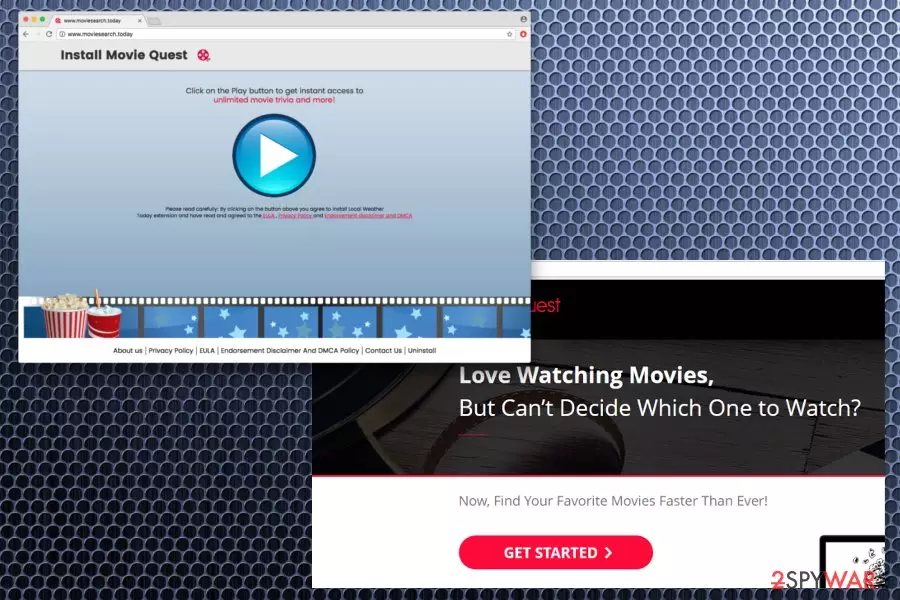
Moviesearch.today is a dubious search engine that can take over your Google Chrome, Internet Explorer, Mozilla Firefox or other browser and make unsolicited modifications to it. The browser hijacker is not considered to be malware;[1] however, due to suspicious distribution methods and excessive advertisements and redirects, this program falls into PUP category.
| SUMMARY | |
| Name | Moviesearch.today |
|---|---|
| Type | Browser Hijacker/PUP |
| Promoted as | Browser extension |
| Official Website | moviesearch.today |
| Danger Level | Low |
| Symptoms | Decreases browser speed, hijacks front page and search engine, displays intrusive ads and redirects to unknown realms |
| Distribution | Bundling, suspicious sites |
| Elimination | Download and install FortectIntego. Manual deletion available – check the guide below |
Movie Quest is a browser extension[2] which occupies the browser soon after the Moviesearch.today hijack. The suspicious application offers supposedly enhanced functionality – allows to find information about any movie directly from the browser.
Multiple similar hijackers float around the internet, including moviesfanatic.com, themovie-hub.net, search.movies-tab.com and many others. Despite developers’ promises, these apps end up being nothing but a big disappointment to users. It all comes down to the fact that PUP creators merely want to monetize on compromised browsers and its exhausted users.
If you found Movie Quest embedded in your browser, we advise you to remove Moviesearch.today virus immediately. You can download and install a robust security tool, such as FortectIntego – it will eliminate all unwanted applications in just a few moments.
As mentioned above, the primary goal of PUP developers is money. To achieve that, they do everything to expose victims to affiliated content as much as possible. It allows them to increase traffic generated to less-popular websites and boost their sales.
If you encounter the following symptoms during your web browsing sessions, your browser is hijacked:
- The new tab, homepage and search engine of your browser is set to hxxp://www.moviesearch.today/yhs/search?p=
- A multitude of advertisement banners and pop-ups are injected directly into legitimate websites;
- Search results of your search queries are altered, promoting sponsored content;
- Redirects lead you to questionable sites;
- Additional browser extensions installed without your permission;
- The browser is slow to respond and sometimes crashes;
These symptoms are not limited to those mentioned above; thus, you might experience some or all of them.
Another big concern of the Moviesearch.today is its spying tendencies. This browser hijacker collects an excessive amount of information, including personal information (if provided while contacting the developer or entering it on the website willingly). However, by submitting this data, you agree to the following:
<…> In addition, in the event that we undergo a bankruptcy, merger, acquisition, reorganization or sale of assets, your information may be one of the assets sold or transferred.
Thus, you legally agree that Moviesearch.today is authorized to transfer and sell your data. Do not allow that as it can lead to serious privacy issues! To avoid information leakage, do not enter any personal details into a hijacked engine. Instead, follow this article – it will help you with Moviesearch.today removal.

The way unwanted programs invade careless users’ computers
It is not a secret that bundling is used all over the world by many freeware and PUP developers. Such marketing technique in entirely legal but we do not think it is courteous. Therefore, it is crucial to be attentive while downloading and installing free software from the internet.
Security experts from virusler.info.tr[3] advise taking the following precautions:
- Select a legitimate download source;
- Read reviews about the program you are about to install;
- Inform yourself about all the details of Privacy Policy and EULA;
- When prompted, pick Advanced/Custom installation mode instead of Recommended/Quick one;
- In Advanced settings, remove all the ticks next to add-ons, toolbars, search engines, system optimizers and similar.
Eliminate Moviesearch.today and avoid information leakage
As PUPs multiply quickly, it is vital to remove Moviesearch.today on time. Otherwise, you might end up with more PUPs or even malware on your computer.
Fortunately, browser hijackers can be eliminated rather effortlessly (if no other threats are present). All you have to do is download reputable anti-virus program and run a full system scan. This procedure is short and will take up to few minutes of your time. Additionally, operating such software is easy – just follow the on-screen instructions.
If you would like to avoid additional programs on your PC, you can also opt for manual Movie Quest removal. Simply follow our illustrated guide below this article. Beware that incorrect execution of the process might lead to re-infection of the virus as soon as the browser is restarted.
Uninstall from Windows
Uninstall from Windows 10/8:
- Type Control Panel into the Windows search box and open the result.
- Under Programs, select Uninstall a program.


Uninstall from Windows 7/XP:
- Click on Windows Start > Control Panel (Windows XP users should click on Add/Remove Programs).
- In Control Panel, select Programs > Uninstall a program.


Remove the unwanted program:
- In the Programs and Features window, look for any recently installed suspicious entries, select them, and click Uninstall.
- If User Account Control appears, click Yes to confirm, then complete the removal.


Delete from macOS
Remove the unwanted application:
- From the menu bar, select Go > Applications.
- In the Applications folder, look for any suspicious entries, then drag them to Trash (or right-click and pick Move to Trash).


Delete leftover files and folders:
- Select Go > Go to Folder.
- Enter /Library/Application Support and remove any suspicious folders related to the unwanted program.
- Repeat the same check in the /Library/LaunchAgents and /Library/LaunchDaemons folders, deleting any suspicious entries.

- Finally, empty the Trash to permanently remove the leftovers.

Reset Internet Explorer
Remove dangerous add-ons:
- Open Internet Explorer, click on the Gear icon (IE menu) on the top-right corner of the browser
- Pick Manage Add-ons.
- You will see a Manage Add-ons window. Here, look for suspicious plugins. Click on these entries and select Disable.


Change your homepage if it was altered:
- Open IE and click on the Gear icon.
- Select Internet Options.
- In the General tab, delete the Home page address and replace it by your preferred one (for example, Google.com).
- Click Apply and then select OK.


Delete temporary files:
- Press on the Gear icon and select Internet Options.
- Under Browsing history, click Delete...
- Select relevant fields and press Delete.


Reset Internet Explorer:
- Click on Gear icon > Internet options and select Advanced tab.
- Select Reset.
- In the new window, check Delete personal settings and select Reset.


Remove from Microsoft Edge
Delete unwanted extensions from MS Edge:
- Select Menu (three horizontal dots at the top-right of the browser window) and pick Extensions.
- From the list, pick the extension and click on the Gear icon.
- Click Remove.


Clear cookies and other browser data:
- Click on the Menu (three horizontal dots at the top-right of the browser window) and select Settings > Privacy, search, and services..
- Under Clear browsing data, pick Choose what to clear.
- Select Cookies and other site data and Cached images and files. (apart from passwords, although you might want to include Media licenses as well, if applicable) and click on Clear.


Restore new tab and homepage settings:
- Click the menu icon and choose Settings.
- Then find On startup section.
- Click Remove next to any suspicious startup page.
Reset MS Edge if the above steps did not work:
- Press on Ctrl + Shift + Esc to open Task Manager.
- Click on More details arrow at the bottom of the window.
- Select Details tab.
- Now scroll down and locate every entry with Microsoft Edge name in it. Right-click on each of them and select End Task to stop MS Edge from running.


Instructions for Chromium-based Edge
Delete extensions from MS Edge (Chromium):
- Open Edge and click select Settings > Extensions.
- Delete unwanted extensions by clicking Remove.


Clear cache and site data:
- Click on Menu and go to Settings.
- Select Privacy, search and services.
- Under Clear browsing data, pick Choose what to clear.
- Under Time range, pick All time.
- Select Clear now.


Reset Chromium-based MS Edge:
- Click on Menu and select Settings.
- On the left side, pick Reset settings.
- Select Restore settings to their default values.
- Confirm with Reset.
- This will disable extensions and reset startup pages but will not delete bookmarks, saved passwords, or browsing history.


Remove from Mozilla Firefox (FF)
Remove dangerous extensions:
- Open Mozilla Firefox browser and click on the Menu (three horizontal lines at the top-right of the window).
- Select Add-ons.
- In here, select the unwanted extension and click Remove.


Reset the homepage:
- Click three horizontal lines at the top right corner to open the menu.
- Choose Settings.
- Under Home, set your preferred homepage and new tab settings.
Clear cookies and site data:
- Click Menu and pick Settings.
- Go to Privacy & Security section.
- Scroll down to locate Cookies and Site Data.
- Click on Clear Data...
- Select Cookies and Site Data and Temporary cached files and pages, then click Clear.


Reset Mozilla Firefox
If clearing the browser as explained above did not help, reset Mozilla Firefox:
- Open Mozilla Firefox browser and click the Menu.
- Go to Help and then choose Troubleshooting Information.

- Under Give Firefox a tune up section, click on Refresh Firefox...
- Once the pop-up shows up, confirm the action by pressing on Refresh Firefox.



Remove from Google Chrome
Delete malicious extensions from Google Chrome:
- Open Google Chrome, click on the Menu (three vertical dots at the top-right corner) and select More tools > Extensions.
- In the newly opened window, you will see all the installed extensions. Uninstall all suspicious extensions related to the unwanted program by clicking Remove.


Clear cache and web data from Chrome:
- Click on Menu and pick Settings.
- Under Privacy and security, select Clear browsing data.
- Select Browsing history, Cookies and other site data, as well as Cached images and files.
- Click Clear data.


Change your homepage:
- Click menu and choose Settings.
- Look for a suspicious site in the On startup section.
- Click on Open a specific or set of pages and click on three dots to find the Remove option.
Reset Google Chrome:
If the previous methods did not help you, reset Google Chrome to eliminate all the unwanted components:
- Click on Menu and select Settings.
- In the Settings, scroll down and click Advanced.
- Scroll down and locate Reset and clean up section.
- Now click Restore settings to their original defaults.
- Confirm with Reset settings.


Delete from Safari
Remove dangerous extensions:
- Open Safari, click Safari in the menu at the top-left of the screen, and select Preferences.
- Go to the Extensions tab, look for any suspicious entries, and click Uninstall to remove them.


Clear history and website data:
- Click Safari in the menu and pick Clear History.
- Set Clear to all history and confirm with Clear History.


Reset Safari:
- Click Safari in the menu and select Preferences > Advanced.
- Enable Show Develop menu in menu bar.
- From the menu bar, click Develop and select Empty Caches.


Did this guide help?
Be the first to comment