

Search.incredisearch.com — a suspicious search engine by eAnswers
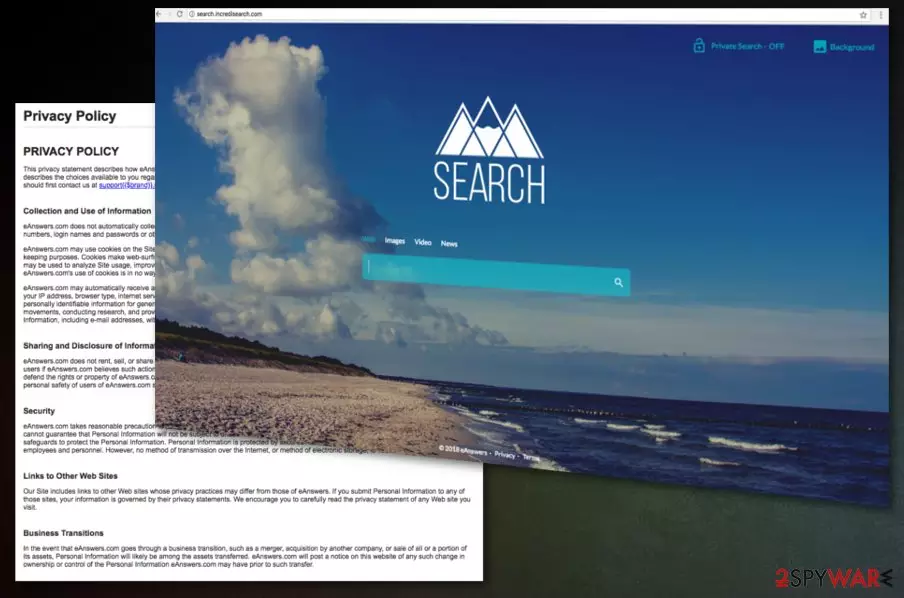
Search.incredisearch.com is one annoying cyber infection that changes the homepage and defaults search engine settings – it's a browser hijacker that belongs to the eAnswers group. This program comes intrusively and installs on your computer without your knowledge.
After the infiltration, you can notice its activity. Not only this potentially unwanted program[1] alters the targeted browser's settings, but it might also cause redirects and advertisements. Such programs are not that harmful themselves, but they might increase your chances of catching a serious cyber threat.
| Name | Search.incredisearch.com |
|---|---|
| Type | Browser hijacker |
| Family | eAnswers |
| Danger level | Low. Makes no significant system changes |
| Symptoms | Redirects to dubious sites, changed homepage and search engine settings |
| Distribution | Software bundling |
| Elimination | Either use manual guide we provide below or scan your system with SpyHunterCombo Cleaner anti-malware |
Search.incredisearch.com virus might come to your computer with various free programs, such as media players or graphic design programs. During the installation, you might see a pre-selected statement suggesting to change your default search engine. If you skip this important step, you might have to deal with unpleasant features and activities, such as:
- changed homepage;
- default search engine is set to Incredi Search;
- you cannot navigate to specific sites like security software provider pages;
- you get redirected to pages you never intended to visit and this happens each time you try to open something;
- you see ads in various forms like pop-ups or banners on your screen;
- these are not served by the website or legitimate, familiar company;
- you see new toolbars, new Bookmarks or Favorites added to your browser;
- your web browser starts running sluggishly.
These activities are frustrating and make people try to remove the suspicious URL from their browser. However, it may not be simple because the hijacker might reassign itself after the system reboot if you leave some of its components. Though, this activity should not discourage you from elimination because this PUP has another negative feature.
Once installed, the app starts spying on you. A browser hijacker can collect data. After infiltration, this program gets access to your system and starts to track your browsing activity:
eAnswers.com may automatically receive and record certain non-personally identifiable information on its server logs from your browser, including your IP address, browser type, internet service provider (ISP), cookie information, and the webpage that a user visits. eAnswers.com collects non-personally identifiable information for general purposes, including but not limited to analyzing trends, administering the site, tracking user movements, conducting research, and providing anonymous reporting to internal and external clients. eAnswers.com will not link any Personal Information, including e-mail addresses, with aggregate data of its users.
This information like geo-location[2], IP addresses, internet provider, search queries, and other similar your time online regarding information is collected and later used by third-party advertisers. We recommend doing Search.incredisearch.com removal as soon as possible because this data tracking can do more damage in time. We can advise you to use FortectIntego.
Information collected by advertisers later is used to prepare, create, display, and monitor more of it. Your most viewed sites and search history helps to prepare advertisements based on what you like. This ensures companies that you will click on those ads, and this is how they generate revenue. Keep in mind that this commercial content might be malicious, so you should get rid of the PUP to avoid clicking a dangerous ad.

Software bundles carry out infections
Browser hijackers and other PUPs typically enter your PC without permission. Freeware installers often hide additional components within Recommended or Quick installation options. This creates an easy way on your system for additional programs and other cyber infections. This is called the bundling technique, and various virus developers use it.
This is why you need to be cautious when it comes to any software installation. Never rush the procedure by skipping steps. Always choose Advanced, or Custom installation settings as specialists on Lesvirus.fr[3] recommend. This means that additional components would be visible, and you could de-select checkmarks near those unwanted/additional pieces.
Eliminate the hijacker at once
To get back to safe browsing online, you need to remove the hijacker and all its components in the first place. PUPs often have additional features, and it is not easy to remove all of them at once. Manual elimination might take hours and still not be enough. For this reason, you should rely on professional anti-malware tools. You can find a few suggestions below.
Search.incredisearch.com removal can be done quickly and successfuly the first time. Follow the guide and instructions below. We prepared these for you so you can get rid of this browser hijacker entirely and quickly. Get back to safety and build your safe software updating routine.
Uninstall from Windows
Uninstall from Windows 10/8:
- Type Control Panel into the Windows search box and open the result.
- Under Programs, select Uninstall a program.


Uninstall from Windows 7/XP:
- Click on Windows Start > Control Panel (Windows XP users should click on Add/Remove Programs).
- In Control Panel, select Programs > Uninstall a program.


Remove the unwanted program:
- In the Programs and Features window, look for any recently installed suspicious entries, select them, and click Uninstall.
- If User Account Control appears, click Yes to confirm, then complete the removal.


Delete from macOS
Remove the unwanted application:
- From the menu bar, select Go > Applications.
- In the Applications folder, look for any suspicious entries, then drag them to Trash (or right-click and pick Move to Trash).


Delete leftover files and folders:
- Select Go > Go to Folder.
- Enter /Library/Application Support and remove any suspicious folders related to the unwanted program.
- Repeat the same check in the /Library/LaunchAgents and /Library/LaunchDaemons folders, deleting any suspicious entries.

- Finally, empty the Trash to permanently remove the leftovers.

Remove from Microsoft Edge
Delete unwanted extensions from MS Edge:
- Select Menu (three horizontal dots at the top-right of the browser window) and pick Extensions.
- From the list, pick the extension and click on the Gear icon.
- Click Remove.


Clear cookies and other browser data:
- Click on the Menu (three horizontal dots at the top-right of the browser window) and select Settings > Privacy, search, and services..
- Under Clear browsing data, pick Choose what to clear.
- Select Cookies and other site data and Cached images and files. (apart from passwords, although you might want to include Media licenses as well, if applicable) and click on Clear.


Restore new tab and homepage settings:
- Click the menu icon and choose Settings.
- Then find On startup section.
- Click Remove next to any suspicious startup page.
Reset MS Edge if the above steps did not work:
- Press on Ctrl + Shift + Esc to open Task Manager.
- Click on More details arrow at the bottom of the window.
- Select Details tab.
- Now scroll down and locate every entry with Microsoft Edge name in it. Right-click on each of them and select End Task to stop MS Edge from running.


Instructions for Chromium-based Edge
Delete extensions from MS Edge (Chromium):
- Open Edge and click select Settings > Extensions.
- Delete unwanted extensions by clicking Remove.


Clear cache and site data:
- Click on Menu and go to Settings.
- Select Privacy, search and services.
- Under Clear browsing data, pick Choose what to clear.
- Under Time range, pick All time.
- Select Clear now.


Reset Chromium-based MS Edge:
- Click on Menu and select Settings.
- On the left side, pick Reset settings.
- Select Restore settings to their default values.
- Confirm with Reset.
- This will disable extensions and reset startup pages but will not delete bookmarks, saved passwords, or browsing history.


Remove from Mozilla Firefox (FF)
Remove dangerous extensions:
- Open Mozilla Firefox browser and click on the Menu (three horizontal lines at the top-right of the window).
- Select Add-ons.
- In here, select the unwanted extension and click Remove.


Reset the homepage:
- Click three horizontal lines at the top right corner to open the menu.
- Choose Settings.
- Under Home, set your preferred homepage and new tab settings.
Clear cookies and site data:
- Click Menu and pick Settings.
- Go to Privacy & Security section.
- Scroll down to locate Cookies and Site Data.
- Click on Clear Data...
- Select Cookies and Site Data and Temporary cached files and pages, then click Clear.


Reset Mozilla Firefox
If clearing the browser as explained above did not help, reset Mozilla Firefox:
- Open Mozilla Firefox browser and click the Menu.
- Go to Help and then choose Troubleshooting Information.

- Under Give Firefox a tune up section, click on Refresh Firefox...
- Once the pop-up shows up, confirm the action by pressing on Refresh Firefox.



Remove from Google Chrome
Delete malicious extensions from Google Chrome:
- Open Google Chrome, click on the Menu (three vertical dots at the top-right corner) and select More tools > Extensions.
- In the newly opened window, you will see all the installed extensions. Uninstall all suspicious extensions related to the unwanted program by clicking Remove.


Clear cache and web data from Chrome:
- Click on Menu and pick Settings.
- Under Privacy and security, select Clear browsing data.
- Select Browsing history, Cookies and other site data, as well as Cached images and files.
- Click Clear data.


Change your homepage:
- Click menu and choose Settings.
- Look for a suspicious site in the On startup section.
- Click on Open a specific or set of pages and click on three dots to find the Remove option.
Reset Google Chrome:
If the previous methods did not help you, reset Google Chrome to eliminate all the unwanted components:
- Click on Menu and select Settings.
- In the Settings, scroll down and click Advanced.
- Scroll down and locate Reset and clean up section.
- Now click Restore settings to their original defaults.
- Confirm with Reset settings.


Delete from Safari
Remove dangerous extensions:
- Open Safari, click Safari in the menu at the top-left of the screen, and select Preferences.
- Go to the Extensions tab, look for any suspicious entries, and click Uninstall to remove them.


Clear history and website data:
- Click Safari in the menu and pick Clear History.
- Set Clear to all history and confirm with Clear History.


Reset Safari:
- Click Safari in the menu and select Preferences > Advanced.
- Enable Show Develop menu in menu bar.
- From the menu bar, click Develop and select Empty Caches.


Did this guide help?
Be the first to comment