

FileRepMetagen heuristic name is indicating possibly malicious applications on machines that run Avast or AVG tools
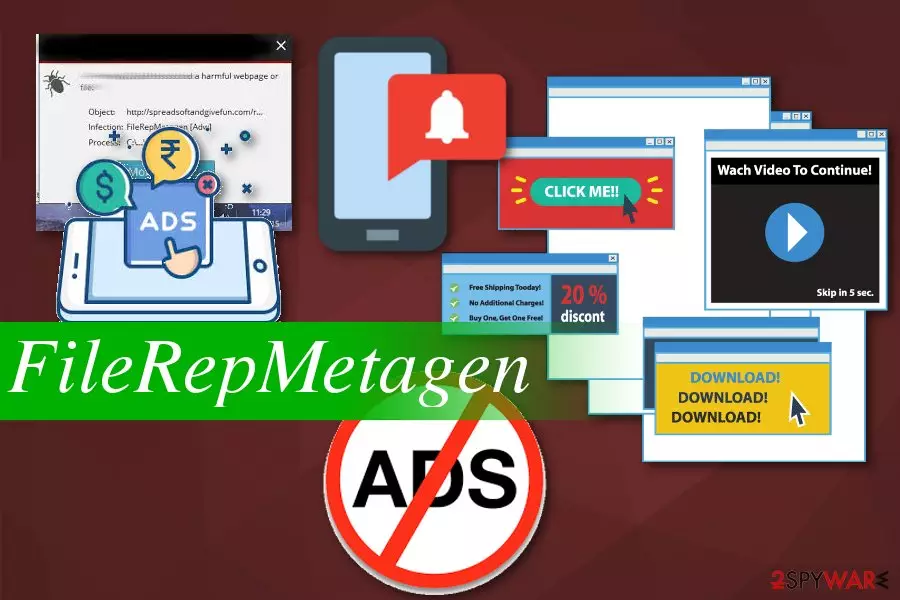
FileRepMetagen is a heuristic name used for a set of cyber threats related to multiple rogue applications by Avast Antivirus, Avast Internet Security, Avast Premier, and AVG. While the threat might be false-positive, the detection should not be ignored. The PUP[1] represents adware-type programs, which are used to generate revenue to its developers by displaying ads, pop-ups, in-text links, video/audio ads, banners, discounts, coupons, and similar unwanted content on Google Chrome, Internet Explorer, Mozilla Firefox, or Safari browsers. FileRepMetagen “virus” is usually spread with the help of software bundling, via insecure websites, or is installed by malware already present on the device. Multiple users complained about AV vendors blocking what seemingly is a legitimate file. However, it has been associated with PUPs like Spigot toolbar and YTD downloader.
| Name | FileRepMetagen |
|---|---|
| Type | Adware/PUP |
| detected as |
|
| Symptoms | Delivers intrusive commercial content, causes redirects to dubious websites, tracks NPII |
| Distribution | Software bundles, deceptive advertisements |
| Possible dangers | Collects information about users, redirects to malicious sites |
| Removal | Rely on anti-malware tools and clear the system from any intruders and possible malware |
| Repair | Use FortectIntego for system cleaning |
Users also reported that they started receiving the threat detection after downloading files from allegedly reputable file-sharing sites like CNET, Softonic, Download.com. These domains are well-known to a broad audience, and most users think that all apps downloaded from these websites are safe. Unfortunately, it is not the case, and the mentioned sites are known to spread potentially unwanted programs like FileRepMetagen [Adv].
Another dangerous feature of the virus is the installation of additional software on the device. It can include toolbars, add-ons, video recording or streaming software, program uninstallers, rogue system optimizers, and similar. All these apps slow down and clutter the device, making online activity unpleasant. To take back control of your computer, uninstall the app as per our instructions below.
According to Virus Total,[2] the PUP is detected under the following names:
- Win32.Adware.YTDownloader.B;
- PUP.Optional.Spigot;
- Win32/Toolbar.Widgi potentially unwanted;
- FileRepMetagen [Adw];
- Win.Trojan.Agent-6327140-0
- W32.HfsAdware.2538, etc.
Similar to other unwanted programs, FileRepMetagen displays advertisements that contain suspicious tool promotions and installs toolbars and other unclear applications. Additionally, it redirects online traffic to questionable sites that might include malicious content.

Finally, users should be aware that FileRepMetagen adware collects non-personally identifiable information[3] about users: IP address, geolocation, search history, links clicked, sites visited, and similar. The adware tries to access this data with the purpose of sharing it with third-party advertisers who are trying to inflate traffic to their sites.
As evident, the PUP removal might not be that easy because several unwanted applications might be installed and hidden on the device (for example, uninstallation executable missing). Therefore, you can use security software (SpyHunterCombo Cleaner, MalwarebytesMalwarebytes) to get rid of most unwanted programs. After the elimination, you can scan your device using PC repair software to revert the altered Windows Registry and similar changes performed by adware.
You can also remove the FileRepMetagen virus manually by checking our instructions below this article. After that, make sure you reset each of the installed browsers to make sure no redirects or pop-ups disturb you in the future.
Pay attention to your bad habits to avoid PUPs
PUP authors often use several distribution methods for their products. Their primary goal is to deliver the application to as many users as possible to generate the maximum amount of revenue. Therefore, they use deceptive websites or software bundles to spread the app around.
The software bundle is a product formed by PUP developers and freeware providers when they pack applications together and distribute them via p2p networks or suspicious ads and websites. Researchers[4] advise people to avoid these services and choosing sources for application downloads more wisely.
Opt for Advanced or Custom settings during installations and make sure to de-select unwanted additional pieces from the list when you are given the opportunity. Avoid Recommended or Default settings at all times, as you will not get the chance to eliminate pre-selected ticks next to undesired apps.
Get rid of FileRepMetagen or any related programs using reputable tools
As we always mentioned, getting your software from reputable sources is crucial for a healthy device. This also goes for FileRepMetagen removal. You need to employ a reputable anti-malware program to make sure every related PUP is removed. If you think about possible damage then use PC repair tools, we have a few suggestions below.
Also, when you remove the potentially unwanted program remember to set your browser to default so you can eliminate any extensions, plugins, or toolbars from there. Scan your device again or use an alternative tool to double-check that there is no opportunity for cyber infection repetition.
Uninstall from Windows
Uninstall from Windows 10/8:
- Type Control Panel into the Windows search box and open the result.
- Under Programs, select Uninstall a program.


Uninstall from Windows 7/XP:
- Click on Windows Start > Control Panel (Windows XP users should click on Add/Remove Programs).
- In Control Panel, select Programs > Uninstall a program.


Remove the unwanted program:
- In the Programs and Features window, look for any recently installed suspicious entries, select them, and click Uninstall.
- If User Account Control appears, click Yes to confirm, then complete the removal.


Remove from Microsoft Edge
Delete unwanted extensions from MS Edge:
- Select Menu (three horizontal dots at the top-right of the browser window) and pick Extensions.
- From the list, pick the extension and click on the Gear icon.
- Click Remove.


Clear cookies and other browser data:
- Click on the Menu (three horizontal dots at the top-right of the browser window) and select Settings > Privacy, search, and services..
- Under Clear browsing data, pick Choose what to clear.
- Select Cookies and other site data and Cached images and files. (apart from passwords, although you might want to include Media licenses as well, if applicable) and click on Clear.


Restore new tab and homepage settings:
- Click the menu icon and choose Settings.
- Then find On startup section.
- Click Remove next to any suspicious startup page.
Reset MS Edge if the above steps did not work:
- Press on Ctrl + Shift + Esc to open Task Manager.
- Click on More details arrow at the bottom of the window.
- Select Details tab.
- Now scroll down and locate every entry with Microsoft Edge name in it. Right-click on each of them and select End Task to stop MS Edge from running.


Instructions for Chromium-based Edge
Delete extensions from MS Edge (Chromium):
- Open Edge and click select Settings > Extensions.
- Delete unwanted extensions by clicking Remove.


Clear cache and site data:
- Click on Menu and go to Settings.
- Select Privacy, search and services.
- Under Clear browsing data, pick Choose what to clear.
- Under Time range, pick All time.
- Select Clear now.


Reset Chromium-based MS Edge:
- Click on Menu and select Settings.
- On the left side, pick Reset settings.
- Select Restore settings to their default values.
- Confirm with Reset.
- This will disable extensions and reset startup pages but will not delete bookmarks, saved passwords, or browsing history.


Remove from Mozilla Firefox (FF)
Remove dangerous extensions:
- Open Mozilla Firefox browser and click on the Menu (three horizontal lines at the top-right of the window).
- Select Add-ons.
- In here, select the unwanted extension and click Remove.


Reset the homepage:
- Click three horizontal lines at the top right corner to open the menu.
- Choose Settings.
- Under Home, set your preferred homepage and new tab settings.
Clear cookies and site data:
- Click Menu and pick Settings.
- Go to Privacy & Security section.
- Scroll down to locate Cookies and Site Data.
- Click on Clear Data...
- Select Cookies and Site Data and Temporary cached files and pages, then click Clear.


Reset Mozilla Firefox
If clearing the browser as explained above did not help, reset Mozilla Firefox:
- Open Mozilla Firefox browser and click the Menu.
- Go to Help and then choose Troubleshooting Information.

- Under Give Firefox a tune up section, click on Refresh Firefox...
- Once the pop-up shows up, confirm the action by pressing on Refresh Firefox.



Remove from Google Chrome
Delete malicious extensions from Google Chrome:
- Open Google Chrome, click on the Menu (three vertical dots at the top-right corner) and select More tools > Extensions.
- In the newly opened window, you will see all the installed extensions. Uninstall all suspicious extensions related to the unwanted program by clicking Remove.


Clear cache and web data from Chrome:
- Click on Menu and pick Settings.
- Under Privacy and security, select Clear browsing data.
- Select Browsing history, Cookies and other site data, as well as Cached images and files.
- Click Clear data.


Change your homepage:
- Click menu and choose Settings.
- Look for a suspicious site in the On startup section.
- Click on Open a specific or set of pages and click on three dots to find the Remove option.
Reset Google Chrome:
If the previous methods did not help you, reset Google Chrome to eliminate all the unwanted components:
- Click on Menu and select Settings.
- In the Settings, scroll down and click Advanced.
- Scroll down and locate Reset and clean up section.
- Now click Restore settings to their original defaults.
- Confirm with Reset settings.


Delete from Safari
Remove dangerous extensions:
- Open Safari, click Safari in the menu at the top-left of the screen, and select Preferences.
- Go to the Extensions tab, look for any suspicious entries, and click Uninstall to remove them.


Clear history and website data:
- Click Safari in the menu and pick Clear History.
- Set Clear to all history and confirm with Clear History.


Reset Safari:
- Click Safari in the menu and select Preferences > Advanced.
- Enable Show Develop menu in menu bar.
- From the menu bar, click Develop and select Empty Caches.


Did this guide help?
Be the first to comment