

Error DW6VB36 is the tech-support scam focused on bogus alerts that list false claims about the PC and infections
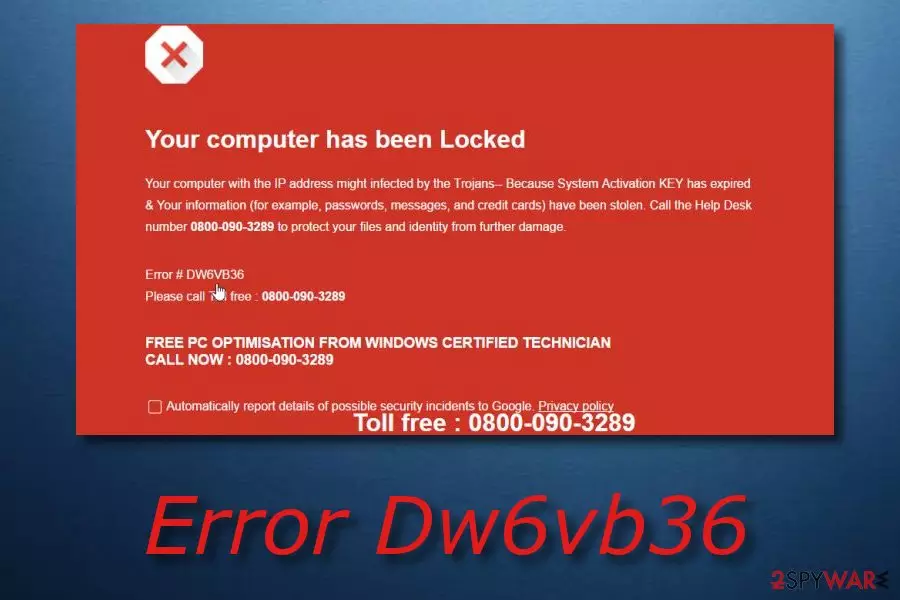
Error DW6VB36 is a fake message that has mostly been targeting French people but has also been seen in Italy, Denmark, and Portugal. In most cases, it interrupts the victim's browsing after he or she enters a questionable website. This false alert announces that the computer system is infected and that the user's sensitive information is at risk. Error#Dw6vb36 scam can also mention such threatening computer threats as Zeus virus or Alureon. However, note that it is just a trick used by hackers to trick you into calling via the provided 0800-090-3829 number to contact “Windows certified technician” who in reality is a cybercriminal seeking to swindle your credit card details on drop malware onto your system.
| Name | Error Dw6vb36 |
|---|---|
| Type | Tech support scam |
| Sub-type | Scareware |
| Targetted countries | France, Italy, Denmark, Portugal, UK, USA |
| Functionality | Shows a fake error message that announces about the infected computer system; asks to contact “experts” via the given number |
| Main dangers |
|
| Distribution | Bundling/rogue websites |
| Removal | Install FortectIntego to detect all adware-related content |
Alternatively known as “Erreur Dw6vb36”, the scam can also be treated as scareware[1] that displays fake alerts to trick inattentive users into calling the given “help desk” number. It also offers a free computer optimization service which is supposed to be provided by highly-experienced Windows experts. However, as we have already mentioned, it is just another method to attract naive people and swindle their money or sensitive data.
If you decide to contact the crooks, you might put your computer in danger, especially if give remote access to your system to a random person. In this case, the cybercriminal can easily perform various actions with your computer, like running dubious commands, installing malicious applications or even injecting tracking software to collect your logins and personal data.
Here is the full text displayed in the Error Dw6vb36 message:
Your computer has been Locked
Your computer with the IP address might infected by the Trojans– Because System Activation KEY has expired. Your information (for example, passwords, messages, and credit cards) have been stolen. Call the Help Desk number 0800-090-3829 to protect your files and identity from further damage.
‘Error # DW6VB36 Lock Screen. To immediate rectify issue and prevent data lose Please call Toll free :0800-090-3829
Another thing that might happen if you call the given number is the money loss. You might be urged to purchase some questionable and useless products or services that are promoted by hackers. Additionally, they can sign you up for some useless services that can be seen only after you receive an increased telephone bill from your telephone provider.
Stay away from any contact with people hiding behind this fake error message. If you still keep seeing annoying pop-ups, you should perform the Error Dw6vb36 removal by using reputable anti-malware tools because your system is infected with an adware-type virus used to initiate such havoc on target systems. We advise using SpyHunterCombo Cleaner, MalwarebytesMalwarebytes to scan your system for dubious components and see if it is infected.
As we have noted, this fake message is related to adware, so it means that it can also display other types of ads on your affected web browser. To prevent redirects to unknown sites and start browsing as always, you should take care of the removal of all unwanted components in your web browser. To remove the Error Dw6vb36 virus from the system permanently, reset your web browsers as well.

Paying attention can help avoid being scammed
According to malware experts from NoVirus.uk[2], tech support scams,[3] and other PUPs have several distribution techniques as they are widely spread throughout the Internet. However, the two most common spreading methods are:
- Bundled software. Scams, adware, and other potentially unwanted applications can easily be downloaded from the Internet together will regular freeware or shareware.
- Rogue websites. There are a lot of web pages on the Internet which seem to carry unwanted or even malicious content. Some of it comes injected into a questionable hyperlink and launches once the user steps on that link.
No worries, you can avoid all this trouble if you act carefully while performing computing work or browsing the web. First, choose the Custom or Advanced installation mode. Here you will be allowed to track all incoming downloads and opt-out the unwanted ones. Second, avoid visiting every page you see on the Internet. Especially stay away from unrecognizable ones as they can include a tech support scam. Immediately close all windows with rogue pages if you ever enter them.
The bogus Error Dw6vb36 message and adware removal guide
If you have tried leaving the malicious website which is displaying the “ERREUR # DW6VB36” scam and it did not help, you need to delete the adware-type virus from your computer because it is the real cause of the havoc during your browsing sessions. You can use reliable and expert-tested anti-malware tools that we provided below to remove Error Dw6vb36 virus and all dubious-looking content in the computer system.
If you decided to perform the threat removal manually, note that this procedure might require more time and experience. You will have to find all suspicious components yourself, so be prepared for that. If you are just a regular user, follow the steps given below attentively. After you complete the process, make sure you refresh web browsers such as Chrome, Firefox, Edge, or Explorer, to their default state as they might also have adware-related content injected.
Uninstall from Windows
Uninstall from Windows 10/8:
- Type Control Panel into the Windows search box and open the result.
- Under Programs, select Uninstall a program.


Uninstall from Windows 7/XP:
- Click on Windows Start > Control Panel (Windows XP users should click on Add/Remove Programs).
- In Control Panel, select Programs > Uninstall a program.


Remove the unwanted program:
- In the Programs and Features window, look for any recently installed suspicious entries, select them, and click Uninstall.
- If User Account Control appears, click Yes to confirm, then complete the removal.


Remove from Microsoft Edge
Delete unwanted extensions from MS Edge:
- Select Menu (three horizontal dots at the top-right of the browser window) and pick Extensions.
- From the list, pick the extension and click on the Gear icon.
- Click Remove.


Clear cookies and other browser data:
- Click on the Menu (three horizontal dots at the top-right of the browser window) and select Settings > Privacy, search, and services..
- Under Clear browsing data, pick Choose what to clear.
- Select Cookies and other site data and Cached images and files. (apart from passwords, although you might want to include Media licenses as well, if applicable) and click on Clear.


Restore new tab and homepage settings:
- Click the menu icon and choose Settings.
- Then find On startup section.
- Click Remove next to any suspicious startup page.
Reset MS Edge if the above steps did not work:
- Press on Ctrl + Shift + Esc to open Task Manager.
- Click on More details arrow at the bottom of the window.
- Select Details tab.
- Now scroll down and locate every entry with Microsoft Edge name in it. Right-click on each of them and select End Task to stop MS Edge from running.


Instructions for Chromium-based Edge
Delete extensions from MS Edge (Chromium):
- Open Edge and click select Settings > Extensions.
- Delete unwanted extensions by clicking Remove.


Clear cache and site data:
- Click on Menu and go to Settings.
- Select Privacy, search and services.
- Under Clear browsing data, pick Choose what to clear.
- Under Time range, pick All time.
- Select Clear now.


Reset Chromium-based MS Edge:
- Click on Menu and select Settings.
- On the left side, pick Reset settings.
- Select Restore settings to their default values.
- Confirm with Reset.
- This will disable extensions and reset startup pages but will not delete bookmarks, saved passwords, or browsing history.


Remove from Mozilla Firefox (FF)
Remove dangerous extensions:
- Open Mozilla Firefox browser and click on the Menu (three horizontal lines at the top-right of the window).
- Select Add-ons.
- In here, select the unwanted extension and click Remove.


Reset the homepage:
- Click three horizontal lines at the top right corner to open the menu.
- Choose Settings.
- Under Home, set your preferred homepage and new tab settings.
Clear cookies and site data:
- Click Menu and pick Settings.
- Go to Privacy & Security section.
- Scroll down to locate Cookies and Site Data.
- Click on Clear Data...
- Select Cookies and Site Data and Temporary cached files and pages, then click Clear.


Reset Mozilla Firefox
If clearing the browser as explained above did not help, reset Mozilla Firefox:
- Open Mozilla Firefox browser and click the Menu.
- Go to Help and then choose Troubleshooting Information.

- Under Give Firefox a tune up section, click on Refresh Firefox...
- Once the pop-up shows up, confirm the action by pressing on Refresh Firefox.



Remove from Google Chrome
Delete malicious extensions from Google Chrome:
- Open Google Chrome, click on the Menu (three vertical dots at the top-right corner) and select More tools > Extensions.
- In the newly opened window, you will see all the installed extensions. Uninstall all suspicious extensions related to the unwanted program by clicking Remove.


Clear cache and web data from Chrome:
- Click on Menu and pick Settings.
- Under Privacy and security, select Clear browsing data.
- Select Browsing history, Cookies and other site data, as well as Cached images and files.
- Click Clear data.


Change your homepage:
- Click menu and choose Settings.
- Look for a suspicious site in the On startup section.
- Click on Open a specific or set of pages and click on three dots to find the Remove option.
Reset Google Chrome:
If the previous methods did not help you, reset Google Chrome to eliminate all the unwanted components:
- Click on Menu and select Settings.
- In the Settings, scroll down and click Advanced.
- Scroll down and locate Reset and clean up section.
- Now click Restore settings to their original defaults.
- Confirm with Reset settings.


Delete from Safari
Remove dangerous extensions:
- Open Safari, click Safari in the menu at the top-left of the screen, and select Preferences.
- Go to the Extensions tab, look for any suspicious entries, and click Uninstall to remove them.


Clear history and website data:
- Click Safari in the menu and pick Clear History.
- Set Clear to all history and confirm with Clear History.


Reset Safari:
- Click Safari in the menu and select Preferences > Advanced.
- Enable Show Develop menu in menu bar.
- From the menu bar, click Develop and select Empty Caches.


Did this guide help?
Be the first to comment