

OptiSpeed is a particular scareware application that shouldn't be considered useful
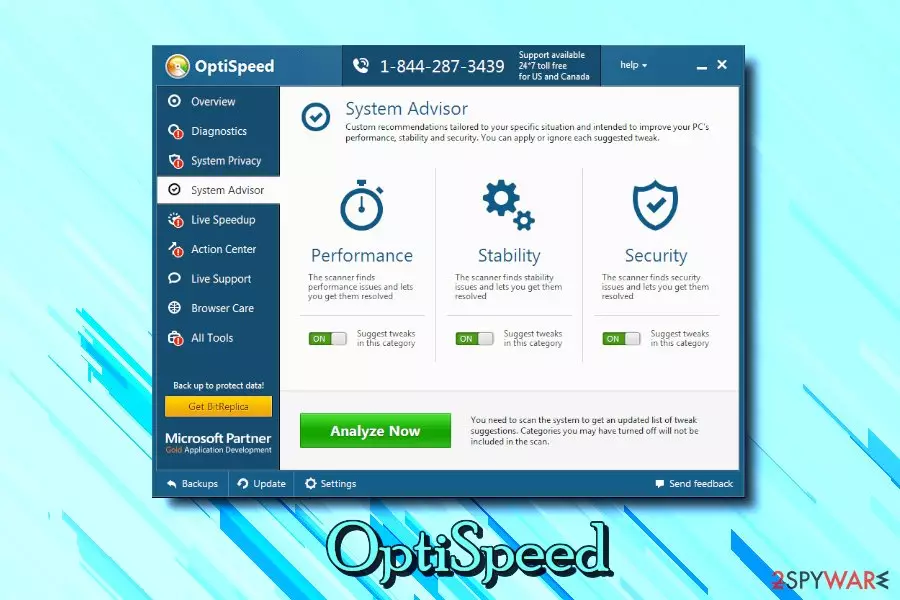
OptiSpeed is a fake system optimizing tool that usually gets installed together with freeware and shareware on users' Windows computers. According to its developers, the program can improve internet speed, increase connection stability and make the PC run “faster and smoother.” Once installed, the potentially unwanted program immediately initiates a system scan and allegedly checks the device for issues, and comes up with hundreds of results. Supposedly, users need to purchase a licensed version of the tool to fix all the found problems. However, the results are mostly false positives or even entirely fake – it is typical behavior of fake system optimizers. In fact, the installation file test shows that it is malicious, with a 100% threat score, according to Hybrid Analysis.[1]
| Name | OptiSpeed |
| Type | Potentially unwanted program/bloatware |
| Related files | optispeed-setup.exe |
| Distribution | Software bundling |
| Risk factors | Money loss, Windows system file corruption |
| Symptoms | The program initiates random scans that show hundreds of issues |
| Elimination | Check out our manual removal guide below or use security software |
| Recovery | Use reputable software like FortectIntego to fix computer issues |
System optimizers such as OptiSpeed, along with such tools like driver updaters are often not only useless but can also result in system file corruption. Developers of such tools do not care about proper optimization procedures for the device, and flag even Google Updates as harmful.
Developers of the application claim that it can improve computer speed by deleting unnecessary files. In reality, it detects Windows Registry keys that are just a few kilobytes in size, and will not impact computer performance in any way. In fact, Microsoft warns users about Registry cleaning utilities:[2]
Some products such as registry cleaning utilities suggest that the registry needs regular maintenance or cleaning. However, serious issues can occur when you modify the registry incorrectly using these types of utilities. These issues might require users to reinstall the operating system due to instability.
As evident, the operation of OptiSpeed can result in Windows system corruption that will require a full reinstallation, which can also result in personal data loss. Thus, do not use questionable applications when dealing with Windows Registry – it is an essential part of the OS.
PUP creators, among many others, do not differ from tech support scam authors. Crooks redirect users to unsafe pages that contain fraudulent claims about system virus infection and later ask them to pay for bogus software, allegedly needed to prevent the damage to the system. In a way, this app works very similarly, as it flags up nonexistent issues and asks users to pay for the full OptiSpeed version.
Users also reported that the app was trying to install itself continually. This behavior is malicious, and, if you notice such intrusive behavior, it is highly likely that your system is infected with a trojan downloader. We recommend you scan your device with reputable anti-malware software like SpyHunterCombo Cleaner, MalwarebytesMalwarebytes to recover from viruses. In this way, you should also be able to remove the virus from your device automatically.

Paying attention during installs can help to avoid PUPs
Software bundling is a well-known technique used by many freeware developers – it lets them monetize and keep the business running. In theory, this practice should be useful for both parties: it enables users to try out the software for free and increases the revenue of free program developers (even Microsoft and other reputable companies bundle software, and it is OK when it's done correctly).
However, in practice, everything works quite a bit differently. Freeware authors usually do not care about programs they bundle within their installers, and end-user often ends up with nasty adware or fake systems tools like registry cleaners or driver updaters. Not only can these apps compromise the proper operation of the device, but also induce advertisement, increasing the ad revenue even more.
Therefore, even if you are installing software from well-known sites, be vigilant. You never know what app can be included together with the desired application. One such example happened when uTorrent bundled Epic Scale crypto-miner without users' knowledge.[3]
To avoid unwanted applications, never rush the installation procedure, check each step carefully, view ToS and Privacy Policy, and always opt for Advanced/Custom settings to remove optional components from being installed.
OptiSpeed elimination tips include using an anti-malware tool properly
We are not claiming that there is no way to repair the operating system and increase the speed. There are several procedures that, in fact, could be performed manually to do so. Reputable software like FortectIntego can do those processes automatically, without flagging hundreds of fake entries. Additionally, Microsoft itself released several tools that can speed up Windows OS safely. Thus, it is a matter of whether or not the program is safe to use. Unfortunately, OptiSpeed is not the tool you should be looking for.
Thus, if you noticed it performing scans on your system, you should uninstall the immediately. While there are several anti-malware tools that specialize in potentially unwanted program detection (such as SpyHunterCombo Cleaner, MalwarebytesMalwarebytes), there is also a way to remove the OptiSpeed virus manually. You will find the details on how to do that below.
Note: if you experience some strange behavior on your device, such as automatic downloads, multiple unknown processes running in the background, software errors, you should scan your PC with a security application regardless of which elimination method you will choose for the threat removal.
Uninstall from Windows
Uninstall from Windows 10/8:
- Type Control Panel into the Windows search box and open the result.
- Under Programs, select Uninstall a program.


Uninstall from Windows 7/XP:
- Click on Windows Start > Control Panel (Windows XP users should click on Add/Remove Programs).
- In Control Panel, select Programs > Uninstall a program.


Remove the unwanted program:
- In the Programs and Features window, look for any recently installed suspicious entries, select them, and click Uninstall.
- If User Account Control appears, click Yes to confirm, then complete the removal.


Did this guide help?
Be the first to comment