

Apple.com-scan-macbook.live – a Mac-based pop-up scam that alerts about e.tre456_worm_osx malware
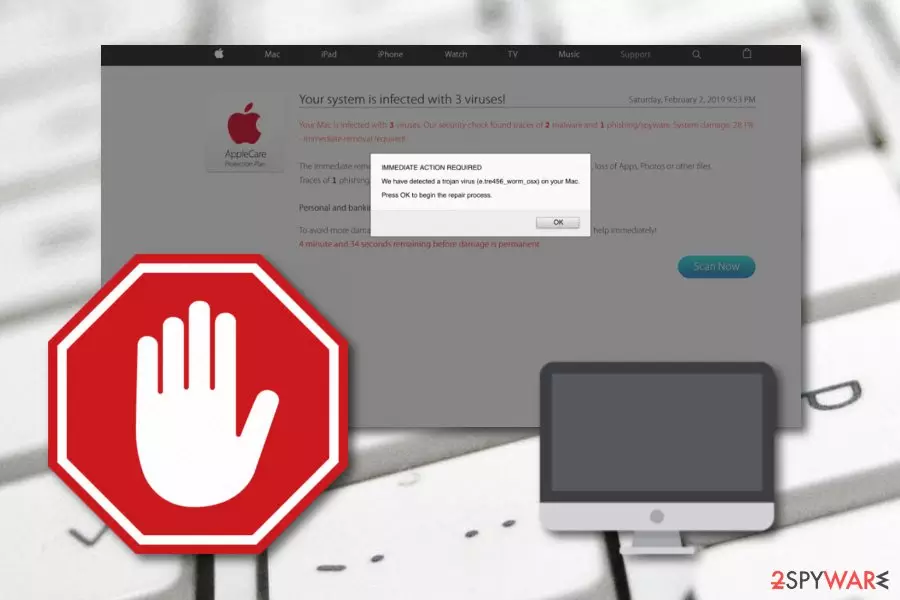
Apple.com-scan-macbook.live is a fake pop-up scam which bombards Mac users with false virus alerts. The message claims that there were three viruses detected one of which appears to be a Trojan horse[1] named Apple.com-scan-macbook.live. A more legitimate look is given to the message by making it look like it is coming from Apple itself. However, all this information about system damage and the need for immediate repairing is just a trick to convince users to press the “Scan now” button. If you do click on this option, you will supposedly be redirected to a page or a new window that promotes questionable computer cleaning software, e.g. Mac Keeper. Additionally, users have been complaining about very similar scams that claim almost the same as in this one, however, they admit that the AppleCare Protection Plan logo truly does give a legitimate look to the pop-up message and it is easy to get tricked by it.[2]
Not only that Apple.com-scan-macbook.live pop-up scam drops a particular message once entering a certain type of web page, but also this type of text appears and warns about a trojan detected:
IMMEDIATE ACTION REQUIRED
We have detected a trojan virus (e.tre456_worm_osx) on your Mac.
Press OK to begin the repair process.
As we have already mentioned, Apple.com-scan-macbook.live pop-up has the intention to show up on rogue and protection-lacking websites. If this is the case, you should stop visiting these types of sites which are causing the scam to appear or get Adblock Plus[3] adblocking tool which also might prevent various misleading pop-ups from appearing on the screen.
| Name | Apple.com-scan-macbook.live |
|---|---|
| Type | Pop-up scam/adware |
| The cause | This message might be caused by a potentially unwanted program or found on certain websites |
| Target | Mac machines |
| Purpose | To promote misleading computer software and gain income from users' purchases |
| Fake trojan | e.tre456_worm_osx is the most harmful infection presented by the fake message |
| Computer scanning software | FortectIntego, SpyHunterCombo Cleaner |
| Removal process | You can eliminate the unwanted content by using specific tools or manual instructions |
However, if Apple.com-scan-macbook.live keeps on showing up frequently not only while browsing on unprotected websites, there might be some type of potentially dangerous software or rogue content installed on your machine that might be forcing the pop-up message to show up and display whenever you are trying to perform browsing sessions.
In this case, you will need to scan your entire computer system with a reputable program and try to discover the cause of this pop-up scam. Mostly, adware programs are expected to be the ones that are provoking such activity. You can perform a full system scan with a tool such as FortectIntego and then remove Apple.com-scan-macbook.live from the Mac system.
Apple.com-scan-macbook.live virus might also slow down your browsing activity if it starts producing misleading and intrusive notifications frequently. Additionally, the potentially unwanted program which is forcing this scam to show up might also leave rogue content in your web browser applications, including Google Chrome, Mozilla Firefox, and Safari.
Apple.com-scan-macbook.live removal is the best thing you can do if you are dealing with the pop-up scam. It can be performed automatically by using specific computer software or by performing the step-by-step guide that is provided at the end of this article. If you choose manual elimination, ensure that web browsers are also fully cleaned from adware-related content.

Potentially unwanted content can be distributed through bundles
According to computer specialists from Virusai.lt,[4] you can get your system infected with potentially unwanted programs or even malicious objects by completing downloads from free sources. Networks such as Torrents or The Pirate Bay do not fit the recommended security requirements, are illegitimate, and might include malware or suspicious content.
For further control of your downloads, make sure that you pick the Custom or Advanced configuration mode rather than choosing the Quick mode. Various Quick & Recommended modes allow rogue content to slip in the system without even being investigated, while, by using the Custom configuration you can always keep an eye on incoming programs.
Last but not least, it is very important to take care of automatical computer protection too. For this purpose, choose a reliable antivirus program and download it to your system. If you make sure that it is always updated properly, the program will definitely appear handy to you by allowing to perform full system scans and providing daily threat protection.
Apple.com-scan-macbook.live needs to be removed from Mac to achieve fast system performance
Various pop-up scams are intruders which interrupt browsing sessions and might slowdown both browsing and computing work. Apple.com-scan-macbook.live virus is not an exception. This cyber threat is supposedly caused by a potentially unwanted program if you are dealing with its appearance frequently and needs to be removed after discovery.
To remove Apple.com-scan-macbook.live, you can use anti-malware software or complete elimination steps by performing the below-written manual removal guide. However, if you lack confidence in the virus removal field, we recommend postponing the solution of manual elimination for possible future threats and leaning on reputable tools.
The Apple.com-scan-macbook.live removal needs to be completed safely and effectively, otherwise, there is a risk that the potentially unwanted program might renew itself through the components that have not been eliminated and are still lurking on the user's computer or are still installed in web browser applications.
Delete from macOS
Remove the unwanted application:
- From the menu bar, select Go > Applications.
- In the Applications folder, look for any suspicious entries, then drag them to Trash (or right-click and pick Move to Trash).


Delete leftover files and folders:
- Select Go > Go to Folder.
- Enter /Library/Application Support and remove any suspicious folders related to the unwanted program.
- Repeat the same check in the /Library/LaunchAgents and /Library/LaunchDaemons folders, deleting any suspicious entries.

- Finally, empty the Trash to permanently remove the leftovers.

Reset Internet Explorer
Remove dangerous add-ons:
- Open Internet Explorer, click on the Gear icon (IE menu) on the top-right corner of the browser
- Pick Manage Add-ons.
- You will see a Manage Add-ons window. Here, look for suspicious plugins. Click on these entries and select Disable.


Change your homepage if it was altered:
- Open IE and click on the Gear icon.
- Select Internet Options.
- In the General tab, delete the Home page address and replace it by your preferred one (for example, Google.com).
- Click Apply and then select OK.


Delete temporary files:
- Press on the Gear icon and select Internet Options.
- Under Browsing history, click Delete...
- Select relevant fields and press Delete.


Reset Internet Explorer:
- Click on Gear icon > Internet options and select Advanced tab.
- Select Reset.
- In the new window, check Delete personal settings and select Reset.


Remove from Mozilla Firefox (FF)
Remove dangerous extensions:
- Open Mozilla Firefox browser and click on the Menu (three horizontal lines at the top-right of the window).
- Select Add-ons.
- In here, select the unwanted extension and click Remove.


Reset the homepage:
- Click three horizontal lines at the top right corner to open the menu.
- Choose Settings.
- Under Home, set your preferred homepage and new tab settings.
Clear cookies and site data:
- Click Menu and pick Settings.
- Go to Privacy & Security section.
- Scroll down to locate Cookies and Site Data.
- Click on Clear Data...
- Select Cookies and Site Data and Temporary cached files and pages, then click Clear.


Reset Mozilla Firefox
If clearing the browser as explained above did not help, reset Mozilla Firefox:
- Open Mozilla Firefox browser and click the Menu.
- Go to Help and then choose Troubleshooting Information.

- Under Give Firefox a tune up section, click on Refresh Firefox...
- Once the pop-up shows up, confirm the action by pressing on Refresh Firefox.



Remove from Google Chrome
Delete malicious extensions from Google Chrome:
- Open Google Chrome, click on the Menu (three vertical dots at the top-right corner) and select More tools > Extensions.
- In the newly opened window, you will see all the installed extensions. Uninstall all suspicious extensions related to the unwanted program by clicking Remove.


Clear cache and web data from Chrome:
- Click on Menu and pick Settings.
- Under Privacy and security, select Clear browsing data.
- Select Browsing history, Cookies and other site data, as well as Cached images and files.
- Click Clear data.


Change your homepage:
- Click menu and choose Settings.
- Look for a suspicious site in the On startup section.
- Click on Open a specific or set of pages and click on three dots to find the Remove option.
Reset Google Chrome:
If the previous methods did not help you, reset Google Chrome to eliminate all the unwanted components:
- Click on Menu and select Settings.
- In the Settings, scroll down and click Advanced.
- Scroll down and locate Reset and clean up section.
- Now click Restore settings to their original defaults.
- Confirm with Reset settings.


Delete from Safari
Remove dangerous extensions:
- Open Safari, click Safari in the menu at the top-left of the screen, and select Preferences.
- Go to the Extensions tab, look for any suspicious entries, and click Uninstall to remove them.


Clear history and website data:
- Click Safari in the menu and pick Clear History.
- Set Clear to all history and confirm with Clear History.


Reset Safari:
- Click Safari in the menu and select Preferences > Advanced.
- Enable Show Develop menu in menu bar.
- From the menu bar, click Develop and select Empty Caches.


Did this guide help?
Be the first to comment