

My Weather Radar – a browser hijacker which overtakes the default search engine and brings weather forecast extensions
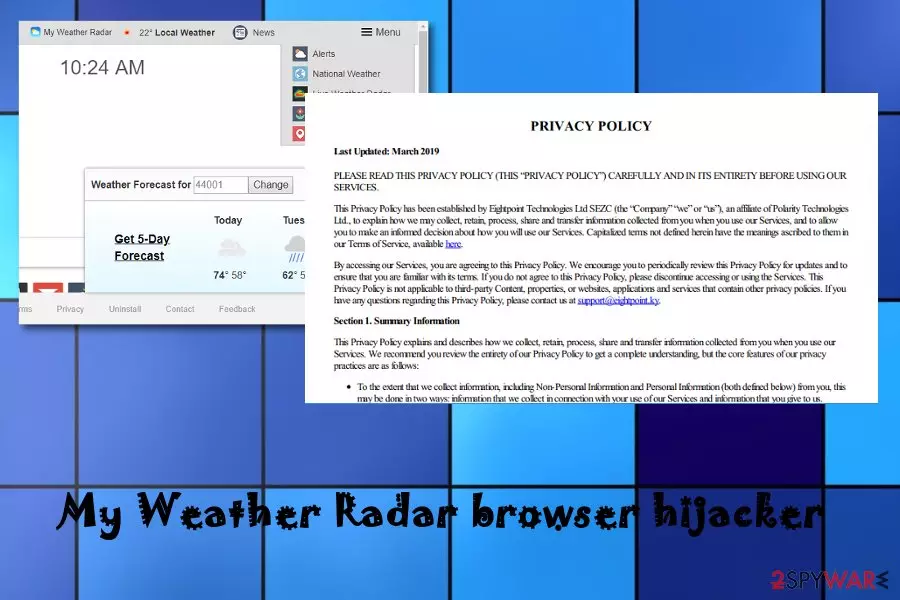
My Weather Radar is called a “browser hijacker” because it plants rogue extensions into browsers to modify them. Researchers have discovered that this tricky application appears as the search.hmyweatherradar.co search engine mostly on Google Chrome, Mozilla, and Internet Explorer. My Weather Radar, developed by an affiliate from Polarity Technologies Ltd., aims to change default settings, appear on the homepage, and bring other suspicious shortcuts to the browser.
My Weather Radar appears as the new search engine and adds rogue shortcuts to the browser toolbar. Such objects are weather.com/maps/severealerts, nationalweatheragency.org, and weather.gov. All of these components together with the PUP itself provide weather-watching services which might appear very attractive to users.
| Name | My Weather Radar |
|---|---|
| Type | Browser hijacker |
| Appearance | This PUP mostly appears on Chrome, Firefox, and Explorer |
| Engine | search.hmyweatherradar.co |
| Relations | weather.com/maps/severealerts, nationalweatheragency.org, and weather.gov |
| Main activities | Modifying browser settings, tracking browsing, redirecting to affiliate sites, advertising |
| Distribution | Bundled freeware/shareware, unprotected networks |
| Removal tool | Use FortectIntego |
Even though the browser hijacker provides comfortable shortcuts to weather forecast, news sources, electronic mail, and other popular networks, it still has gained the name of My Weather Radar virus. Some relations to malware are made because the program injects itself unknowingly and completes different types of changes without asking for permission.
If you ever read the Privacy Policy of My Weather Radar, you will understand that this program might perform a big variety of unpleasant activities. However, they are still mentioned and provided for you, so they appear to be legitimate but still troubling. For example, the program developers claim that they use tracking cookies[1] for increasing browsing quality only:
When you visit our Services, we may send your computer or mobile device a cookie that uniquely identifies your browser. Cookies that we may use may only be read by the server that placed them there. Our use of cookies is primarily focused on improving the quality of our Services and your use of those Services.
However, how much beliefs you put into such claims is upon you. If you take a closer look at the Privacy Policy, you should see that My Weather Radar is capable of tracking your browsing activities for the collection of various information. According to the developers, some of this data might appear to be personal too. For example, email addresses.
Mostly, My Weather Radar will supposedly track pages that you have visited, your IP address, views of websites, saved bookmarks, installed extensions and plug-ins, geographic location, type of web browser being used, and so on. It is known that developers are likely to share this type of data with other parties for receiving income.

Besides all the hijacking and tracking activities that My Weather Radar is capable of, this browser hijacker seems to generate search results from a legitimate search engine – Yahoo.[2] This makes the app useless itself. Why not just use Yahoo instead and avoid all unwanted activities that might be brought?
However, there are a lot of people with fall for all of the tricks that are used by PUP developers. Sometimes, and attractive look is all that is needed to convince users to install My Weather Radar. Sadly, this might relate to unwanted advertising activities and redirecting that can be the result of secret malware invasion through third-party sources.
The best way to protect yourself from such activities is to remove My Weather Radar from your computer system and web browser applications. For this purpose, you will have to eliminate all suspicious extensions and plug-ins[3] that have been brought to your machine by the browser-hijacking program.
Our suggestion would be to use FortectIntego for an easier and more effective My Weather Radar removal. However, if you are likely to, you can go ahead and try performing the step-by-step guide which is placed at the end of this article. Choosing the right and more comfortable elimination method is your choice only.

Distribution sources of browser-hijacking apps
According to cybersecurity researchers from Virusai.lt,[4] browser hijackers are known for their abilities to secretly attack web browsers after installing through specific software packages. However, these PUPs can also appear throughout a big variety of third-party networks. For example, peer-to-peer sites, gambling pages, and similar. According to experts, if you want to protect yourself from such PUPs properly, you should:
- Choose Custom or Advanced configuration as your default downloading/installing mode. This option will allow you to track all incoming objects regularly and opt for their removal if you are likely to.
- Stay away from any unknown sources. The most potentially dangerous websites usually are gambling, online-gaming, and adult-themed pages which should be always avoided.
- Keep all of your products, tools, and software updated. Make sure that you regularly perform updates for all of your software and components that you have on your computer/laptop.
- Purchase a reliable antivirus/anti-malware program. Automatical protection is necessary for each device and machine because it usually spots everything that is left behind and even works outside active hours.
Some guidance on the My Weather Radar removal process
My Weather Radar virus might be extremely annoying to you if you did not opt for its downloading process and have been receiving pop-ups, redirects, and suspicious browser changes from this program lately. Good news is that this browser hijacker is not hard to get rid of and the process can be completed in two ways.
The easier and supposedly more effective way to remove My Weather Radar from your Windows or Mac operating systems is to launch a reputable anti-malware program that will take care of the entire activity. Additionally, these tools are not only for scanning purposes but they also can repair and optimize the machine.
However, if you are likely to, you can also succeed with My Weather Radar removal by using the step-by-step guidelines that we have provided at the end of this article. Following these instructions should allow you to clean all infected web browser applications and remove questionable objects that were injected by the PUP.
Uninstall from Windows
Uninstall from Windows 10/8:
- Type Control Panel into the Windows search box and open the result.
- Under Programs, select Uninstall a program.


Uninstall from Windows 7/XP:
- Click on Windows Start > Control Panel (Windows XP users should click on Add/Remove Programs).
- In Control Panel, select Programs > Uninstall a program.


Remove the unwanted program:
- In the Programs and Features window, look for any recently installed suspicious entries, select them, and click Uninstall.
- If User Account Control appears, click Yes to confirm, then complete the removal.


Delete from macOS
Remove the unwanted application:
- From the menu bar, select Go > Applications.
- In the Applications folder, look for any suspicious entries, then drag them to Trash (or right-click and pick Move to Trash).


Delete leftover files and folders:
- Select Go > Go to Folder.
- Enter /Library/Application Support and remove any suspicious folders related to the unwanted program.
- Repeat the same check in the /Library/LaunchAgents and /Library/LaunchDaemons folders, deleting any suspicious entries.

- Finally, empty the Trash to permanently remove the leftovers.

Reset Internet Explorer
Remove dangerous add-ons:
- Open Internet Explorer, click on the Gear icon (IE menu) on the top-right corner of the browser
- Pick Manage Add-ons.
- You will see a Manage Add-ons window. Here, look for suspicious plugins. Click on these entries and select Disable.


Change your homepage if it was altered:
- Open IE and click on the Gear icon.
- Select Internet Options.
- In the General tab, delete the Home page address and replace it by your preferred one (for example, Google.com).
- Click Apply and then select OK.


Delete temporary files:
- Press on the Gear icon and select Internet Options.
- Under Browsing history, click Delete...
- Select relevant fields and press Delete.


Reset Internet Explorer:
- Click on Gear icon > Internet options and select Advanced tab.
- Select Reset.
- In the new window, check Delete personal settings and select Reset.


Remove from Microsoft Edge
Delete unwanted extensions from MS Edge:
- Select Menu (three horizontal dots at the top-right of the browser window) and pick Extensions.
- From the list, pick the extension and click on the Gear icon.
- Click Remove.


Clear cookies and other browser data:
- Click on the Menu (three horizontal dots at the top-right of the browser window) and select Settings > Privacy, search, and services..
- Under Clear browsing data, pick Choose what to clear.
- Select Cookies and other site data and Cached images and files. (apart from passwords, although you might want to include Media licenses as well, if applicable) and click on Clear.


Restore new tab and homepage settings:
- Click the menu icon and choose Settings.
- Then find On startup section.
- Click Remove next to any suspicious startup page.
Reset MS Edge if the above steps did not work:
- Press on Ctrl + Shift + Esc to open Task Manager.
- Click on More details arrow at the bottom of the window.
- Select Details tab.
- Now scroll down and locate every entry with Microsoft Edge name in it. Right-click on each of them and select End Task to stop MS Edge from running.


Instructions for Chromium-based Edge
Delete extensions from MS Edge (Chromium):
- Open Edge and click select Settings > Extensions.
- Delete unwanted extensions by clicking Remove.


Clear cache and site data:
- Click on Menu and go to Settings.
- Select Privacy, search and services.
- Under Clear browsing data, pick Choose what to clear.
- Under Time range, pick All time.
- Select Clear now.


Reset Chromium-based MS Edge:
- Click on Menu and select Settings.
- On the left side, pick Reset settings.
- Select Restore settings to their default values.
- Confirm with Reset.
- This will disable extensions and reset startup pages but will not delete bookmarks, saved passwords, or browsing history.


Remove from Mozilla Firefox (FF)
Remove dangerous extensions:
- Open Mozilla Firefox browser and click on the Menu (three horizontal lines at the top-right of the window).
- Select Add-ons.
- In here, select the unwanted extension and click Remove.


Reset the homepage:
- Click three horizontal lines at the top right corner to open the menu.
- Choose Settings.
- Under Home, set your preferred homepage and new tab settings.
Clear cookies and site data:
- Click Menu and pick Settings.
- Go to Privacy & Security section.
- Scroll down to locate Cookies and Site Data.
- Click on Clear Data...
- Select Cookies and Site Data and Temporary cached files and pages, then click Clear.


Reset Mozilla Firefox
If clearing the browser as explained above did not help, reset Mozilla Firefox:
- Open Mozilla Firefox browser and click the Menu.
- Go to Help and then choose Troubleshooting Information.

- Under Give Firefox a tune up section, click on Refresh Firefox...
- Once the pop-up shows up, confirm the action by pressing on Refresh Firefox.



Remove from Google Chrome
Delete malicious extensions from Google Chrome:
- Open Google Chrome, click on the Menu (three vertical dots at the top-right corner) and select More tools > Extensions.
- In the newly opened window, you will see all the installed extensions. Uninstall all suspicious extensions related to the unwanted program by clicking Remove.


Clear cache and web data from Chrome:
- Click on Menu and pick Settings.
- Under Privacy and security, select Clear browsing data.
- Select Browsing history, Cookies and other site data, as well as Cached images and files.
- Click Clear data.


Change your homepage:
- Click menu and choose Settings.
- Look for a suspicious site in the On startup section.
- Click on Open a specific or set of pages and click on three dots to find the Remove option.
Reset Google Chrome:
If the previous methods did not help you, reset Google Chrome to eliminate all the unwanted components:
- Click on Menu and select Settings.
- In the Settings, scroll down and click Advanced.
- Scroll down and locate Reset and clean up section.
- Now click Restore settings to their original defaults.
- Confirm with Reset settings.


Delete from Safari
Remove dangerous extensions:
- Open Safari, click Safari in the menu at the top-left of the screen, and select Preferences.
- Go to the Extensions tab, look for any suspicious entries, and click Uninstall to remove them.


Clear history and website data:
- Click Safari in the menu and pick Clear History.
- Set Clear to all history and confirm with Clear History.


Reset Safari:
- Click Safari in the menu and select Preferences > Advanced.
- Enable Show Develop menu in menu bar.
- From the menu bar, click Develop and select Empty Caches.


Did this guide help?
Be the first to comment