

Amazon Shopper Survey is a scam campaign used to obtain sensitive information from people
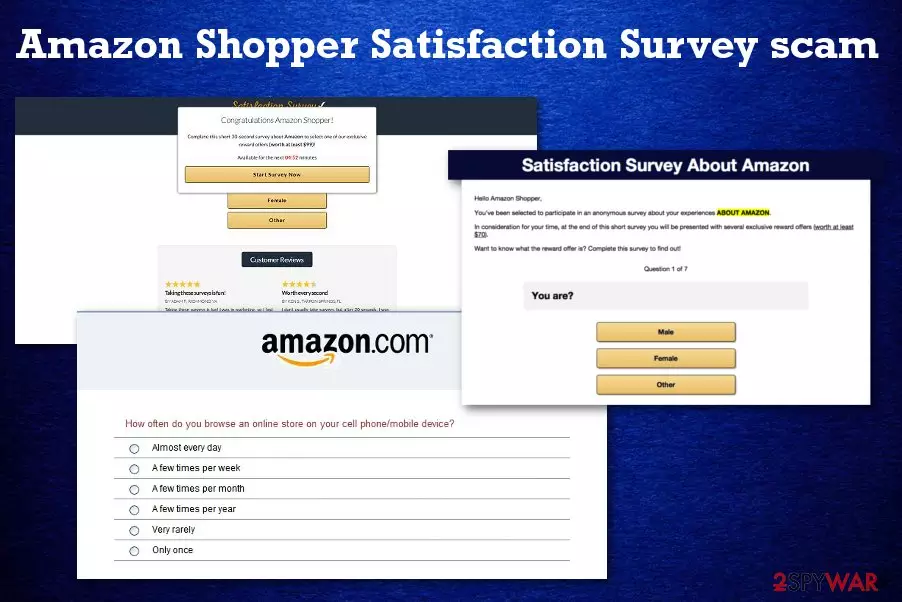
Amazon Shopper Satisfaction Survey is the scam involving email messages and pop-ups with fake surveys and fraudulent deals. This is a campaign that focuses on offering users to share their details in customer surveys to win a reward from Amazon. However, these are tactics used by cybercriminals who develop many versions of the Amazon virus. Amazon Shopper Survey impersonates and mimics all the real Amazon rewards and customer survey campaigns to get personal details of the shoppers and record this information for shady purposes that may involve extortion scams or even identity theft and malware infiltration. Amazon company has already acknowledged the issue of such false emails and consumer surveys in many posts and warnings.[1] However, despite this being a known issue, scammers manage to come up with more believable campaigns and tactics targeting online shoppers and customers of various online services.
| Name | Amazon Shopper Survey scam |
|---|---|
| Type | Scam, adware |
| Tactics | Social engineering[2] |
| Symptoms | False emails, offers, pop-up messages with surveys, deals, and rewards |
| Distribution | Potentially unwanted programs that cause such scams come via freeware installations, deceptive sites, and infected links |
| Version of | Amazon virus |
| Elimination | Get an anti-malware tool to remove the program that triggers the scam messages, and clean the system |
| Main danger | Tricks people into revealing their personal information that can later get used in the more severe scam campaigns |
| System repair | The system can get cleared, but some of the issues remain, so fix any damage using FortectIntego |
Amazon Shopper Survey campaign has mostly been used against particular Amazon platform users that are offered various deals, rewards, and prizes for revealing their personal information in fraudulent shopper surveys. Unfortunately, the campaign starts with legitimate-looking email messages and browser pop-ups, which are created to mimic the real Amazon notifications.
The common time to spread such reward-focused scams is the holiday season and Black Friday, but Amazon Survey scam creators are mimicking customer surveys and more ordinary campaigns that can appear throughout the year.
The scam messages look convincing because emails and in-browser pop-ups with fraudulent notifications from Amazon show the simple text and a brief offer that may look like the following:
Shopper Satisfaction Survey about Amazon
Get offers valued at $50 and above
Take this short 60 second survey about your shopping experience at Amazon.
As a thank you, access carefully selected offers valued at $50 and greater.
Take the Survey now
Of course, all the different Amazon Shopper Survey scam campaigns are developed by multiple scammers, and messages can be slightly or very different. The main red flags should be the direct website addresses or hyperlinks included in these email messages, as Amazon itself notes, users should pay attention to the grammar mistakes and typos in the email messages.
However, Amazon Shopper Satisfaction Survey campaigns come without any errors and contain a couple of sentences only. The message can be identified as fraudulent if the user takes a better look at the offer, but many people get tricked into falling for the scam because they expect to get the promised reward after entering the information needed for the survey.

Although Amazon sends various customer surveys to improve their service and get feedback from users, such questionnaires do not require personal information or credentials. These messages offer prizes, deals, or even money that encourages customers to open the link provided in the email or go to the website linked on the pop-up where the survey gets launched. Then the scam continues and collects the information about the targeted victim.
Finally, the fake surveys, questionnaires end with a message that encourages customers to pay a fee that ensures their participation in a lottery. This is the method to obtain credit card information for later use when cybercriminals can steal money directly from victims' accounts.
Remove Amazon Shopper Satisfaction Survey scam and delete all the PUPs, intrusive programs, questionable in-browser content, and system tools. You may find a lot of applications installed without your permission, make sure to terminate them all.
To achieve this, you should rely on proper anti-malware software that can perform Amazon Shopper Survey removal and clean all the associated folders. Additionally, a scan with SpyHunterCombo Cleaner, MalwarebytesMalwarebytes, or a similar tool can improve the performance of your machine significantly.

Questionable online material leads to infections
As harmless as it may seem, visiting questionable pages filled with commercial content or causing tons of redirects, can lead to infiltration of something as simple as potentially unwanted programs or even as malicious as spyware and keystroke loggers.
Such pages and pop-ups can trigger automatic installations of various malware behind users' back, and people can only notice results and symptoms of the cyber infection, not the infiltration itself. Also, these potentially unwanted programs come when the freeware gets installed without paying enough attention to the processes.
If you choose Advanced or Custom installation options, you can see the full list of programs included in the setup and select or de-select programs. However, you cannot avoid automatic PUP installation if you go for the Quick or Default process. So always choose a reliable source of the software and Custom options, as security experts[3] always advise.
Getting rid of the Amazon Shopper Satisfaction Survey scam messages is possible with AV tools
If you got affected by this virus and revealed your personal information for scammers, you should try to protect your accounts, privacy, and important data like credit card details or email passwords. You should consider changing all the passwords and logins and pay attention to unusual activities on social media and online banking.
On the other hand, you need to remove Amazon Shopper Survey scam as soon as possible to avoid all these risks. However, exiting the email from scammers or closing the questionable redirect is not enough. You need to eliminate the main PUP that causes all these messages and scam campaigns.
To do so, you need a reliable software source where you can get a trustworthy anti-malware tool designed for Amazon Shopper Satisfaction Survey scam removal and system cleaning. Antivirus programs can check the system and indicate all the issues regarding general performance and cyber intruders like PUPs or severe malware.
[GI=windows[/GI]
Uninstall from Windows
Uninstall from Windows 10/8:
- Type Control Panel into the Windows search box and open the result.
- Under Programs, select Uninstall a program.


Uninstall from Windows 7/XP:
- Click on Windows Start > Control Panel (Windows XP users should click on Add/Remove Programs).
- In Control Panel, select Programs > Uninstall a program.


Remove the unwanted program:
- In the Programs and Features window, look for any recently installed suspicious entries, select them, and click Uninstall.
- If User Account Control appears, click Yes to confirm, then complete the removal.


Remove from Microsoft Edge
Delete unwanted extensions from MS Edge:
- Select Menu (three horizontal dots at the top-right of the browser window) and pick Extensions.
- From the list, pick the extension and click on the Gear icon.
- Click Remove.


Clear cookies and other browser data:
- Click on the Menu (three horizontal dots at the top-right of the browser window) and select Settings > Privacy, search, and services..
- Under Clear browsing data, pick Choose what to clear.
- Select Cookies and other site data and Cached images and files. (apart from passwords, although you might want to include Media licenses as well, if applicable) and click on Clear.


Restore new tab and homepage settings:
- Click the menu icon and choose Settings.
- Then find On startup section.
- Click Remove next to any suspicious startup page.
Reset MS Edge if the above steps did not work:
- Press on Ctrl + Shift + Esc to open Task Manager.
- Click on More details arrow at the bottom of the window.
- Select Details tab.
- Now scroll down and locate every entry with Microsoft Edge name in it. Right-click on each of them and select End Task to stop MS Edge from running.


Instructions for Chromium-based Edge
Delete extensions from MS Edge (Chromium):
- Open Edge and click select Settings > Extensions.
- Delete unwanted extensions by clicking Remove.


Clear cache and site data:
- Click on Menu and go to Settings.
- Select Privacy, search and services.
- Under Clear browsing data, pick Choose what to clear.
- Under Time range, pick All time.
- Select Clear now.


Reset Chromium-based MS Edge:
- Click on Menu and select Settings.
- On the left side, pick Reset settings.
- Select Restore settings to their default values.
- Confirm with Reset.
- This will disable extensions and reset startup pages but will not delete bookmarks, saved passwords, or browsing history.


Remove from Mozilla Firefox (FF)
Remove dangerous extensions:
- Open Mozilla Firefox browser and click on the Menu (three horizontal lines at the top-right of the window).
- Select Add-ons.
- In here, select the unwanted extension and click Remove.


Reset the homepage:
- Click three horizontal lines at the top right corner to open the menu.
- Choose Settings.
- Under Home, set your preferred homepage and new tab settings.
Clear cookies and site data:
- Click Menu and pick Settings.
- Go to Privacy & Security section.
- Scroll down to locate Cookies and Site Data.
- Click on Clear Data...
- Select Cookies and Site Data and Temporary cached files and pages, then click Clear.


Reset Mozilla Firefox
If clearing the browser as explained above did not help, reset Mozilla Firefox:
- Open Mozilla Firefox browser and click the Menu.
- Go to Help and then choose Troubleshooting Information.

- Under Give Firefox a tune up section, click on Refresh Firefox...
- Once the pop-up shows up, confirm the action by pressing on Refresh Firefox.



Remove from Google Chrome
Delete malicious extensions from Google Chrome:
- Open Google Chrome, click on the Menu (three vertical dots at the top-right corner) and select More tools > Extensions.
- In the newly opened window, you will see all the installed extensions. Uninstall all suspicious extensions related to the unwanted program by clicking Remove.


Clear cache and web data from Chrome:
- Click on Menu and pick Settings.
- Under Privacy and security, select Clear browsing data.
- Select Browsing history, Cookies and other site data, as well as Cached images and files.
- Click Clear data.


Change your homepage:
- Click menu and choose Settings.
- Look for a suspicious site in the On startup section.
- Click on Open a specific or set of pages and click on three dots to find the Remove option.
Reset Google Chrome:
If the previous methods did not help you, reset Google Chrome to eliminate all the unwanted components:
- Click on Menu and select Settings.
- In the Settings, scroll down and click Advanced.
- Scroll down and locate Reset and clean up section.
- Now click Restore settings to their original defaults.
- Confirm with Reset settings.


Delete from Safari
Remove dangerous extensions:
- Open Safari, click Safari in the menu at the top-left of the screen, and select Preferences.
- Go to the Extensions tab, look for any suspicious entries, and click Uninstall to remove them.


Clear history and website data:
- Click Safari in the menu and pick Clear History.
- Set Clear to all history and confirm with Clear History.


Reset Safari:
- Click Safari in the menu and select Preferences > Advanced.
- Enable Show Develop menu in menu bar.
- From the menu bar, click Develop and select Empty Caches.


Did this guide help?
Be the first to comment