

Searchroute-1560352588.us-west-2.elb.amazonaws.com is a dubious browser hijacker that might automatically download malicious files on your device
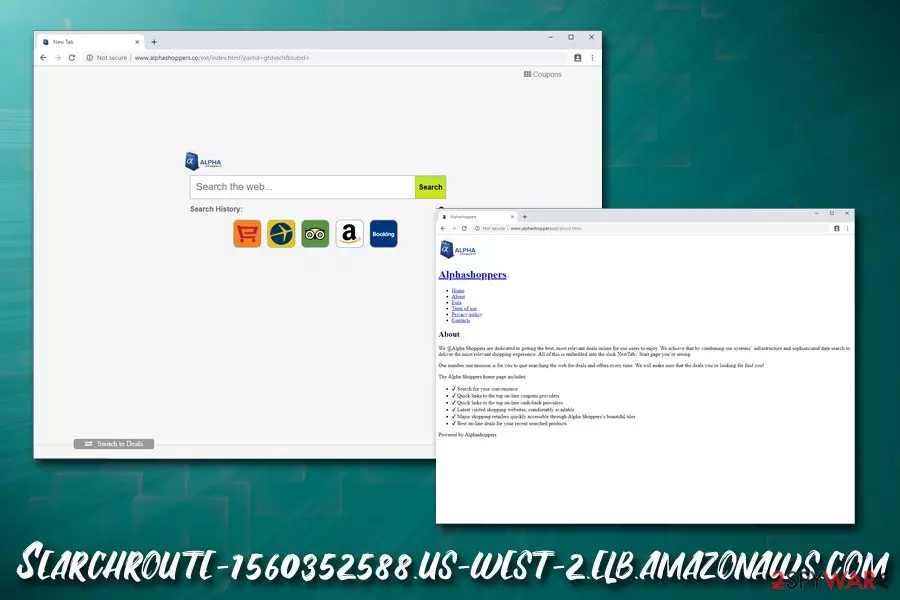
Searchroute-1560352588.us-west-2.elb.amazonaws.com is a potentially unwanted program that modifies web browser settings of Google Chrome, Safari, Mozilla Firefox, Internet Explorer, and redirects to hxxp://www.alphashoppers.co/ext/index.html?partid=gtdvsch&subid= domain.
Browser hijackers like Searchroute usually enter via software bundling or are installed intentionally by users, without knowing the dangers of the application. Once inside, it initiates unwanted behavior, such as an automated download of unwanted suspicious files, redirects to unknown domains, display of sponsored links at the top of search results via the Alpha Shoppers search engine, etc.
Besides, Searchroute virus engages in information gathering practices – it might result in money loss and sensitive data exposure to unknown third parties (or even cybercriminals). Therefore, if you found your homepage, new tab URL and search engine altered, you should immediately initiate Searchroute-1560352588.us-west-2.elb.amazonaws.com removal process – we are here to guide you through it.
| Name | Searchroute-1560352588.us-west-2.elb.amazonaws.com |
| Type | Browser hijacker |
| Category | Potentially unwanted program |
| Infection methods | Software bundles, third-party sites, ads |
| Symptoms | Altered search engine and new tab functionality, redirects to suspicious domains, display of various ads, sponsored search results, etc. |
| Redirects | hxxp://searchroute-1560352588.us-west-2.elb.amazonaws.com/api/gtdvsch/hp/index.html?subid=, hxxp://www.alphashoppers.co/ext/index.html?partid=gtdvsch&subid= |
| Termination | Uninstall PUPs using anti-malware software or by checking our manual removal guide below |
| Recovery | To fix virus damage, scan your computer with FortectIntego |
Browser hijackers are usually relatively harmless computer infections and can be terminated easily. However, the danger of Searchroute-1560352588.us-west-2.elb.amazonaws.com virus lies not within its persistence but rather in its behavior. For example, you should never open automatically-downloaded files – this behavior can lead to serious malware infections, such as ransomware, trojans, or rootkits.[1]
A bit less dangerous but still unwanted behavior of Searchroute-1560352588.us-west-2.elb.amazonaws.com is the rerouting tendencies, as well as sponsored links that might not always be safe. Be aware that, even if the unwanted app redirects the search results to Bing (legitimate source), they are not genuine, and you will see tons of sponsored ads at the top – it would not happen if using the original search engine.

Searchroute redirects can also lead users to phishing, spoofing,[2] or tech support scam sites. These are usually harmless if not interacted with. On the other hand, providing sensitive information to crooks or installing bogus software might lead to serious privacy risks and money loss. Besides, the hijacker automatically gathers information about your browsing habits in order to show you targeted ads and receive money for it. In the meantime, Searchroute-1560352588.us-west-2.elb.amazonaws.com do nothing for you but ruin your experience.
Therefore, make sure you immediately remove Searchroute from your computer as soon as possible, and never install or open files that might be downloaded while being infected. Check our manual removal guide below or scan your device with anti-malware software – whichever you prefer more. Additionally, we recommend using FortectIntego after PUP elimination to sweep up the mess it left behind.
Software bundles include potentially unwanted programs and sometimes even malware
Software bundling is a quite old technique used not only by marketing departments but also by potentially unwanted program authors. Initially, the technique should be useful for both parties – a user gets to try a new application for free, and program developers can distribute their product easier.
However, the reality is quite a bit different, and bundles are used to spread not only useful programs that are useful, but also low-quality apps that, due to their behavior, can easily be assigned to PUP category. Unfortunately, the practice can as well be abused by cybercriminals, and malware can be inserted into various freeware installers. Without a doubt, such behavior is mainly typical to torrent and similar less-safe sites that host free apps.
Therefore, you should be very alert when you are installing something – even if it comes from an allegedly trusted source. Third-party sites still actively spread unwanted programs, such as adware and browser hijackers, so being careful during the installation of a new application is a must.

You should always pick Advanced/Custom installation settings and remove all the ticks from all the boxes to prevent the installation of browser plugins, video converters, download managers, driver updates, system optimizers, and similar bloatware. Additionally, security experts from novirus.uk[3] warn that the rate of malware infections if not using security software is much higher – so make sure you employ a tool that can protect you online.
Searchroute hijacker removal instructions
Searchroute-1560352588.us-west-2.elb.amazonaws.com hijack is always apparent almost straight away due to the changes made to the homepage and the search engine. Unfortunately, some users don't pay attention to that and keep browsing the internet as they normally would. However, they will see the increased amount of ads on all sites they visit, and the way users browser will be significantly influenced.
Therefore, it is vital to remove Searchroute virus before it can result in more dire consequences than a minor annoyance due to ads. It can be done in two ways:
- Manual – by using our detailed step-by-step guide below;
- Automatic – by installing anti-malware software and running a full system scan.
While both methods can be as effective as the other, the latter will provide thorough Searchroute-1560352588.us-west-2.elb.amazonaws.com removal and will also protect you from malware and most PUP infections in the future (depending on the security software kind). Nevertheless, you should also take your time and reset all the installed browsers, as hijackers' altered settings might still be present after its termination.
Uninstall from Windows
Uninstall from Windows 10/8:
- Type Control Panel into the Windows search box and open the result.
- Under Programs, select Uninstall a program.


Uninstall from Windows 7/XP:
- Click on Windows Start > Control Panel (Windows XP users should click on Add/Remove Programs).
- In Control Panel, select Programs > Uninstall a program.


Remove the unwanted program:
- In the Programs and Features window, look for any recently installed suspicious entries, select them, and click Uninstall.
- If User Account Control appears, click Yes to confirm, then complete the removal.


Delete from macOS
Remove the unwanted application:
- From the menu bar, select Go > Applications.
- In the Applications folder, look for any suspicious entries, then drag them to Trash (or right-click and pick Move to Trash).


Delete leftover files and folders:
- Select Go > Go to Folder.
- Enter /Library/Application Support and remove any suspicious folders related to the unwanted program.
- Repeat the same check in the /Library/LaunchAgents and /Library/LaunchDaemons folders, deleting any suspicious entries.

- Finally, empty the Trash to permanently remove the leftovers.

Reset Internet Explorer
Remove dangerous add-ons:
- Open Internet Explorer, click on the Gear icon (IE menu) on the top-right corner of the browser
- Pick Manage Add-ons.
- You will see a Manage Add-ons window. Here, look for suspicious plugins. Click on these entries and select Disable.


Change your homepage if it was altered:
- Open IE and click on the Gear icon.
- Select Internet Options.
- In the General tab, delete the Home page address and replace it by your preferred one (for example, Google.com).
- Click Apply and then select OK.


Delete temporary files:
- Press on the Gear icon and select Internet Options.
- Under Browsing history, click Delete...
- Select relevant fields and press Delete.


Reset Internet Explorer:
- Click on Gear icon > Internet options and select Advanced tab.
- Select Reset.
- In the new window, check Delete personal settings and select Reset.


Remove from Microsoft Edge
Delete unwanted extensions from MS Edge:
- Select Menu (three horizontal dots at the top-right of the browser window) and pick Extensions.
- From the list, pick the extension and click on the Gear icon.
- Click Remove.


Clear cookies and other browser data:
- Click on the Menu (three horizontal dots at the top-right of the browser window) and select Settings > Privacy, search, and services..
- Under Clear browsing data, pick Choose what to clear.
- Select Cookies and other site data and Cached images and files. (apart from passwords, although you might want to include Media licenses as well, if applicable) and click on Clear.


Restore new tab and homepage settings:
- Click the menu icon and choose Settings.
- Then find On startup section.
- Click Remove next to any suspicious startup page.
Reset MS Edge if the above steps did not work:
- Press on Ctrl + Shift + Esc to open Task Manager.
- Click on More details arrow at the bottom of the window.
- Select Details tab.
- Now scroll down and locate every entry with Microsoft Edge name in it. Right-click on each of them and select End Task to stop MS Edge from running.


Instructions for Chromium-based Edge
Delete extensions from MS Edge (Chromium):
- Open Edge and click select Settings > Extensions.
- Delete unwanted extensions by clicking Remove.


Clear cache and site data:
- Click on Menu and go to Settings.
- Select Privacy, search and services.
- Under Clear browsing data, pick Choose what to clear.
- Under Time range, pick All time.
- Select Clear now.


Reset Chromium-based MS Edge:
- Click on Menu and select Settings.
- On the left side, pick Reset settings.
- Select Restore settings to their default values.
- Confirm with Reset.
- This will disable extensions and reset startup pages but will not delete bookmarks, saved passwords, or browsing history.


Remove from Mozilla Firefox (FF)
Remove dangerous extensions:
- Open Mozilla Firefox browser and click on the Menu (three horizontal lines at the top-right of the window).
- Select Add-ons.
- In here, select the unwanted extension and click Remove.


Reset the homepage:
- Click three horizontal lines at the top right corner to open the menu.
- Choose Settings.
- Under Home, set your preferred homepage and new tab settings.
Clear cookies and site data:
- Click Menu and pick Settings.
- Go to Privacy & Security section.
- Scroll down to locate Cookies and Site Data.
- Click on Clear Data...
- Select Cookies and Site Data and Temporary cached files and pages, then click Clear.


Reset Mozilla Firefox
If clearing the browser as explained above did not help, reset Mozilla Firefox:
- Open Mozilla Firefox browser and click the Menu.
- Go to Help and then choose Troubleshooting Information.

- Under Give Firefox a tune up section, click on Refresh Firefox...
- Once the pop-up shows up, confirm the action by pressing on Refresh Firefox.



Remove from Google Chrome
Delete malicious extensions from Google Chrome:
- Open Google Chrome, click on the Menu (three vertical dots at the top-right corner) and select More tools > Extensions.
- In the newly opened window, you will see all the installed extensions. Uninstall all suspicious extensions related to the unwanted program by clicking Remove.


Clear cache and web data from Chrome:
- Click on Menu and pick Settings.
- Under Privacy and security, select Clear browsing data.
- Select Browsing history, Cookies and other site data, as well as Cached images and files.
- Click Clear data.


Change your homepage:
- Click menu and choose Settings.
- Look for a suspicious site in the On startup section.
- Click on Open a specific or set of pages and click on three dots to find the Remove option.
Reset Google Chrome:
If the previous methods did not help you, reset Google Chrome to eliminate all the unwanted components:
- Click on Menu and select Settings.
- In the Settings, scroll down and click Advanced.
- Scroll down and locate Reset and clean up section.
- Now click Restore settings to their original defaults.
- Confirm with Reset settings.


Delete from Safari
Remove dangerous extensions:
- Open Safari, click Safari in the menu at the top-left of the screen, and select Preferences.
- Go to the Extensions tab, look for any suspicious entries, and click Uninstall to remove them.


Clear history and website data:
- Click Safari in the menu and pick Clear History.
- Set Clear to all history and confirm with Clear History.


Reset Safari:
- Click Safari in the menu and select Preferences > Advanced.
- Enable Show Develop menu in menu bar.
- From the menu bar, click Develop and select Empty Caches.


Did this guide help?
Be the first to comment