

ScreenCapture is the cyber intruder that focuses on infecting Mac devices and redirecting to suspicious sites or installing PUPs
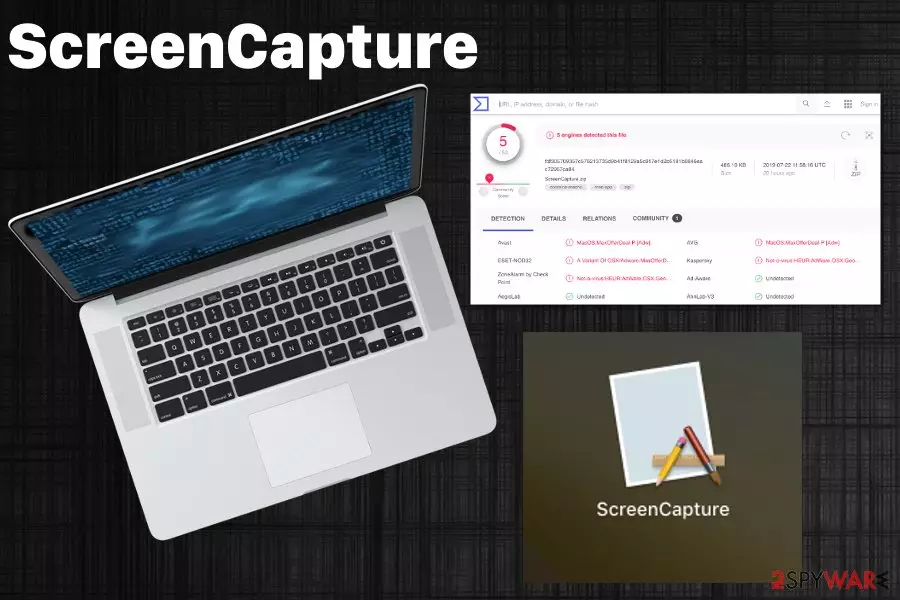
ScreenCapture is the adware-type threat that can expose the user to malvertising content or even install fake search engines, system tools. This is a potentially unwanted application that targets Apple device and spreads around via programs like searchbaron.com. The adware or fake search engines can get installed on the system and spread PUPs or redirect to suspicious pages. This vicious circle creates tons of useless pop-ups that keep the user from accessing anything online. It appears that the main purpose of the intruder is to redirect online traffic and prevent the victim from accessing relevant information by interfering with browsing online.
This program is also known as ScreenCapture.app and may seem harmless because it poses as a tool needed for capturing screenshots, but it is an ad-supported program that was created to generate profit for advertisers. Besides affected performance, the application also significantly diminishes time on the browser with all the toolbars, extensions added out of nowhere. So you should pay close attention to this behavior and make sure to get rid of all those plugins completely.
| Name | ScreenCapture |
|---|---|
| Type | Potentially unwanted program |
| Affects | macOS running devices[1] |
| Redirects to | Searchbaron.com |
| Distribution | Freeware installations, other PUPs, questionable pages |
| Symptoms | Appears on the system and shows suspicious content, causes installations of in-browser applications |
| Elimination | Install a professional anti-malware tool that can run a thorough ScreenCapture removal, like FortectIntego |
ScreenCapture virus gets on the targeted machine and starts affecting the performance with its intrusive behavior. Like other potentially unwanted programs, during the infiltration, people cannot notice the PUP, but all the content indicates this cyber infection later on.
ScreenCapture.App mainly causes redirects and pop-ups with advertising content. All those pushy banners and other forms of promotional content can also lead to the installation of in-browser material or more severe cyber threats. Unfortunately, these adware-type programs are known for gathering information about users and their habits online.
As soon as ScreenCapture gets on the system with your consent or not, it works in the background and starts tracking data like search queries, most viewed items or visited pages and other preferences regarding the browsing. Also, every in-browser searching attempt involves the fake search engine searchbaron.com or bing.com website. This is a method used to capture what you are searching online directly.
Nevertheless, all those browser searches get filled with ScreenCapture content and, in most cases, useless results because the list gets filled with advertisements, promotional material, hyperlinks leading to domains filled with ads. Since all your browsing is forced tog o through the Bing Search engine your time online diminishes significantly.

ScreenCapture shows various content and may deliver messages asking to enable additional notifications or tracking the activity. Due to these agreements, you may need to reset your browsers to default or clean Google Chrome, Mozilla Firefox and Internet Explorer or Safari manually to reverse the unwanted changes and eliminate additional extensions or add-ons.
In general, for the ScreenCapture removal process, experts[2] recommend getting anti-malware tools because such programs can fully check the system and indicate all the threats that can cause the most damage or is malicious. Scanning the system fully with FortectIntego or a similar tool helps to terminate the PUP.
Besides the tips on how to remove ScreenCapture, we should also note that although it seems harmless, data collected by the PUP can end up shared with third-party companies or advertisers.[3] Clicking on injected content like banners, coupons, or discount promotions also help to track information.
ScreenCapture can also use fak error messages from the system to redirect you to pages with malicious material. So be aware that all the messages stating about low memory or the usage of resources mainly get caused to get your attention and via clicks on such pop-ups collect your data. The application is not useful, so make sure to follow the list of indicated intruders in the AV tool results and clean the PC thoroughly.

Adware comes automatically without the requirement to inform you
Any free download sites, services like p2p networks or torrents are serving for the user and for the PUP developer or provider at the same time because users get their cracked software, programs without paying and shady programs can get bundled alongside freeware and delivered to users all over the world.
Unfortunately, during the installation, your machine gets infected if you pay not enough attention and go for Quick or Recommended options. By doing so you allow all the programs listed in the installation setup to get downloaded on your PC. Go for Advanced installations and de-select the application that is questionable or listed as additional. Choosing sources of software wisely also affects the security of your machine.
Perform the elimination of ScreenCapture virus damage and system damage
For the best results of the automatic ScreenCapture removal, you should read about the particular anti-malware program and get it from a reliable source like the official website of developers. This way, you can be sure that there are no bundled programs, and the tool works for the particular threat you need to eliminate.
You can remove ScreenCapture completely with such tools, but don't forget about all the in-browser content added behind your back. You should check each web browser separately and eliminate, block the content from running on the system. We have a step-by-step guide below the article that shows how to achieve that.
Delete from macOS
Remove the unwanted application:
- From the menu bar, select Go > Applications.
- In the Applications folder, look for any suspicious entries, then drag them to Trash (or right-click and pick Move to Trash).


Delete leftover files and folders:
- Select Go > Go to Folder.
- Enter /Library/Application Support and remove any suspicious folders related to the unwanted program.
- Repeat the same check in the /Library/LaunchAgents and /Library/LaunchDaemons folders, deleting any suspicious entries.

- Finally, empty the Trash to permanently remove the leftovers.

Remove from Mozilla Firefox (FF)
Remove dangerous extensions:
- Open Mozilla Firefox browser and click on the Menu (three horizontal lines at the top-right of the window).
- Select Add-ons.
- In here, select the unwanted extension and click Remove.


Reset the homepage:
- Click three horizontal lines at the top right corner to open the menu.
- Choose Settings.
- Under Home, set your preferred homepage and new tab settings.
Clear cookies and site data:
- Click Menu and pick Settings.
- Go to Privacy & Security section.
- Scroll down to locate Cookies and Site Data.
- Click on Clear Data...
- Select Cookies and Site Data and Temporary cached files and pages, then click Clear.


Reset Mozilla Firefox
If clearing the browser as explained above did not help, reset Mozilla Firefox:
- Open Mozilla Firefox browser and click the Menu.
- Go to Help and then choose Troubleshooting Information.

- Under Give Firefox a tune up section, click on Refresh Firefox...
- Once the pop-up shows up, confirm the action by pressing on Refresh Firefox.



Remove from Google Chrome
Delete malicious extensions from Google Chrome:
- Open Google Chrome, click on the Menu (three vertical dots at the top-right corner) and select More tools > Extensions.
- In the newly opened window, you will see all the installed extensions. Uninstall all suspicious extensions related to the unwanted program by clicking Remove.


Clear cache and web data from Chrome:
- Click on Menu and pick Settings.
- Under Privacy and security, select Clear browsing data.
- Select Browsing history, Cookies and other site data, as well as Cached images and files.
- Click Clear data.


Change your homepage:
- Click menu and choose Settings.
- Look for a suspicious site in the On startup section.
- Click on Open a specific or set of pages and click on three dots to find the Remove option.
Reset Google Chrome:
If the previous methods did not help you, reset Google Chrome to eliminate all the unwanted components:
- Click on Menu and select Settings.
- In the Settings, scroll down and click Advanced.
- Scroll down and locate Reset and clean up section.
- Now click Restore settings to their original defaults.
- Confirm with Reset settings.


Delete from Safari
Remove dangerous extensions:
- Open Safari, click Safari in the menu at the top-left of the screen, and select Preferences.
- Go to the Extensions tab, look for any suspicious entries, and click Uninstall to remove them.


Clear history and website data:
- Click Safari in the menu and pick Clear History.
- Set Clear to all history and confirm with Clear History.


Reset Safari:
- Click Safari in the menu and select Preferences > Advanced.
- Enable Show Develop menu in menu bar.
- From the menu bar, click Develop and select Empty Caches.


Did this guide help?
Be the first to comment