

Lp.macapps-optimize.club – a browser-based scam that shows fake system messages trying to trick users into installing unwanted programs
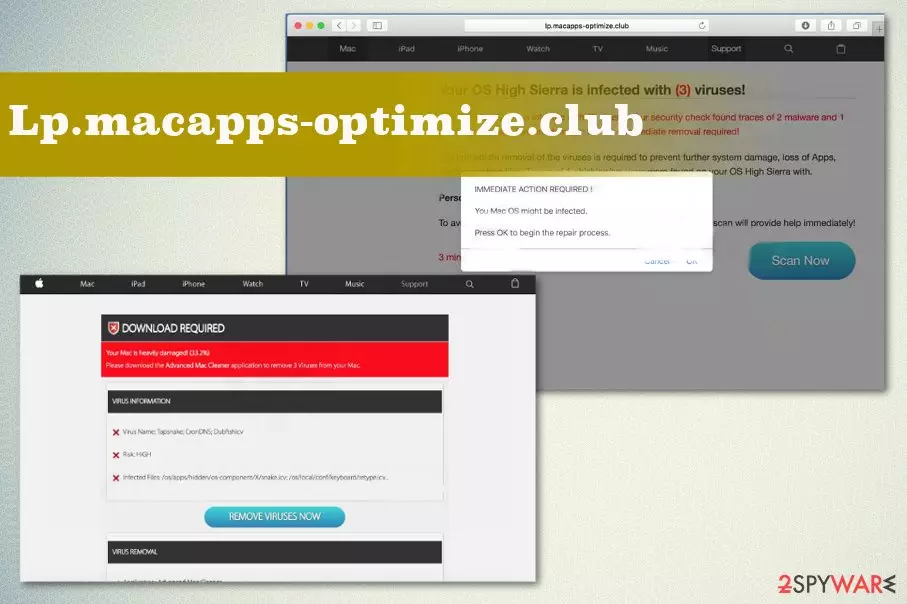
Since it is an ad-supported site, it generates pop-up deals, commercial offers, and delivers other types of advertisements. This is the typical behavior of such PUPs because revenue-generating is the main goal besides scamming people and spreading Smart Mac Booster. If you get these redirects, pop-ups, and other content, you should avoid clicking on any suspicious page.
Especially DO NOT CALL the provided support number because you cannot know how malicious is the person behind that phone.[1] Exit such alerts and try to scan the machine with the proper antivirus tool to make sure that those scan results are real. If you follow with virus removal that fake alerts suggest, you install shady system tools that may damage your computer further.
| Name | Lp.macapps-optimize.club |
|---|---|
| Type | Mac malware[2] |
| Symptoms | Makes the machine running slow and affects the performance significantly with unwanted pop-ups, redirects. Exposes the user to shady content and promotes questionable system tools |
| Files installed | Malware leaves Maccleaner.pkg in the background once shady tools get installed. This file keeps the system affected and interferes with initial PUP removal |
| False claims | Pop-ups and browser redirects show alerts with the list of computer issues and particular malware detection results |
| Distribution | Deceptive pop-up ads, fake installers, torrent files, and freeware installations are mainly used to distribute this adware and similar PUPs |
| Elimination | A reliable anti-malware tool can help remove any pest |
| System health | Repair virus damage by running system diagnostics with the time-tested FortectIntego software |
Lp.macapps-optimize.club is the program created to infect computers further with shady tools that make no difference, although promotional content claims that the tool deletes malware and fixes errors on the system directly. If you click the Scan button on the pop-up or web browser window, you initiate an alleged system scan. However, all those results shown on the screen are false because the website itself has no ability to run a check on your device.
The site shows the following alert to trick people into running a scan on the machine:
Your system is infected with 3 viruses!
Your Mac is infected with 3 viruses. Our security check found traces of 2 malware and 1 phishing/spyware. System damage: 28.1% – Immediate removal required!
The immediate removal of the viruses is required to prevent further system damage, loss of Apps, Photos or other files.
Traces of 1 phishing/spyware were found on your Mac with MacOS 10.13 High Sierra.
Personal and banking information is at risk.
To avoid more damage click on ‘Scan Now’ immediately. Our deep scan will provide help immediately!
The fake error message makes people believe that their device has serious issues and users don't even think twice before running a suggested scan and virus removal. Unfortunately, Lp.macapps-optimize.club scares people into downloading the malicious program and even purchasing the full version with statements that a more powerful tool is needed to eliminate the malware that runs on the machine.
All those potentially programs installed automatically and with your permission, or the adware itself significantly affects the performance of your machine. Additional applications running in the background make the system running slower than usual and keeps you from accessing wanted content with commercial pop-ups and continuous redirects to suspicious pages.

Typically Lp.macapps-optimize.club creates tons of redirects to various sites where you get exposed to commercial or promotional content, gambling pages, or lotteries. However, clicking on those sites and random pop-ups, banners can create more windows, and some of those pages contain malicious content that triggers malware installations.
You should also note that the PUP is tracking and collecting information about you. Experts[3] note that potentially unwanted programs often have relations with advertisers and get sponsored by commercial content creators for ad-tracking purposes.
You need to remove Lp.macapps-optimize.club completely from the system to avoid anything shady like that because data tracking and collecting can lead to privacy issues and even identity theft if information comes into the wrong hands. You cannot be sure that your email address, browsing history, IP address, and other information is not shared with third-party companies.
Although this data is mainly used for personalized advertising, you need a thorough removal because installing tools, or even calling the technical support number provided on the alert can get you to expose more personal details like passwords or full names. Stay away from the fake alert and try to exit that as soon as possible. Then, scan the machine using MalwarebytesMalwarebytes, SpyHunterCombo Cleaner, or a similar tool to see if they're really such issues.
After you remove all cyber parasites from your device, and it's virus-free again, you should think about a system tune-up. PC repair software such as the FortectIntego will delete tracking cookies stored by treacherous websites, repair virus damage, and take care of other core system settings.
Installing software without proper knowledge may lead to privacy issues
Paying attention to processes that happen on the machine, choosing reliable sources, and thinking about possible danger is the key to a safe computer system. If you go for free download sites and don't think that this is potentially dangerous, you can infect your device without even noticing.
The most important thing to note when talking about PUP infiltrations is to base everything on your trust. You need to trust the software provider, the source where you get your applications if you want to avoid cyber infections. Another tip is to choose Advanced or Custom options every time you install anything on the device.
Recommended or Quick installation options mean that you automatically agree to get everything and anything included in the software bundle. These pre-packed application bundles often come with shady PUPs attached. You think that you only install the freeware, but tools or applications like adware also get on the machine behind your back.
Lp.macapps-optimize.club virus should be eliminated as soon as possible
It is known that this adware works as primary PUP but promotes and installs other shady tools that even are more difficult to get rid of than it is to remove Lp.macapps-optimize.club. System optimizers, tools, security utilities, and all those applications that have no valuable purpose on the machine should be eliminated automatically.
If you go for automatic removal, you can achieve that easily. The best solution for potentially unwanted programs is anti-malware tools and thorough system scans that allow checking all parts of the machine. By running a scan with an AV tool, you can see what PUPs, viruses, or system issues keep you from using the device properly if any.
Delete from macOS
Remove the unwanted application:
- From the menu bar, select Go > Applications.
- In the Applications folder, look for any suspicious entries, then drag them to Trash (or right-click and pick Move to Trash).


Delete leftover files and folders:
- Select Go > Go to Folder.
- Enter /Library/Application Support and remove any suspicious folders related to the unwanted program.
- Repeat the same check in the /Library/LaunchAgents and /Library/LaunchDaemons folders, deleting any suspicious entries.

- Finally, empty the Trash to permanently remove the leftovers.

Remove from Mozilla Firefox (FF)
Remove dangerous extensions:
- Open Mozilla Firefox browser and click on the Menu (three horizontal lines at the top-right of the window).
- Select Add-ons.
- In here, select the unwanted extension and click Remove.


Reset the homepage:
- Click three horizontal lines at the top right corner to open the menu.
- Choose Settings.
- Under Home, set your preferred homepage and new tab settings.
Clear cookies and site data:
- Click Menu and pick Settings.
- Go to Privacy & Security section.
- Scroll down to locate Cookies and Site Data.
- Click on Clear Data...
- Select Cookies and Site Data and Temporary cached files and pages, then click Clear.


Reset Mozilla Firefox
If clearing the browser as explained above did not help, reset Mozilla Firefox:
- Open Mozilla Firefox browser and click the Menu.
- Go to Help and then choose Troubleshooting Information.

- Under Give Firefox a tune up section, click on Refresh Firefox...
- Once the pop-up shows up, confirm the action by pressing on Refresh Firefox.



Remove from Google Chrome
Delete malicious extensions from Google Chrome:
- Open Google Chrome, click on the Menu (three vertical dots at the top-right corner) and select More tools > Extensions.
- In the newly opened window, you will see all the installed extensions. Uninstall all suspicious extensions related to the unwanted program by clicking Remove.


Clear cache and web data from Chrome:
- Click on Menu and pick Settings.
- Under Privacy and security, select Clear browsing data.
- Select Browsing history, Cookies and other site data, as well as Cached images and files.
- Click Clear data.


Change your homepage:
- Click menu and choose Settings.
- Look for a suspicious site in the On startup section.
- Click on Open a specific or set of pages and click on three dots to find the Remove option.
Reset Google Chrome:
If the previous methods did not help you, reset Google Chrome to eliminate all the unwanted components:
- Click on Menu and select Settings.
- In the Settings, scroll down and click Advanced.
- Scroll down and locate Reset and clean up section.
- Now click Restore settings to their original defaults.
- Confirm with Reset settings.


Delete from Safari
Remove dangerous extensions:
- Open Safari, click Safari in the menu at the top-left of the screen, and select Preferences.
- Go to the Extensions tab, look for any suspicious entries, and click Uninstall to remove them.


Clear history and website data:
- Click Safari in the menu and pick Clear History.
- Set Clear to all history and confirm with Clear History.


Reset Safari:
- Click Safari in the menu and select Preferences > Advanced.
- Enable Show Develop menu in menu bar.
- From the menu bar, click Develop and select Empty Caches.


Did this guide help?
Be the first to comment