

Alertsp.club is a website that delivers the fake message from Apple Support to promote or even install the shady system tools
| Name | Alertsp.club |
|---|---|
| Type | Adware/ technical support scam[1] |
| Claims | Your system infected with malware, pop-ups get detected on your mac, and you need to call the recommended number or install the promoted software |
| Symptoms | Pop-ups appear out of nowhere, the website itself redirects to more questionable pages, the device runs significantly slower |
| Distribution | Other PUPs, deceptive websites, and visiting shady pages lead to infections like this. You get adware and browser hijackers during insecure freeware installations |
| Possible danger | Ad-tracking functionality can lead to privacy issues. If you pay or call the number, personal details may get extorted and later used in email scams[2] and other malicious campaigns |
| Elimination | Anti-malware tools are the way to go. If you install FortectIntego and run a full scan on the machine, Alertsp.club removal is easier and quicker than doing this manually |
Yet another fake system warning that shows up as a pop-up with predetermined information about danger to the system Alertsp.club, is nothing but a tool to scam people. The message states about pop-ups, malware, and other issues that can damage the machine, so you should call the provided phone number which claims to connect you with a support team that can resolve these issues.
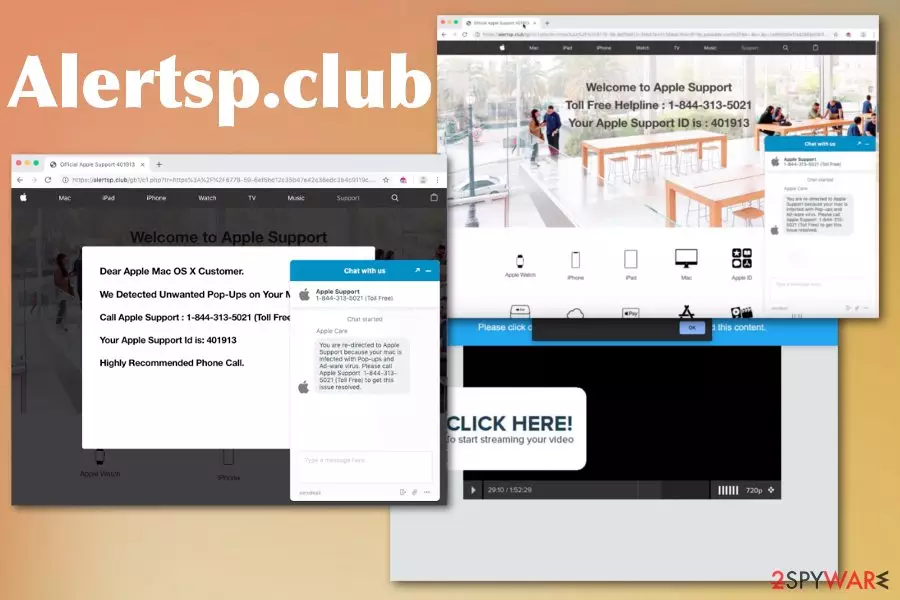
Alertsp.club alert shows the following message:
Dear Apple Mac OS X Customer.
We Detected Unwanted Pop-Ups on your Mac.
Call Apple Support: 1-844-313-5021(Toll Free)
Your Apple Support Id is:
Highly Recommended Phone Call
Alertsp.club alert window even states “Official Apple Support” to make people believe that the information is real. Unfortunately, there is nothing legitimate about the warning itself as well as the PUP which caused these pop-ups in the first place. Legitimate software providers and technical support services are not sending such random alerts and not suggesting to call the questionable toll-free number that may cost you money.
If you decide to call the provided number, the answer may not be so useful as it supposed to be. In such technical scam campaigns, malicious people tend to target victims and their personal data like emails, credentials to various accounts, or even online banking information.
You should note that all these campaigns are focusing on users and ways to obtain something valuable from them. Alertsp.club is created to deceive victims and scare them enough, so they call the support number that is run by cybercriminals, in most cases, from a foreign country.
Alertsp.club website also shows a direct chat platform that states the same information about infected Mac device and malicious pop-ups. The number is immediately posted there as the only solution. Constant delivery of the same message can easily scare people into contacting fraudulent people, so experts[3] advise exiting suspicious windows ASAP.
However, you should remove Alertsp.club and exit the website immediately after receiving the suspicious alert and other redirects. The best solution for such infection is a full system scan that allows detecting all possible intruders and cleaning the machine fully.
Note that scams like this can lead to privacy issues and further malicious campaigns, so when you are asked to reveal information like emails, other account data or even pay for the service after the call be cautious. Alertsp.club is not malicious itself, but all the activities related to this intruder can be.
Get the anti-malware tool and scan the machine, so Alertsp.club removal is easier. Also, keeping tools like that can improve the performance of your machine significantly. One full check on the machine can fix issues with the system, corrupted files, and malware or simple PUPs. Rely on tools like FortectIntego and stray away from shady pages to avoid cyber infections.

Scammers attempt to target victims with false alerts
First of all, if you purchase anything from the internet, you should be aware of the possibility to get unwanted programs and even cyber threats this way. Any content online creates potential risk because you cannot be sure that the website is legitimate and doesn't involve malicious material.
These scammy alerts appear on commonly visited sites due to potentially unwanted program that runs in the background and causes such behavior. In most cases, the intruder comes without noticing, and until it causes these alerts or adware-type behavior, you are not aware.
Sofware bundling or deceptive sites, advertisements are the methods mainly used for the distribution of such applications. During freeware installations, providers pack PUPs alongside programs that are promoted, and once the user selects recommended or quick options all those programs get installed automatically.
Get a proper tool and terminate Alertsp.club virus
You need to prepare for Alertsp.club removal because manually exiting the shady website is not enough when the PUP is already running on the machine and affecting even more crucial parts than the browser itself. Potentially unwanted programs can access and even alter registry entries, startup preferences to make sure that those alerts keep coming back.
When you remove Alertsp.club from the system using proper anti-malware tools, you can also fix the possible damage or repair files if needed. However, automatic tools may not help with all PUP alterations. Follow the guide below to reset your browsers and eliminate all secretly installed apps.
Delete from macOS
Remove the unwanted application:
- From the menu bar, select Go > Applications.
- In the Applications folder, look for any suspicious entries, then drag them to Trash (or right-click and pick Move to Trash).


Delete leftover files and folders:
- Select Go > Go to Folder.
- Enter /Library/Application Support and remove any suspicious folders related to the unwanted program.
- Repeat the same check in the /Library/LaunchAgents and /Library/LaunchDaemons folders, deleting any suspicious entries.

- Finally, empty the Trash to permanently remove the leftovers.

Remove from Mozilla Firefox (FF)
Remove dangerous extensions:
- Open Mozilla Firefox browser and click on the Menu (three horizontal lines at the top-right of the window).
- Select Add-ons.
- In here, select the unwanted extension and click Remove.


Reset the homepage:
- Click three horizontal lines at the top right corner to open the menu.
- Choose Settings.
- Under Home, set your preferred homepage and new tab settings.
Clear cookies and site data:
- Click Menu and pick Settings.
- Go to Privacy & Security section.
- Scroll down to locate Cookies and Site Data.
- Click on Clear Data...
- Select Cookies and Site Data and Temporary cached files and pages, then click Clear.


Reset Mozilla Firefox
If clearing the browser as explained above did not help, reset Mozilla Firefox:
- Open Mozilla Firefox browser and click the Menu.
- Go to Help and then choose Troubleshooting Information.

- Under Give Firefox a tune up section, click on Refresh Firefox...
- Once the pop-up shows up, confirm the action by pressing on Refresh Firefox.



Remove from Google Chrome
Delete malicious extensions from Google Chrome:
- Open Google Chrome, click on the Menu (three vertical dots at the top-right corner) and select More tools > Extensions.
- In the newly opened window, you will see all the installed extensions. Uninstall all suspicious extensions related to the unwanted program by clicking Remove.


Clear cache and web data from Chrome:
- Click on Menu and pick Settings.
- Under Privacy and security, select Clear browsing data.
- Select Browsing history, Cookies and other site data, as well as Cached images and files.
- Click Clear data.


Change your homepage:
- Click menu and choose Settings.
- Look for a suspicious site in the On startup section.
- Click on Open a specific or set of pages and click on three dots to find the Remove option.
Reset Google Chrome:
If the previous methods did not help you, reset Google Chrome to eliminate all the unwanted components:
- Click on Menu and select Settings.
- In the Settings, scroll down and click Advanced.
- Scroll down and locate Reset and clean up section.
- Now click Restore settings to their original defaults.
- Confirm with Reset settings.


Delete from Safari
Remove dangerous extensions:
- Open Safari, click Safari in the menu at the top-left of the screen, and select Preferences.
- Go to the Extensions tab, look for any suspicious entries, and click Uninstall to remove them.


Clear history and website data:
- Click Safari in the menu and pick Clear History.
- Set Clear to all history and confirm with Clear History.


Reset Safari:
- Click Safari in the menu and select Preferences > Advanced.
- Enable Show Develop menu in menu bar.
- From the menu bar, click Develop and select Empty Caches.


Did this guide help?
Be the first to comment