

Gestyy.com is a legitimate advertising network connected to shorte.st, although adware developers often inject ads to users' browsers illegally
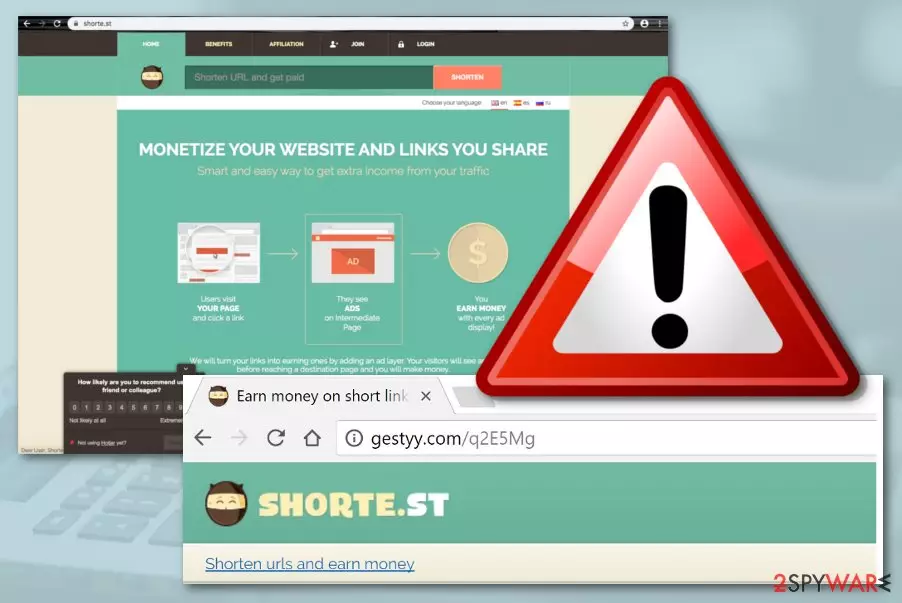
Gestyy.com is a third-party advertising network that is used by website owners to monetize via ad revenue. While there are thousands of legitimate ad platforms like this one, Gestyy.com ads might be often encountered by users whose machines are infected with adware – a potentially unwanted program[1] that changes web browser settings on Google Chrome, Mozilla Firefox or another browser and delivers intrusive ads without permission.
Users who are dealing with suspicious browser behavior like persistent redirects and ads also noted that they are often directed to shorte.st – a URL shortening service that is similar to ad.fly and bit.ly. Nevertheless, redirects and ads still remain the main problem of the infection, and the only way to stop the intrusive behavior is to identify the PUP installed on the system and terminate it for good.
Note that all those annoying and intrusive ads might be embedded within legitimate websites and might not be caused by a browser infection. Nevertheless, if you see these ads on most sites that you visit, you should be concerned, as the PUP infection is highly likely.
| Name | Gestyy.com |
|---|---|
| Type | Potentially unwanted application/adware |
| Danger level | Low. However, some indirect damaged can be caused if you are redirected to a potentially malicious website by this PUP |
| Activities | The adware gets you involved in advertising and redirecting activities after its installation process. Also, you might experience browser changes in the homepage/new tab URL sections, injection of helper components (extensions, plug-ins, cookies, beacons, etc.) |
| Target(s) | This suspicious program can appear on Windows and macOS computers. Some Android users also reported the pop-up problems related to this site |
| Removal | Use reliable software to get rid of the program or step-by-step guidelines at end of this article |
| Repair | Try using software such as FortectIntego to fix all compromised system files and entries |
Gestyy.com adware is not something that could be trusted, as the redirects caused might lead to unsafe pages as well, such as scams, phishing, or even malware-laden ones. Thus it is best not to click on anything after a browser redirect occurs, as you might infect your machine with trojans, worms, cryptojackers, or even ransomware.
Continuously, intrusive pop-up ads will supposedly be another big issue of yours. The particular domain might load you with intrusive pop-ups, pop-unders, banners, coupons, in-text ads whenever you try to surf the Internet sphere via the infected web browser. You might also get included in the targeted advertising scheme.
Targeted ads often rely on the user's browsing habits and history. The developers inject tracking objects such as cookies, beacons, or pixels to record non-personal information that relates to the user's browsing sessions, commonly visited websites, IP addresses, and so on.
Gestyy.com claims to be able to log such data in its Privacy Policy:
When you visit the Site our servers automatically record information about your use and your visit to the Site (“Log Data”). The Log Data may include information such as your computer Internet Protocol (IP) address, time and date of your requests, your browser type, what software you were using, the web page you were visiting immediately prior to visiting the Site, access times and dates, your location, mobile network information and other statistics.
If the page captures such kind of information, do not be surprised to view similar deals that you have been lately looking for. However, we do not recommend agreeing with any provided offers as there is a big chance to get lured into a scam. Especially be aware of various fake reward claims and surveys that urge for personal/credential information.

DO NOT type any personally identifiable information if you are prompted by Gestyy to do so. Revealing sensitive data to complete strangers might be very dangerous as hackers can misuse the gathered data not only for intrusive advertising purposes but also for identity theft or you might find your personal details put up for sale on the dark web[2] markets.
Furthermore, the Android virus might interact with your web browser's settings such as the homepage and new tab URL. You might find these zones modified after the adware attack. Also, the PUP might inject bogus tracking components, extensions, plug-ins, and add-ons to your web browser without your knowledge.
If this happens, there is a big possibility that you might be able to reverse the unwanted changes by carrying out the removal process entirely. We advise using reliable antimalware software that will help you to deal with the process in a few minutes. However, manual steps are also available at the end of this article.
Gestyy.com is an intrusive PUP and is very hard to block, according to user reports. A big variety of people claim that the pop-up problem from this domain occurred right away after upgrading their Android phones from MIUI 10 to MIUI 11 and has been very difficult to get rid of since then.[3]
Some users reported that these pop-ups kept showing up on their Samsung Galaxy S8, Huawei P20 Pro, and other mobile phone devices. Regarding this fact, we decided to provide you with step-by-step guidelines on how to remove potentially unwanted applications from your Android device (look at the end of this article).
After you clear threats from your Windows, macOS computer, or Android mobile phone, it is necessary to check for compromised components on your machine/device. If you discover any affected files or entries, you can try restoring them back to their previous positions by employing software such as FortectIntego.

The delivery techniques of unwanted programs
According to experts from Virusai.lt,[4] adware apps are sneaky threats that use deceptive techniques to enter computer systems. The most popular method is known as “software bundling” and many third-party developers rely on this purpose. The method succeeds when the user does not pay enough attention to his computer/online security.
First of all, adware is more likely to appear on a computer that has its downloading/installing mode set to “Quick” or “Recommended”. If you want to take full control of your incoming downloads and prevent silent PUP infiltration, you should change the installation settings to “Custom” or “Advanced”.
Continuously, avoid downloading sources from websites such as cnet.com, softonic.com, and others. Get all of your products and services only from trustable developers and their original web pages and do not get attracted by offers that suggest downloading entire software packages for free as they are where PUPs mostly hide.
Furthermore, potentially unwanted programs can come camouflaged as fake software updates, advertisements, and hyperlinks. Prevent yourself from accessing questionable content on your computer system. Also, invest in automatic system security that will provide long-term protection for your machine.
Steps to eliminate bogus apps from Android devices
As we have already mentioned, Gestyy.com might be an Android virus and target different modules of mobile phone devices such as Samsung, Huawei, and others. If you have received intrusive advertisements or redirects from this domain, you should be aware that a PUP is hiding in your device system somewhere.
If you want to eliminate this virus with the help of step-by-step guidelines from your Android phone, try using the below-provided guidelines and discovering the questionable app on your mobile device:
- Go into Safe Mode by holding the Power off button on the side of your phone for a few seconds. When a new window appears, hit the Safe Mode icon and opt for OK.
- Continuously, go to your mobile phone Settings.
- Afterward, click on Apps/Application manager.
- Go through the entire list of applications and remove all suspicious ones.
Eliminate Gestyy.com from your computer and browsers
You can remove PUPs and other threats from your machine by using automatic software that will lengthen the entire process and allow you to succeed in the removal within a few minutes of time. Keep in mind that the adware might have planted additional objects in locations such as the Registry and Task Manager that also need to be wiped out for a successful elimination process.
Continuously, Gestyy removal can be handled manually too. However, make sure that you have the right skills and enough experience to carry out such a task. If you are self-confident enough, go to the end of this article and take a look at the step-by-step guide that will help you clean both your computer system and web browsers such as Chrome, Firefox, Explorer, Edge, and Safari.
Uninstall from Windows
Uninstall from Windows 10/8:
- Type Control Panel into the Windows search box and open the result.
- Under Programs, select Uninstall a program.


Uninstall from Windows 7/XP:
- Click on Windows Start > Control Panel (Windows XP users should click on Add/Remove Programs).
- In Control Panel, select Programs > Uninstall a program.


Remove the unwanted program:
- In the Programs and Features window, look for any recently installed suspicious entries, select them, and click Uninstall.
- If User Account Control appears, click Yes to confirm, then complete the removal.


Delete from macOS
Remove the unwanted application:
- From the menu bar, select Go > Applications.
- In the Applications folder, look for any suspicious entries, then drag them to Trash (or right-click and pick Move to Trash).


Delete leftover files and folders:
- Select Go > Go to Folder.
- Enter /Library/Application Support and remove any suspicious folders related to the unwanted program.
- Repeat the same check in the /Library/LaunchAgents and /Library/LaunchDaemons folders, deleting any suspicious entries.

- Finally, empty the Trash to permanently remove the leftovers.

Remove from Microsoft Edge
Delete unwanted extensions from MS Edge:
- Select Menu (three horizontal dots at the top-right of the browser window) and pick Extensions.
- From the list, pick the extension and click on the Gear icon.
- Click Remove.


Clear cookies and other browser data:
- Click on the Menu (three horizontal dots at the top-right of the browser window) and select Settings > Privacy, search, and services..
- Under Clear browsing data, pick Choose what to clear.
- Select Cookies and other site data and Cached images and files. (apart from passwords, although you might want to include Media licenses as well, if applicable) and click on Clear.


Restore new tab and homepage settings:
- Click the menu icon and choose Settings.
- Then find On startup section.
- Click Remove next to any suspicious startup page.
Reset MS Edge if the above steps did not work:
- Press on Ctrl + Shift + Esc to open Task Manager.
- Click on More details arrow at the bottom of the window.
- Select Details tab.
- Now scroll down and locate every entry with Microsoft Edge name in it. Right-click on each of them and select End Task to stop MS Edge from running.


Instructions for Chromium-based Edge
Delete extensions from MS Edge (Chromium):
- Open Edge and click select Settings > Extensions.
- Delete unwanted extensions by clicking Remove.


Clear cache and site data:
- Click on Menu and go to Settings.
- Select Privacy, search and services.
- Under Clear browsing data, pick Choose what to clear.
- Under Time range, pick All time.
- Select Clear now.


Reset Chromium-based MS Edge:
- Click on Menu and select Settings.
- On the left side, pick Reset settings.
- Select Restore settings to their default values.
- Confirm with Reset.
- This will disable extensions and reset startup pages but will not delete bookmarks, saved passwords, or browsing history.


Remove from Mozilla Firefox (FF)
Remove dangerous extensions:
- Open Mozilla Firefox browser and click on the Menu (three horizontal lines at the top-right of the window).
- Select Add-ons.
- In here, select the unwanted extension and click Remove.


Reset the homepage:
- Click three horizontal lines at the top right corner to open the menu.
- Choose Settings.
- Under Home, set your preferred homepage and new tab settings.
Clear cookies and site data:
- Click Menu and pick Settings.
- Go to Privacy & Security section.
- Scroll down to locate Cookies and Site Data.
- Click on Clear Data...
- Select Cookies and Site Data and Temporary cached files and pages, then click Clear.


Reset Mozilla Firefox
If clearing the browser as explained above did not help, reset Mozilla Firefox:
- Open Mozilla Firefox browser and click the Menu.
- Go to Help and then choose Troubleshooting Information.

- Under Give Firefox a tune up section, click on Refresh Firefox...
- Once the pop-up shows up, confirm the action by pressing on Refresh Firefox.



Remove from Google Chrome
Delete malicious extensions from Google Chrome:
- Open Google Chrome, click on the Menu (three vertical dots at the top-right corner) and select More tools > Extensions.
- In the newly opened window, you will see all the installed extensions. Uninstall all suspicious extensions related to the unwanted program by clicking Remove.


Clear cache and web data from Chrome:
- Click on Menu and pick Settings.
- Under Privacy and security, select Clear browsing data.
- Select Browsing history, Cookies and other site data, as well as Cached images and files.
- Click Clear data.


Change your homepage:
- Click menu and choose Settings.
- Look for a suspicious site in the On startup section.
- Click on Open a specific or set of pages and click on three dots to find the Remove option.
Reset Google Chrome:
If the previous methods did not help you, reset Google Chrome to eliminate all the unwanted components:
- Click on Menu and select Settings.
- In the Settings, scroll down and click Advanced.
- Scroll down and locate Reset and clean up section.
- Now click Restore settings to their original defaults.
- Confirm with Reset settings.


Delete from Safari
Remove dangerous extensions:
- Open Safari, click Safari in the menu at the top-left of the screen, and select Preferences.
- Go to the Extensions tab, look for any suspicious entries, and click Uninstall to remove them.


Clear history and website data:
- Click Safari in the menu and pick Clear History.
- Set Clear to all history and confirm with Clear History.


Reset Safari:
- Click Safari in the menu and select Preferences > Advanced.
- Enable Show Develop menu in menu bar.
- From the menu bar, click Develop and select Empty Caches.


Did this guide help?
Be the first to comment