

iPhone-fix.com – an adware virus that changes calendars on iPhone devices by adding hyperlinks to questionable sources
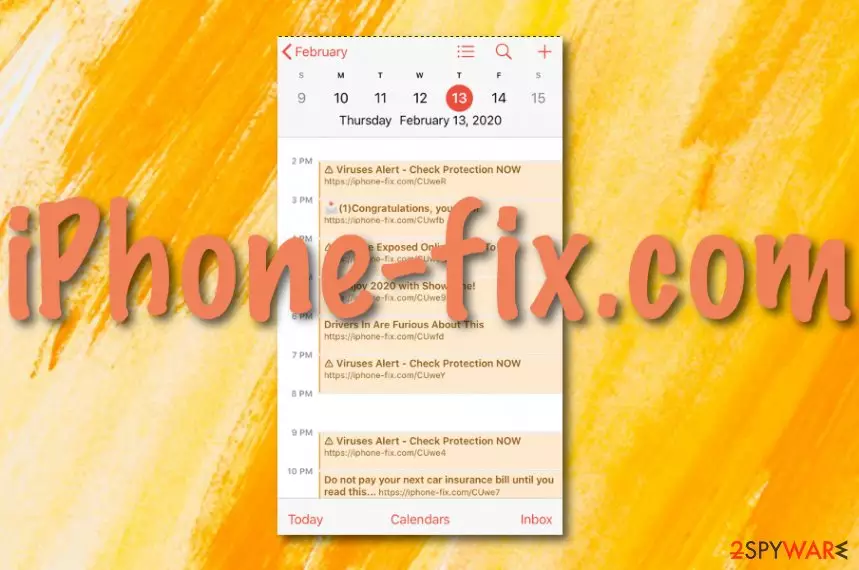
iPhone-fix.com is a PUP that installs on iPhone mobile phones and modifies calendar settings. The adware includes fake notifications about virus alerts, prize claims, and other attractive-looking news that are attached to the iphone-fix.com domain. Regarding this fact, the adware falls in the iPhone virus category but there also might be a chance that the rogue app infects other devices and machines. If you are attacked by the PUP, you are likely to get web browsers such as Google Chrome, Mozilla Firefox, and Safari modified in the homepage and new tab URL sections.
Furthermore, iPhone-fix.com virus can bring unwanted extensions, plug-ins, toolbars and plant them in the browser settings. Other unwanted activities of this app include redirecting to affiliate domains, collecting browsing-related information, and pushing attractive-looking advertising content for earning income from the pay-per-click marketing strategy.
| Name | iPhone-fix.com |
|---|---|
| Type | Potentially unwanted program/adware |
| Related to | iPhone virus |
| Aim | This rogue application aims to change the person's calendar by including hyperlinks to the iphone-fix.com domain with attractive messages claiming that you have won a prize or your computer has been infected with a virus |
| Activities | Besides modifying the calendar, this adware also pushes intrusive advertisements that hold bogus offers, redirects the user to affiliate sources, and can collect information that is related to the user's browsing history and habits |
| Risks | If you are infected with this PUP, you can get redirected to a potentially malicious domain and catch a dangerous malware infection. Also, do not provide any personal or banking information if some surveys show up as this type of data can easily get stolen |
| Elimination | You can try removing the ad-supported program with the help of manual step-by-step guidelines that have been added to the end of this article or by employing trustworthy antimalware software |
| Fix tool | If you have discovered any system or device compromisation, you can try repairing the affected areas with FortectIntego |
iPhone-fix.com has earned a questionable reputation by spamming random users with odd notifications that lead to fake reward sites, provide misleading virus alerts, and bring other false news to the surface to gather clicks from people. If this product reaches your device, you are very likely to notice these unexpected calendar changes.
If you have found any components provided by iPhone-fix.com calendar spam virus, do not click on them, as you can land on an unprotected source that might try to push you bogus offers of rogue security software,[1] get you involved in fake reward winnings, ask to fill in various questionnaires or surveys, etc.
iPhone-fix.com might aim to swindle your money or capture some personal information that you provide the app with. For example, it might claim that you have won a prize and in order to receive it, you should transfer a starter amount of money as a fee. This way the developers can collect income from you without giving you the promised prize.
Furthermore, if iPhone-fix.com asks you to fill in some type of survey, you should resist doing that as you will reveal your personal or contact information to complete strangers. The data might get abused by hackers for identity theft purposes or be used for spamming you with more unwanted content via the collected email addresses.

To add, iPhone-fix.com can get you involved in redirecting sessions that aim to take the users to developer-sponsored websites that can be filled with beneficial-looking offers. However, you might also land on a place that is considered to be malware-laden and includes potentially dangerous content.
All of the intrusive redirecting and advertising activities that come from iPhone-fix.com will likely sooner or later result in the decrease of your browsing quality, force your web browser to slow down or even crash during a session. If you are using a PC, you might recognize that the CPU energy level has suddenly risen.
Adware[2] such as iPhone-fix.com also has capabilities of recording browsing-related information. The PUP includes cookies, pixels, or beacons to spy on the pages that you have recently visited, hyperlinks and adverts accessed, bookmarks saved, search query results, your IP address, your geographic location, and web browser type.
Even though iPhone-fix.com developers might claim that such data is gathered for the improvement of their services, usually, the information gets passed to other parties for income or is used to collect more benefits from targeted advertising campaigns that reveal the latest offers which have been browsed by many people.

Additionally, if iPhone-fix.com has unexpectedly infiltrated your mobile phone device or computer system, there might be other potentially unwanted programs hidden in the machine/device too. Adware apps usually come with other questionable software such as browser hijackers, fake security utilities, and additional ad-supported programs.
You can decrease the risk of all the beforementioned activities and possible consequences by performing iPhone-fix.com removal on your mobile phone or computer. Below we have provided both iPhone and computer cleaning instructing steps so that you would have a chance to learn how to clean both devices.
Furthermore, you can remove iPhone-fix.com with the help of automatical security tools. This software is considered to be really helpful when you lack skills in the virus elimination field and it makes sure that the potentially unwanted program is eliminated successfully. To fix any system compromisation, try employing FortectIntego.
Also, you should not forget to uninstall iPhone-fix.com not only from your operating systems but also from your web browser applications that might have suffered from the adware attack. Keep in mind that all questionable-looking components have to be eliminated at once, otherwise, the adware might run itself automatically again.
Potentially unwanted content travels through bundled products
Downloading bundled software[3] is one of the main ways to catch an adware infection. If you are likely to use websites such as download.com or softonic.com for completing your downloads, it is not a surprise that you have discovered a potentially unwanted program on your computer.
You should pay more attention to the downloading and installing process that you are completing to not let suspicious products infiltrate your system. Furthermore, choose the Advanced or Custom downloading mode where you will be given the ability to manage all of the incoming objects and opt-out of the questionable-looking ones.
Also, you should pick only reliable and official sources for receiving your products and software as this decreases the risk of getting infected with adware. To continue, these cyber threats can appear on the computer or mobile phone through infected hyperlinks or adverts that you step on while browsing the Internet.
You should be more careful while visiting online sources and try to pick out the reliable ones. However, it is best to have trustworthy antimalware protection that will alert if something potentially suspicious is waiting for you ahead.
iPhone-fix.com removal process for iPhones
If iPhone-fix.com calendar spam virus has appeared on your Apple mobile phone, this is a clear sign that you have been infected with an iPhone virus. If the adware keeps appearing and bothering you with advertisements and redirects while browsing the Internet, you should complete the following steps to stop it:
- Enter Settings on your phone.
- Press on the Safari web browser icon.
- Choose the Clear History and Website Data option.
- Close the browser window.
If iPhone-fix.com appears to be more intrusive and results in slowdowns and crashes on your mobile phone, it might have added more unwanted content than expected. To erase it, perform these steps:
- Go to Settings on your iPhone.
- Select the General section.
- Choose to Erase All Contents.
Terminate iPhone-fix.com from your PC
If the adware has entered your computer system and made changes to it, we are here to help you. Note that you have two options for iPhone-fix.com removal and one of them is purchasing a reliable computer tool that will deal with the potentially unwanted program automatically. This type of process takes up to a few minutes and guarantees you that no suspicious content is left lurking on the machine afterward.
However, you can also remove iPhone-fix.com by using the step-by-step guidelines that we have provided at the end of this page. Choose the removal instructions depending on your operating system and do not forget to clean web browser apps such as Google Chrome, Mozilla Firefox, Internet Explorer, Microsoft Edge, or Safari.
According to LosVirus.es specialists,[4] you have to remove every component that has been brought by iPhone-fix.com virus to not let the adware program reappear. This includes terminating all the processes, files, and entries that might have come as a result of the infection.
Uninstall from Windows
Uninstall from Windows 10/8:
- Type Control Panel into the Windows search box and open the result.
- Under Programs, select Uninstall a program.


Uninstall from Windows 7/XP:
- Click on Windows Start > Control Panel (Windows XP users should click on Add/Remove Programs).
- In Control Panel, select Programs > Uninstall a program.


Remove the unwanted program:
- In the Programs and Features window, look for any recently installed suspicious entries, select them, and click Uninstall.
- If User Account Control appears, click Yes to confirm, then complete the removal.


Delete from macOS
Remove the unwanted application:
- From the menu bar, select Go > Applications.
- In the Applications folder, look for any suspicious entries, then drag them to Trash (or right-click and pick Move to Trash).


Delete leftover files and folders:
- Select Go > Go to Folder.
- Enter /Library/Application Support and remove any suspicious folders related to the unwanted program.
- Repeat the same check in the /Library/LaunchAgents and /Library/LaunchDaemons folders, deleting any suspicious entries.

- Finally, empty the Trash to permanently remove the leftovers.

Reset Internet Explorer
Remove dangerous add-ons:
- Open Internet Explorer, click on the Gear icon (IE menu) on the top-right corner of the browser
- Pick Manage Add-ons.
- You will see a Manage Add-ons window. Here, look for suspicious plugins. Click on these entries and select Disable.


Change your homepage if it was altered:
- Open IE and click on the Gear icon.
- Select Internet Options.
- In the General tab, delete the Home page address and replace it by your preferred one (for example, Google.com).
- Click Apply and then select OK.


Delete temporary files:
- Press on the Gear icon and select Internet Options.
- Under Browsing history, click Delete...
- Select relevant fields and press Delete.


Reset Internet Explorer:
- Click on Gear icon > Internet options and select Advanced tab.
- Select Reset.
- In the new window, check Delete personal settings and select Reset.


Remove from Microsoft Edge
Delete unwanted extensions from MS Edge:
- Select Menu (three horizontal dots at the top-right of the browser window) and pick Extensions.
- From the list, pick the extension and click on the Gear icon.
- Click Remove.


Clear cookies and other browser data:
- Click on the Menu (three horizontal dots at the top-right of the browser window) and select Settings > Privacy, search, and services..
- Under Clear browsing data, pick Choose what to clear.
- Select Cookies and other site data and Cached images and files. (apart from passwords, although you might want to include Media licenses as well, if applicable) and click on Clear.


Restore new tab and homepage settings:
- Click the menu icon and choose Settings.
- Then find On startup section.
- Click Remove next to any suspicious startup page.
Reset MS Edge if the above steps did not work:
- Press on Ctrl + Shift + Esc to open Task Manager.
- Click on More details arrow at the bottom of the window.
- Select Details tab.
- Now scroll down and locate every entry with Microsoft Edge name in it. Right-click on each of them and select End Task to stop MS Edge from running.


Instructions for Chromium-based Edge
Delete extensions from MS Edge (Chromium):
- Open Edge and click select Settings > Extensions.
- Delete unwanted extensions by clicking Remove.


Clear cache and site data:
- Click on Menu and go to Settings.
- Select Privacy, search and services.
- Under Clear browsing data, pick Choose what to clear.
- Under Time range, pick All time.
- Select Clear now.


Reset Chromium-based MS Edge:
- Click on Menu and select Settings.
- On the left side, pick Reset settings.
- Select Restore settings to their default values.
- Confirm with Reset.
- This will disable extensions and reset startup pages but will not delete bookmarks, saved passwords, or browsing history.


Remove from Mozilla Firefox (FF)
Remove dangerous extensions:
- Open Mozilla Firefox browser and click on the Menu (three horizontal lines at the top-right of the window).
- Select Add-ons.
- In here, select the unwanted extension and click Remove.


Reset the homepage:
- Click three horizontal lines at the top right corner to open the menu.
- Choose Settings.
- Under Home, set your preferred homepage and new tab settings.
Clear cookies and site data:
- Click Menu and pick Settings.
- Go to Privacy & Security section.
- Scroll down to locate Cookies and Site Data.
- Click on Clear Data...
- Select Cookies and Site Data and Temporary cached files and pages, then click Clear.


Reset Mozilla Firefox
If clearing the browser as explained above did not help, reset Mozilla Firefox:
- Open Mozilla Firefox browser and click the Menu.
- Go to Help and then choose Troubleshooting Information.

- Under Give Firefox a tune up section, click on Refresh Firefox...
- Once the pop-up shows up, confirm the action by pressing on Refresh Firefox.



Remove from Google Chrome
Delete malicious extensions from Google Chrome:
- Open Google Chrome, click on the Menu (three vertical dots at the top-right corner) and select More tools > Extensions.
- In the newly opened window, you will see all the installed extensions. Uninstall all suspicious extensions related to the unwanted program by clicking Remove.


Clear cache and web data from Chrome:
- Click on Menu and pick Settings.
- Under Privacy and security, select Clear browsing data.
- Select Browsing history, Cookies and other site data, as well as Cached images and files.
- Click Clear data.


Change your homepage:
- Click menu and choose Settings.
- Look for a suspicious site in the On startup section.
- Click on Open a specific or set of pages and click on three dots to find the Remove option.
Reset Google Chrome:
If the previous methods did not help you, reset Google Chrome to eliminate all the unwanted components:
- Click on Menu and select Settings.
- In the Settings, scroll down and click Advanced.
- Scroll down and locate Reset and clean up section.
- Now click Restore settings to their original defaults.
- Confirm with Reset settings.


Delete from Safari
Remove dangerous extensions:
- Open Safari, click Safari in the menu at the top-left of the screen, and select Preferences.
- Go to the Extensions tab, look for any suspicious entries, and click Uninstall to remove them.


Clear history and website data:
- Click Safari in the menu and pick Clear History.
- Set Clear to all history and confirm with Clear History.


Reset Safari:
- Click Safari in the menu and select Preferences > Advanced.
- Enable Show Develop menu in menu bar.
- From the menu bar, click Develop and select Empty Caches.


Did this guide help?
Be the first to comment