

Protection-fix.fun is the site that hijacks iPhone devices and appears injected on the calendar events with promotional notifications
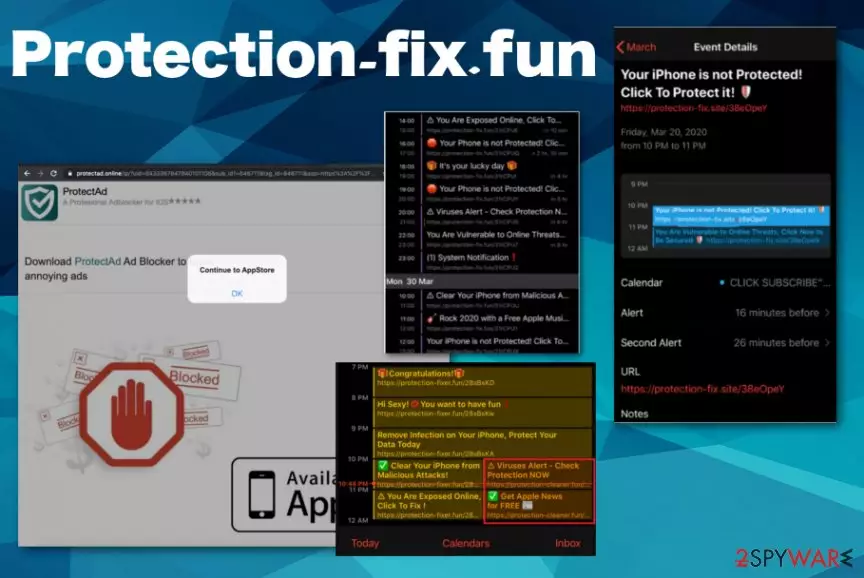
Unfortunately, the PUP that controls the activity of this Protection-fix.fun virus hides in the background and can run on the machine for a longer period to affect more parts of the device and control various functions of the infected device. This is a version of the Calendar virus that is hijacking calendar applications and showing notifications about dubious events, promotes tools, and shows the material that attracts users' attention with lotteries, prizes, and other deceptive claims. It is not harmful itself, but the constant redirects and advertisements can expose you to dangerous pages or even malware-laden sites.[2]
| Name | Protection-fix.fun |
|---|---|
| Type | Mac malware/ Adware |
| Associated | Calendar virus is the main term for such a program that shows alerts claiming that your device has malware or tricking you into opening the lottery pages, links to commercial sites |
| Symptoms | Questionable alerts start coming from the calendar applications about unknown events, and all the notifications contain links to additional commercial pages and promote rogue tools and different products. False virus alerts state that you need to get the suggested tool to remove malware that supposedly got blocked by the application, and these pop-ups get injected all over the events in the calendar app on your iPhone or tablet. Additionally, redirects and advertisements appear on the screen constantly due to the PUP that is running in the background of your device |
| Distribution | This threat has various layers and distribution techniques, so it can be installed via the shady website, phishing email or during the insecure freeware installation. Also, the PUP manages to end up on the device via other intruders already installed on the targeted machine |
| Affects | Apple devices are the ones that get these issues. Users of iPhones complain the most often |
| Elimination | Protection-fix.fun removal shouldn't take time if you rely on an anti-malware tool that can find and delete all possible intruders. You can get a proper application from the official source and run the full system check |
| Repair | As for additional issues regarding the system files and virus damage, you should repair the important features by running a system optimizer or a repair app like FortectIntego to find and fix problems with the performance |
Protection-fix.fun redirects are annoying, and all the notifications, added events frustrate people that encounter these pop-ups on their mobile devices. Numerous strategies can be used to spread these commercial content-based notifications and install those shady PUPs on devices.
The domain itself already promotes the shady software that claims to protect your device from malware and ads. Notifications containing the hyperlink to Protection-fix.fun also state that your iPhone is not protected or that the device is exposed to malware, so you need to install their tool and secure the connection and machine fully.
All those claims are false, and there is nothing legitimate about the domain nor the program that this site promotes and delivers to users without their permissions and knowledge. Protection-fix.fun is considered as dangerous because of the traffic, content it displays, and additional pop-ups that show fake alerts and contain only promotional ads.
Any messages like the following are false, and you should stay away from this or any similar domain:
OUR IPHONE IS NOT PROTECTED! Click to protect it!
If you click on anything associated with PUP, Protection-fix.fun ads, other redirects, and ad-supported sites you may end up on the dangerous page that injects malware on the machine after one or two clicks. This can happen pretty quick, and since mobile devices have screens you cannot exit easily, you may not have any other options but to visit promotional pages and expose yourself to commercial material.

There is no guarantee that ads or redirects are not related to malicious content not only shady promotional sites. So try to remove Protection-fix.fun and anything that comes out of nowhere on the screen. Once you can control the screen and activities, you should get the AV tool and run that on the system to find all shady programs and delete them.
This full Protection-fix.fun removal is the only method that can help with PUPs and similar programs because there is no simple way to find all the applications, browser-based content, and other suspicious parts of the Calendar virus. It is not a manual procedure, so rely on professional anti-malware programs and save time.
When you terminate all the apps and machine is cleaned, you can go through settings that PUP changed and remove Protection-fix.fun from any notification preferences, block it on calendar programs and reset web browsers to default, so all the apps and extensions installed behind your back get deleted completely. Anything that may be left on the machine or web browsing tools can still interfere with the speed and performance of the device.
Remember that this an adware-type intruder, so as with any other PUP, experts[3] recommend clearing all parts of the machine as soon as possible because this Protection-fix.fun itself and material that is shown via those constant redirects contains ad-tracking functions.[4]
Your personal details are not accessed, but other non-identifiable data like location, IP address, social media preferences can be attacked, recorded and even shared with any third-party companies that are related to Protection-fix.fun PUP developers. Some of the browser-based applications left behind can easily continue to gather such details, so make sure to remove them all and repair system with FortectIntego that can find any useless programs and improve the performance for you.

iPhone malware use various deceptive and stealthy methods
These misleading campaigns that provide shady tools for users can involve claims about malware, show false winning alerts and other pop-ups to make sure that people are clicking on the needed material. This redirect virus and calendar scam can be spread around by relying on phishing methods or typical technique – freeware installation with bundled PUPs.
Criminals can make various social engineering strategies useful and attempt to trick people into thinking that these alerts are real notices, so victims install the program themselves. Also, messages on pop-up ads trigger installations of PUPs without causing any additional permission forms.
Mobile browsers often get plugins and applications installed out of nowhere, so the user is exposed to harmful material already, and visits on third-party sites get them to direct downloading pages. Try to keep closer attention to sites you visit and always go for Advanced or Custom installation options to control the downloads fully.
Clear all the events, files, and apps related to Protection-fix.fun PUP
Protection-fix.fun virus a browser-based threat as the domain related to ad-supported sites and other shady advertisers. However, this is a domain that is included as part of the calendar applications-affecting campaign. There are tons of issues that redirects to this site can create.
Unfortunately, this intruder can affect more parts of the device that you can imagine because this program gets, even more, sneakier than other adware-type threats or PUPs, in general. You need to remove Protection-fix.fun as soon as you notice any symptoms like notifications, pop-ups, advertisements or redirects, so the damage is not done yet.
However, the full Protection-fix.fun removal process may seem difficult since there are many parts of the campaign that need to get terminated. Rely on anti-malware tools and get rid of the intruder completely. You should also go through calendar app settings and delete any subscriptions and calendars that got saved without your knowledge.
Delete from macOS
Remove the unwanted application:
- From the menu bar, select Go > Applications.
- In the Applications folder, look for any suspicious entries, then drag them to Trash (or right-click and pick Move to Trash).


Delete leftover files and folders:
- Select Go > Go to Folder.
- Enter /Library/Application Support and remove any suspicious folders related to the unwanted program.
- Repeat the same check in the /Library/LaunchAgents and /Library/LaunchDaemons folders, deleting any suspicious entries.

- Finally, empty the Trash to permanently remove the leftovers.

Remove from Mozilla Firefox (FF)
Remove dangerous extensions:
- Open Mozilla Firefox browser and click on the Menu (three horizontal lines at the top-right of the window).
- Select Add-ons.
- In here, select the unwanted extension and click Remove.


Reset the homepage:
- Click three horizontal lines at the top right corner to open the menu.
- Choose Settings.
- Under Home, set your preferred homepage and new tab settings.
Clear cookies and site data:
- Click Menu and pick Settings.
- Go to Privacy & Security section.
- Scroll down to locate Cookies and Site Data.
- Click on Clear Data...
- Select Cookies and Site Data and Temporary cached files and pages, then click Clear.


Reset Mozilla Firefox
If clearing the browser as explained above did not help, reset Mozilla Firefox:
- Open Mozilla Firefox browser and click the Menu.
- Go to Help and then choose Troubleshooting Information.

- Under Give Firefox a tune up section, click on Refresh Firefox...
- Once the pop-up shows up, confirm the action by pressing on Refresh Firefox.



Remove from Google Chrome
Delete malicious extensions from Google Chrome:
- Open Google Chrome, click on the Menu (three vertical dots at the top-right corner) and select More tools > Extensions.
- In the newly opened window, you will see all the installed extensions. Uninstall all suspicious extensions related to the unwanted program by clicking Remove.


Clear cache and web data from Chrome:
- Click on Menu and pick Settings.
- Under Privacy and security, select Clear browsing data.
- Select Browsing history, Cookies and other site data, as well as Cached images and files.
- Click Clear data.


Change your homepage:
- Click menu and choose Settings.
- Look for a suspicious site in the On startup section.
- Click on Open a specific or set of pages and click on three dots to find the Remove option.
Reset Google Chrome:
If the previous methods did not help you, reset Google Chrome to eliminate all the unwanted components:
- Click on Menu and select Settings.
- In the Settings, scroll down and click Advanced.
- Scroll down and locate Reset and clean up section.
- Now click Restore settings to their original defaults.
- Confirm with Reset settings.


Delete from Safari
Remove dangerous extensions:
- Open Safari, click Safari in the menu at the top-left of the screen, and select Preferences.
- Go to the Extensions tab, look for any suspicious entries, and click Uninstall to remove them.


Clear history and website data:
- Click Safari in the menu and pick Clear History.
- Set Clear to all history and confirm with Clear History.


Reset Safari:
- Click Safari in the menu and select Preferences > Advanced.
- Enable Show Develop menu in menu bar.
- From the menu bar, click Develop and select Empty Caches.


Did this guide help?
Be the first to comment