

DriverMax is an unreliable PC's optimization tool that intrusively pushes its paid full version
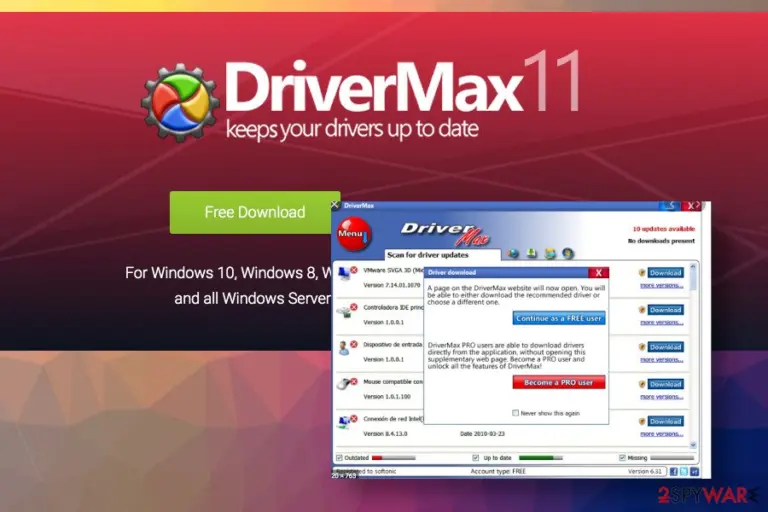
DriverMax introduces itself as a PC optimization utility capable of boosting PC's performance by regularly updating drivers. The tool is owned and managed by Innovative Solutions Inc., the company famous for VPN PRO, Advanced Uninstaller PRO, Orange Defender, and NeoSetup programs. However, the DriverMax has been included in the database of Potentially Unwanted Programs (PUPs) and rogue system tools[1]since 2014 due to the stealthy distribution technique, the rogue system scans, and the complicated removal process.
Although the developers of this program claim that it is able to increase PC's performance, they do not explicitly explain that nothing will be done as long as the user won't pay for the license key. After a successful installation via freeware, the DriverMax virus starts launching its scanners and returns exaggerated results to trick people that the system's drivers are out-of-date. Regardless of the subscription price of this updater, do not pay for a tool that, instead of boosting performance, can compromise your device and charge your credit card automatically until you cancel the subscription.
| Name | DriverMax |
| Classification | Potentially Unwanted Program (PUP), rogue system tool |
| Distribution | This application has an official website and can be downloaded directly if users will. However, most of the downloads are implemented with the help of freeware/shareware, or adware-triggered redirects to phishing websites |
| Danger | Medium danger level. The application is not malicious in its nature, though many users complain that it downloaded outdated or incompatible drivers, which caused the system's problems. Besides, it may require for payment regularly tricking people to give away their money for a useless app |
| Symptoms | Upon infiltration, the DriverMax creates a scheduled task to scan the system. The scanner is launched automatically and delivers exaggerated search results. Users may notice the system's slowdowns, high CPU consumption, or error messages at the same time |
| Related process | Drivermax.exe |
| Location | C:\Program Files\Innovative Solutions |
| Removal | People complain about the absence of the DriverMax uninstaller, which is why the program cannot be removed successfully. In this case, it is advisable to eliminate this rogue software with a professional anti-malware program |
| System damage | Rogue PC optimizers can access Windows registries, corrupt files, replace drivers with the incompatible versions, and initiate other activities that trigger crashes or BSODs. To prevent this, scan your PC with FortectIntego tool after DriverMax elimination |
The DriverMax utility has been launched in 2014. Since 2016 it has been actively distributed via freeware and, therefore, frequently scolded by PC users. According to dieviren.de researchers, the program has been suspended for some time and reappeared in 2018.
If it manages to infiltrate the system as a companion of another free application, it grants the user's permission to start its first system scan. If it gets permission, it initiates this procedure and then provides a list of outdated programs. Typically, it reports multiple system errors and offers to purchase its license to fix problems and update drivers.
Before you enter credit card details and pay for DriverMax license, you should know that its alerts may be exaggerated and displayed only for tricking you. If, after all, you decide to pay for a licensed version, prepared for the redirection to the specific website that will ask you to create an account, and don't forget to cancel the subscription before it expires. Otherwise, the fee for subscription's continuation will be automatically charged. We recommend ignoring such propositions because they may be a cause of identity theft and similar problems.
By the way, if you enter your name, email, address, and other sensitive information, the DriverMax virus may start constantly sending you annoying emails offering you to download other suspicious programs. We highly recommend you ignoring emails sent by DriverMax and uninstalling this questionable application from the system.
The question of how to remove DriverMax is predominant when trying to research this tool on Chrome. People share their experience on Reddit and other forums when they were not able to find an uninstaller of this tool and how it uses tricksters under permissions settings to evade uninstall.
People are not allowed to remove DriverMax since its Properties are set to Read-Only option and the user is not given the admin rights to initiate changes. Although the user may slide a toggle to off next to Read-only, the settings are automatically restored once the Properties window is closed.

The easiest way to get rid of DriverMax driver updater is to initiate a thorough system scan with MalwarebytesMalwarebytes, SpyHunterCombo Cleaner, or another AV engine. In case the removal process triggers a pop-up saying that the program is currently in use and cannot be deleted, disable drivermax.exe file via the Task Manager.
Note that the drivermax.exe file[2] itself is considered to be 54% dangerous due to the ability to connect to the Internet, record keystrokes, mouse inputs, and monitor the performance of apps. Thus, running it on the system is not recommended under any circumstances.
Those users who opt for manual DriverMax removal may also need to remove the C:\Program Files\Innovative Solutions folder or eliminate it completely. Finally, since this program tends to infiltrate PC bundled with freeware, there is a high-risk of adware or hijacker coming alongside.
Driver update software is not recommended using, especially when it comes with freeware
This particular software utility can be found on its official site where it is promoted as a “handy Windows Update utility which makes keeping your system drivers up-to-date an extremely easy task”. It is compatible with Windows OS (Windows 10, Windows 8.1, Windows 8, Windows 7, Windows Vista, and Windows XP). Users can download a free trial version or purchase a full license for a month, half of the year, or yearly subscription.
However, this PUP is more frequently downloaded via freeware or fake software update popups. You may expect to see this suspicious program on your system after installation of Download Managers, Video Converters, fake java/flash/player updates, and similar adware-type programs.
Do not trust notifications suggesting you free updates for Java or Flash Player[3] under any circumstances as these are condemned for malware distribution. Bundling, as such, is a legitimate way of disseminating the package of programs via one installer. The idea of this method is potentially dangerous has become prominent when users started complaining about ad-supported browser extension and browser hijackers being the main freeware attachments.
Therefore, you should try to pay more attention to the installation process of the freeware. Usually, the installation process provides a setup window manifesting what additional components are being distributed in one pack. However, if you choose the Quick/Basic/Recommended installation option, setup windows with pre-selected additional programs are skipped.

That's why security experts from NoVirus.uk[4] advise people to choose the Advanced/Custom installation option, which allows users to trace the whole installation process and decline such propositions. If you have already installed this rogue driver update tool, ignore the email messages that it generates, do not pay attention to the alerting scan results, and other activities. Instead, implement its full removal.
Uninstall DriverMax to prevent damage to the system's drivers
DriverMax is not a malicious program itself. However, it may pose harm to your computer's performance. It is not recommended to fix drivers just for the idea since a “wrong fix” may cause incompatibility errors, BSOD errors, and software crash.
If you decided to remove DriverMax, follow the guide submitted below and remove this application.
For manual removal of DriverMax, we recommend you using these steps:
- Click Start → Control Panel → Programs and Features (if you are Windows XP user, click on Add/Remove Programs).
- Here, look for DriverMax or Innovative Solutions entry.
- Uninstall it and other questionable programs.
- Click OK to save these changes.
If you are Windows 8 user, then right-click in the lower-left corner of the screen. Once Quick Access Menu shows up, select Control Panel and Uninstall a Program.
Nevertheless, we strongly recommend users remove DriverMax virus automatically using a tool like SpyHunterCombo Cleaner or MalwarebytesMalwarebytes. That's because this PUP may be distributed alongside adware or another malware-type program may be promoted via this driver updater. A full system scan is the only way to ensure the full system's restore.
Uninstall from Windows
Uninstall from Windows 10/8:
- Type Control Panel into the Windows search box and open the result.
- Under Programs, select Uninstall a program.


Uninstall from Windows 7/XP:
- Click on Windows Start > Control Panel (Windows XP users should click on Add/Remove Programs).
- In Control Panel, select Programs > Uninstall a program.


Remove the unwanted program:
- In the Programs and Features window, look for any recently installed suspicious entries, select them, and click Uninstall.
- If User Account Control appears, click Yes to confirm, then complete the removal.


Reset Internet Explorer
Remove dangerous add-ons:
- Open Internet Explorer, click on the Gear icon (IE menu) on the top-right corner of the browser
- Pick Manage Add-ons.
- You will see a Manage Add-ons window. Here, look for suspicious plugins. Click on these entries and select Disable.


Change your homepage if it was altered:
- Open IE and click on the Gear icon.
- Select Internet Options.
- In the General tab, delete the Home page address and replace it by your preferred one (for example, Google.com).
- Click Apply and then select OK.


Delete temporary files:
- Press on the Gear icon and select Internet Options.
- Under Browsing history, click Delete...
- Select relevant fields and press Delete.


Reset Internet Explorer:
- Click on Gear icon > Internet options and select Advanced tab.
- Select Reset.
- In the new window, check Delete personal settings and select Reset.


Remove from Microsoft Edge
Delete unwanted extensions from MS Edge:
- Select Menu (three horizontal dots at the top-right of the browser window) and pick Extensions.
- From the list, pick the extension and click on the Gear icon.
- Click Remove.


Clear cookies and other browser data:
- Click on the Menu (three horizontal dots at the top-right of the browser window) and select Settings > Privacy, search, and services..
- Under Clear browsing data, pick Choose what to clear.
- Select Cookies and other site data and Cached images and files. (apart from passwords, although you might want to include Media licenses as well, if applicable) and click on Clear.


Restore new tab and homepage settings:
- Click the menu icon and choose Settings.
- Then find On startup section.
- Click Remove next to any suspicious startup page.
Reset MS Edge if the above steps did not work:
- Press on Ctrl + Shift + Esc to open Task Manager.
- Click on More details arrow at the bottom of the window.
- Select Details tab.
- Now scroll down and locate every entry with Microsoft Edge name in it. Right-click on each of them and select End Task to stop MS Edge from running.


Instructions for Chromium-based Edge
Delete extensions from MS Edge (Chromium):
- Open Edge and click select Settings > Extensions.
- Delete unwanted extensions by clicking Remove.


Clear cache and site data:
- Click on Menu and go to Settings.
- Select Privacy, search and services.
- Under Clear browsing data, pick Choose what to clear.
- Under Time range, pick All time.
- Select Clear now.


Reset Chromium-based MS Edge:
- Click on Menu and select Settings.
- On the left side, pick Reset settings.
- Select Restore settings to their default values.
- Confirm with Reset.
- This will disable extensions and reset startup pages but will not delete bookmarks, saved passwords, or browsing history.


Remove from Mozilla Firefox (FF)
Remove dangerous extensions:
- Open Mozilla Firefox browser and click on the Menu (three horizontal lines at the top-right of the window).
- Select Add-ons.
- In here, select the unwanted extension and click Remove.


Reset the homepage:
- Click three horizontal lines at the top right corner to open the menu.
- Choose Settings.
- Under Home, set your preferred homepage and new tab settings.
Clear cookies and site data:
- Click Menu and pick Settings.
- Go to Privacy & Security section.
- Scroll down to locate Cookies and Site Data.
- Click on Clear Data...
- Select Cookies and Site Data and Temporary cached files and pages, then click Clear.


Reset Mozilla Firefox
If clearing the browser as explained above did not help, reset Mozilla Firefox:
- Open Mozilla Firefox browser and click the Menu.
- Go to Help and then choose Troubleshooting Information.

- Under Give Firefox a tune up section, click on Refresh Firefox...
- Once the pop-up shows up, confirm the action by pressing on Refresh Firefox.



Remove from Google Chrome
Delete malicious extensions from Google Chrome:
- Open Google Chrome, click on the Menu (three vertical dots at the top-right corner) and select More tools > Extensions.
- In the newly opened window, you will see all the installed extensions. Uninstall all suspicious extensions related to the unwanted program by clicking Remove.


Clear cache and web data from Chrome:
- Click on Menu and pick Settings.
- Under Privacy and security, select Clear browsing data.
- Select Browsing history, Cookies and other site data, as well as Cached images and files.
- Click Clear data.


Change your homepage:
- Click menu and choose Settings.
- Look for a suspicious site in the On startup section.
- Click on Open a specific or set of pages and click on three dots to find the Remove option.
Reset Google Chrome:
If the previous methods did not help you, reset Google Chrome to eliminate all the unwanted components:
- Click on Menu and select Settings.
- In the Settings, scroll down and click Advanced.
- Scroll down and locate Reset and clean up section.
- Now click Restore settings to their original defaults.
- Confirm with Reset settings.


Delete from Safari
Remove dangerous extensions:
- Open Safari, click Safari in the menu at the top-left of the screen, and select Preferences.
- Go to the Extensions tab, look for any suspicious entries, and click Uninstall to remove them.


Clear history and website data:
- Click Safari in the menu and pick Clear History.
- Set Clear to all history and confirm with Clear History.


Reset Safari:
- Click Safari in the menu and select Preferences > Advanced.
- Enable Show Develop menu in menu bar.
- From the menu bar, click Develop and select Empty Caches.


Did this guide help?
Be the first to comment