

Mazy Search is a browser hijacker that can be difficult to remove due to changed Chrome's policies
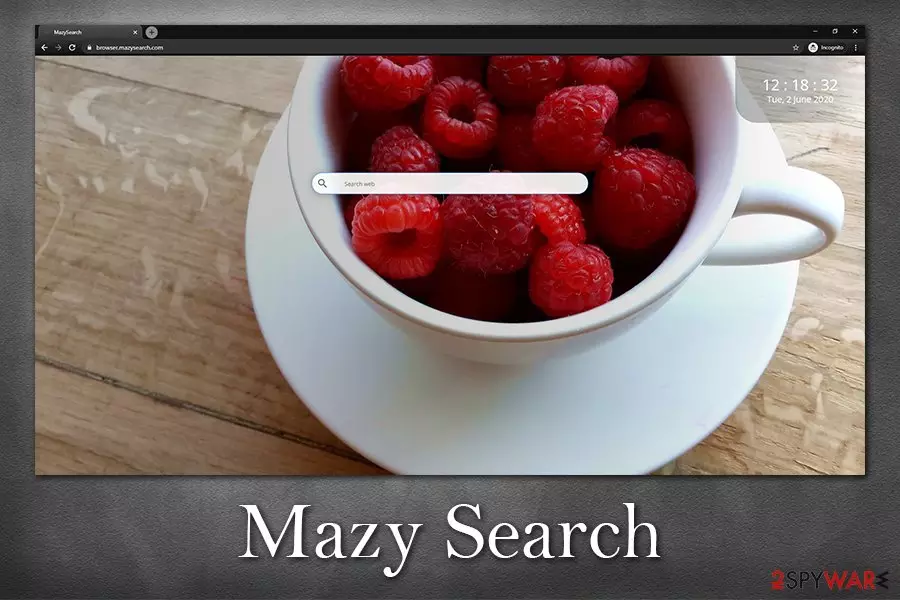
Mazy Search is a search tool that is applied as soon as a browser extension for Google Chrome, Mozilla Firefox, or MS Edge is installed. While such apps can be downloaded from legitimate sources such as Chrome Web Store, users might be misled into installing them in deceptive ways – by using software bundle packages, or obscure ads/update prompts.
Once installed, Mazy Search changes the profile of the web browser in various ways. For example, it setsbrowser.mazysearch.com as the homepage and the new tab URL, appends a customized search engine that directs all results to Yahoo, and also controls the browser by applying the “Managed by your organization” feature. The latter prevents users from Mazy Search removal and the retrieval of default browser settings. Besides, this browser hijacker uses various tracking technologies to collect information about users.
| Name | Mazy Search, otherwise known as MazySearch |
| Type | Browser hijacker, potentially unwanted program |
| Distribution | Official app stores, software bundle packages, deceptive advertisements on various websites (e.g., fake Flash Player update prompts) |
| Symptoms |
|
| Dangers | Users might install additional potentially unwanted programs on their computers due to various ads; additionally, the search provider also tracks a lot of various information about users, which might lead to privacy risks |
| Elimination | You can employ anti-malware application for automatic elimination process of follow our guide provided at the bottom section below |
| Optimization | To optimize your system and revert the damage done by the infection, scan your computer with FortectIntego |
Generally, browser hijackers are by far the least dangerous computer/browser infections around, as they typically do not engage in intensive computer system file modifications. However, the developers of potentially unwanted programs like Mazy Search are constantly developing new techniques to ensure that the app remains on users' computers for as long as possible.
Once the Mazy Search virus is installed, it changes web browser settings automatically – it provides an alternative search engine that users use for their web browsing activities. While all the search results are directed to a legitimate provider Yahoo. PUPs often do not have their own engines, so they employ ones provided by industry giants like Google or Yahoo, although the search results are not genuine – they are often filled with sponsored links and various ads.
When users browse the web by using the Mazy Search engine, the top search results are ads, which can not always be differentiated by inexperienced users. As a result, users access websites they normally would not, although developers of browser hijackers receive pay-per-click revenue for such practice. In other words, they present fake search results at the top to acquire profits from users' clicks. This also artificially increases the visibility of particular services or applications, artificially increasing site rankings.

To provide search results that are more appropriate to end-users, Mazy Search tracks users' online activities with the help of cookies, web beacons, and other technologies. The following data might be collected automatically:
- Personal information provided voluntarily (email, phone number, name, username/password)
- IP address
- Browser-related information (language, browser type, time stamps, etc.)
- Search queries
- Links/ads clicked
- Visited websites
- Installed applications, etc.
As evident, data tracking is extremely important for browser hijackers likes Mazy Search, as this information is typically used to increase profits. In this case, however, the developer is also sharing this information with business partners, affiliates, and other related sources:
We may share your information with our authorized service providers that perform certain services on our behalf. <..>
As described above under “Information Collected By Third Parties and Behavioral Advertising”, third party advertisers and ad networks, data management platforms, and other third parties may collect information themselves from the DefaultSearch Services and/or we may provide them with the information described above for purposes of delivering relevant ads.
Besides extensive data tracking and sharing practices, the developers of this browser hijacker employ the “Managed by your organization” trick that is applied as soon as the browser plugin is installed. As a result, users who want to remove Mazy Search from their machines might be unable to do so, as the browser is controlled by the PUP.
“Managed by your organization” is a prompt that users can see once Mazy Search infiltrates their web browsers, which performs changes to Google Chrome's policies. To reset this status, a prompt PUP elimination must be completed. For that, you can refer to the bottom section of the article.
Finally, we also highly advise scanning the device with anti-malware software that would detect not only potentially unwanted applications but also malware. If you found that your system was infected with multiple threats, you should also reset all the web browsers and fix system damage with the help of repair tools like FortectIntego.
Mazy Search virus changes Chrome's policies by setting “Managed by your organization” feature
“Managed by your organization” is a notification that shows up at the top of the Google Chrome web browser to notify the user that Chrome policies are managed by the organization that you are working in. This way, employers can set specific policies to make Chrome function in a preferred wat. However, the same notification may occur on home PCs, Mac, Macbooks, and any other device.
Mazy Search virus is one of the third-party applications that are capable of gaining administrators' control over Chrome browser settings. Therefore, this misleading third-party website provides itself with the following possibilities:
- can set a homepage that the user is unable to change (setsbrowser.mazysearch.com);
- control blacklisted/whitelisted web addresses;
- force-install required Chrome browser extensions via policy;
- disable Chrome's incognito mode;
- prevent the elimination of Mazy Search related extensions;
- enable tracking cookies;
- hide certain sections of Chrome settings, etc.
While this help of policies management is useful to Enterprise users to set unified Chrome's functionality for all employees, “Managed by your organization” can become a real headache for home users if the management policy is set by an intrusive third-party application, such as Mazy Search virus.

Luckily, the Chrome team provided users with a comprehensive guide on how to disable the “Managed by your organization” settings, which prevent them from the Mazy Search removal:
- Download the Chrome Policy Remover.
- Run the installer and click Keep button if a popup saying that the file can harm your computer shows up.
- Right-click on the file and select Run as administrator.
- Click Yes to confirm the process.
- If a message stating that Windows protected your PC shows up, click More Info and select Run Anyway.
- After that, run a scan with a professional anti-malware tool.
- Finally, check Chrome for unwanted extensions, search engines, and redirect pages. Disable all of them.
- If unwanted search sites do not go away, you may need to reset the web browser's settings.
Ways to avoid installation of potentially unwanted applications easily
As previously mentioned, potentially unwanted programs are often distributed in deceptive ways, the primary one being software bundlers. The bundling method is used to monetize on the per-per-install[1] method, which increases profits for each installation made by users. Since most PUPs are undesired apps that users would not install intentionally, program bundling becomes an excellent choice for distribution.

Quite often, users go to third-party websites to download apps for free. However, most apps are not free (unless they are open-source), and some type of monetization is used. In most cases, these programs are poor quality and often even fail to deliver what they promised in the first place. Instead, users receive an app that bombards their browsers with intrusive ads or directs them to less than secure websites.
To avoid being victimized by a software bundling, security experts from lesvirus.fr advise the following:[2]
- Employ reputable anti-malware software that would warn you about PUPs before you install them;
- If possible, always choose official sources for your apps and their updates;
- Before downloading, make sure that you click a correct button, as many “Download” buttons are just ads that might redirect to malicious websites;
- Ensure that the app provides ToS and Privacy Policy prior to the installation;
- When prompted, always pick Advanced/Custom settings instead of Recommended ones;
- Remove all the ticks next to browser extensions, media players, driver updaters, system optimizers, and similar bloatware[3]
Get rid of MazySearch hijack
To remove Mazy Search from your web browser, all you have to do is right-click on the extension and pick “Remove from Chrome,” or another web browser that you are using. Alternatively, you could visit the Google Chrome settings panel. However, since the app applies the “Managed by your organization” status, it might not be possible to eliminate the PUP in a conventional way.
In such a case, we recommend resetting all the installed web browsers for a full Mazy Search removal. Also, there might be other unwanted apps or malware installed on your device. Just to be sure, you should perform a full system scan with a reputable anti-malware application. This way, you can eliminate all the unwanted components and leftover files quickly. Nonetheless, we also provide a manual guide for program removal below if you choose to get rid of unwanted apps without installing additional software on your machine.
Uninstall from Windows
Uninstall from Windows 10/8:
- Type Control Panel into the Windows search box and open the result.
- Under Programs, select Uninstall a program.


Uninstall from Windows 7/XP:
- Click on Windows Start > Control Panel (Windows XP users should click on Add/Remove Programs).
- In Control Panel, select Programs > Uninstall a program.


Remove the unwanted program:
- In the Programs and Features window, look for any recently installed suspicious entries, select them, and click Uninstall.
- If User Account Control appears, click Yes to confirm, then complete the removal.


Delete from macOS
Remove the unwanted application:
- From the menu bar, select Go > Applications.
- In the Applications folder, look for any suspicious entries, then drag them to Trash (or right-click and pick Move to Trash).


Delete leftover files and folders:
- Select Go > Go to Folder.
- Enter /Library/Application Support and remove any suspicious folders related to the unwanted program.
- Repeat the same check in the /Library/LaunchAgents and /Library/LaunchDaemons folders, deleting any suspicious entries.

- Finally, empty the Trash to permanently remove the leftovers.

Reset Internet Explorer
Remove dangerous add-ons:
- Open Internet Explorer, click on the Gear icon (IE menu) on the top-right corner of the browser
- Pick Manage Add-ons.
- You will see a Manage Add-ons window. Here, look for suspicious plugins. Click on these entries and select Disable.


Change your homepage if it was altered:
- Open IE and click on the Gear icon.
- Select Internet Options.
- In the General tab, delete the Home page address and replace it by your preferred one (for example, Google.com).
- Click Apply and then select OK.


Delete temporary files:
- Press on the Gear icon and select Internet Options.
- Under Browsing history, click Delete...
- Select relevant fields and press Delete.


Reset Internet Explorer:
- Click on Gear icon > Internet options and select Advanced tab.
- Select Reset.
- In the new window, check Delete personal settings and select Reset.


Remove from Microsoft Edge
Delete unwanted extensions from MS Edge:
- Select Menu (three horizontal dots at the top-right of the browser window) and pick Extensions.
- From the list, pick the extension and click on the Gear icon.
- Click Remove.


Clear cookies and other browser data:
- Click on the Menu (three horizontal dots at the top-right of the browser window) and select Settings > Privacy, search, and services..
- Under Clear browsing data, pick Choose what to clear.
- Select Cookies and other site data and Cached images and files. (apart from passwords, although you might want to include Media licenses as well, if applicable) and click on Clear.


Restore new tab and homepage settings:
- Click the menu icon and choose Settings.
- Then find On startup section.
- Click Remove next to any suspicious startup page.
Reset MS Edge if the above steps did not work:
- Press on Ctrl + Shift + Esc to open Task Manager.
- Click on More details arrow at the bottom of the window.
- Select Details tab.
- Now scroll down and locate every entry with Microsoft Edge name in it. Right-click on each of them and select End Task to stop MS Edge from running.


Instructions for Chromium-based Edge
Delete extensions from MS Edge (Chromium):
- Open Edge and click select Settings > Extensions.
- Delete unwanted extensions by clicking Remove.


Clear cache and site data:
- Click on Menu and go to Settings.
- Select Privacy, search and services.
- Under Clear browsing data, pick Choose what to clear.
- Under Time range, pick All time.
- Select Clear now.


Reset Chromium-based MS Edge:
- Click on Menu and select Settings.
- On the left side, pick Reset settings.
- Select Restore settings to their default values.
- Confirm with Reset.
- This will disable extensions and reset startup pages but will not delete bookmarks, saved passwords, or browsing history.


Remove from Mozilla Firefox (FF)
Remove dangerous extensions:
- Open Mozilla Firefox browser and click on the Menu (three horizontal lines at the top-right of the window).
- Select Add-ons.
- In here, select the unwanted extension and click Remove.


Reset the homepage:
- Click three horizontal lines at the top right corner to open the menu.
- Choose Settings.
- Under Home, set your preferred homepage and new tab settings.
Clear cookies and site data:
- Click Menu and pick Settings.
- Go to Privacy & Security section.
- Scroll down to locate Cookies and Site Data.
- Click on Clear Data...
- Select Cookies and Site Data and Temporary cached files and pages, then click Clear.


Reset Mozilla Firefox
If clearing the browser as explained above did not help, reset Mozilla Firefox:
- Open Mozilla Firefox browser and click the Menu.
- Go to Help and then choose Troubleshooting Information.

- Under Give Firefox a tune up section, click on Refresh Firefox...
- Once the pop-up shows up, confirm the action by pressing on Refresh Firefox.



Remove from Google Chrome
Delete malicious extensions from Google Chrome:
- Open Google Chrome, click on the Menu (three vertical dots at the top-right corner) and select More tools > Extensions.
- In the newly opened window, you will see all the installed extensions. Uninstall all suspicious extensions related to the unwanted program by clicking Remove.


Clear cache and web data from Chrome:
- Click on Menu and pick Settings.
- Under Privacy and security, select Clear browsing data.
- Select Browsing history, Cookies and other site data, as well as Cached images and files.
- Click Clear data.


Change your homepage:
- Click menu and choose Settings.
- Look for a suspicious site in the On startup section.
- Click on Open a specific or set of pages and click on three dots to find the Remove option.
Reset Google Chrome:
If the previous methods did not help you, reset Google Chrome to eliminate all the unwanted components:
- Click on Menu and select Settings.
- In the Settings, scroll down and click Advanced.
- Scroll down and locate Reset and clean up section.
- Now click Restore settings to their original defaults.
- Confirm with Reset settings.


Delete from Safari
Remove dangerous extensions:
- Open Safari, click Safari in the menu at the top-left of the screen, and select Preferences.
- Go to the Extensions tab, look for any suspicious entries, and click Uninstall to remove them.


Clear history and website data:
- Click Safari in the menu and pick Clear History.
- Set Clear to all history and confirm with Clear History.


Reset Safari:
- Click Safari in the menu and select Preferences > Advanced.
- Enable Show Develop menu in menu bar.
- From the menu bar, click Develop and select Empty Caches.


Did this guide help?
Be the first to comment