

Gdimmunical.club – a social engineering attack that results in intrusive desktop notifications
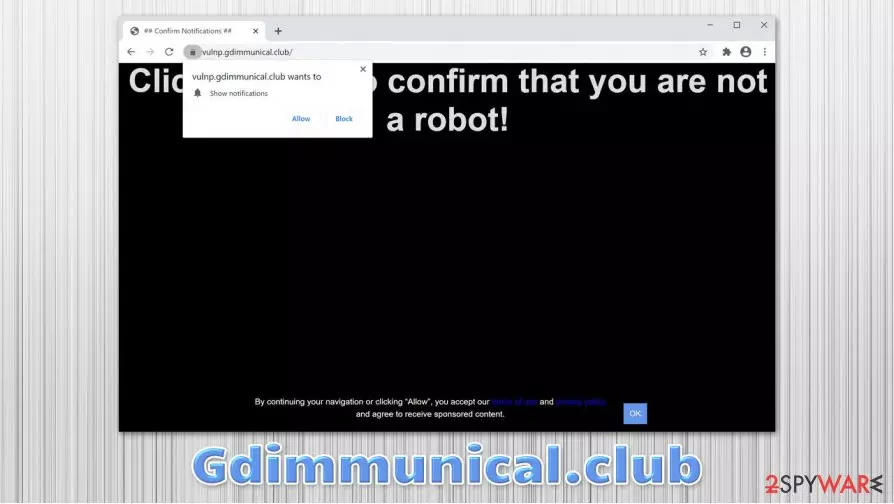
Gdimmunical.club is a so-called push notification virus that typically has nothing to do with computer infections. Nonetheless, the website is malicious in many ways, as it attempts to convince visitors to subscribe to notifications by using various scam techniques. As soon as the permission is granted, users start seeing intrusive popups that show up on their screen at random times, regardless if Google Chrome, Mozilla Firefox, Safari, or another web browser was used to accept these ads.
Gdimmunical.club scam attempts to abuse users who are unaware of typical social engineering[1] tricks and usage of legitimate browser features such as push notifications. Besides, the injected ads are often of dubious content and include links to phishing, tech support scam, or malware-laden websites. Thus, if you clicked on any of the links provided, it is time to check your system for malware infections.
| Name | Gdimmunical.club |
|---|---|
| Type | Push notification virus, scam, ads |
| IP address | 54.237.125.12 |
| Associated domains | bwpkg.gdimmunical.club, ofono.gdimmunical.club, vulnp.gdimmunical.club |
| Distribution | Website authors use various tricks to make users enable notifications. In particular, the injection of popups begins after the “Allow” button is pressed |
| Symptoms | Users start seeing popups on their desktops at any time when the machine is turned on |
| Dangers | Clicking on links that are embedded within the notification prompt, exploring the sites these links bring to or downloading files can be particularly dangerous – users can get infected with malware, suffer from financial losses or privacy issues |
| Elimination | To prevent the site from displaying notifications to you, access the site permission section via your web browser settings – you can find more details below |
| Further steps | Redirects and ads might indicate adware infection, so you should check your system with anti-malware, clean your browsers, and attempt to fix virus damage with a repair tool FortectIntego |
There are thousands of websites that abuse push notification feature in order to deceive users and make them subscribe to unwanted ads, which could be a true nightmare to deal with. To make matters worse, Gdimmunical.club removal proves to be difficult to some, as they are unaware that the reason they are receiving these notifications is because they themselves allowed it (after being ticked, of course).
There are several different messages that users might receive upon accessing the Gdimmunical.club site. Actors behind the scam typically use one of the following themes:
- “Confirm that you are not a robot.” This is one of the most common techniques used by push notification threats. It attempts to imitate the well-known DDoS[2] protection feature that asks users to confirm that they are not bots. However, real suchlike prompts would never ask to allow notifications to be shown to proceed (instead, you might be asked to click on bike pictures!).
- “Click allow if you are +18.” This prompt implies that age-restricted content such as adult games or porn will be accessible after the “Allow” button is pressed.
- “Click allow to play the video” typically includes a fake YouTube video or look-alike picture. Users commonly assume that there is a video to be played and proceed with allowing push notifications.
Regardless of which version of the Gdimmunical.club scam you encountered, all of them revolve around the same goal – to make users accept notifications. However, as soon as you do, you will soon notice that there is no video to be watched or no adult game to be played.
Instead, you will soon notice the intrusive advertisements showing up on your desktop at particular time intervals. If links within the prompts are clicked, you might be redirected to scam sites, where you could be further deceived into purchasing useless software, infecting your device with malware, or providing your personal information to cybercriminals. Without a doubt, you should never engage with Gdimmunical.club notifications.

To remove Gdimmunical.club popups from your desktop, you will have to access the settings of your web browser – we explain how to do that below. If intrusive ads, redirects, and other suspicious browser behavior does not stop, we suggest you scan your machine with SpyHunterCombo Cleaner, MalwarebytesMalwarebytes, or another anti-malware or terminate unwanted programs manually. For best results, experts[3] recommend fixing virus damage with tools such as FortectIntego.
Don't get deceived by social engineering tricks
Online fraud has been around since the early days of the internet – there are always crooks who are willing to scam others in order to benefit financially. Despite the best efforts of industry giants such as Google or Apple attempting to tackle the problem of phishing and scam websites prevalent on the internet, threats still remain.
Push notifications are an essentially useful feature that allows content creators of various websites to deliver relevant information to their visitors. Nonetheless, it did not take long for malicious actors to begin abusing the feature for their own advantage – they realized that all they need to do is make users click on the “Allow” button.
By using several tricks described above, they were successful. Even if such a site is shut down due to malicious activity, criminals can relaunch it under a new URL. Since many do not understand where the notifications are coming from, they are unable to remove them successfully, which makes it a win-win situation for the crooks. Thus, you should never trust sites that ask you to allow notifications to access its content – it a scam. Simply ignore it and close down the tab immediately.

Remove Gdimmunical.club notifications and check for adware or other malware
If you have never encountered the so-called Gdimmunical.club virus (or a similar push notification threat), you might believe that your computer is infected, as intrusive ads with embedded malicious links show up on the desktop constantly. While the links within these notifications are not safe, the pop-ups are there because you enabled them after being tricked by a scam. Luckily, there is a simple way to remove Gdimmunical.club ads from your desktop quickly. All you have to do is access the settings of your web browser and prevent the site from sending you notifications. Pick the instructions for your web browser:
Google Chrome
- Go to Menu > Settings > Advanced
- Pick Site Settings > Notifications
- In the Allow section, locate the URL of the site
- Select More Actions and pick Block
Mozilla Firefox:
- Go to Menu > Options
- Select Privacy & Security > Notifications > Settings
- Find the dubious website's address
- Click on the the drop-down menu and pick Block
- Save Changes
MS Edge (Chromium)
- Go to Menu > Settings
- Pick Site permissions
- Select Notifications on the right
- Find the unwanted website, and choose More actions
- Select Block.
If you notice that suspicious deals, banners, offers, and other ads do not go away after Gdimmunical.club removal, you should scan your device with powerful anti-malware, uninstall all the browser extensions, and delete web browser data as per instructions below.
Uninstall from Windows
Uninstall from Windows 10/8:
- Type Control Panel into the Windows search box and open the result.
- Under Programs, select Uninstall a program.


Uninstall from Windows 7/XP:
- Click on Windows Start > Control Panel (Windows XP users should click on Add/Remove Programs).
- In Control Panel, select Programs > Uninstall a program.


Remove the unwanted program:
- In the Programs and Features window, look for any recently installed suspicious entries, select them, and click Uninstall.
- If User Account Control appears, click Yes to confirm, then complete the removal.


Delete from macOS
Remove the unwanted application:
- From the menu bar, select Go > Applications.
- In the Applications folder, look for any suspicious entries, then drag them to Trash (or right-click and pick Move to Trash).


Delete leftover files and folders:
- Select Go > Go to Folder.
- Enter /Library/Application Support and remove any suspicious folders related to the unwanted program.
- Repeat the same check in the /Library/LaunchAgents and /Library/LaunchDaemons folders, deleting any suspicious entries.

- Finally, empty the Trash to permanently remove the leftovers.

Reset Internet Explorer
Remove dangerous add-ons:
- Open Internet Explorer, click on the Gear icon (IE menu) on the top-right corner of the browser
- Pick Manage Add-ons.
- You will see a Manage Add-ons window. Here, look for suspicious plugins. Click on these entries and select Disable.


Change your homepage if it was altered:
- Open IE and click on the Gear icon.
- Select Internet Options.
- In the General tab, delete the Home page address and replace it by your preferred one (for example, Google.com).
- Click Apply and then select OK.


Delete temporary files:
- Press on the Gear icon and select Internet Options.
- Under Browsing history, click Delete...
- Select relevant fields and press Delete.


Reset Internet Explorer:
- Click on Gear icon > Internet options and select Advanced tab.
- Select Reset.
- In the new window, check Delete personal settings and select Reset.


Remove from Microsoft Edge
Delete unwanted extensions from MS Edge:
- Select Menu (three horizontal dots at the top-right of the browser window) and pick Extensions.
- From the list, pick the extension and click on the Gear icon.
- Click Remove.


Clear cookies and other browser data:
- Click on the Menu (three horizontal dots at the top-right of the browser window) and select Settings > Privacy, search, and services..
- Under Clear browsing data, pick Choose what to clear.
- Select Cookies and other site data and Cached images and files. (apart from passwords, although you might want to include Media licenses as well, if applicable) and click on Clear.


Restore new tab and homepage settings:
- Click the menu icon and choose Settings.
- Then find On startup section.
- Click Remove next to any suspicious startup page.
Reset MS Edge if the above steps did not work:
- Press on Ctrl + Shift + Esc to open Task Manager.
- Click on More details arrow at the bottom of the window.
- Select Details tab.
- Now scroll down and locate every entry with Microsoft Edge name in it. Right-click on each of them and select End Task to stop MS Edge from running.


Instructions for Chromium-based Edge
Delete extensions from MS Edge (Chromium):
- Open Edge and click select Settings > Extensions.
- Delete unwanted extensions by clicking Remove.


Clear cache and site data:
- Click on Menu and go to Settings.
- Select Privacy, search and services.
- Under Clear browsing data, pick Choose what to clear.
- Under Time range, pick All time.
- Select Clear now.


Reset Chromium-based MS Edge:
- Click on Menu and select Settings.
- On the left side, pick Reset settings.
- Select Restore settings to their default values.
- Confirm with Reset.
- This will disable extensions and reset startup pages but will not delete bookmarks, saved passwords, or browsing history.


Remove from Mozilla Firefox (FF)
Remove dangerous extensions:
- Open Mozilla Firefox browser and click on the Menu (three horizontal lines at the top-right of the window).
- Select Add-ons.
- In here, select the unwanted extension and click Remove.


Reset the homepage:
- Click three horizontal lines at the top right corner to open the menu.
- Choose Settings.
- Under Home, set your preferred homepage and new tab settings.
Clear cookies and site data:
- Click Menu and pick Settings.
- Go to Privacy & Security section.
- Scroll down to locate Cookies and Site Data.
- Click on Clear Data...
- Select Cookies and Site Data and Temporary cached files and pages, then click Clear.


Reset Mozilla Firefox
If clearing the browser as explained above did not help, reset Mozilla Firefox:
- Open Mozilla Firefox browser and click the Menu.
- Go to Help and then choose Troubleshooting Information.

- Under Give Firefox a tune up section, click on Refresh Firefox...
- Once the pop-up shows up, confirm the action by pressing on Refresh Firefox.



Remove from Google Chrome
Delete malicious extensions from Google Chrome:
- Open Google Chrome, click on the Menu (three vertical dots at the top-right corner) and select More tools > Extensions.
- In the newly opened window, you will see all the installed extensions. Uninstall all suspicious extensions related to the unwanted program by clicking Remove.


Clear cache and web data from Chrome:
- Click on Menu and pick Settings.
- Under Privacy and security, select Clear browsing data.
- Select Browsing history, Cookies and other site data, as well as Cached images and files.
- Click Clear data.


Change your homepage:
- Click menu and choose Settings.
- Look for a suspicious site in the On startup section.
- Click on Open a specific or set of pages and click on three dots to find the Remove option.
Reset Google Chrome:
If the previous methods did not help you, reset Google Chrome to eliminate all the unwanted components:
- Click on Menu and select Settings.
- In the Settings, scroll down and click Advanced.
- Scroll down and locate Reset and clean up section.
- Now click Restore settings to their original defaults.
- Confirm with Reset settings.


Delete from Safari
Remove dangerous extensions:
- Open Safari, click Safari in the menu at the top-left of the screen, and select Preferences.
- Go to the Extensions tab, look for any suspicious entries, and click Uninstall to remove them.


Clear history and website data:
- Click Safari in the menu and pick Clear History.
- Set Clear to all history and confirm with Clear History.


Reset Safari:
- Click Safari in the menu and select Preferences > Advanced.
- Enable Show Develop menu in menu bar.
- From the menu bar, click Develop and select Empty Caches.


Did this guide help?
Be the first to comment