

TROJAN Error Code 0xdc2dgewc scam – a fake notification that seeks to make you pay for fake tech support services
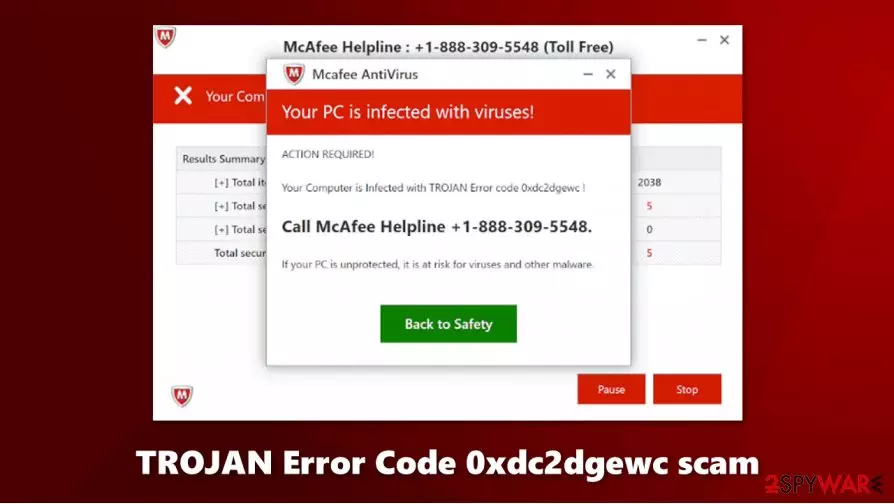
TROJAN Error Code 0xdc2dgewc is a browser-based scam that can be encountered on numerous malicious websites, regardless of the web browser used – Google Chrome, Mozilla Firefox, or MS Edge. Visitors are presented with a fraudulent popup message, which claims that the PC has been infected with viruses, and a Trojan has been allegedly detected. The site also actively tries to mimic a well-known security software provider, McAfee antivirus.
However, TROJAN Error Code 0xdc2dgewc is just a scam that should never be trusted. Malicious actors run a technical support scam scheme in order to deceive users by using social engineering[1] and scare tactics. The main goal of cybercriminals is to make visitors believe that their machines are in danger and make them call the helpline (+1-888-309-5548, or similar) to resolve a seemingly dangerous situation. Do not fall for the TROJAN Error Code 0xdc2dgewc scam.
| Name | TROJAN Error Code 0xdc2dgewc scam |
| Type | Phishing, tech support scam, fake alert |
| Claim | An alleged Trojan has been found on the system by McAfee antivirus and that users have to call +1-888-309-5548 to resolve the issue |
| Goal | Malicious actors attempt to scare people and make them believe that the PC is in serious danger. The main goal is to make them call the fake helpline number and then pay for the alleged support provided |
| Distribution | Users encounter the popup message on various malicious websites on the internet. In some cases, redirects to such sites can be caused by adware |
| Related | Your McAfee Subscription Has Expired |
| Elimination | Close down the web page that the scam is being displayed on and then check your system for adware infections |
| Further steps | If you called the provided number and paid money, contact your bank immediately to revert these transactions. In case crooks infected your computer with malware, get rid of it and repair damaged system files with FortectIntego |
TROJAN Error Code 0xdc2dgewc scam is just one of the hundreds of fake messages that you might encounter on the internet on various websites. In other words, fraudulent popup can only show up when you are browsing the internet – and this is precisely the reason why you should not be trusting these messages.
There are several components to the TROJAN Error Code 0xdc2dgewc virus scam that attempt to make it seem more legitimate. Crooks use the following:
- Imitated Windows error code
- McAfee security software interface
- Claims about a Trojan infection.
However, these elements can be easily deciphered and explained. First of all, Windows error codes are relatively common among Windows users, and even the most novice users have likely encountered them before – they typically consist of a combination of alphanumeric characters. Nonetheless, “0xdc2dgewc” is gibberish – it has nothing to do with real error codes and was created by pressing random keys on a keyboard. Despite this, users who are not accustomed to a precise numbering system might not know the difference – and that is what crooks are counting on.
Using familiar brands of security companies, tech giants (Google, Microsoft), and other known brands is also a common usage of social engineering practices. In this case, TROJAN Error Code 0xdc2dgewc scam attempts to imitate a legitimate anti-malware software in order to create an illusion of legitimacy.
Finally, TROJAN Error Code 0xdc2dgewc popup uses scare tactics by implying that the machine is infected with dangerous malware. The only way to resolve this issue is to call the supposed tech support, which is the main goal of the attackers. Those who get deceived and call might be asked to grant remote access to the machine and show users how allegedly infected their machines are.

In reality, scammers show nothing even remotely related to malware infection (usually, they employ Command Prompt to make it show various computer-based information by using commands) and simply attempt to intimidate victims even further. In the meantime, threat actors might install malware or paid software on the machine and make users pay for it.
In other words, never call the provided number and remove TROJAN Error Code 0xdc2dgewc scam message from your browser by closing down the tab. As evident, scammers simply attempt to convince you that your system is infected and extort money out of you.
Note that, TROJAN Error Code 0xdc2dgewc scam removal from your browser might be incomplete, however. It is vital to check your machine with SpyHunterCombo Cleaner, MalwarebytesMalwarebytes, or another reputable anti-malware for infections (especially if you granted crooks the remote access). Additionally, adware could be the reason why you re being redirected to scam sites in the first place. So clean your web browsers, and then use FortectIntego repair tool for best results.
Don't get tricked by online scams and avoid adware
As noted, adware could be one of the main reasons why you are being redirected to phishing and scam websites. Besides that, ad-supported programs also spam browsers with intrusive advertisements and disrupt normal internet activities, all while spying on users' data. Therefore it is important to avoid such programs altogether – always pick legitimate sources for your downloads, choose Advanced/Custom settings during installation, and employ powerful anti-malware that would warn you about potential threats.
Security researchers[2] warn that, while most of the scams are relatively of poor quality and are easy to recognize, some fraudulent schemes are so well made that even more advanced computer users might be tricked. For example, email spoofing allows the attackers to imitate a legitimate sender's address and make them click on malicious attachments or links.
Also, spoofing websites that use similar domain names (and are also marked as “secure” due to acquired SSL certificate)[3] to the original ones can easily make one download and install counterfeit versions of legitimate software (CCleaner, Flash Player) on their computers. Torrent and similar illegal software distribution sites are also often used to trick users into installing Trojans on their systems.

TROJAN Error Code 0xdc2dgewc scam removal instructions
Initially, you can remove TROJAN Error Code 0xdc2dgewc scam virus easily by simply closing down the tab of your web browser. If that is impossible to accomplish, you can always call up the Task Manager and shut down the process altogether. After that, use our manual removal instructions below to check for potentially unwanted programs on your computer – check browser extensions as well.
Nonetheless, TROJAN Error Code 0xdc2dgewc scam removal differs completely if you indeed called the provided phone number and allowed crooks to access your computer. First of all, you need to ensure that they didn't install data-stealing malware on your machine – scan your device with anti-malware such as SpyHunterCombo Cleaner or MalwarebytesMalwarebytes. To check the system for errors and other issues that might arrive after virus elimination, use FortectIntego.
In case you provide any sensitive information such as credentials or banking details to TROJAN Error Code 0xdc2dgewc scam authors, you should immediately change passwords for all your accounts. This also applies to a situation where malware was installed on your device.
Uninstall from Windows
Uninstall from Windows 10/8:
- Type Control Panel into the Windows search box and open the result.
- Under Programs, select Uninstall a program.


Uninstall from Windows 7/XP:
- Click on Windows Start > Control Panel (Windows XP users should click on Add/Remove Programs).
- In Control Panel, select Programs > Uninstall a program.


Remove the unwanted program:
- In the Programs and Features window, look for any recently installed suspicious entries, select them, and click Uninstall.
- If User Account Control appears, click Yes to confirm, then complete the removal.


Delete from macOS
Remove the unwanted application:
- From the menu bar, select Go > Applications.
- In the Applications folder, look for any suspicious entries, then drag them to Trash (or right-click and pick Move to Trash).


Delete leftover files and folders:
- Select Go > Go to Folder.
- Enter /Library/Application Support and remove any suspicious folders related to the unwanted program.
- Repeat the same check in the /Library/LaunchAgents and /Library/LaunchDaemons folders, deleting any suspicious entries.

- Finally, empty the Trash to permanently remove the leftovers.

Reset Internet Explorer
Remove dangerous add-ons:
- Open Internet Explorer, click on the Gear icon (IE menu) on the top-right corner of the browser
- Pick Manage Add-ons.
- You will see a Manage Add-ons window. Here, look for suspicious plugins. Click on these entries and select Disable.


Change your homepage if it was altered:
- Open IE and click on the Gear icon.
- Select Internet Options.
- In the General tab, delete the Home page address and replace it by your preferred one (for example, Google.com).
- Click Apply and then select OK.


Delete temporary files:
- Press on the Gear icon and select Internet Options.
- Under Browsing history, click Delete...
- Select relevant fields and press Delete.


Reset Internet Explorer:
- Click on Gear icon > Internet options and select Advanced tab.
- Select Reset.
- In the new window, check Delete personal settings and select Reset.


Remove from Microsoft Edge
Delete unwanted extensions from MS Edge:
- Select Menu (three horizontal dots at the top-right of the browser window) and pick Extensions.
- From the list, pick the extension and click on the Gear icon.
- Click Remove.


Clear cookies and other browser data:
- Click on the Menu (three horizontal dots at the top-right of the browser window) and select Settings > Privacy, search, and services..
- Under Clear browsing data, pick Choose what to clear.
- Select Cookies and other site data and Cached images and files. (apart from passwords, although you might want to include Media licenses as well, if applicable) and click on Clear.


Restore new tab and homepage settings:
- Click the menu icon and choose Settings.
- Then find On startup section.
- Click Remove next to any suspicious startup page.
Reset MS Edge if the above steps did not work:
- Press on Ctrl + Shift + Esc to open Task Manager.
- Click on More details arrow at the bottom of the window.
- Select Details tab.
- Now scroll down and locate every entry with Microsoft Edge name in it. Right-click on each of them and select End Task to stop MS Edge from running.


Instructions for Chromium-based Edge
Delete extensions from MS Edge (Chromium):
- Open Edge and click select Settings > Extensions.
- Delete unwanted extensions by clicking Remove.


Clear cache and site data:
- Click on Menu and go to Settings.
- Select Privacy, search and services.
- Under Clear browsing data, pick Choose what to clear.
- Under Time range, pick All time.
- Select Clear now.


Reset Chromium-based MS Edge:
- Click on Menu and select Settings.
- On the left side, pick Reset settings.
- Select Restore settings to their default values.
- Confirm with Reset.
- This will disable extensions and reset startup pages but will not delete bookmarks, saved passwords, or browsing history.


Remove from Mozilla Firefox (FF)
Remove dangerous extensions:
- Open Mozilla Firefox browser and click on the Menu (three horizontal lines at the top-right of the window).
- Select Add-ons.
- In here, select the unwanted extension and click Remove.


Reset the homepage:
- Click three horizontal lines at the top right corner to open the menu.
- Choose Settings.
- Under Home, set your preferred homepage and new tab settings.
Clear cookies and site data:
- Click Menu and pick Settings.
- Go to Privacy & Security section.
- Scroll down to locate Cookies and Site Data.
- Click on Clear Data...
- Select Cookies and Site Data and Temporary cached files and pages, then click Clear.


Reset Mozilla Firefox
If clearing the browser as explained above did not help, reset Mozilla Firefox:
- Open Mozilla Firefox browser and click the Menu.
- Go to Help and then choose Troubleshooting Information.

- Under Give Firefox a tune up section, click on Refresh Firefox...
- Once the pop-up shows up, confirm the action by pressing on Refresh Firefox.



Remove from Google Chrome
Delete malicious extensions from Google Chrome:
- Open Google Chrome, click on the Menu (three vertical dots at the top-right corner) and select More tools > Extensions.
- In the newly opened window, you will see all the installed extensions. Uninstall all suspicious extensions related to the unwanted program by clicking Remove.


Clear cache and web data from Chrome:
- Click on Menu and pick Settings.
- Under Privacy and security, select Clear browsing data.
- Select Browsing history, Cookies and other site data, as well as Cached images and files.
- Click Clear data.


Change your homepage:
- Click menu and choose Settings.
- Look for a suspicious site in the On startup section.
- Click on Open a specific or set of pages and click on three dots to find the Remove option.
Reset Google Chrome:
If the previous methods did not help you, reset Google Chrome to eliminate all the unwanted components:
- Click on Menu and select Settings.
- In the Settings, scroll down and click Advanced.
- Scroll down and locate Reset and clean up section.
- Now click Restore settings to their original defaults.
- Confirm with Reset settings.


Delete from Safari
Remove dangerous extensions:
- Open Safari, click Safari in the menu at the top-left of the screen, and select Preferences.
- Go to the Extensions tab, look for any suspicious entries, and click Uninstall to remove them.


Clear history and website data:
- Click Safari in the menu and pick Clear History.
- Set Clear to all history and confirm with Clear History.


Reset Safari:
- Click Safari in the menu and select Preferences > Advanced.
- Enable Show Develop menu in menu bar.
- From the menu bar, click Develop and select Empty Caches.


Did this guide help?
Be the first to comment