

GoSearch22 – a new Mac virus that shows that bombards its users with all kinds of ads
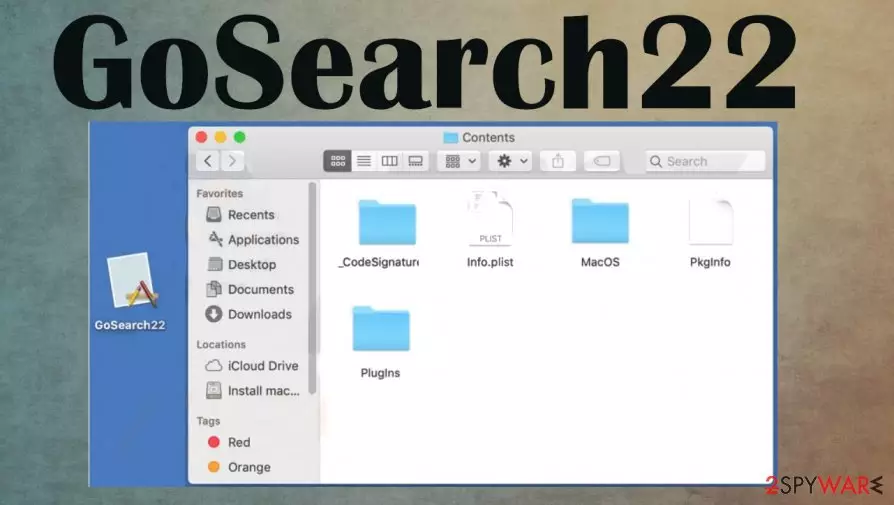
GoSearch22 is an adware that's exclusively affecting devices that run on macOS. This type of cyber intruder can be installed either as a browser extension or as software. Either way, it shows an abnormal amount of ads, which may lead to additional PUP installation or worse.
Furthermore, adware-type programs, like GoSearch22 Mac virus, can collect various browsing-related information from their users, such as geolocations, IP addresses, visited webpages, and search queries, clicked links, and so on. This information might be shared with or sold to interested parties, such as advertisers.
GoSearch22 adware belongs to an adware-type application family called Pirrit, which includes programs like MacPerformance virus, DisplayUpdate virus, UtilityParce virus, and others. Due to the fact that this program is rarely installed willingly, it is categorized as a potentially unwanted program[1] (PUP).
| name | GoSearch22 |
|---|---|
| Type | Adware |
| Family | Pirrit |
| Affected systems | macOS |
| Symptoms | An abnormal amount of ads. Some pop-up even when the browser is closed. Various system irregularities, such as freezing, crashing, overall performance loss |
| Risks | Installation of additional PUPs, redirects to malicious sites, browsing-related info collection |
| Distribution | Freeware bundles, deceptive ads |
| Removal | Uninstall this adware with the help of our free guides provided at the bottom of this article |
| system Repair | Powerful system tune-up tools like the FortectIntego app should be used to get rid of any system inconsistencies |
When GoSearch22 is installed on a device either as a browser extension or an app, its users are bombarded with all kinds of advertisements – pop-ups, banners, coupons, surveys, and so on. Some of these ads might have nothing to do with the sites that the user will be redirected to.
Usually, adware developers monetize by promoting various dating, gambling, gaming, and other websites. Sometimes, redirects might lead to sites that push the users to install other PUPs or have malicious coding and could download a virus payload file without the user clicking on anything (using drive-by download[2] technique).
It is unsafe to have this adware-type program install on any device. We recommend users to remove GoSearch22 from Mac devices immediately before more harm came their way. Detailed instructions on how to manually uninstall the app are shown at the bottom of this article.

Users have a difficult time when trying to uninstall this intruder, so you should pay attention to instructions or rely on more professional tools instead when trying to eliminate GoSearch22 app.
I have the app GoSearch22 which I cannot uninstall due to it using several extensions which are not specified nor found. I can't find the extensions and cleared safari cache and history which said it would, but it it didn't. What do I do?
Due to the increase of various malware in recent years, users should consider upgrading their cybersecurity level by acquiring a professional anti-malware tool such as MalwarebytesMalwarebytes or SpyHunterCombo Cleaner. These apps might prevent adware installation and malware infections.
Following a successful GoSearch22 removal from macOS devices, it's time to take care of the overall system's health. Experts[3] recommend scanning the entire system with the powerful FortectIntego system repair app and fixing any issues that the adware might have caused.
Paying attention to what's installed on devices might help evade crapware
Adware-type applications are spread using different methods, such as deceptive ads, fake Adobe Flash installers, deceptive advertisements, and so on. But our research suggests that one of the most popular methods to infect devices with adware is freeware bundling.
Freeware isn't usually offered by itself. It is accompanied by other apps that commonly are potentially unwanted programs, such as adware, browser hijackers, and alike. Normally, users don't know how adware or apps alike got installed on their computer, and freeware bundles are to blame.

When such a pack is downloaded, users rarely choose the Advanced or Custom installation method instead of Standard or Quick ones. And that's how junkware gets installed because all boxes opting in for the installation are preselected. To avoid such applications, when installing freeware or software bundles, take the time and choose Advanced/Custom mode, and deselect the pre-ticked boxes of software that looks untrustworthy or that you don't want to install.
GoSearch22 virus removal guide for various platforms, including Mac devices
As we made it clear in the first chapter of this article, it is unsafe to use adware as it may lead to more junkware, loss of browsing-related information, or in some cases, even malware infections. That's why GoSearch22 removal should be done immediately.
We provide free detailed instructions on how to do it below this paragraph. But to be sure no additional PUP's or suspicious files were downloaded while the adware was operational, use a dependable anti-malware software to scan the entire computer system.
Once users remove GoSearch22, they should use powerful system tune-up tools to check whether the system registry and other key system settings and files are in order. If not, system repair apps should take care of it so users could enjoy their devices without any impediments.
Delete from macOS
Remove the unwanted application:
- From the menu bar, select Go > Applications.
- In the Applications folder, look for any suspicious entries, then drag them to Trash (or right-click and pick Move to Trash).


Delete leftover files and folders:
- Select Go > Go to Folder.
- Enter /Library/Application Support and remove any suspicious folders related to the unwanted program.
- Repeat the same check in the /Library/LaunchAgents and /Library/LaunchDaemons folders, deleting any suspicious entries.

- Finally, empty the Trash to permanently remove the leftovers.

Remove from Mozilla Firefox (FF)
Remove dangerous extensions:
- Open Mozilla Firefox browser and click on the Menu (three horizontal lines at the top-right of the window).
- Select Add-ons.
- In here, select the unwanted extension and click Remove.


Reset the homepage:
- Click three horizontal lines at the top right corner to open the menu.
- Choose Settings.
- Under Home, set your preferred homepage and new tab settings.
Clear cookies and site data:
- Click Menu and pick Settings.
- Go to Privacy & Security section.
- Scroll down to locate Cookies and Site Data.
- Click on Clear Data...
- Select Cookies and Site Data and Temporary cached files and pages, then click Clear.


Reset Mozilla Firefox
If clearing the browser as explained above did not help, reset Mozilla Firefox:
- Open Mozilla Firefox browser and click the Menu.
- Go to Help and then choose Troubleshooting Information.

- Under Give Firefox a tune up section, click on Refresh Firefox...
- Once the pop-up shows up, confirm the action by pressing on Refresh Firefox.



Remove from Google Chrome
Delete malicious extensions from Google Chrome:
- Open Google Chrome, click on the Menu (three vertical dots at the top-right corner) and select More tools > Extensions.
- In the newly opened window, you will see all the installed extensions. Uninstall all suspicious extensions related to the unwanted program by clicking Remove.


Clear cache and web data from Chrome:
- Click on Menu and pick Settings.
- Under Privacy and security, select Clear browsing data.
- Select Browsing history, Cookies and other site data, as well as Cached images and files.
- Click Clear data.


Change your homepage:
- Click menu and choose Settings.
- Look for a suspicious site in the On startup section.
- Click on Open a specific or set of pages and click on three dots to find the Remove option.
Reset Google Chrome:
If the previous methods did not help you, reset Google Chrome to eliminate all the unwanted components:
- Click on Menu and select Settings.
- In the Settings, scroll down and click Advanced.
- Scroll down and locate Reset and clean up section.
- Now click Restore settings to their original defaults.
- Confirm with Reset settings.


Delete from Safari
Remove dangerous extensions:
- Open Safari, click Safari in the menu at the top-left of the screen, and select Preferences.
- Go to the Extensions tab, look for any suspicious entries, and click Uninstall to remove them.


Clear history and website data:
- Click Safari in the menu and pick Clear History.
- Set Clear to all history and confirm with Clear History.


Reset Safari:
- Click Safari in the menu and select Preferences > Advanced.
- Enable Show Develop menu in menu bar.
- From the menu bar, click Develop and select Empty Caches.


Did this guide help?
Be the first to comment