

Fast2captcha – deceptive website you should never trust
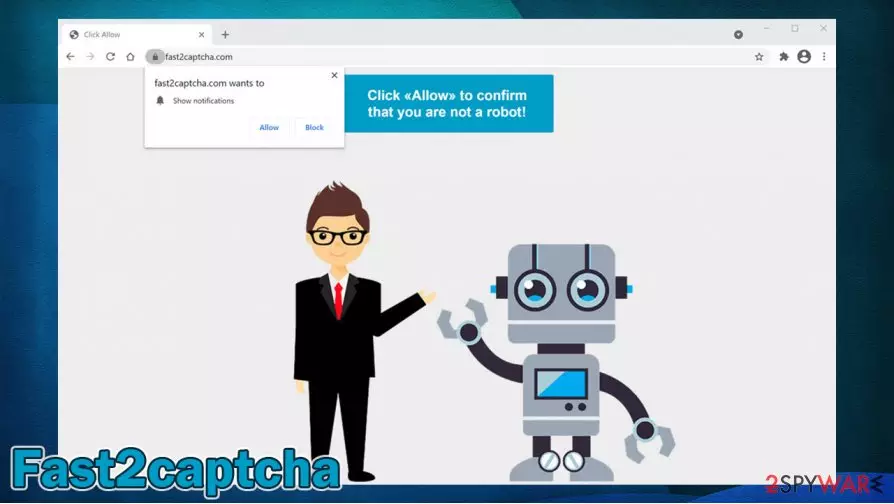
Fast2captcha.com is a suspicious webpage that users might encounter while browsing the internet on Google Chrome, Mozilla Firefox, Safari, MS Edge, or another web browser. The contents of the website consist of two main components:
- A pop-up message asking users to press “Allow”
- Background picture that reinforces the need to allow notifications from the site.
However, Fast2captcha is a scam that should not be trusted. As soon as users allow the notifications in, they will have to endure intrusive pop-up ads showing up on their desktops on a regular basis during their web browsing sessions. These ads might be of phishing or malicious content, so clicking on them could result in malware infection, installation of useless programs, privacy issues, as well as monetary losses.
| Name | Fast2captcha |
|---|---|
| Type | Push notification virus, scam, ads |
| IP address | 5.8.34.205 |
| Distribution | Crooks use various social engineering techniques to make users allow notifications to be shown. In this particular case, the unwanted activity begins as soon as the “Allow” button is pressed within the prompt |
| Symptoms | Intrusive pop-up ads show up on the desktop in regular intervals |
| Dangers | Clicking on links that are embedded within the notification prompt, exploring the sites these links bring to, or downloading files can be dangerous – users can get infected with malware, suffer from financial losses, or disclose their private information to cybercriminals |
| Elimination | To prevent the site from displaying notifications to you, access the site permission section via your web browser settings – you can find more details below |
| Further steps | Redirects and ads might indicate adware infection, so you should check your system with anti-malware, clean your browsers, and attempt to fix virus damage with a repair tool FortectIntego |
There are several versions of the scam that users might encounter upon site entry. Threat actors who created the scam typically use familiar attributes that would make them achieve their goals faster by tricking users easier. These social engineering[1] tricks are not new and used within the online fraud scheme for many years now.
Upon entering Fast2captcha.com, users may be presented with several statements, for example:
Click “Allow” to confirm that you are not a robot!
In this case, crooks use a well-known authentication feature that is commonly used with captchas. Website authors use these methods to separate humans and bots to avoid scams and DDoS attacks.[2] Since this element is widely practiced, many users might confuse it with the fake Fast2captcha message. It is easy to separate, however, as enabling website notifications has nothing to do with the authentication process.
Scam authors can also use different statements to mislead users into allowing notifications (many similar websites crafted for a sole purpose to scam people are employing these tactics, e.g., Sixmedia.cam or Tecontrad.top), for example:
- A YouTube video is about to be played;
- +18 content ahead – press Allow to access it;
- To close down the window, press Allow, etc.
As evident, these are all bogus statements that are not true. Even after pressing “Block,” visitors are simply redirected to the same page or another malicious website. Thus, you should remove Fast2captcha from your view immediately by pressing the “X” button within the tab that is displaying the scam.

In most cases, users visit Fast2captcha.com accidentally, for example, after clicking a link on a random site or after being redirected from somewhere else. On the other hand, persistent redirects to suspicious and insecure websites might also indicate the computer is infected with adware.
These potentially unwanted programs are typically spread inside software bundles, often resulting in unintentional infiltration. Thus, if you have been experiencing redirects, popups, banners, deals, in-text links, and similar ads, you should check your system for adware. We recommend using SpyHunterCombo Cleaner or performing a manual check as per instructions provided below. For additional safety and system stability, we also recommend using FortectIntego.
Fast2captcha virus removal is a different process from the one concerning adware, however. In fact, what people are calling a virus is not technically accurate, as notifications are a direct result of permitting a site to deliver them. All you have to do is prevent the site from doing so in the future – it is really easy to do. You can find all the details for each of the browsers below.
Avoid being scammed online
It is not a secret that online fraud is extremely prevalent across the board, despite the safety and security measures implemented by tech giants such as Google or Microsoft. Therefore, it is important to learn about the hazardous intentions of malicious people who forget all morals in order to get some cash quickly.
Push notification scams are just one of many methods that trick users into providing financial benefits to unknown parties via a pay-per-click scheme. The truth is, making scam sites is really easy, so hundreds of new ones arrive every day, soon after the closure of others.
There are several ways you might be tricked online – here are some examples:
- Fake surveys and competitions, promising expensive gifts for minimal effort;
- Earn-money-quick schemes that ask to invest a small amount of money for alleged exponential profits in the future;
- Fake updates, particularly those of web browsers, Flash Player, etc., are often cause of serious malware infections;
- Spoofing websites that imitate legitimate websites to acquire valuable credentials;
- Seemingly “free” streaming services that ask to enter credit card information for some type of “verification,” etc.
Therefore, always be vigilant, and, if you believe that you might still be tricked by the above-mentioned, we recommend you install a reputable ad-blocker along with security software that would check the site integrity for you.

Stop Fast2captcha notifications and check your system for malware
If you are dealing with the so-called Fast2captcha virus, there is some good news. While the popups might seem intrusive and of dubious nature, what's causing them is not actually a virus of any kind but rather a feature that was enabled via the web browser. All you have to do is access the settings section of your browser and remove Fast2captcha from the “Allowed” list of sites that can send you notifications – we explain how below.
After Fast2captcha removal, we strongly recommend cleaning all the installed web browsers – deleting cookies and web data is recommended on a regular basis anyway.[3] If you suspect that adware might be installed on your system, you can use security software to find it for you or look for potentially unwanted applications yourself.
Uninstall from Windows
Uninstall from Windows 10/8:
- Type Control Panel into the Windows search box and open the result.
- Under Programs, select Uninstall a program.


Uninstall from Windows 7/XP:
- Click on Windows Start > Control Panel (Windows XP users should click on Add/Remove Programs).
- In Control Panel, select Programs > Uninstall a program.


Remove the unwanted program:
- In the Programs and Features window, look for any recently installed suspicious entries, select them, and click Uninstall.
- If User Account Control appears, click Yes to confirm, then complete the removal.


Delete from macOS
Remove the unwanted application:
- From the menu bar, select Go > Applications.
- In the Applications folder, look for any suspicious entries, then drag them to Trash (or right-click and pick Move to Trash).


Delete leftover files and folders:
- Select Go > Go to Folder.
- Enter /Library/Application Support and remove any suspicious folders related to the unwanted program.
- Repeat the same check in the /Library/LaunchAgents and /Library/LaunchDaemons folders, deleting any suspicious entries.

- Finally, empty the Trash to permanently remove the leftovers.

Reset Internet Explorer
Remove dangerous add-ons:
- Open Internet Explorer, click on the Gear icon (IE menu) on the top-right corner of the browser
- Pick Manage Add-ons.
- You will see a Manage Add-ons window. Here, look for suspicious plugins. Click on these entries and select Disable.


Change your homepage if it was altered:
- Open IE and click on the Gear icon.
- Select Internet Options.
- In the General tab, delete the Home page address and replace it by your preferred one (for example, Google.com).
- Click Apply and then select OK.


Delete temporary files:
- Press on the Gear icon and select Internet Options.
- Under Browsing history, click Delete...
- Select relevant fields and press Delete.


Reset Internet Explorer:
- Click on Gear icon > Internet options and select Advanced tab.
- Select Reset.
- In the new window, check Delete personal settings and select Reset.


Remove from Microsoft Edge
Delete unwanted extensions from MS Edge:
- Select Menu (three horizontal dots at the top-right of the browser window) and pick Extensions.
- From the list, pick the extension and click on the Gear icon.
- Click Remove.


Clear cookies and other browser data:
- Click on the Menu (three horizontal dots at the top-right of the browser window) and select Settings > Privacy, search, and services..
- Under Clear browsing data, pick Choose what to clear.
- Select Cookies and other site data and Cached images and files. (apart from passwords, although you might want to include Media licenses as well, if applicable) and click on Clear.


Restore new tab and homepage settings:
- Click the menu icon and choose Settings.
- Then find On startup section.
- Click Remove next to any suspicious startup page.
Reset MS Edge if the above steps did not work:
- Press on Ctrl + Shift + Esc to open Task Manager.
- Click on More details arrow at the bottom of the window.
- Select Details tab.
- Now scroll down and locate every entry with Microsoft Edge name in it. Right-click on each of them and select End Task to stop MS Edge from running.


Instructions for Chromium-based Edge
Delete extensions from MS Edge (Chromium):
- Open Edge and click select Settings > Extensions.
- Delete unwanted extensions by clicking Remove.


Clear cache and site data:
- Click on Menu and go to Settings.
- Select Privacy, search and services.
- Under Clear browsing data, pick Choose what to clear.
- Under Time range, pick All time.
- Select Clear now.


Reset Chromium-based MS Edge:
- Click on Menu and select Settings.
- On the left side, pick Reset settings.
- Select Restore settings to their default values.
- Confirm with Reset.
- This will disable extensions and reset startup pages but will not delete bookmarks, saved passwords, or browsing history.


Remove from Mozilla Firefox (FF)
Remove dangerous extensions:
- Open Mozilla Firefox browser and click on the Menu (three horizontal lines at the top-right of the window).
- Select Add-ons.
- In here, select the unwanted extension and click Remove.


Reset the homepage:
- Click three horizontal lines at the top right corner to open the menu.
- Choose Settings.
- Under Home, set your preferred homepage and new tab settings.
Clear cookies and site data:
- Click Menu and pick Settings.
- Go to Privacy & Security section.
- Scroll down to locate Cookies and Site Data.
- Click on Clear Data...
- Select Cookies and Site Data and Temporary cached files and pages, then click Clear.


Reset Mozilla Firefox
If clearing the browser as explained above did not help, reset Mozilla Firefox:
- Open Mozilla Firefox browser and click the Menu.
- Go to Help and then choose Troubleshooting Information.

- Under Give Firefox a tune up section, click on Refresh Firefox...
- Once the pop-up shows up, confirm the action by pressing on Refresh Firefox.



Remove from Google Chrome
Delete malicious extensions from Google Chrome:
- Open Google Chrome, click on the Menu (three vertical dots at the top-right corner) and select More tools > Extensions.
- In the newly opened window, you will see all the installed extensions. Uninstall all suspicious extensions related to the unwanted program by clicking Remove.


Clear cache and web data from Chrome:
- Click on Menu and pick Settings.
- Under Privacy and security, select Clear browsing data.
- Select Browsing history, Cookies and other site data, as well as Cached images and files.
- Click Clear data.


Change your homepage:
- Click menu and choose Settings.
- Look for a suspicious site in the On startup section.
- Click on Open a specific or set of pages and click on three dots to find the Remove option.
Reset Google Chrome:
If the previous methods did not help you, reset Google Chrome to eliminate all the unwanted components:
- Click on Menu and select Settings.
- In the Settings, scroll down and click Advanced.
- Scroll down and locate Reset and clean up section.
- Now click Restore settings to their original defaults.
- Confirm with Reset settings.


Delete from Safari
Remove dangerous extensions:
- Open Safari, click Safari in the menu at the top-left of the screen, and select Preferences.
- Go to the Extensions tab, look for any suspicious entries, and click Uninstall to remove them.


Clear history and website data:
- Click Safari in the menu and pick Clear History.
- Set Clear to all history and confirm with Clear History.


Reset Safari:
- Click Safari in the menu and select Preferences > Advanced.
- Enable Show Develop menu in menu bar.
- From the menu bar, click Develop and select Empty Caches.


Did this guide help?
Be the first to comment