

Error MS-77X1 – a tech support scam that targets German-speaking users
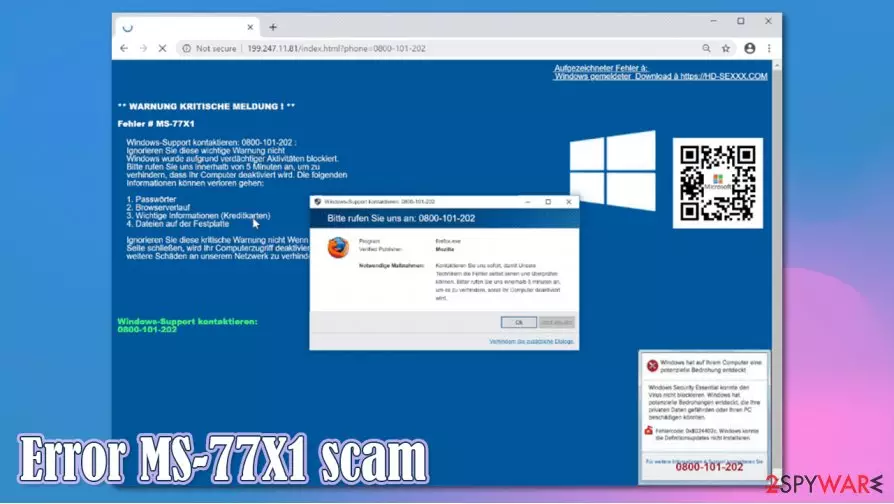
Error MS-77X1 pop-up is a scam message that claims that the user's computer was blocked due to detected suspicious activity on it. To seem legitimate, the website looks almost identical to the Microsoft Support website but actually has nothing to do with it. Threat actors use scams such as ERROR # 0xuaO-0x156m(3), WARNING CRITICAL MESSAGE, Your iPhone has been compromised to profit from gullible people.
Error MS-77X1 error message urges users to call fictitious support phone numbers – 0800-101-202 or 1-844-322-2922. The whole page is written in German, meaning that this tech support scan is aimed at German-speaking users. Our research suggests that users might be asked to download malicious software or give remote access to the scam operators by calling these numbers.
Please don't call the given numbers as that may result in hazardous malware infections. Be advised that there's nothing wrong with your computer apart from possibly installed potentially unwanted program (PUP) that could be causing redirects to this site. Websites can't determine whether your device is infected or not. This article explains how to eliminate PUPs that could cause similar notifications, delivery techniques, and threats.
| name | Error MS-77X1 |
|---|---|
| Type | Tech support scam, phishing |
| imitated site | Microsoft Support website |
| Scam message | Windows has been disabled due to suspicious activity |
| Scam phone numbers | 0800-101-202, 1-844-322-2922 |
| Symptoms | Fake error messages, fake pop-up errors |
| Risks | By calling the given numbers, users might suffer financial losses. If remote access is granted – malware may be installed |
| Removal | Use reliable anti-malware tools to remove PUPs that cause redirects to this site |
| Repair | To check and fix any corrupted Windows files, use the powerful FortectIntego system repair tool |
Internet users can be redirected to websites that show Error MS-77X1 scam message not only by PUPs installed on their devices but also by clicking on deceptive ads, visiting high-risk websites, etc. If you ever come across such a tech support scam – remain calm.
Error MS-77X1 message implies that if the window is closed, the device in use will fail to load again. And sensitive user information might be lost, including:
- passwords,
- files on the hard drive,
- credit card details,
- logins.
Furthermore, the browser window prevents from closing as printer dialog is displayed. The only way to close that window is by opening Task Manager and terminating the browser task manually. For that, simply press Ctrl + Shift + Esc on your keyboard.
If Error MS-77X1 tech support numbers are called, the operators might ask you to download some software, which could be malicious. On top of that, they might also ask to provide remote access to your device, which would provide unrestricted access to personal files and other important data.
By granting entry to the threat actors, you could get into heaps of trouble. All files could be stolen, deleted, or encrypted. Potentially unwanted programs may be installed. Cybercriminals could even sneak in some hazardous malware,[1] such as trojans, keyloggers, or ransomware.
If you were tricked into calling the fake tech support or gave entry to your PC to the criminals, you have to take precautionary measures immediately. First of all, scan your device with trustworthy anti-malware tools such as SpyHunterCombo Cleaner or MalwarebytesMalwarebytes and remove Error MS-77X1 along with other suspicious files.
In addition, run system repair with powerful system tune-up tools to restore any damaged or corrupted system files, clean the browser tracking cookies and take care of the overall system health. Experts from novirus.uk[2] recommend doing that with the FortectIntego tool right after Error MS-77X1 removal.
As we've mentioned before, this particular scam might be aimed at German-speaking users, as its whole message (in the pop-up and background) states:
Aufgezeichneter Fehler à:
Windows gemeldeter Download à hxxps://HD-SE***.COM
** WARNUNG KRITISCHE MELDUNG ! **
Fehler # MS-77X1
Windows-Support kontaktieren: 0800-101-202 :
Ignorieren Sie diese wichtige Warnung nicht
Windows wurde aufgrund verdächtiger Aktivitäten blockiert.
Bitte rufen Sie uns innerhalb von 5 Minuten an, um zu
verhindern, dass Ihr Computer deaktiviert wird. Die folgenden
Informationen können verloren gehen:
1. Passwörter
2. Browserverlauf
3. Wichtige Informationen (Kreditkarten)
4. Dateien auf der Festplatte
Ignorieren Sie diese kritische Warnung nicht Wenn Sie diese
Seite schließen, wird Ihr Computerzugriff deaktiviert, um
weitere Schäden an unserem Netzwerk zu verhindern .
___________________________________________Windows-Support kontaktieren: 0800-101-202
Bitte rufen Sie uns an: 0800-101-202
Program firefox.exe
Verified Publisher: Mozilla
Notwendige Maßnahmen:
Kontaktieren Sie uns sofort, damit Unsere
Technikern die Fehler selbst sehen und überprüfen
können. Bitter rufen Sie uns innerhalb 5 minuten an,
um es zu verhindern, sonst Ihr Computer deaktiviert
wird.
Ok Jetzt anrufen
Verhindern Sie zusätzliche Dialoge.Windows-Support kontaktieren: 0800-101-202
0800-101-202

Error MS-77X1 scam could also be targeted at English-speaking users with this error message:
** WARNING CRITICAL MESSAGE**
Error # MS-77X1
Contact Windows Support: +1-855-980-0200 :
Do not ignore this important warning
Windows was blocked due to suspicious activity. Please call us within 5 Minutes to prevent your Computer from being deactivated. The following information may be lost:1. Passwords
2. Browsing History
3. Sensitive information (credit cards)
4. Files on the hard driveDo not ignore this critical warning if you close this page, your Computer access disabled to prevent further damage to our network .
Contact Windows Support:
+1-855-980-0200
Contact Windows Support: +1-855-980-0200
Please call us: +1-855-980-0200
Program firefox.exe
Verified Publisher: Mozilla
Necessary measures: Contact us immediately so that our technicians can guide you through the process of removing the Phone can lead. Please call us within 5 minutes to prevent Your Computer will be disabled.
Ok Call now
Prevent additional dialogs.
+1-855-980-0200 Recorded error à:
Windows reported Download à
Most prevalent PUP distribution methods and how to avoid them
Potentially unwanted programs are infecting more and more users. Junkware can be installed on any device, including Mac, Windows, Android, and others. Once your device is infected with one PUP there's a very good chance that additional ones will find their way too.
Adware, browser hijackers, and other useless software can be downloaded through a distribution technique known as bundling. Researchers reported[3] that PUPs were included in 62% of software downloads from one of the most popular app vendors. The only way to avoid them is to be attentive to what you agree to install on your device.
Users have to choose the Advanced or Custom installation method instead of the Recommended/Quick/Standard mode. Only then can they remove ticks from preselected boxes opting in for installation of apps that they didn't know will be installed on their machines in the first place.
Don't get tricked and remove Error MS-77X1 scam message from affected devices
When Error MS-77X1 pop-up scam is encountered, users mustn't panic. The claims from the threat actors are false. Never call any tech support numbers that you see after seeing error messages while browsing as it will most likely be some sort of a scam.
Remove Error MS-77X1 message from the browser by pressing CTRL + SHIFT + ESC on your keyboard to open Task Manager. In the processes window, choose the browser you were using and right-click on it. Press End Task. The next time you launch your browser, don't choose the “reopen last session” or similar options to prevent the same page from loading.
To finish Error MS-77X1 removal users should do two more things. To eliminate any PUPs that cause redirects to the tech scam website and to make sure that no malicious software is installed by completing a full system scan with trustworthy anti-malware tools. And repair the registry and fix any other system issues by using powerful system tune-up tools.
Uninstall from Windows
Uninstall from Windows 10/8:
- Type Control Panel into the Windows search box and open the result.
- Under Programs, select Uninstall a program.


Uninstall from Windows 7/XP:
- Click on Windows Start > Control Panel (Windows XP users should click on Add/Remove Programs).
- In Control Panel, select Programs > Uninstall a program.


Remove the unwanted program:
- In the Programs and Features window, look for any recently installed suspicious entries, select them, and click Uninstall.
- If User Account Control appears, click Yes to confirm, then complete the removal.


Delete from macOS
Remove the unwanted application:
- From the menu bar, select Go > Applications.
- In the Applications folder, look for any suspicious entries, then drag them to Trash (or right-click and pick Move to Trash).


Delete leftover files and folders:
- Select Go > Go to Folder.
- Enter /Library/Application Support and remove any suspicious folders related to the unwanted program.
- Repeat the same check in the /Library/LaunchAgents and /Library/LaunchDaemons folders, deleting any suspicious entries.

- Finally, empty the Trash to permanently remove the leftovers.

Reset Internet Explorer
Remove dangerous add-ons:
- Open Internet Explorer, click on the Gear icon (IE menu) on the top-right corner of the browser
- Pick Manage Add-ons.
- You will see a Manage Add-ons window. Here, look for suspicious plugins. Click on these entries and select Disable.


Change your homepage if it was altered:
- Open IE and click on the Gear icon.
- Select Internet Options.
- In the General tab, delete the Home page address and replace it by your preferred one (for example, Google.com).
- Click Apply and then select OK.


Delete temporary files:
- Press on the Gear icon and select Internet Options.
- Under Browsing history, click Delete...
- Select relevant fields and press Delete.


Reset Internet Explorer:
- Click on Gear icon > Internet options and select Advanced tab.
- Select Reset.
- In the new window, check Delete personal settings and select Reset.


Remove from Microsoft Edge
Delete unwanted extensions from MS Edge:
- Select Menu (three horizontal dots at the top-right of the browser window) and pick Extensions.
- From the list, pick the extension and click on the Gear icon.
- Click Remove.


Clear cookies and other browser data:
- Click on the Menu (three horizontal dots at the top-right of the browser window) and select Settings > Privacy, search, and services..
- Under Clear browsing data, pick Choose what to clear.
- Select Cookies and other site data and Cached images and files. (apart from passwords, although you might want to include Media licenses as well, if applicable) and click on Clear.


Restore new tab and homepage settings:
- Click the menu icon and choose Settings.
- Then find On startup section.
- Click Remove next to any suspicious startup page.
Reset MS Edge if the above steps did not work:
- Press on Ctrl + Shift + Esc to open Task Manager.
- Click on More details arrow at the bottom of the window.
- Select Details tab.
- Now scroll down and locate every entry with Microsoft Edge name in it. Right-click on each of them and select End Task to stop MS Edge from running.


Instructions for Chromium-based Edge
Delete extensions from MS Edge (Chromium):
- Open Edge and click select Settings > Extensions.
- Delete unwanted extensions by clicking Remove.


Clear cache and site data:
- Click on Menu and go to Settings.
- Select Privacy, search and services.
- Under Clear browsing data, pick Choose what to clear.
- Under Time range, pick All time.
- Select Clear now.


Reset Chromium-based MS Edge:
- Click on Menu and select Settings.
- On the left side, pick Reset settings.
- Select Restore settings to their default values.
- Confirm with Reset.
- This will disable extensions and reset startup pages but will not delete bookmarks, saved passwords, or browsing history.


Remove from Mozilla Firefox (FF)
Remove dangerous extensions:
- Open Mozilla Firefox browser and click on the Menu (three horizontal lines at the top-right of the window).
- Select Add-ons.
- In here, select the unwanted extension and click Remove.


Reset the homepage:
- Click three horizontal lines at the top right corner to open the menu.
- Choose Settings.
- Under Home, set your preferred homepage and new tab settings.
Clear cookies and site data:
- Click Menu and pick Settings.
- Go to Privacy & Security section.
- Scroll down to locate Cookies and Site Data.
- Click on Clear Data...
- Select Cookies and Site Data and Temporary cached files and pages, then click Clear.


Reset Mozilla Firefox
If clearing the browser as explained above did not help, reset Mozilla Firefox:
- Open Mozilla Firefox browser and click the Menu.
- Go to Help and then choose Troubleshooting Information.

- Under Give Firefox a tune up section, click on Refresh Firefox...
- Once the pop-up shows up, confirm the action by pressing on Refresh Firefox.



Remove from Google Chrome
Delete malicious extensions from Google Chrome:
- Open Google Chrome, click on the Menu (three vertical dots at the top-right corner) and select More tools > Extensions.
- In the newly opened window, you will see all the installed extensions. Uninstall all suspicious extensions related to the unwanted program by clicking Remove.


Clear cache and web data from Chrome:
- Click on Menu and pick Settings.
- Under Privacy and security, select Clear browsing data.
- Select Browsing history, Cookies and other site data, as well as Cached images and files.
- Click Clear data.


Change your homepage:
- Click menu and choose Settings.
- Look for a suspicious site in the On startup section.
- Click on Open a specific or set of pages and click on three dots to find the Remove option.
Reset Google Chrome:
If the previous methods did not help you, reset Google Chrome to eliminate all the unwanted components:
- Click on Menu and select Settings.
- In the Settings, scroll down and click Advanced.
- Scroll down and locate Reset and clean up section.
- Now click Restore settings to their original defaults.
- Confirm with Reset settings.


Delete from Safari
Remove dangerous extensions:
- Open Safari, click Safari in the menu at the top-left of the screen, and select Preferences.
- Go to the Extensions tab, look for any suspicious entries, and click Uninstall to remove them.


Clear history and website data:
- Click Safari in the menu and pick Clear History.
- Set Clear to all history and confirm with Clear History.


Reset Safari:
- Click Safari in the menu and select Preferences > Advanced.
- Enable Show Develop menu in menu bar.
- From the menu bar, click Develop and select Empty Caches.


Did this guide help?
Be the first to comment