

Fire Search – a potentially unwanted program that shows advertisements in search results
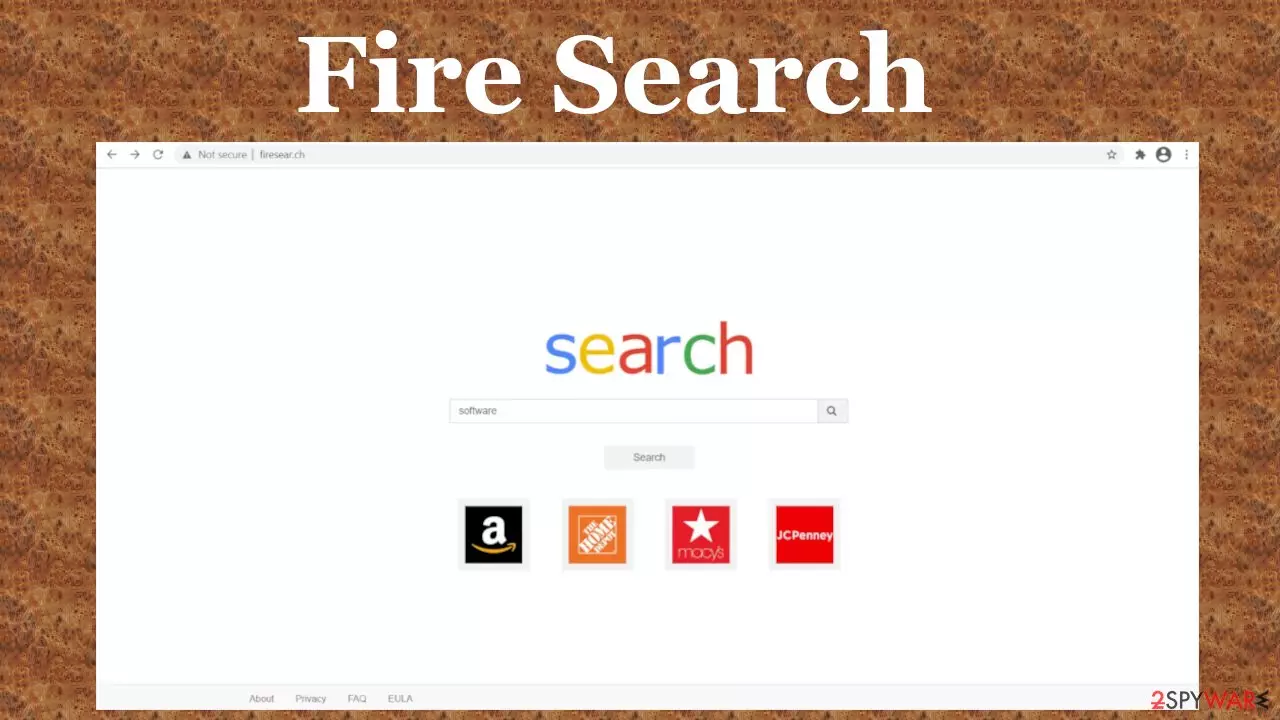
Fire Search is a browser hijacker that changes specific browser settings (homepage, new tab, and the default search engine) to reroute all search inquiries through a portal of its choice. In this instance, users will be redirected through firesear.ch. (a fake search site) to webcrawler.com. Although this infection can affect any browser, it exploits the “Managed by your organization” feature on Google Chrome.
By doing that, Fire Search browser hijacker makes it very tough to change the altered settings back. But since you came to us, we'll tell you how this infection spreads, its features, removal methods, and recovery options. If you're eager to get rid of it, scroll down to the bottom of the page.
Browser hijackers are categorized as potentially unwanted programs[1] (PUPs) for a couple of reasons. Many of them are available on the internet, and though some might be falsely advertised to increase browsing quality, the rest is distributed sneakily. Instead of increasing privacy and security, they collect browsing data and show an enormous amount of deceptive ads.
| name | Fire Search |
|---|---|
| Type | Browser hijacker, PUP, Mac virus |
| Altered browser settings | New tab, homepage, and default search engine |
| promoted search site | firesear.ch |
| Symptoms | Your device is visibly slower, redirects to dubious portals, changed browser preferences, more than usual ads |
| risks | Data collection might lead to privacy issues, and redirects can lead to other PUP installations |
| additional info | Adds the “Managed by your organization” feature to Chrome browsers |
| Distribution | Fake Flash installers, fake updaters, software bundles, deceptive ads |
| Removal | Scan your device with trustworthy anti-malware software to eliminate any PUPs and malware |
| system fix | System files and settings usually get altered by infections. Use the FortectIntego system tune-up tool to restore any damage that your system sustained |
Having a browser hijacker, like Fire Search virus, ExploreActivity virus, DigitalIncognitoSearch virus, Charmsearching virus, and others, is risky for more than one reason. Most of them cause sudden redirects to affiliated sites, which might be harmful. They are also capable of recording your browsing details, such as:
- geolocations,
- visited sites,
- browser and device details,
- IP addresses,
- search inquiries, etc.
This data is non-personal, but it can be misused for malicious purposes if it lands in the wrong hands. And last but not least, Fire Search ads can come in many forms, such as search results, pop-ups, banners, etc., and can redirect you to questionable websites.
Usually, displayed ads have nothing in common with the portals you'll be redirected to. For example, when a fake breaking news story ad is clicked, you could be redirected to online gambling, gaming, adult, technical scam, fake update, or other malicious portals. Fire Search is not a reliable search platform.

Therefore, we recommend you remove Fire Search from your Mac, Windows, or Android device immediately. This hijacker can affect various processes when it runs for a while, so hurry up. The best way to do the termination is by scanning your entire machine with compatible anti-malware software. Our choice would be dependable apps like SpyHunterCombo Cleaner or MalwarebytesMalwarebytes.
But scanning your device with security tools might not suffice. You might have to use our free instructions below on how to reset your browsers to complete Fire Search removal. Once that's done, IT experts[2] highly advise using the system diagnostics FortectIntego tool to restore any altered system settings and clean up your device.
Avoid PUPs that are distributed through deceptive ads and software bundles
Adware, browser hijackers, and other PUPs have been around for decades, but people still get deceived into installing them. Sometimes they can be downloaded from official browser web stores advertised as tools that will boost your device performance, download speed, or other nonsense.
But two of the most popular ways that users get their devices infected with PUPs are deceptive pop-up ads and software bundles.[3] The latter is a pack of software downloaded from a third-party vendor and includes installers for more than one app.
When users choose the Standard/Quick installation method, all programs from the bundle are installed because all of them are preselected for installation. Only by selecting the Advanced/Custom installation will the users be able to remove ticks from unwanted, unreliable software.
Misleading ads are another sure way to get your machine infected. Deceptive pop-ups that say that you desperately need to update your software, download an anti-malware agent or that some app will improve something tenfold are just plain lies. Please don't believe advertisements as no website can determine if your software is out-of-date or needs upgrades.

Instructions for a swift Fire Search browser hijacker removal
Potentially unwanted programs aren't as dangerous as malware but will surely impede your browsing experience, slow down your device, and pose threats through browsing-related data collection and deceptive ads. In fact, Fire Search ads could cause the most harm, so refrain from clicking them.
You will need a professional anti-malware tool to begin Fire Search removal. Perform a full system scan and stick to what the security tool recommends. Afterward, run system diagnostics with compatible software to restore any changes that the browser hijacker has made to system files and settings.
Once you remove Fire Search with security tools, you will probably have to reset your Google Chrome browser, as the “Managed by your organization” feature might still be enabled. Below you will find free instructions on how to do that.
Delete from macOS
Remove the unwanted application:
- From the menu bar, select Go > Applications.
- In the Applications folder, look for any suspicious entries, then drag them to Trash (or right-click and pick Move to Trash).


Delete leftover files and folders:
- Select Go > Go to Folder.
- Enter /Library/Application Support and remove any suspicious folders related to the unwanted program.
- Repeat the same check in the /Library/LaunchAgents and /Library/LaunchDaemons folders, deleting any suspicious entries.

- Finally, empty the Trash to permanently remove the leftovers.

Remove from Mozilla Firefox (FF)
Remove dangerous extensions:
- Open Mozilla Firefox browser and click on the Menu (three horizontal lines at the top-right of the window).
- Select Add-ons.
- In here, select the unwanted extension and click Remove.


Reset the homepage:
- Click three horizontal lines at the top right corner to open the menu.
- Choose Settings.
- Under Home, set your preferred homepage and new tab settings.
Clear cookies and site data:
- Click Menu and pick Settings.
- Go to Privacy & Security section.
- Scroll down to locate Cookies and Site Data.
- Click on Clear Data...
- Select Cookies and Site Data and Temporary cached files and pages, then click Clear.


Reset Mozilla Firefox
If clearing the browser as explained above did not help, reset Mozilla Firefox:
- Open Mozilla Firefox browser and click the Menu.
- Go to Help and then choose Troubleshooting Information.

- Under Give Firefox a tune up section, click on Refresh Firefox...
- Once the pop-up shows up, confirm the action by pressing on Refresh Firefox.



Remove from Google Chrome
Delete malicious extensions from Google Chrome:
- Open Google Chrome, click on the Menu (three vertical dots at the top-right corner) and select More tools > Extensions.
- In the newly opened window, you will see all the installed extensions. Uninstall all suspicious extensions related to the unwanted program by clicking Remove.


Clear cache and web data from Chrome:
- Click on Menu and pick Settings.
- Under Privacy and security, select Clear browsing data.
- Select Browsing history, Cookies and other site data, as well as Cached images and files.
- Click Clear data.


Change your homepage:
- Click menu and choose Settings.
- Look for a suspicious site in the On startup section.
- Click on Open a specific or set of pages and click on three dots to find the Remove option.
Reset Google Chrome:
If the previous methods did not help you, reset Google Chrome to eliminate all the unwanted components:
- Click on Menu and select Settings.
- In the Settings, scroll down and click Advanced.
- Scroll down and locate Reset and clean up section.
- Now click Restore settings to their original defaults.
- Confirm with Reset settings.


Delete from Safari
Remove dangerous extensions:
- Open Safari, click Safari in the menu at the top-left of the screen, and select Preferences.
- Go to the Extensions tab, look for any suspicious entries, and click Uninstall to remove them.


Clear history and website data:
- Click Safari in the menu and pick Clear History.
- Set Clear to all history and confirm with Clear History.


Reset Safari:
- Click Safari in the menu and select Preferences > Advanced.
- Enable Show Develop menu in menu bar.
- From the menu bar, click Develop and select Empty Caches.


Did this guide help?
Be the first to comment