

Browser Checkup for Chrome by Doctor – a falsely advertised app that displays tons of ads
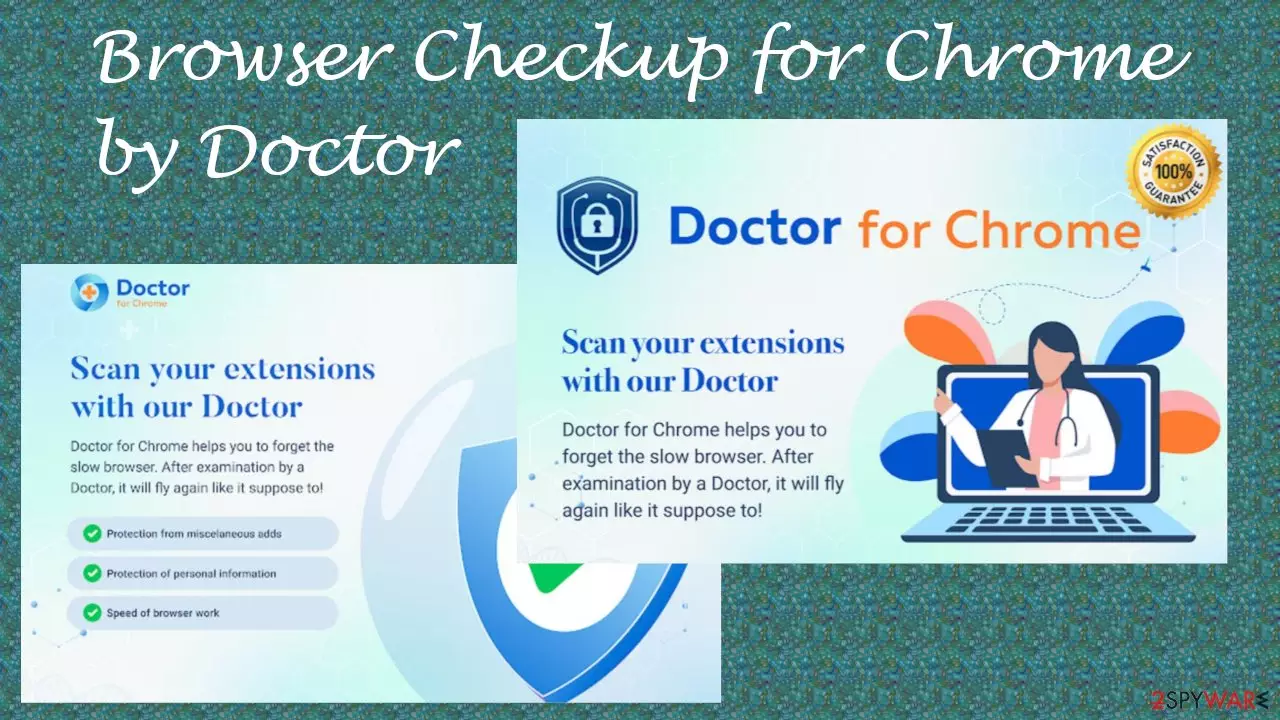
Browser Checkup for Chrome by Doctor is a browser hijacker because it changes particular browser preferences, tracks browsing-related data, and shows ads in many forms. It doesn't find any hazardous extensions as it's advertised to do, and it will slow down your device. Overall, the app fails to perform its functions, so it is not recommended to install it in the first place.
Browser Checkup for Chrome by Doctor ads may be displayed as notifications, in-text hyperlinks, pop-ups, altered search results, and so on. Apart from being intrusive, they might also be hazardous as these ads originate from a different source than the portal you're visiting.
Redirects might lead you to visit malicious sites where additional PUP installation might be forced, private details stolen, or worse – malware installed. In this article, we will discuss how to effectively eliminate this app from your system and ensure that it is clear from potentially unwanted programs for better system health and an undisturbed browsing experience.
| name | Browser Checkup for Chrome by Doctor |
|---|---|
| type | Browser hijacker, redirect virus, PUP |
| Affected browsers | Google Chrome |
| official distribution site | Getwebdoctor.com |
| Altered browser settings | Usually, browser hijackers modify the default search engine, new tab, and homepage preferences |
| Symptoms | Slower device performance, annoying notifications, more than usual ads |
| Risks | Deceptive ads might lead to additional PUP infections, privacy loss |
| Distribution | Official Google Chrome Web Store, freeware bundles, deceptive ads, fake Flash installers/updaters |
| Removal | Proper elimination of any computer threat must be done with a trustworthy anti-malware tool |
| Repair | Fix any system issues that Browser Checkup for Chrome by Doctor caused by running system diagnostics with the FortectIntego tool. It will also clean up tracking cookies and other browser-related data |
Browser hijackers, such as Search.assistivedata.com virus, ExploreActivity virus, Searchlee.com virus, Browser Checkup for Chrome by Doctor virus, and others, are often advertised to improve browsing speed, security, privacy, etc. In fact, they do the exact opposite by collecting browsing habits and various details, including but not limited to:
- device and browser details,
- used apps,
- IP addresses,
- geolocations,
- visited portals, etc.
These non-personal details[1] can be used to tailor ads specifically for you. But if they end up in the wrong hands, you might become a victim of a cyberattack. Furthermore, Browser Checkup for Chrome by Doctor redirects which happen after clicking a shown ad, might lead to malicious sites.
Deceptive ads might claim that there's an amazing sale or a breaking news story. When clicked, you'll be redirected to a non-related page with shady software, gambling, porn, or other promotional affiliated content. These portals could endanger your privacy and security.
Although Browser Checkup for Chrome by Doctor can still be downloaded from the official Google Chrome web store, it can also be installed through freeware bundles, deceptive ads, fake updaters/installers, and other sneaky methods. Due to its functions, false advertisement, and other details, it's categorized as a potentially unwanted program[2] or PUP for short.

Whether you were tricked into installing it or you don't know how it got on your device, we suggest you remove Browser Checkup for Chrome by Doctor immediately. To make sure it's eliminated properly, do that with a dependable anti-malware tool such as SpyHunterCombo Cleaner or MalwarebytesMalwarebytes.
PUPs, such as adware, browser hijackers, and others, can mess up system files and store tons of tracking cookies which will slow down your device, could cause crashing, freezing, and symptoms alike. IT experts[3] highly recommend using the FortectIntego right after Browser Checkup for Chrome by Doctor removal to take care of all system and browser issues.
Increasing your security might prevent virus infections
Malware developers are getting more and more active. They're targeting not only big companies that could pay the big bucks but everyday computer users too. That's why everyone should take matters into their own hands and set up defenses to avoid infections.
Our team has prepared a list of suggestions that wouldn't guarantee that your devices won't get infected but raise the bar quite hard for any cybercriminal to overcome:
- Professional anti-malware software has to be constantly updated and used to ensure that the device is virus-free.
- A powerful all-in-one system optimizer and clean-up tool should be used at least once a week to get rid of tracking cookies and maintain system files and settings in order.
- Backups of all essential data should be kept in two separate devices, one of them being offline storage.
- All software, especially the operating system, should be updated with the latest updates as soon as they are available.

Safely remove Browser Checkup for Chrome by Doctor virus with the help of security tools
As we're stated before, Browser Checkup for Chrome by Doctor browser hijacker is a falsely advertised piece of software that should never be used. It will only slow down your device and the internet connection, irritate you with tons of ads, and won't find any hazardous extensions as it's not an AV tool.
To remove Browser Checkup for Chrome by Doctor, use a reliable anti-malware tool. Scan your device and proceed with the app's recommendations. Afterward, use a system repair tool to fix any damaged system files and wipe tracking cookies and other browser-related data.
In some cases, you will have to finish Browser Checkup for Chrome by Doctor removal manually. It might seem hard, but we're here to help you. Below you'll find free instructions on eliminating its extension from Google Chrome browsers and other helpful manuals.
Uninstall from Windows
Uninstall from Windows 10/8:
- Type Control Panel into the Windows search box and open the result.
- Under Programs, select Uninstall a program.


Uninstall from Windows 7/XP:
- Click on Windows Start > Control Panel (Windows XP users should click on Add/Remove Programs).
- In Control Panel, select Programs > Uninstall a program.


Remove the unwanted program:
- In the Programs and Features window, look for any recently installed suspicious entries, select them, and click Uninstall.
- If User Account Control appears, click Yes to confirm, then complete the removal.


Delete from macOS
Remove the unwanted application:
- From the menu bar, select Go > Applications.
- In the Applications folder, look for any suspicious entries, then drag them to Trash (or right-click and pick Move to Trash).


Delete leftover files and folders:
- Select Go > Go to Folder.
- Enter /Library/Application Support and remove any suspicious folders related to the unwanted program.
- Repeat the same check in the /Library/LaunchAgents and /Library/LaunchDaemons folders, deleting any suspicious entries.

- Finally, empty the Trash to permanently remove the leftovers.

Remove from Google Chrome
Delete malicious extensions from Google Chrome:
- Open Google Chrome, click on the Menu (three vertical dots at the top-right corner) and select More tools > Extensions.
- In the newly opened window, you will see all the installed extensions. Uninstall all suspicious extensions related to the unwanted program by clicking Remove.


Clear cache and web data from Chrome:
- Click on Menu and pick Settings.
- Under Privacy and security, select Clear browsing data.
- Select Browsing history, Cookies and other site data, as well as Cached images and files.
- Click Clear data.


Change your homepage:
- Click menu and choose Settings.
- Look for a suspicious site in the On startup section.
- Click on Open a specific or set of pages and click on three dots to find the Remove option.
Reset Google Chrome:
If the previous methods did not help you, reset Google Chrome to eliminate all the unwanted components:
- Click on Menu and select Settings.
- In the Settings, scroll down and click Advanced.
- Scroll down and locate Reset and clean up section.
- Now click Restore settings to their original defaults.
- Confirm with Reset settings.


Did this guide help?
Be the first to comment