

Iosdfnc.com – a deceitful portal trying to trick users into downloading worthless or malicious software
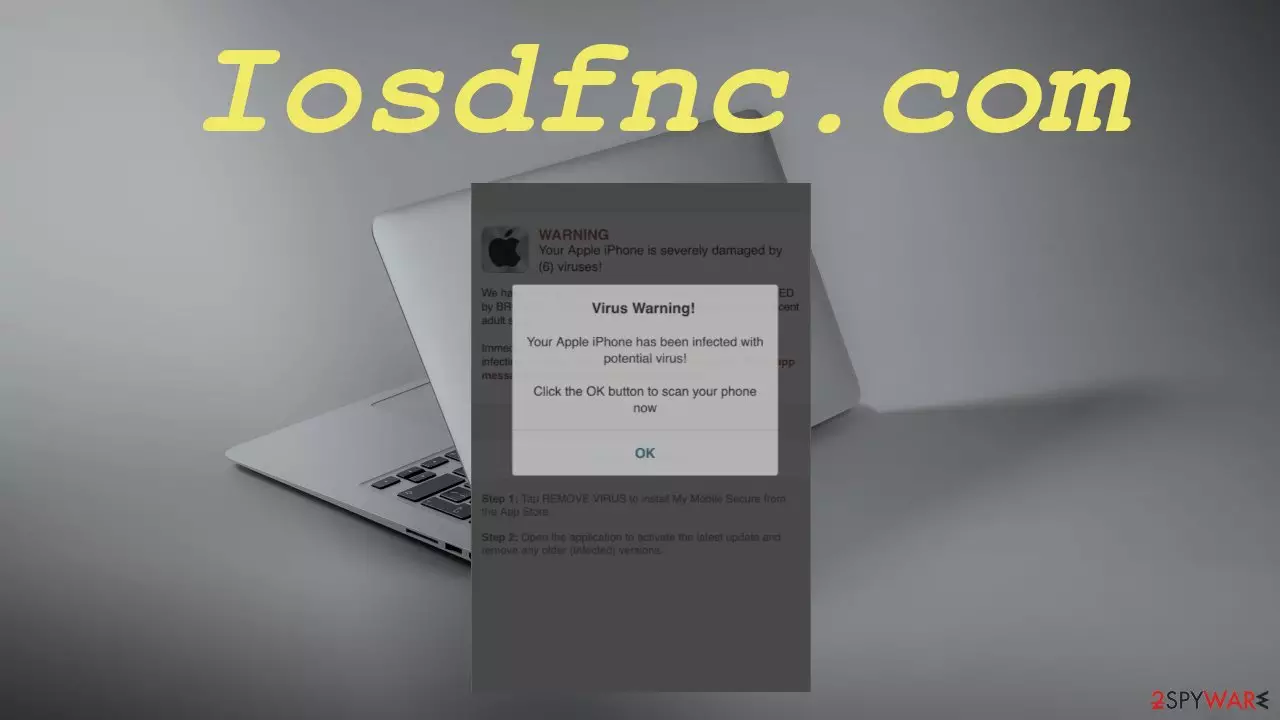
Iosdfnc.com is a tech support scam website that shows various false claims. At the time of the research, it was displaying two deceptive prompts. One urged the visitors to download a VPN client because their internet connection wasn't secure. The second one pushed to install a VPN client to get rid of an imaginary virus. The second statement doesn't even make any sense as VPN clients can't detect or eliminate malware.
Please don't download any software through Iosdfnc.com pop-up. There's nothing wrong with your Mac, iPad, or iPhone. This is a scare technique used to convince people to download an affiliated product. Developers of this phishing site receive income from each download.
If you didn't type in the address manually or click on some ads on a shady website, your device might be infected with adware that's causing the redirects. This article will explain how such a potentially unwanted program[1] (PUP) might have gotten on your system, how to remove it, and how to restore the overall health of your device.
| name | Iosdfnc.com |
|---|---|
| Type | Mac virus, adware, tech support scam |
| IP address | 165.22.6.204 |
| False claims | Your iPhone was hacked by a virus; Your internet connection might not be secure |
| Purpose | Persuade gullible people into downloading worthless software |
| Symptoms | Annoying ads, sluggish iPhone, iPad, or Mac performance, slower internet connection |
| Risks | PUP installation, malware infections, monetary losses, privacy issues |
| Distribution | Fake Flash Player updates, software bundles, freeware, deceptive ads |
| Removal | Get rid of any cyber infections by scanning your device with reliable anti-malware software |
| System Repair | PUPs do extensive damage to system files and settings. That may result in various abnormal device behavior. Fix all issues by running system diagnostics with the FortectIntego app |
Tech support scams for Apple products are on the rise. Yourlandsecurity.com virus, Tionscalen.top virus and a bunch of others are created daily. Their main goal is to force you to download their affiliated software by displaying you misleading but scary messages.
Our research suggests that this scam is pushing VPN[2] clients. In most cases, software downloaded through scam sites is worthless. It will do very little or nothing at all and request to purchase its paid version, which will as well be useless.
Phishing portals similar to Iosdfnc.com are always forcing to install anti-malware software that shows false-positive results trying to prove it's a handy tool, adblockers, that show more ads than they block, and similar software. But there's always a risk that malware will be hidden within an installer from a scam site.
The same risk is probable when you have adware installed as a browser extension or as an app on your device. This type of PUP generates revenue by displaying ads and causing redirects to treacherous sites. It could also redirect you to sites with explicit or hazardous content, such as:
- push notification viruses,
- porn,
- malware,
- other PUPs,
- gambling, etc.

Therefore, you have to scan your Apple product with a reliable anti-malware tool such as SpyHunterCombo Cleaner or MalwarebytesMalwarebytes to remove Iosdfnc.com along with any PUPs that snook in unnoticeably. Keep either of these free security tools up to date, and it will block harmful sites, junkware, and malware.
Every infection leaves its mark on the system. Thus you have to take care of the overall system health after removal. According to IT specialists,[3] the best all-around system diagnostics tool to repair system-related issues and delete tracking cookies in the process is the FortectIntego repair software.
Fake Flash Player updates and deceptive ads are the most likely reasons for PUP infections
People rarely visit shady websites and even less frequently install potentially unwanted programs of their own volition. But cybercriminals thought of a few ways to spread their vile creations stealthily. Misleading ads and fake Flash Player installers or updates are among the top reasons for PUP installation.
You can encounter deceptive ads on untrustworthy sites that will do anything for an extra buck. That's why they advertise other similar pages that push to install various worthless PUPs, such as adware, browser hijackers, unnecessary toolbars, and so on.
You might see a prompt on the same questionable portals that you need to update or install a Flash Player. Please note that Adobe discontinued its support, so these prompts surely contain PUPs or, even worse – hazardous malware such as ransomware, keyloggers, Trojans, etc.

Remove virus and other infections with anti-malware software
Believing in deceptive ads, not paying attention when installing new software, and other reasons might hide behind virus. If you've installed any software that this tech support scam site offers, please uninstall it manually immediately.
To remove Iosdfnc.com and any potentially unwanted programs that might have caused the initial redirect to this shady site, please perform a full system scan with a dependable security tool. A proper AV engine will safeguard your passageways on the internet by blocking dangerous portals, preventing you from installing any PUPs, and stopping malware at your doorstep.
Removal won't be finished until you've completely eliminated each and every of its trace from your system files and folders. The easiest way to do that is to scan your device in question with powerful system diagnostics software that will automatically take care of all system irregularities.
Delete from macOS
Remove the unwanted application:
- From the menu bar, select Go > Applications.
- In the Applications folder, look for any suspicious entries, then drag them to Trash (or right-click and pick Move to Trash).


Delete leftover files and folders:
- Select Go > Go to Folder.
- Enter /Library/Application Support and remove any suspicious folders related to the unwanted program.
- Repeat the same check in the /Library/LaunchAgents and /Library/LaunchDaemons folders, deleting any suspicious entries.

- Finally, empty the Trash to permanently remove the leftovers.

Remove from Mozilla Firefox (FF)
Remove dangerous extensions:
- Open Mozilla Firefox browser and click on the Menu (three horizontal lines at the top-right of the window).
- Select Add-ons.
- In here, select the unwanted extension and click Remove.


Reset the homepage:
- Click three horizontal lines at the top right corner to open the menu.
- Choose Settings.
- Under Home, set your preferred homepage and new tab settings.
Clear cookies and site data:
- Click Menu and pick Settings.
- Go to Privacy & Security section.
- Scroll down to locate Cookies and Site Data.
- Click on Clear Data...
- Select Cookies and Site Data and Temporary cached files and pages, then click Clear.


Reset Mozilla Firefox
If clearing the browser as explained above did not help, reset Mozilla Firefox:
- Open Mozilla Firefox browser and click the Menu.
- Go to Help and then choose Troubleshooting Information.

- Under Give Firefox a tune up section, click on Refresh Firefox...
- Once the pop-up shows up, confirm the action by pressing on Refresh Firefox.



Remove from Google Chrome
Delete malicious extensions from Google Chrome:
- Open Google Chrome, click on the Menu (three vertical dots at the top-right corner) and select More tools > Extensions.
- In the newly opened window, you will see all the installed extensions. Uninstall all suspicious extensions related to the unwanted program by clicking Remove.


Clear cache and web data from Chrome:
- Click on Menu and pick Settings.
- Under Privacy and security, select Clear browsing data.
- Select Browsing history, Cookies and other site data, as well as Cached images and files.
- Click Clear data.


Change your homepage:
- Click menu and choose Settings.
- Look for a suspicious site in the On startup section.
- Click on Open a specific or set of pages and click on three dots to find the Remove option.
Reset Google Chrome:
If the previous methods did not help you, reset Google Chrome to eliminate all the unwanted components:
- Click on Menu and select Settings.
- In the Settings, scroll down and click Advanced.
- Scroll down and locate Reset and clean up section.
- Now click Restore settings to their original defaults.
- Confirm with Reset settings.


Delete from Safari
Remove dangerous extensions:
- Open Safari, click Safari in the menu at the top-left of the screen, and select Preferences.
- Go to the Extensions tab, look for any suspicious entries, and click Uninstall to remove them.


Clear history and website data:
- Click Safari in the menu and pick Clear History.
- Set Clear to all history and confirm with Clear History.


Reset Safari:
- Click Safari in the menu and select Preferences > Advanced.
- Enable Show Develop menu in menu bar.
- From the menu bar, click Develop and select Empty Caches.


Did this guide help?
Be the first to comment