

PC Antivirus Pro – a rogue program that does not protect your computer from threats
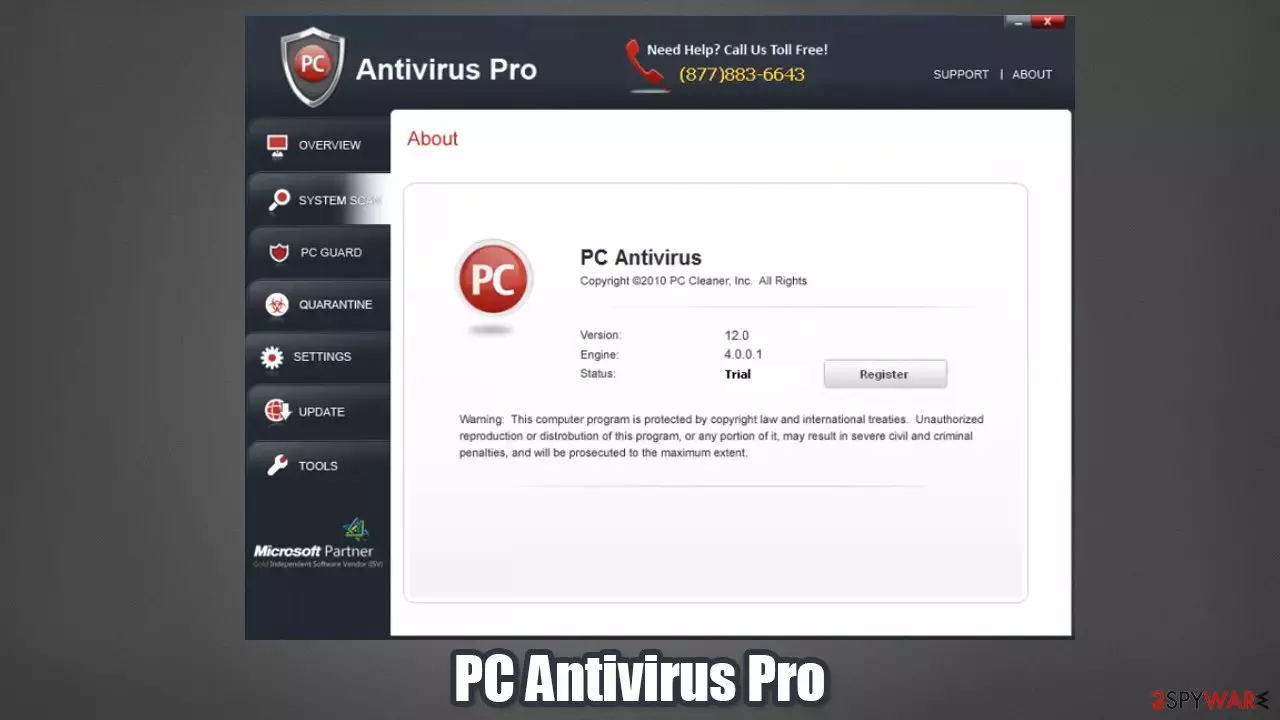
PC Antivirus Pro is a rogue security program that initially promises to protect users' Windows from malware, but is actually nothing but a scam. It is mainly distributed via fake online scanner websites which indicate alleged virus infection, scaring users into downloading and installing the program themselves.
Once installed, PCAntivirusPro would perform fake scans that would find dozens of fake viruses and spyware on the system. Victims then would be asked to navigate to the purchasing page where they would be asked to pay for the full license of the app. Do not buy it, as you not only would lose your money but you would let cybercriminals profit from this scam financially.
| Name | PC Antivirus Pro |
| Type | Malware, rogue anti-spyware |
| Distribution | Trojans, ads that show fake virus scans and later report about allegedly found infections |
| Risks | Monetary losses, installation of other malware, personal data leak |
| Elimination | In order to delete the infection along with all its malicious files, we highly recommend you scan your computer with SpyHunterCombo Cleaner or another powerful anti-malware |
| System fix | Rogue antispyware programs are designed to corrupt Windows system files, even making it completely inoperative. Therefore, once you delete the infection, we highly recommend you run a scan with the FortectIntego repair tool and avoid reinstallation of Windows |
Rogue anti-spyware programs are not uncommon, and they were particularly popular in the late 2000s. Due to a lack of knowledge about computer threats, users were easily tricked into installing malware on their devices. Unfortunately, this trend still continues to this day, as scareware like Power System Care, MyMacUpdater, or Smart Mac Cleaner emerges.
As already mentioned, the program is usually installed by users themselves after they see a fake ad online after a browser redirect. Alternatively, it could also be implemented automatically thanks to a Trojan downloader that is already present on the device. Therefore, it is extremely important to remove PC Antivirus Pro along with other malicious programs as soon as possible.
Once installed, the rogue would change the way Windows operates. Many users said that their computers became so incredibly damaged that they had to reinstall their operating systems, losing their personal files and other important data. Here are a few symptoms that you could experience when infected with this virus:
- Make startup items to launch with every Windows boot
- Create Scheduled tasks to show fake alerts regularly
- Prevent the installation of various programs, including security software
- Meddle with browser settings, preventing you from visiting various security-related websites
- Redirect you to scam, malware-laden, and other malicious websites, etc.
PCAntivirusPro will simulate a system scan and report various malware infections on your computer, such as adware, spyware, and Trojans. Then it will prompt you to pay for a full version of the program to remove the infections, which of course, don't even exist on your computer.
When running, PC Antivirus Pro will also display many fake security alerts stating that your computer is either infected with malware or under attack by an Internet virus. Anyway, that's not true. Those fake security alerts are being shown to scare you into thinking that your computer is compromised.
The only real infection is the program that is displaying this nonsense itself, so you obviously shouldn't purchase it. Instead, please use the removal instructions below to remove this fake program from your computer as soon as possible. In order to do that, perform a full system scan with SpyHunterCombo Cleaner or another anti-malware.
Then, clean your web browsers as explained below or employ FortectIntego for the job. It can also replace corrupted system files, so you don't have to reinstall the operating system after malware removal.
Malware distribution techniques
One of the main rogue anti-spyware software distribution methods is fake scanners that are shown to users once they access a malicious website. These redirects can be encountered randomly while browsing the web or when a potentially unwanted program is already installed on the system. This is another reason why a robust anti-malware with real-time protection feature should be installed on the device at all times.
To avoid being tricked by fake scanners, keep in mind that a website is not capable of detecting malware on your device. Only installed security programs are capable of doing that. Thus, if you ever see a claim that your device is infected, simply ignore the website and leave it immediately.
Remove PCAntivirusPro virus from your system as soon as possible
If you find that your computer is infected with this virus, please use the removal instructions below to remove PC Antivirus Pro from your PC either manually or with an automatic removal tool. If you have already purchased this phony program, please contact your credit card company and dispute the charges.
Keep in mind that this malicious program might have been installed via a Trojan that is already present on the device. If you are having trouble installing or launching a genuine anti-malware tool, you should access Safe Mode as explained below and perform a full system scan there. Once done, use FortectIntego to repair damaged Windows system files and clean your web browsers automatically.
Remove from Microsoft Edge
Delete unwanted extensions from MS Edge:
- Select Menu (three horizontal dots at the top-right of the browser window) and pick Extensions.
- From the list, pick the extension and click on the Gear icon.
- Click Remove.


Clear cookies and other browser data:
- Click on the Menu (three horizontal dots at the top-right of the browser window) and select Settings > Privacy, search, and services..
- Under Clear browsing data, pick Choose what to clear.
- Select Cookies and other site data and Cached images and files. (apart from passwords, although you might want to include Media licenses as well, if applicable) and click on Clear.


Restore new tab and homepage settings:
- Click the menu icon and choose Settings.
- Then find On startup section.
- Click Remove next to any suspicious startup page.
Reset MS Edge if the above steps did not work:
- Press on Ctrl + Shift + Esc to open Task Manager.
- Click on More details arrow at the bottom of the window.
- Select Details tab.
- Now scroll down and locate every entry with Microsoft Edge name in it. Right-click on each of them and select End Task to stop MS Edge from running.


Instructions for Chromium-based Edge
Delete extensions from MS Edge (Chromium):
- Open Edge and click select Settings > Extensions.
- Delete unwanted extensions by clicking Remove.


Clear cache and site data:
- Click on Menu and go to Settings.
- Select Privacy, search and services.
- Under Clear browsing data, pick Choose what to clear.
- Under Time range, pick All time.
- Select Clear now.


Reset Chromium-based MS Edge:
- Click on Menu and select Settings.
- On the left side, pick Reset settings.
- Select Restore settings to their default values.
- Confirm with Reset.
- This will disable extensions and reset startup pages but will not delete bookmarks, saved passwords, or browsing history.


Remove from Mozilla Firefox (FF)
Remove dangerous extensions:
- Open Mozilla Firefox browser and click on the Menu (three horizontal lines at the top-right of the window).
- Select Add-ons.
- In here, select the unwanted extension and click Remove.


Reset the homepage:
- Click three horizontal lines at the top right corner to open the menu.
- Choose Settings.
- Under Home, set your preferred homepage and new tab settings.
Clear cookies and site data:
- Click Menu and pick Settings.
- Go to Privacy & Security section.
- Scroll down to locate Cookies and Site Data.
- Click on Clear Data...
- Select Cookies and Site Data and Temporary cached files and pages, then click Clear.


Reset Mozilla Firefox
If clearing the browser as explained above did not help, reset Mozilla Firefox:
- Open Mozilla Firefox browser and click the Menu.
- Go to Help and then choose Troubleshooting Information.

- Under Give Firefox a tune up section, click on Refresh Firefox...
- Once the pop-up shows up, confirm the action by pressing on Refresh Firefox.



Remove from Google Chrome
Delete malicious extensions from Google Chrome:
- Open Google Chrome, click on the Menu (three vertical dots at the top-right corner) and select More tools > Extensions.
- In the newly opened window, you will see all the installed extensions. Uninstall all suspicious extensions related to the unwanted program by clicking Remove.


Clear cache and web data from Chrome:
- Click on Menu and pick Settings.
- Under Privacy and security, select Clear browsing data.
- Select Browsing history, Cookies and other site data, as well as Cached images and files.
- Click Clear data.


Change your homepage:
- Click menu and choose Settings.
- Look for a suspicious site in the On startup section.
- Click on Open a specific or set of pages and click on three dots to find the Remove option.
Reset Google Chrome:
If the previous methods did not help you, reset Google Chrome to eliminate all the unwanted components:
- Click on Menu and select Settings.
- In the Settings, scroll down and click Advanced.
- Scroll down and locate Reset and clean up section.
- Now click Restore settings to their original defaults.
- Confirm with Reset settings.


Delete from Safari
Remove dangerous extensions:
- Open Safari, click Safari in the menu at the top-left of the screen, and select Preferences.
- Go to the Extensions tab, look for any suspicious entries, and click Uninstall to remove them.


Clear history and website data:
- Click Safari in the menu and pick Clear History.
- Set Clear to all history and confirm with Clear History.


Reset Safari:
- Click Safari in the menu and select Preferences > Advanced.
- Enable Show Develop menu in menu bar.
- From the menu bar, click Develop and select Empty Caches.


Did this guide help?
Be the first to comment