

SearchConverterIt – a PUP that injects ads into your search results
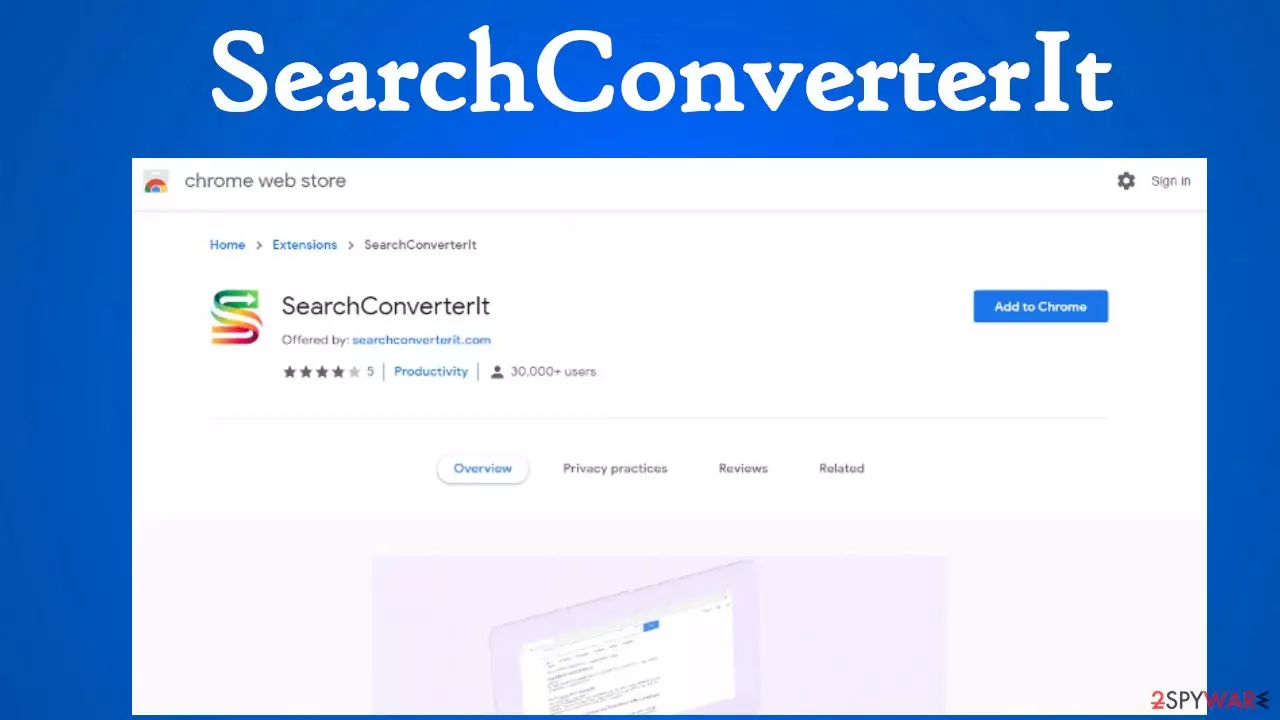
SearchConverterIt is a browser hijacker that modifies browser settings such as the default search engine, new tab, and homepage without your permission. That enables it to redirect all your search inquiries through fake search engines until results from Yahoo, Bing, or other search providers of its choice are displayed.
This browser intruder is also capable of injecting ads into search results. These ads could redirect you to questionable or even dangerous websites. Furthermore, it can gather non-personal information, such as geolocations, IP addresses, device/browser info, visited sites, search inquiries, etc.
It's not recommended to have any potentially unwanted programs[1] (PUPs) installed on any of your devices as they could pose real dangers. By reading this article, you'll find out how such software is spread, what are the risks of having it, and how to remove it.
| name | SearchConverterIt |
|---|---|
| Type | Browser hijacker, PUP |
| altered browser settings | New tab, homepage, default search engine |
| Appointed fake search site | feed.searchconverterit.com, portal.searchconverterit.com |
| IP address | 104.21.32.6, 172.67.182.27 |
| Symptoms | Search results are displayed from a different provider than before and contain ads; the device is running slower; decreased browsing speed |
| Risks | PUP and malware infections, security and privacy issues |
| Distribution | Fake Flash Player updates, official web stores, software bundles, deceptive ads |
| Elimination | Scan the infected device with a trustworthy security tool to remove any infections. Please remember to update virus signatures constantly so the anti-malware software could block the latest threats |
| System health check | PUPs cause havoc on system directories and settings, which may cause BSoDs, severe lag, and other system failures. You can resolve all system-related issues by performing system diagnostics with the time-tested FortectIntego system repair tool |
New browser hijackers are created every day. For a short period of time, they can be falsely advertised on official marketplaces, such as Google Chrome Web Store, before they're taken down. But Make Changes virus, VideoSearchz virus, SearchConverterIt virus, and cyberthreats alike can also be delivered through various stealthy techniques, such as :
- Software bundles,
- deceptive ads,
- file-sharing platforms,
- fake Flash Player updates, etc.
These PUPs generate revenue by redirecting you to their affiliated pages. They can do that either by showing you deceptive ads that have nothing to do with the pages you'll end up on if they're clicked and by causing sudden redirects where a browser is launched (or a new tab opened) with sponsored content.
And that's the riskiest attribute of SearchConverterIt because you could end up on questionable, shady, or even malicious portals. Some advertised pages might be harmless, but others could try to draw out your private details, involve you in various scams, infect your device instantly with severe malware through drive-by downloads,[2] and so on.

Therefore, if you installed the article's culprit, either willingly or not, you have to remove it, and the sooner, the better. For this task, it would be best if you used a reliable anti-malware tool such as MalwarebytesMalwarebytes or SpyHunterCombo Cleaner. Either of these free security apps will automatically eliminate threats.
Afterward, a system tune-up is in order to repair any damage that your device's system files and settings sustained. IT specialist,[3] highly recommend using the time-proven FortectIntego system diagnostics tool to resolve any system irregularities so you could enjoy your device anew.
Take cybersecurity matters into your own hands
Since the beginning of malware, it evolved into a huge illegal business. There are various types of malware, and cybercriminals are always developing more sophisticated, harder to detect, and more ferocious infections that can affect smartphones, Mac, and Windows computers.
That's why everyone who uses the internet for work or leisure should improve their cybersecurity level. Stick to the guidelines below, and you might evade serious infections or minimize the damage if any of them slip by:
- Install the latest updates (except BETA versions) to all software installed on your device, especially the operating system.
- Store backups of all critical data on two at least two separate devices. One storage should be offline.
- Use trustworthy anti-malware software to scan your device twice a week. Frequently update its virus database with the latest virus signatures.
- Learn about the most popular malware spreading methods online.
- Maintain your device's overall health by using a time-proven system diagnostics tool.

Simple instructions to remove SearchConverterIt virus from your browser and system
If feed.searchconverterit.com opens each time when you launch your browser or open a new tab, that means a potentially unwanted program hijacked your browser. Luckily, this infection is not as dangerous as malware, but it still should be taken care of quickly.
To begin its removal process, you have to scan your device with a security tool. Download and install reliable anti-malware software that will remove the threat automatically. Afterward, use our free instructions below to remove the PUP from your browser (it might be installed as an extension).
And lastly, run system diagnostics with compatible system repair tools to undo any changes that SearchConverterIt browser hijacker has made to system files and settings. If these alterations are left unattended, your device might constantly crash, freeze, or exhibit other abnormal behavior.
Uninstall from Windows
Uninstall from Windows 10/8:
- Type Control Panel into the Windows search box and open the result.
- Under Programs, select Uninstall a program.


Uninstall from Windows 7/XP:
- Click on Windows Start > Control Panel (Windows XP users should click on Add/Remove Programs).
- In Control Panel, select Programs > Uninstall a program.


Remove the unwanted program:
- In the Programs and Features window, look for any recently installed suspicious entries, select them, and click Uninstall.
- If User Account Control appears, click Yes to confirm, then complete the removal.


Delete from macOS
Remove the unwanted application:
- From the menu bar, select Go > Applications.
- In the Applications folder, look for any suspicious entries, then drag them to Trash (or right-click and pick Move to Trash).


Delete leftover files and folders:
- Select Go > Go to Folder.
- Enter /Library/Application Support and remove any suspicious folders related to the unwanted program.
- Repeat the same check in the /Library/LaunchAgents and /Library/LaunchDaemons folders, deleting any suspicious entries.

- Finally, empty the Trash to permanently remove the leftovers.

Remove from Microsoft Edge
Delete unwanted extensions from MS Edge:
- Select Menu (three horizontal dots at the top-right of the browser window) and pick Extensions.
- From the list, pick the extension and click on the Gear icon.
- Click Remove.


Clear cookies and other browser data:
- Click on the Menu (three horizontal dots at the top-right of the browser window) and select Settings > Privacy, search, and services..
- Under Clear browsing data, pick Choose what to clear.
- Select Cookies and other site data and Cached images and files. (apart from passwords, although you might want to include Media licenses as well, if applicable) and click on Clear.


Restore new tab and homepage settings:
- Click the menu icon and choose Settings.
- Then find On startup section.
- Click Remove next to any suspicious startup page.
Reset MS Edge if the above steps did not work:
- Press on Ctrl + Shift + Esc to open Task Manager.
- Click on More details arrow at the bottom of the window.
- Select Details tab.
- Now scroll down and locate every entry with Microsoft Edge name in it. Right-click on each of them and select End Task to stop MS Edge from running.


Instructions for Chromium-based Edge
Delete extensions from MS Edge (Chromium):
- Open Edge and click select Settings > Extensions.
- Delete unwanted extensions by clicking Remove.


Clear cache and site data:
- Click on Menu and go to Settings.
- Select Privacy, search and services.
- Under Clear browsing data, pick Choose what to clear.
- Under Time range, pick All time.
- Select Clear now.


Reset Chromium-based MS Edge:
- Click on Menu and select Settings.
- On the left side, pick Reset settings.
- Select Restore settings to their default values.
- Confirm with Reset.
- This will disable extensions and reset startup pages but will not delete bookmarks, saved passwords, or browsing history.


Remove from Mozilla Firefox (FF)
Remove dangerous extensions:
- Open Mozilla Firefox browser and click on the Menu (three horizontal lines at the top-right of the window).
- Select Add-ons.
- In here, select the unwanted extension and click Remove.


Reset the homepage:
- Click three horizontal lines at the top right corner to open the menu.
- Choose Settings.
- Under Home, set your preferred homepage and new tab settings.
Clear cookies and site data:
- Click Menu and pick Settings.
- Go to Privacy & Security section.
- Scroll down to locate Cookies and Site Data.
- Click on Clear Data...
- Select Cookies and Site Data and Temporary cached files and pages, then click Clear.


Reset Mozilla Firefox
If clearing the browser as explained above did not help, reset Mozilla Firefox:
- Open Mozilla Firefox browser and click the Menu.
- Go to Help and then choose Troubleshooting Information.

- Under Give Firefox a tune up section, click on Refresh Firefox...
- Once the pop-up shows up, confirm the action by pressing on Refresh Firefox.



Remove from Google Chrome
Delete malicious extensions from Google Chrome:
- Open Google Chrome, click on the Menu (three vertical dots at the top-right corner) and select More tools > Extensions.
- In the newly opened window, you will see all the installed extensions. Uninstall all suspicious extensions related to the unwanted program by clicking Remove.


Clear cache and web data from Chrome:
- Click on Menu and pick Settings.
- Under Privacy and security, select Clear browsing data.
- Select Browsing history, Cookies and other site data, as well as Cached images and files.
- Click Clear data.


Change your homepage:
- Click menu and choose Settings.
- Look for a suspicious site in the On startup section.
- Click on Open a specific or set of pages and click on three dots to find the Remove option.
Reset Google Chrome:
If the previous methods did not help you, reset Google Chrome to eliminate all the unwanted components:
- Click on Menu and select Settings.
- In the Settings, scroll down and click Advanced.
- Scroll down and locate Reset and clean up section.
- Now click Restore settings to their original defaults.
- Confirm with Reset settings.


Delete from Safari
Remove dangerous extensions:
- Open Safari, click Safari in the menu at the top-left of the screen, and select Preferences.
- Go to the Extensions tab, look for any suspicious entries, and click Uninstall to remove them.


Clear history and website data:
- Click Safari in the menu and pick Clear History.
- Set Clear to all history and confirm with Clear History.


Reset Safari:
- Click Safari in the menu and select Preferences > Advanced.
- Enable Show Develop menu in menu bar.
- From the menu bar, click Develop and select Empty Caches.


Did this guide help?
Be the first to comment