

Nusm file virus – dangerous ransomware that leaves personal data inaccessible
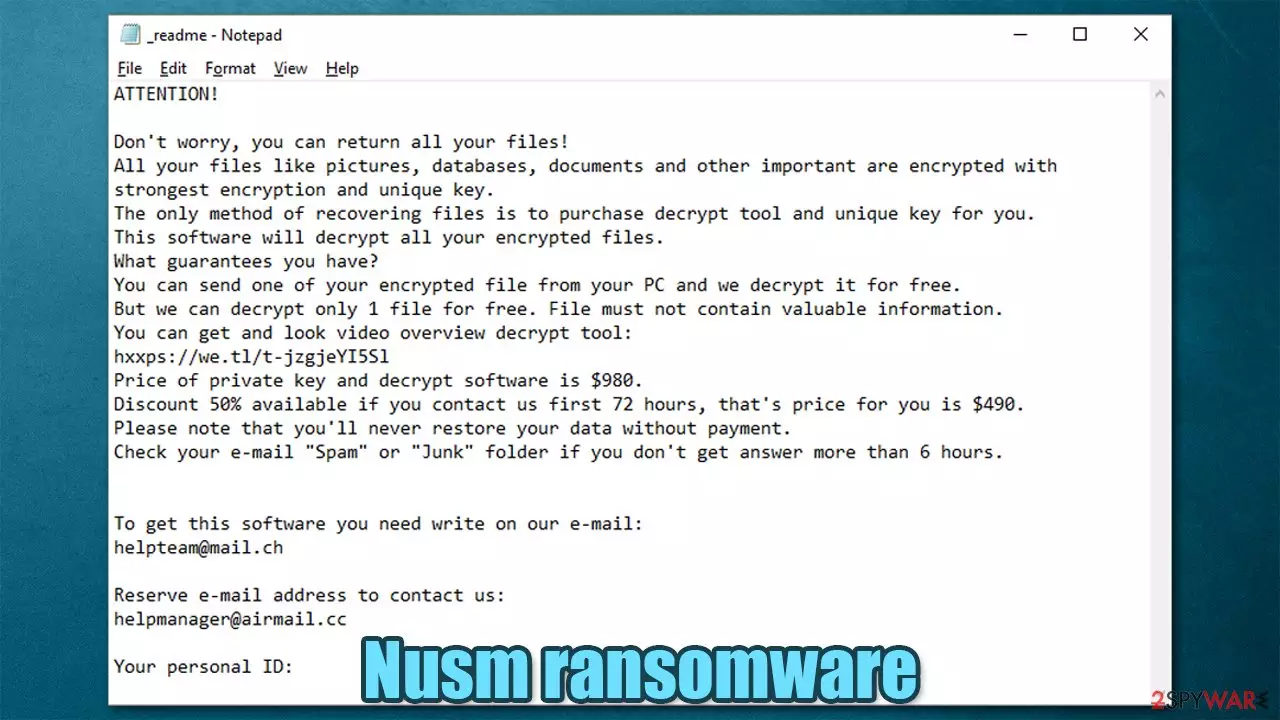
Nusm ransomware is a type of Windows malware that locks all personal files on an infected computer within a few minutes after gaining access to it. Then it generates a ransom note, titled _readme.txt, and leaves it on the desktop and random folders with encrypted files.
Within that note, malware developers state their demands and instructions on what to do to regain access to the locked data. Suchlike modified files are then marked with .nusm extension and can no longer be accessed. It is important to note that the data is not corrupted and is potentially retrievable.
Cybercriminals urge the victims to contact them via helpmanager@airmail.cc, helpteam@mail.ch within 72 hours to receive a 50% discount for the ransom. That would lower the amount needed to transfer in Bitcoins from $980 to $490. If you're reading this article, we assume that you were unlucky enough to get your device infected with Nusm virus.
Although we receive tons of emails asking, “how did ransomware infect my device?” there's no unequivocal answer to this question. Security researchers claim that the most common distribution method for this strain is software cracks[1] and torrent websites, although you should keep in mind that software bundles,[2], or other methods can be used for this purpose.
This article was created to provide you with the correct course of actions to be taken upon ransomware infiltration and guide you through the process with detailed instructions. Since this virus is a member of the Djvu family, there might be a chance of restoring the encrypted files without paying the attackers.
If you spot that Nusm ransomware encryption is taking place on your device, the first thing you should do is disconnect it from any other devices that are connected to it, whether it's a USB drive or a Network Attached Storage (NAS). Also, please unplug your network cable, and turn off the WiFi on your device. That is essential to prevent re-infection after ransomware removal is complete.
Ensuring that copies of locked files are preserved at the correct time is crucial, as, if everything else fails, you might be able to restore them later in the future. The correct process of malware removal is also essential. Please follow the instructions below to achieve the best possible outcome for you and your files.
Here is a summary of the dangerous computer infection:
| name | Nusm virus |
|---|---|
| Type | Ransomware, file-locking virus |
| Family | Djvu/STOP, based on Virus Total results |
| Previous version | Igvm |
| infection symptoms | Personal data is renamed and is inaccessible; a ransom note appears on the desktop; security-related websites can't be opened thanks to “hosts” file modifications |
| Appended file extension | .nusm |
| Ransom note | _readme.txt |
| File recovery | Might be possible with Emsisoft decryptor or a few alternative methods – refer for more below |
| Elimination | Remove this parasite with our detailed instructions posted below |
| System health fix | Recover the damage done to your device's system files and settings sustained by running system diagnostics with the time-proven FortectIntego PC repair tool |
Nusm virus removal instructions and means to restore altered system settings
The first step is realizing that the worst part is over. The infection has done its bidding. Now what really matters is how you react to all of this. We highly recommend not paying the ransomware developers as you may never receive the promised decryption software. The ransom money would only increase the motivation of the assailants to attack more innocent people and develop more advanced malware.
Before you take on the task of the ransomware removal, you should copy the encrypted files onto a separate storage device, such as a USB flash drive or SSD, and then disconnect them from your PC. Locked data does not hold any malicious code, so it is safe to transfer to other devices
When your data is extracted, you should proceed with Nusm ransomware removal. For it, you should employ anti-malware software. Some ransomware can self-destruct after a successful file encryption process. Even in such cases, malware might leave various data-stealing modules or could operate in conjunction with other dangerous programs on your device.

SpyHunterCombo Cleaner or MalwarebytesMalwarebytes can detect and eliminate all ransomware-related files, additional modules, along with other infections that could be hiding on your computer. These security tools are really easy to use and do not require any prior IT knowledge to succeed in the removal process.
A proper AV engine might have been able to protect you from Nusm ransomware as a report from VirusTotal[3] shows, that 55 out of 69 of the most popular security tools have identified the virus and prevented it from accessing the system. Here are some examples of its detections names:
- Trojan.GenericKD.46322797
- Artemis!220AA39CCC6D
- Trj/GdSda.A
- Trojan:Win32/Azorult.RTH!MTB
- Win32:PWSX-gen [Trj]
- Win32/Filecoder.STOP.A
By causing alterations to various system directories, Djvu ransomware might block you from visiting security-related pages or opening your anti-malware software. The latter can be resolved by rebooting your infected device in Safe Mode with Networking, which guide can be found at the bottom of the page.
The caused modifications won't go away when you remove Nusm virus. It would be best if you used special software to recover from the damage. According to cybersecurity experts,[4] there's no better way to resolve any system inconsistencies than by running a scan with the FortectIntego optimizer.
Here's what you need to do to get your computer system back on track and avoid BSoDs, freezing, and other system stability and performance issues:
- Download the application by clicking on its name above
- Click on the ReimageRepair.exe

- If User Account Control (UAC) shows up, select Yes
- Press Install and wait till the program finishes the installation process
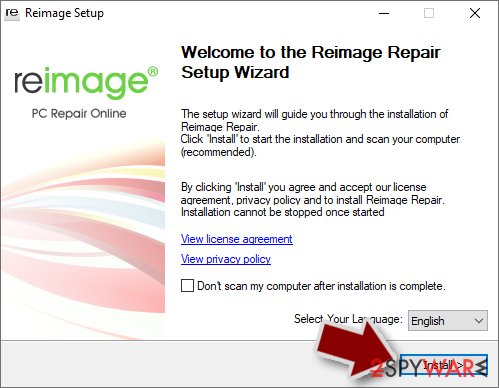
- The analysis of your machine will begin immediately
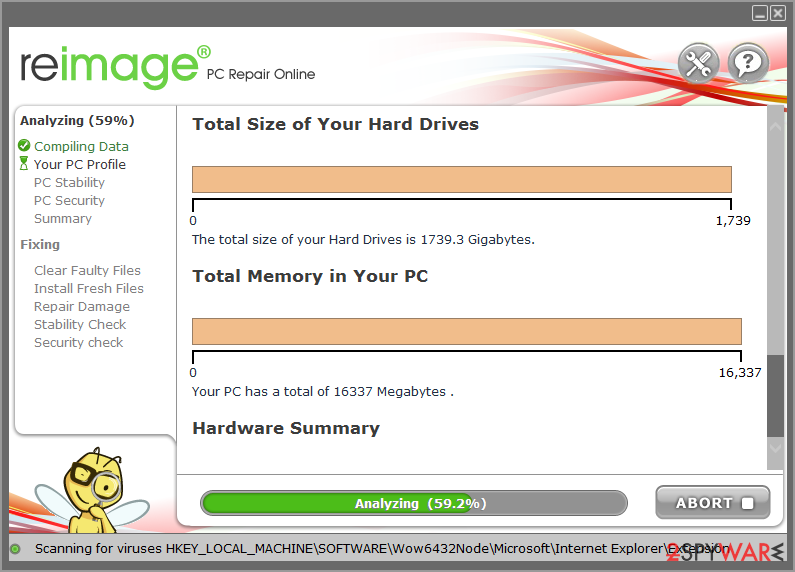
- Once complete, check the results – they will be listed in the Summary
- You can now click on each of the issues and fix them manually
- If you see many problems that you find difficult to fix, we recommend you purchase the license and automatically fix them.



By using this PC repair tool, you would not have to worry about future computer issues, as most of them could be fixed quickly by performing a full system scan at any time. Most importantly, you could avoid the tedious process of Windows reinstallation in case things go very wrong due to one reason or another.
Only when you complete all these steps can you safely recover your files from backups or try to recover Nusm files with decryptors (next paragraph). And please remember that keeping your antivirus software up to date could prevent the latest malware from infecting your devices, so make a habit of updating it at least twice a week.
Free decryption software might help you to regain access to your locked data
This part of the article is about encrypted file recovery, so if you had excessive backups of all your essential data, you should skip this paragraph and recover your data if the infection is completely removed from your device. If you didn't store backups, please be advised that you could get away from this sticky situation without paying a dime as some Djvu ransomware variants can be deciphered for free by using Emsisoft decryption tools.
We're not saying that it works all the time, but you should try it anyway:
- The first step would be to download the app from the official Emsisoft website.
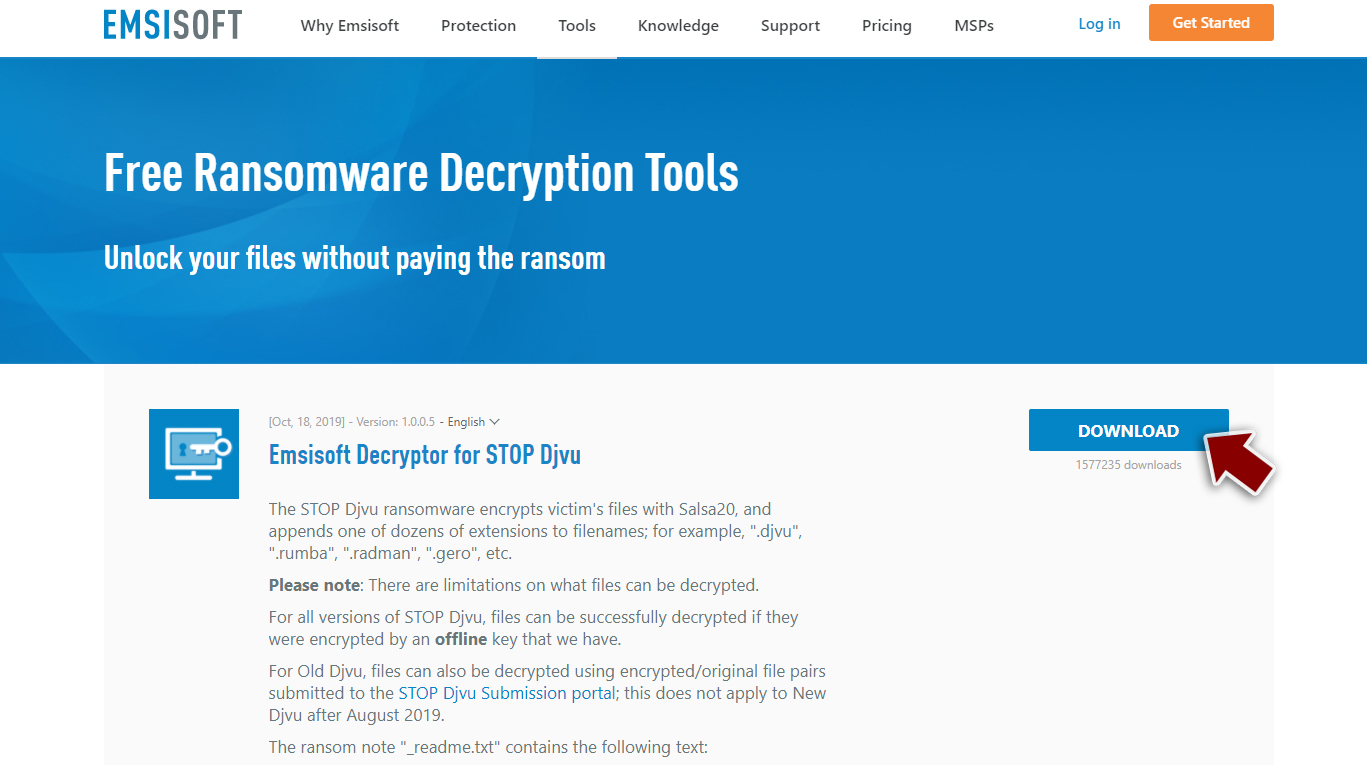
- After pressing the Download button, a small pop-up at the bottom, titled decrypt_STOPDjvu.exe, should show up – click it.
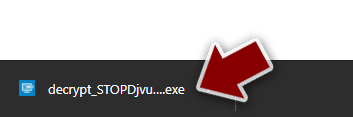
- If User Account Control (UAC) message shows up, press Yes.
- Agree to License Terms by pressing Yes.
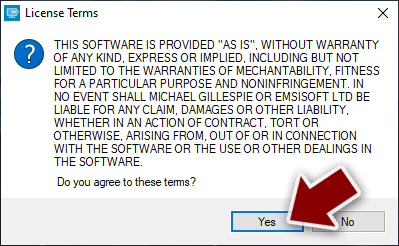
- After the Disclaimer shows up, press the OK button.
- The tool should automatically identify folders affected by Nusm ransomware, although you can also do it by pressing Add folder at the bottom.
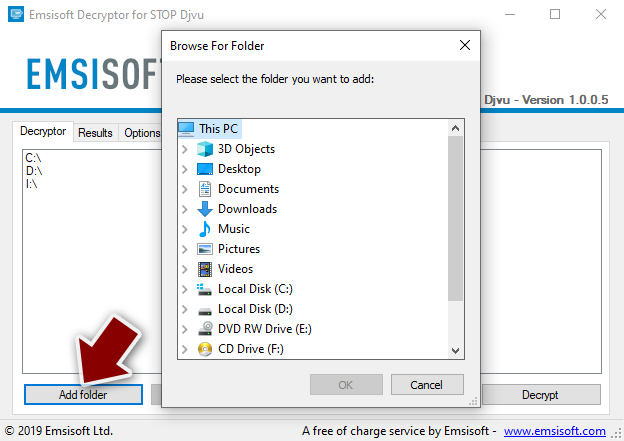
- Press Decrypt.
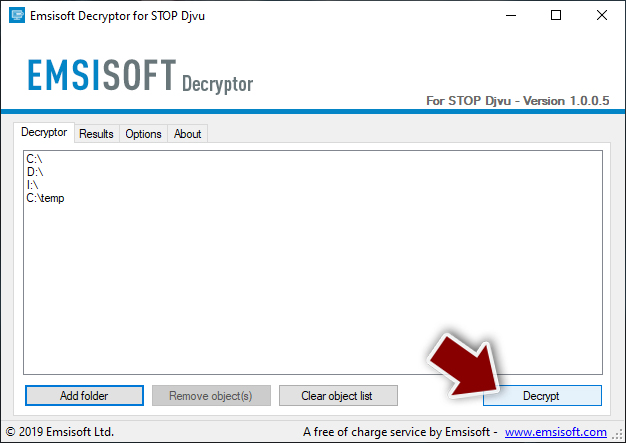


From here, there are three available outcomes:
- “Decrypted!” will be shown under files that were decrypted successfully – they are now usable again.
- “Error: Unable to decrypt file with ID:” means that the keys for this version of the virus have not yet been retrieved, so you should try later.
- “This ID appears to be an online ID, decryption is impossible” – this decryption tool won't help you with this particular ransomware.
If the free decryption software didn't do the trick, and the files encrypted by Nusm ransomware are still inaccessible, please rest assured that sooner or later, Emsisoft or other companies fighting with ransomware and helping their victims could produce the necessary key so you could decipher your locked data.

Besides, you will find more information below that could help you recover at least some of your lost files – using data recovery software, for example. Also, you will find a few tips on how to backup your data effectively to prevent its future compromise.
Did this guide help?
Be the first to comment